If your institution allows you to manage a catalog or subcatalog, you can view the catalog and subcatalogs from the Admin menu as a subcatalog admin.
Although your admin access may be limited to a specific catalog or subcatalog, Catalog functionality is the same as given to full Catalog admins.
Open Admin
To open the User Menu, click your username [1]. Then, click the Admin link [2].
View Catalogs and Subcatalogs
By default, Catalog displays data for all the catalogs and subcatalogs you have access to [1]. To view data for a specific catalog or subcatalog, click the catalog or subcatalog name option in the Catalog tab [2].
For each catalog or subcatalog, you can do the following:
- Manage Listings [1]: View and manage course and program listings
- Manage Catalogs [2]: View and manage catalogs and subcatalogs
- Manage Promotions [3]: View and manage all catalog-specific or listing-specific promotion codes for course or program enrollments
- View Analytics [4]: View analytics and generate reports for listings, enrollments, orders, and users
- Automations [5]: View, manage, and create deadline nudges
- Subcatalog Admins [6]: View, manage, enable and disable permissions for other users to act as subcatalog admins
- Tags [7]: View, manage, and create listing tags
- Logs [8]: View and manage logs
- Integrations [9]: Integrate Catalog Info page settings
- API Keys [10]: Access the Canvas Catalog API to view information about your Catalog account.
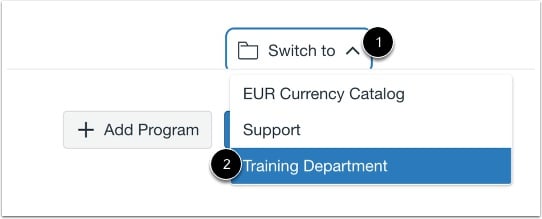
To switch to a different subcatalog, click the Switch To drop-down menu [1] and then click the subcatalog you want to open [2].