As a Catalog admin, you can create a custom certificate for a Catalog course or program. Certificates must be in HTML/CSS format and can be customized with some supported variables, such as "Congratulations, {{student_name}}!"
To customize a certificate, you can use the following supported variables in your template:
- student_name:The name of the student
- student_first_name:The student's first name
- student_last_name:The student's last name
- student_name_upper:The student's full name in UPPERCASE
- student_initials:The first 3 characters of the student's name, uppercased
- student_email:The email of the student
- student_email_b64:The student's email base64-encoded
- student_canvas_user_id:The canvas user id of the student
- catalog_name:The name of the school or institution
- catalog_logo:The URL of your catalog logo. Usage: <img src="{{catalog_logo}}" />
- award_name:The name of the certificate
- award_initials:The uppercase initials of each word in the certificate name
- course_code:The product's SKU / course code (whatever you set in the product's SKU field)
- completion_date:The date of completion (localized long form, e.g. "May 4, 2026")
- completion_date_iso:The completion date in ISO format (YYYY-MM-DD)
- completion_year:The four-digit year of completion
- completion_month:The numeric month of completion (112)
- completion_day:The numeric day of completion (131)
- completion_month_name:The full month name of completion, localized to the catalog locale
- completion_month_abbr:The 3-letter abbreviated month of completion, localized (e.g. "May", "Jan")
- completion_day_ordinal:The day of completion with English ordinal suffix (e.g. "6th", "21st", "1st")
- completion_day_padded:The 2-digit zero-padded day of completion (e.g. "06", "21")
- completion_month_padded:The 2-digit zero-padded month of completion (e.g. "05", "11")
- expiration_date:The date the certificate expires; only present if expiration is set
- expiration_date_iso:The expiration date in ISO format (YYYY-MM-DD); only present if expiration is set
- expiration_year:The four-digit year of expiration; only present if expiration is set
- expiration_month:The numeric month of expiration (112); only present if expiration is set
- expiration_day:The numeric day of expiration (131); only present if expiration is set
- expiration_month_name:The full month name of expiration, localized; only present if expiration is set
- enrollment_date:The date of enrollment
- enrollment_date_iso:The enrollment date in ISO format (YYYY-MM-DD)
- enrollment_year:The four-digit year of enrollment
- enrollment_month:The numeric month of enrollment (112)
- enrollment_day:The numeric day of enrollment (131)
- enrollment_month_name:The full month name of enrollment, localized
- current_year:The current four-digit year
- verification_code:A verification code (up to 10 characters) derived from the learner and completion date. Useful for receipt or audit numbers.
- credits:The credits, points, CEUs, or hours earned by the student.
- credits_number_only:The numeric credit value only, without credit type designation.
- credit_hours:Same as credits_number_only; alias for templates that prefer the credit_hours name.
- primary_instructor_name:The name of the primary Maestro
Notes:
- As of May 18, 2026, JavaScript is no longer supported.
- If you previously used JavaScript, review and update your certificates to avoid rendering issues.
- You can use variables in your template to display specific information on the certificate. For instance, "Congratulations, {{student_name}}!" The template should be in HTML/CSS format.
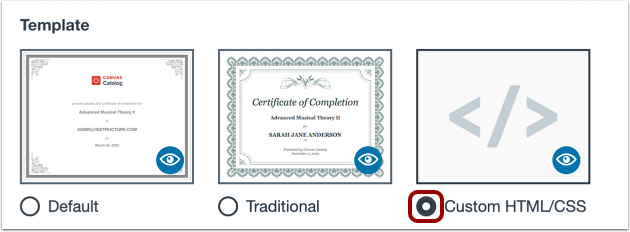
Select Custom Template
Follow the steps to add a certificate of completion for a Catalog course or program.
In the Template section, click the Custom HTML/CSS radio button.
Add Custom Template Details
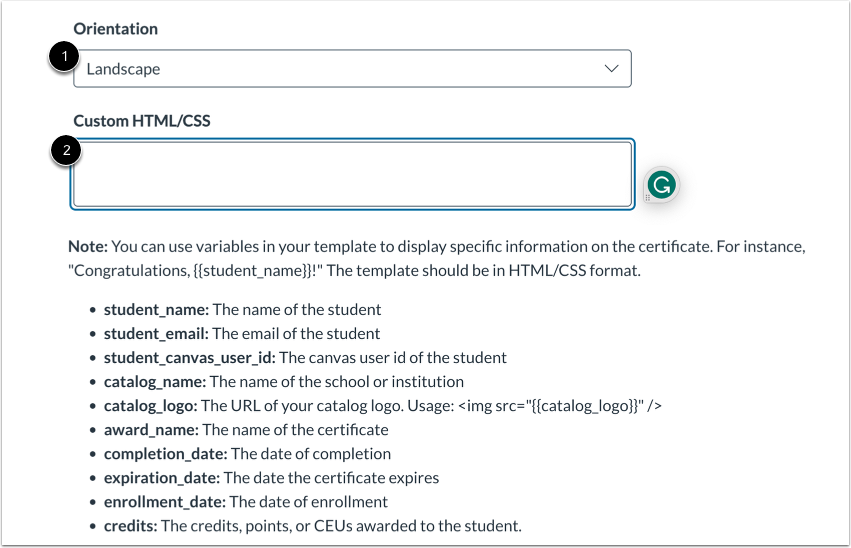
To select the orientation for the template, click the Orientation drop-down menu [1].
To enter custom code, enter HTML/CSS code or paste a link to an external template file in the Custom HTML/CSS field [2].
Sample HTML/CSS for a Custom Certificate
<html>
<body>
<style>
.container{
border: 6px double black;
height: 544px;
box-sizing: border-box;
padding: 100px 20px 0;
font-family:san serif;
text-align:center;
font-weight:bold;
font-size: 2em;
}
h1,h2,h3,h4,h5{margin:0 0 0.25em}
body,html{padding:0;margin:0}
</style>
<div class="container">
<h1>{{catalog_name}}</h1><br>
<h4>awards this</h4>
<h2>{{award_name}}<h2>
<h4>to</h4><br>
<h3>{{student_name}}</h3>
<h5>{{completion_date}}</h5>
</div>
</body>
</html> Enter HTML/CSS code for a custom certificate.
Preview Certificate
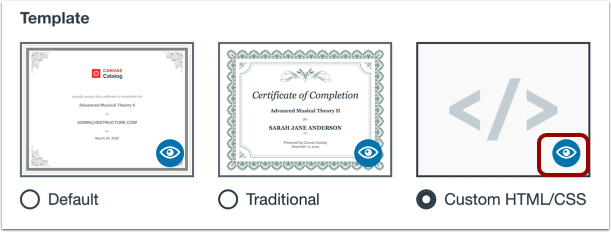
To preview a certificate, click the Preview icon.
Save Certificate
Click the Save button [1].
The successfully updated banner displays [2].
Note: Catalog will notify you if there are errors with your certificate. If there are any errors, correct them and then click the Save button again.