In Canvas Catalog, you can purchase multiple enrollments and invite students to sign up for the reserved seats in a Bulk Enrollment.
When you check out, Catalog preserves your enrollment spot(s) in capped courses for ten minutes while you complete the enrollment process. Paid courses and programs require payment as part of the enrollment process. You can also add promotion codes at checkout.
The first time you purchase bulk enrollments in a catalog listing with your institution, you must complete your registration.
Notes:
- Before you can view your institution's Catalog listings, you may need to log in to Canvas.
- Depending on how your institution has configured the Catalog course enrollment process, you may be required to complete enrollment fields that are not shown here.
- The appearance of the Catalog Listings page may vary depending on the platform version or any custom styling applied through website code, such as CSS, JS, or HyperText Markup Language (HTML).
Because payment options vary from institution to institution, the payment process is not documented here. For assistance paying for listings through your institution's payment gateway, please contact your institution's help desk.
Open Catalog
In your browser window, enter your institution's Catalog URL in the address field.
Locate Course Listing
Locate a course by scrolling through the list.
To search for a specific course or program, enter text in the Search field [1]. To refine the search, click the Filter button [2].
To view a listing's details page, click the Course icon [3].
Select Bulk Enrollment Options
To select multiple enrollments for a listing, click the Bulk Enrollment button [1].
Enter the number of seats you want to reserve in the Seats Required field [2].
If a listing has a student cap enabled, a warning message displays if your request exceeds the number of available seats [3].
To reserve seats, click the Claim Seats button [4].
Note: All bulk seat sales are final. There are no refunds or transfers for unused seats. Double-check the number of seats before completing your purchase
If you already have a Canvas account at your institution, click the Sign in to Enroll link [1].
If you do not have a Canvas account at your institution, register a new account by completing the new account registration information [2].
Verify New User Account
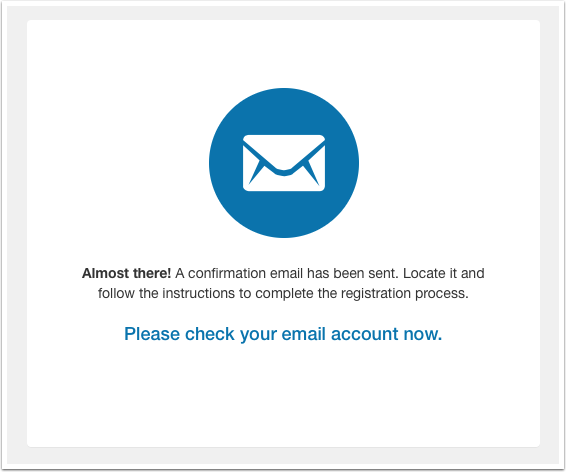
If you registered for a new account, you must verify your account to complete your registration and begin the course. Check your registration email address to confirm your account.
View Paid Enrollment Reservation
The listing price per seat [1], number of seats requested [2], and total cost for the bulk purchase [3] display.
To change the number of seats reserved, click the seat change field [4].
Complete Paid Enrollment
If you have a promotional code, enter it in the Promotion Code(s) field [1]. Then, click the Apply button [2]. Repeat with additional promotional codes.
To add the items to the cart and complete the checkout process by clicking the Checkout for Myself button [3] or Purchase Seat for Others button [4].
Manage Pay and Enroll
To complete enrollment and pay for your selected listings, click the Pay and Enroll button [1].
To cancel the checkout process, click the Cancel button [2]. This will release the reserved seats. The checkout page will redirect to your institution's listings page.
Note: Because payment options vary from institution to institution, the payment process is not documented here. For assistance paying for listings through your institution's payment gateway, please contact your institution's help desk.
Complete Reserve Seats
If reserving seats for others, a time limit banner displays [1]. To purchase the seat(s), click theClaim Seat(s)button [2].
View Purchase Confirmation
The enrollment confirmation displays [1].
To invite students to enroll in the course using your purchase, click the Invite button [2].
To return to your institution's catalog listings page, click the Return to Catalog button [3].
To view invitations, you can click the View Invitations link [4].
Notes:
- If your enrollment failed, the Confirmation page displays a Failed (retry) status.
- If your enrollment is pending, the Confirmation page displays a Pending status.
View Enrollment in Progress
While checkout in in progress, you can either select Go to Checkout [1]to continue or Cancel Checkout [2] to exit.