In Canvas Catalog, programs are comprised of requirements that students must finish to complete the program. Requirements can be Catalog courses or other Catalog programs added as subprograms. As a Catalog admin, you can view current requirements within a program and add or delete requirements.
Each course listing in Catalog exists as a stand-alone listing, even when it is associated with a program listing. Each requirement within the program has its own visibility and enrollment details. For more information, refer to our guide on how catalog requirements appear in program listings.
Notes:
- Catalog does not prevent you from adding a requirement to more than one program, but doing so is discouraged, and performance can not be guaranteed. For more information, refer to our guide on how add course module requirements in Canvas.
- In a Catalog program, each course includes a series of module requirements that students must fulfill before they can move on to the next course in the program. These module requirements are set in the Canvas course.
- A program-level setting to auto-enroll students in all courses upon enrollment in a program is added to Catalog.
Open Admin
Click the username drop-down menu [1]. Then, click the Admin link [2].
View Listings Page
Click the Listings tab.
Open Program
Click the program name link.
Open Requirements
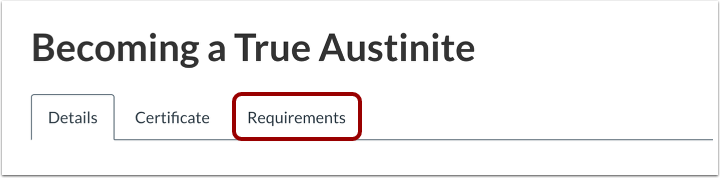
Click the Requirements tab.
View Requirements
The Requirements page shows requirements added as part of the program. You can view the name of the course or program that has been added as a requirement.
Each course or subprogram that is part of a program listing also exists as a stand-alone listing. For more information, refer to our guide on how various visibility and enrollment statuses display in Catalog.
Manage Requirement Completion Order
By default, students must complete program requirements in the order in which they appear on the Requirements page.
To allow students to complete program requirements in any order, click the Student must complete requirements in the order shown below toggle off.
Manage Program Requirements
To remove a program requirement from the list, click the Delete icon [1].
To add a program requirement, click the Add Requirement button [2].
Manage Auto Enrollment Program Setting
As an admin, you can enable the auto-enrollment setting by editing and updating the program. Click the Auto-enroll students in courses when they enroll in this program toggle on.
Notes:
- Existing programs retain the current setting (Off).
- Newly created programs have this setting activated by default (On).
- This provides immediate access to learning materials. The result is less confusion for students and a substantial decrease in support requests concerning missing courses. This supports institutional goals for a highly reliable and consistent enrollment experience.
All required courses within that program automatically display in the student's dashboard immediately upon successful program enrollment.