In Mastery Connect, when you first set up your account you select a set of default core standards. You can change these default settings in the Settings page.
Open Settings
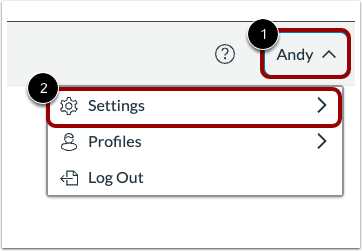
Click the User drop-down menu [1]. Then, click the Settings option [2].
Open Cores
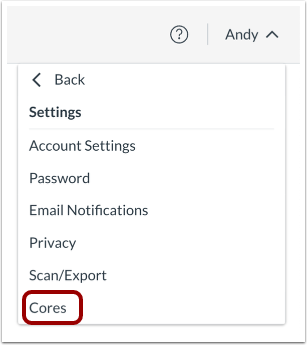
Click the Cores link.
Select Default Cores and Save
Find the subject where you want to change the default core standard. To change the default core, click the drop-down menu [1] and select a new default core from the list [2].
To save the new default settings, click the Save Changes button [3].