The Mastery Connect Student Portal gives you access to class resources directly from your teacher. The Student Portal allows you to view classes, activities, assessments, standards mastery progress in a class, and semester progress reports. You can also change your student account profile information in the Student Portal.
Note: The Student Portal is available in Spanish to translate the user interface elements such as interactions, buttons, and alerts. For translations to be active, your web browser must have Spanish designated as its primary language. Created content, such as standard details, assessment questions, and class names, are not translated as part of this feature.
How do I use the Mastery Connect Student Portal as a student?
https://embed.app.guidde.com/playbooks/jvgpKwt5kuJTiod1kxvzss?
How do I use the Mastery Connect Student Portal as a student?
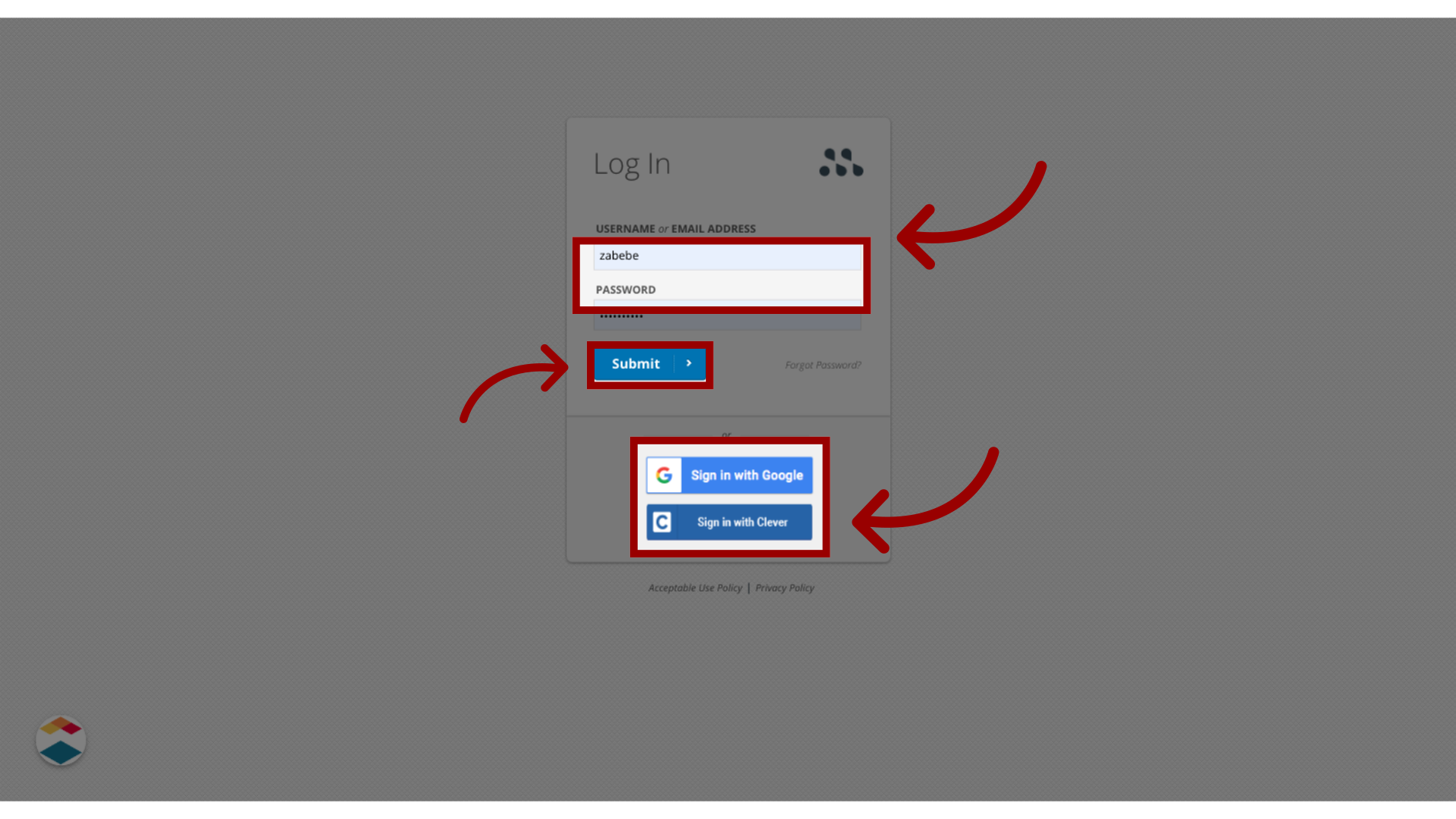
1. Enter User Name and Password
On the Log In page, enter your user name and password, and click the Submit button. To sign in with Google, click the Sign in with Google button. To sign in with Clever, click the Sign in with Clever button.
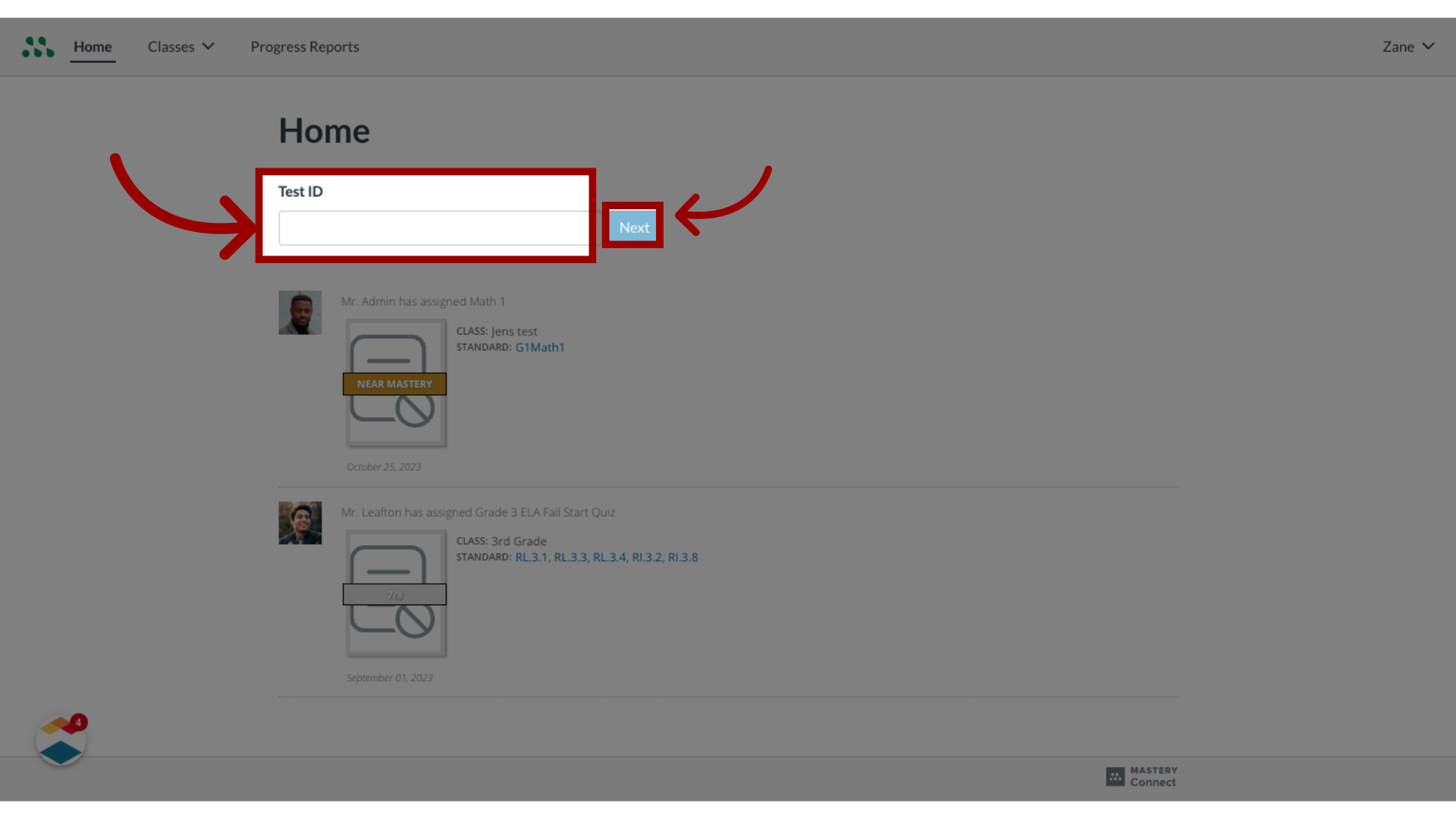
2. Enter Test ID
To take an assessment using a Test ID, enter the Test ID into the Test ID field and then, click the Next button.
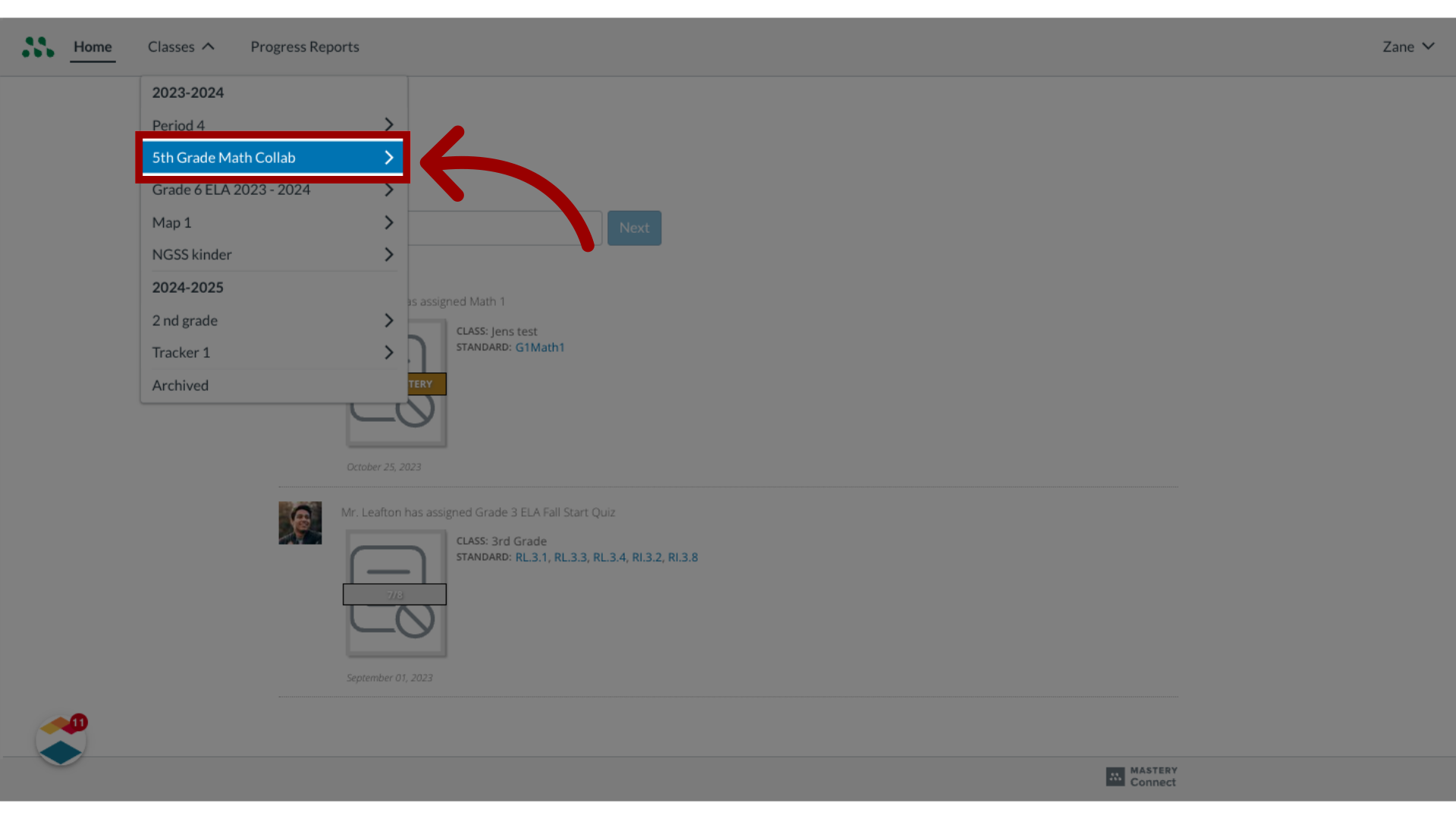
3. Select a class name
Access the Classes drop-down menu. To view details about a class, click the class name.
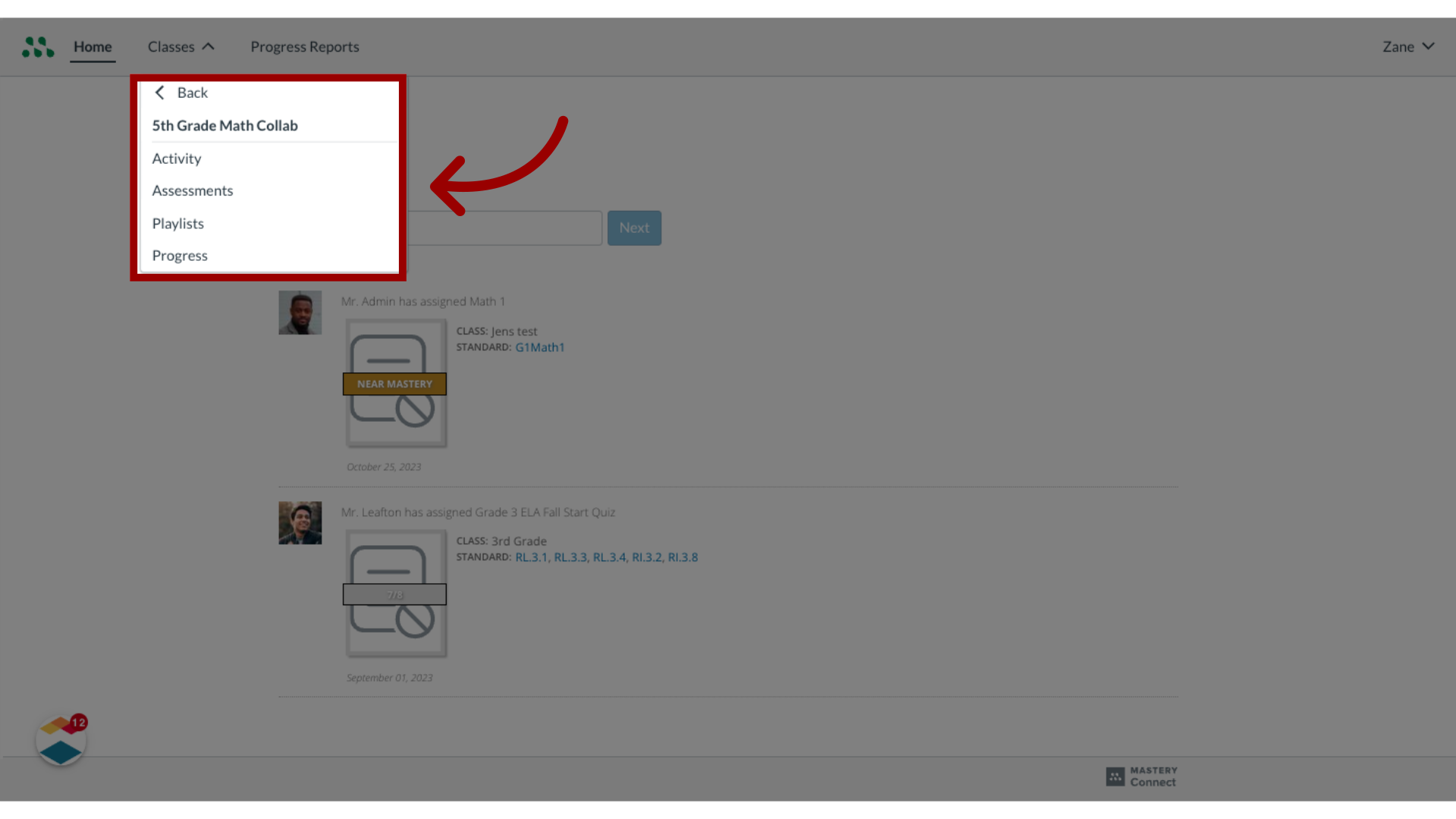
4. Select a Link
To view class assessments or to view your progress in the class, click a link.
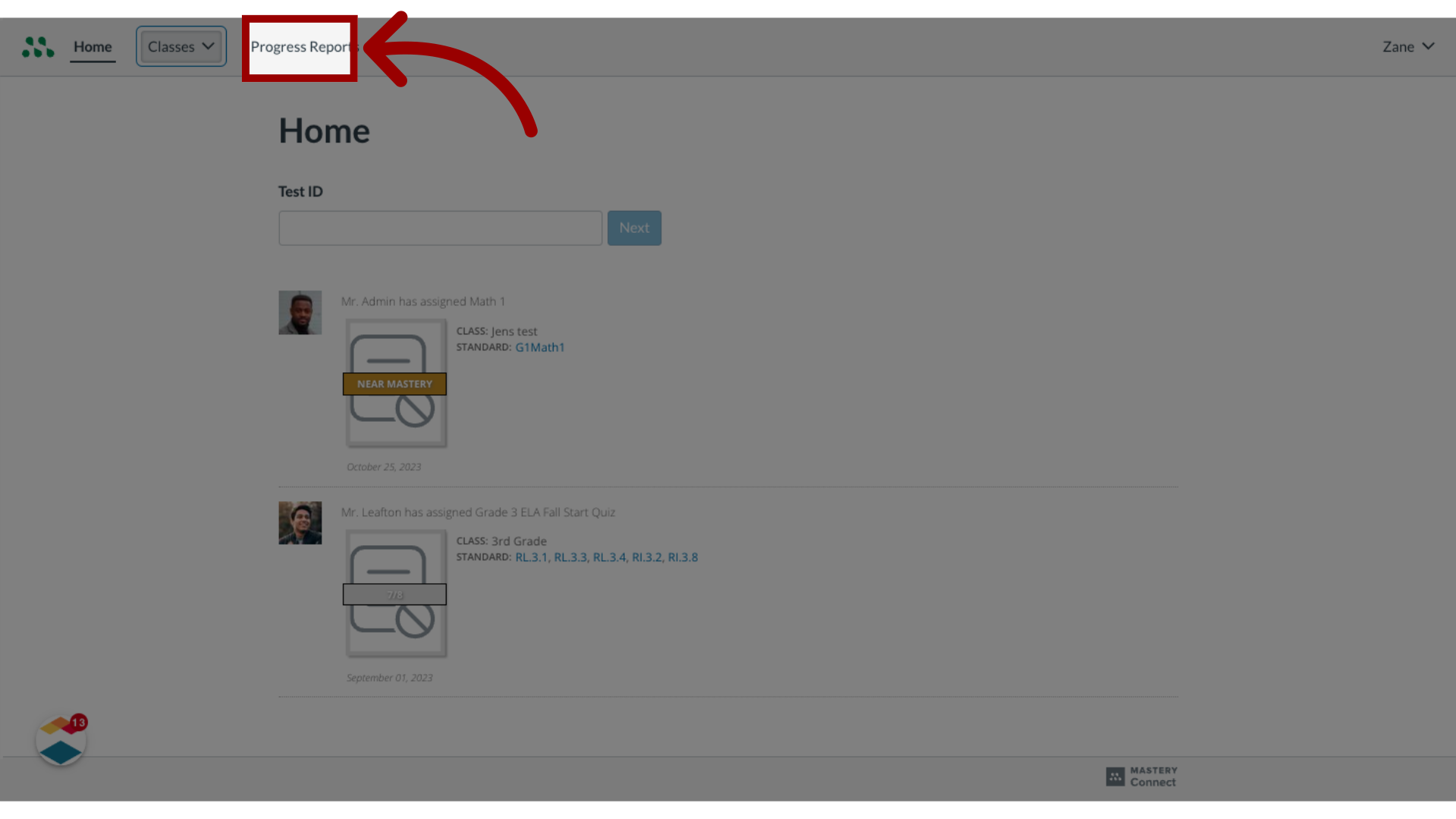
5. Select Progress Report
To view and download a progress report for all classes in a term, click the Progress Report tab.
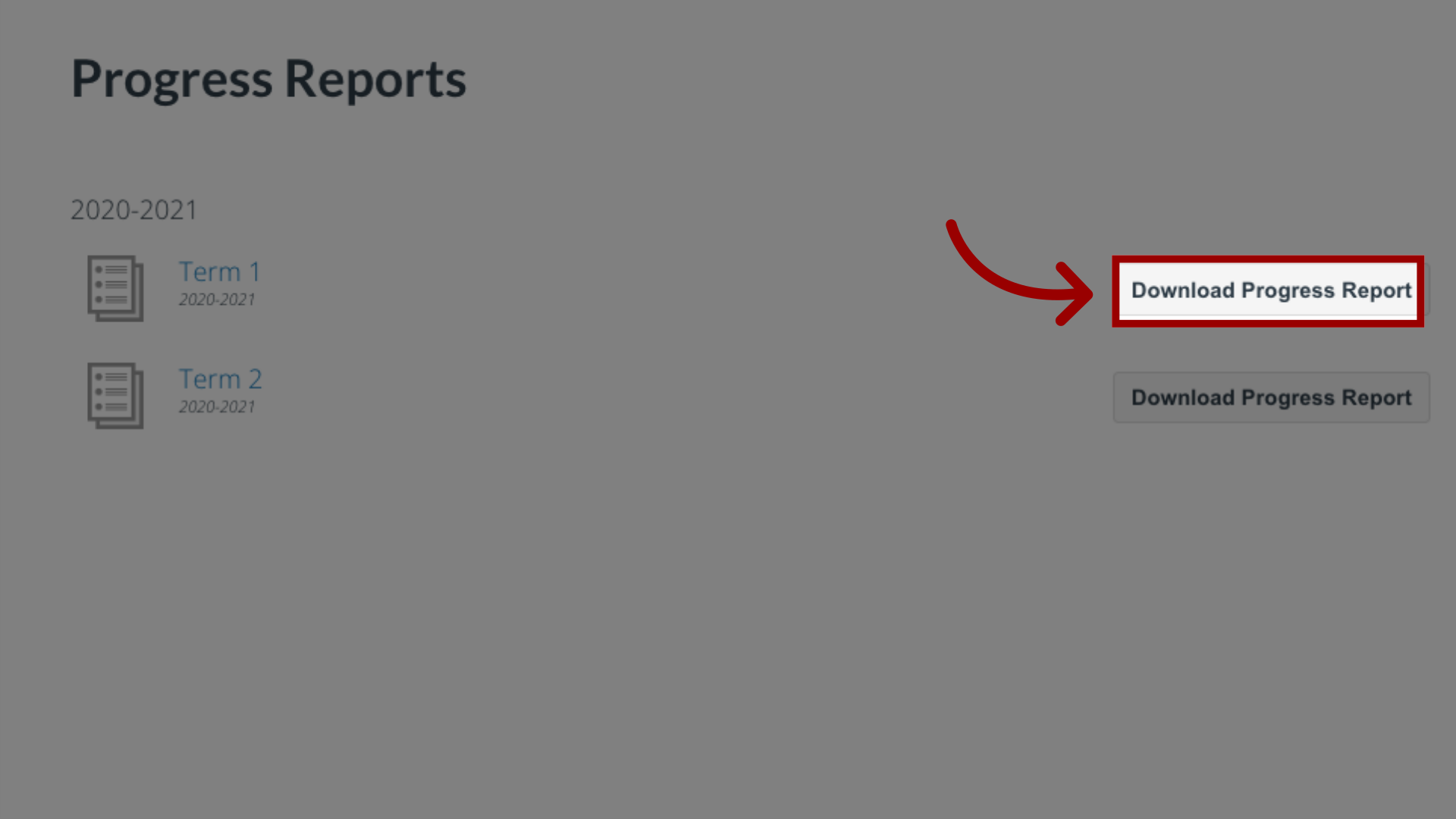
6. Select Download Progress Report
Locate a term and click Download Progress Report.
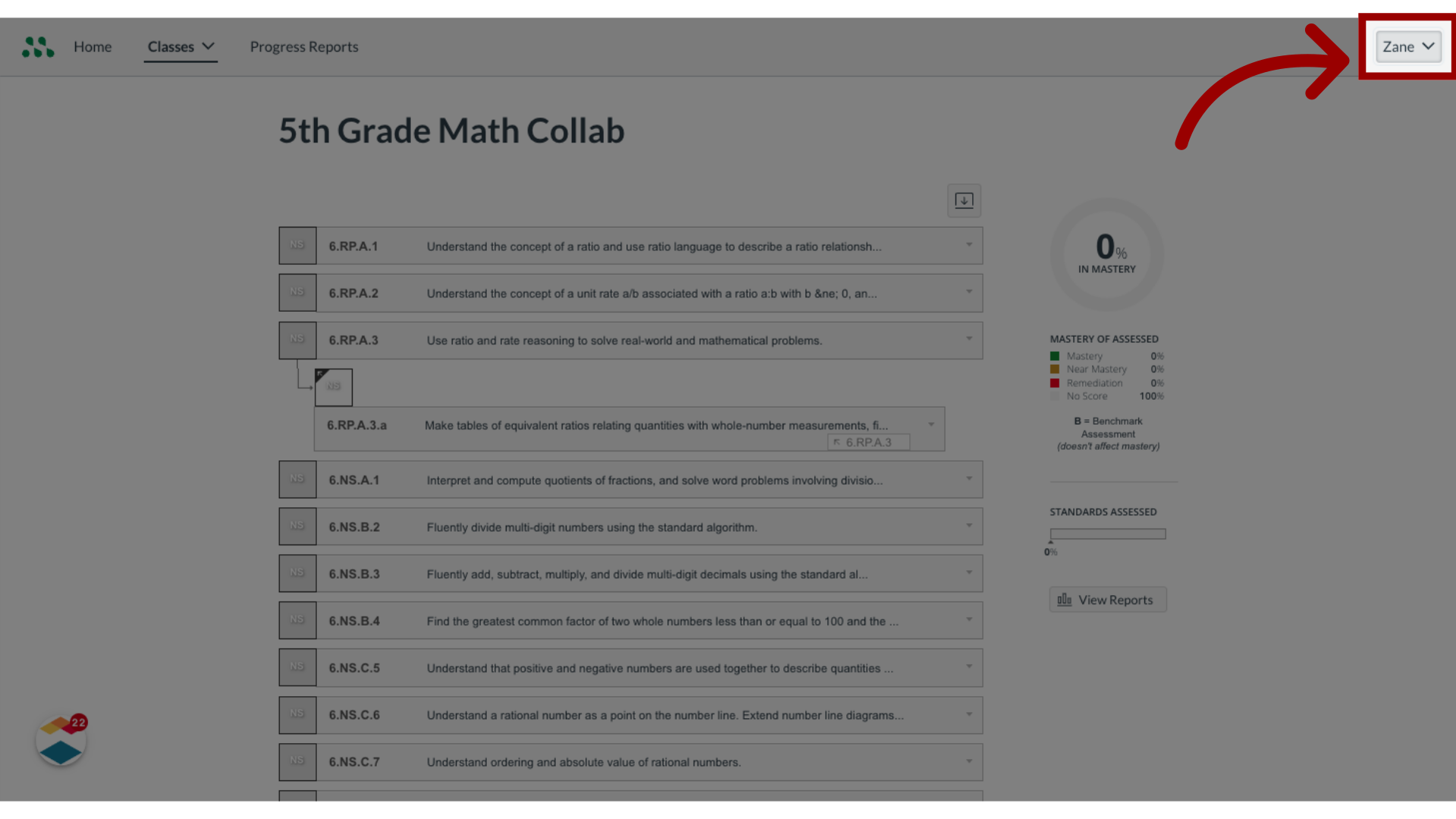
7. Select name link
To view or edit your account settings, click your name link.
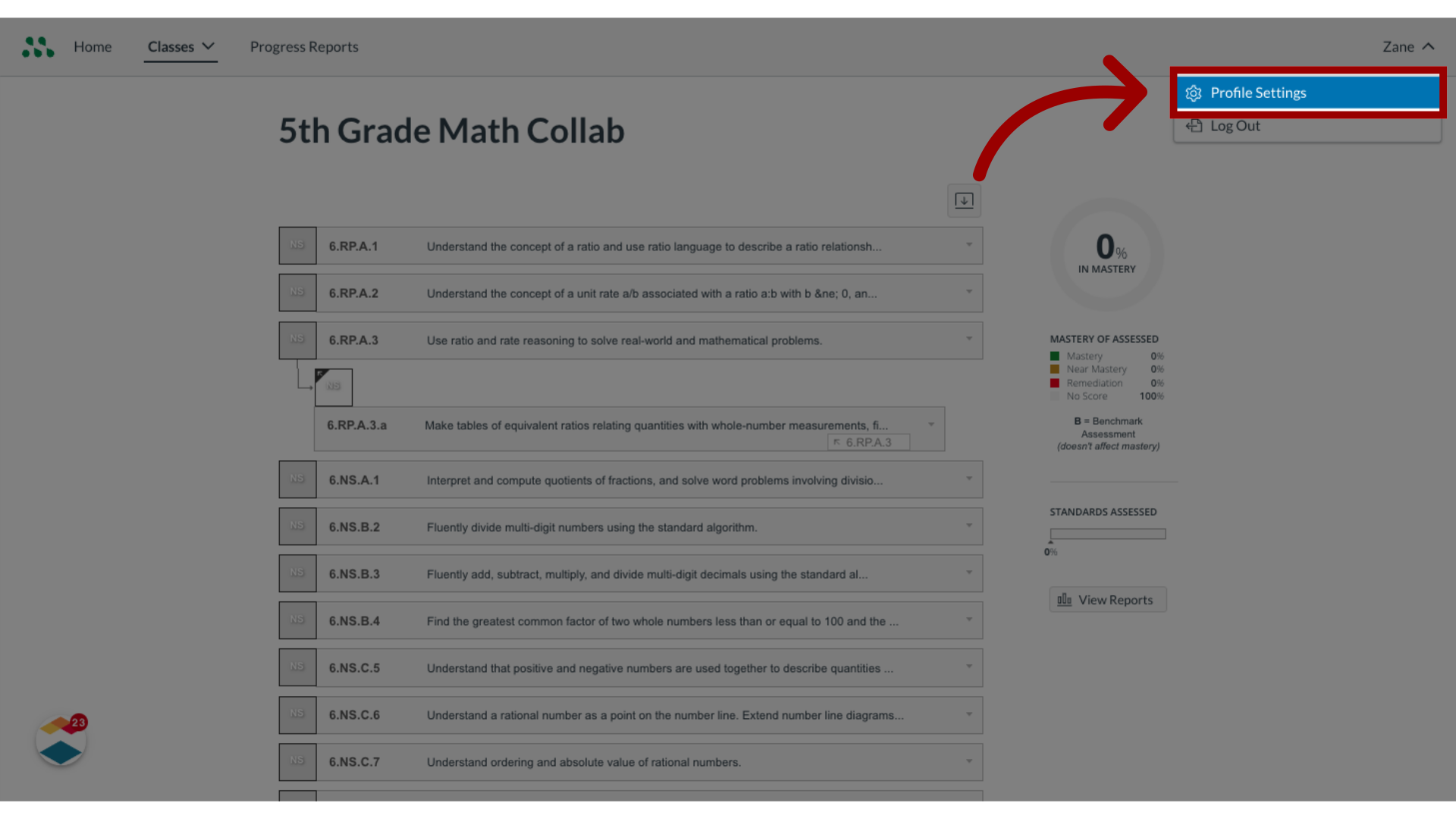
8. Open Profile Settings
Access and modify profile settings.
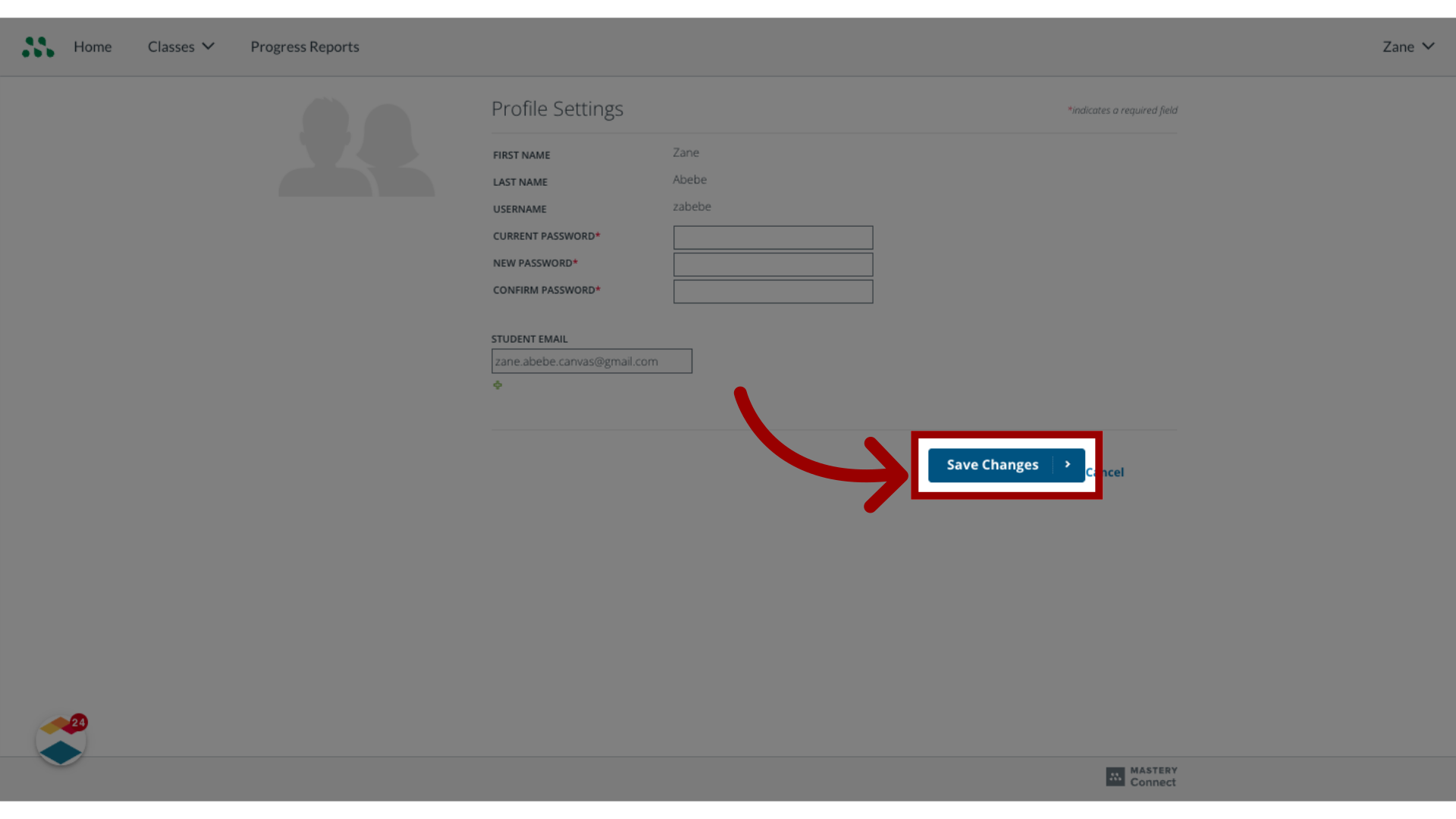
9. Save Changes
Save any changes made.
This lesson covered how to use the Mastery Connect Student Portal as a student.