As a Catalog admin, you can customize your catalog using images, a cascading style sheet (CSS), JavaScript (JS), or Hyper Text Markup Language (HTML) files. You can either paste the source code or insert links to external files. If you are linking to external files, best practice is to use a secure site to host your custom style files; otherwise, they may break when trying to load.
You can also use HTML/CSS to customize a program certificate or course certificate.
You can upload images for your catalog header logo and catalog badge logo, as well as a browser favicon. For details and specifications, please view the Canvas Catalog Logo Guidelines.
Instruction Files:
Notes:
- If it has been enabled for your institution, you may be able to use the Storefront Theme Editor to customize your branding without using CSS/JS/HTML.
- If custom branding is not added to a subcatalog, the parent catalog customization applies by default.
- The appearance of the Catalog Listings page may vary depending on the platform version or any custom styling applied through website code, such as CSS, JS, or HyperText Markup Language (HTML).
- As of May 2026, CSS and JavaScript customization is supported in the Modern Storefront.
Open Admin
Click the usernamedrop-down menu [1]. Then, click the Admin link [2].
Open Catalogs
Click the Catalogs tab.
Open Catalog
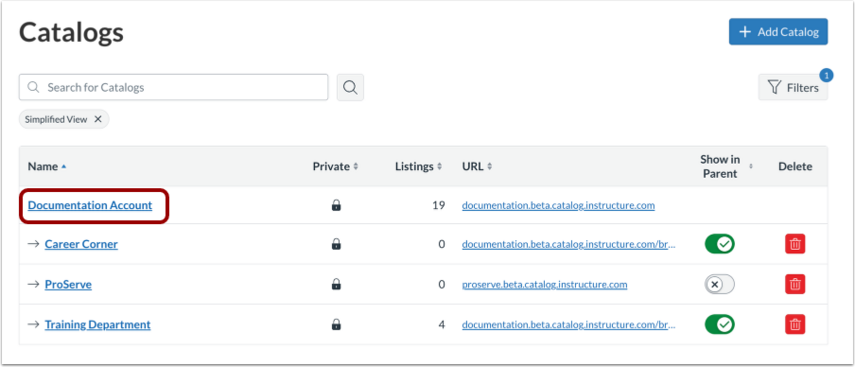
To open an existing catalog, click the catalog name link.
Add Catalog
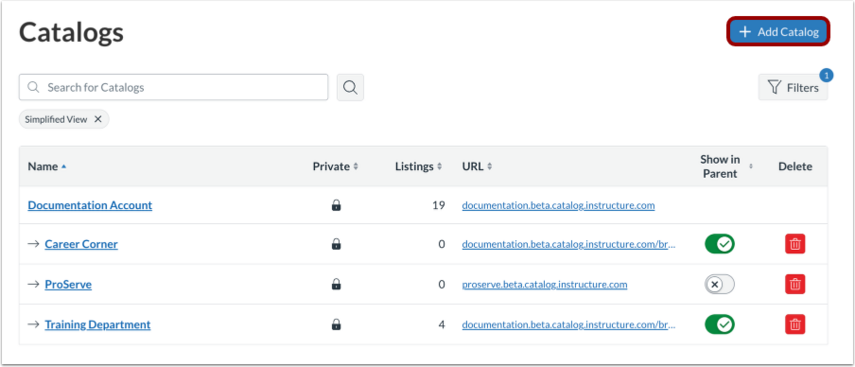
To add a subcatalog, click the Add Catalog button.
Open Customizations
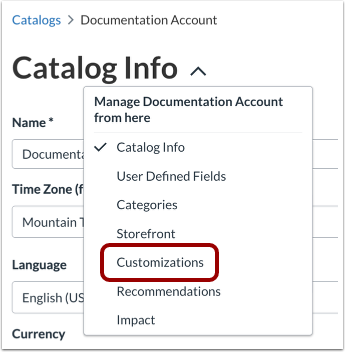
In the Catalog settings drop-down menu, the Catalog Info page displays by default. Click the Customizations link.
View Branding Options
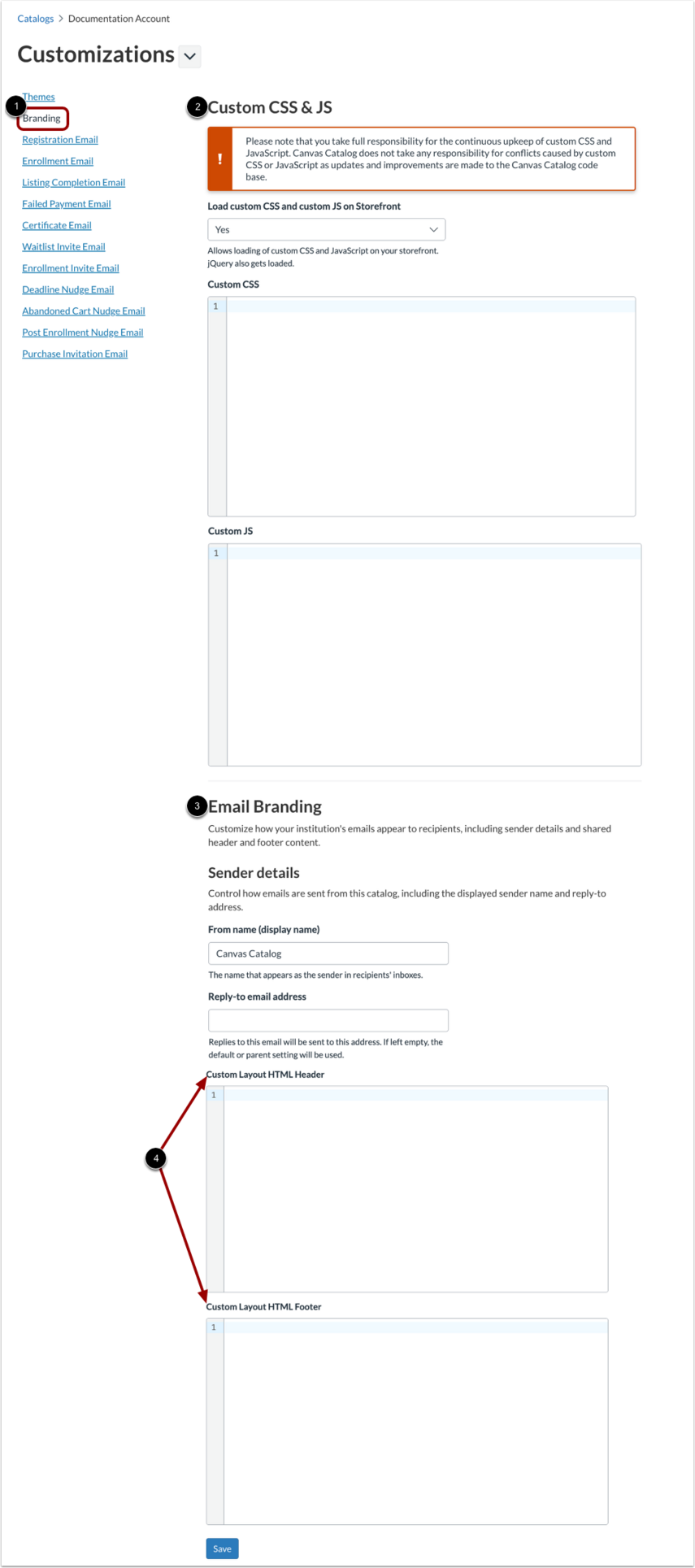
By default, the Customizations tab displays the Branding page [1]. You can add CSS and JS [2], customize how your institution's emails appear to recipients, including sender details [3] and email header and footer HTML [4].
Add Custom CSS and JavaScript
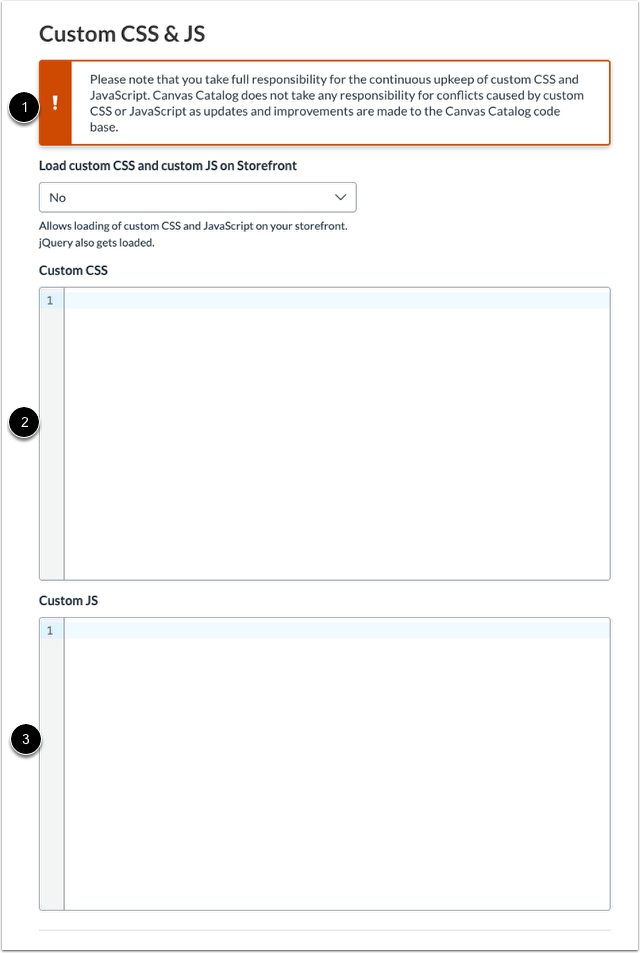
View the CSS and JS notification [1]. You must maintain your CSS and JS to avoid conflicts or errors caused by Catalog product updates and improvements.
Enter your custom CSS, or add a link to your secure CSS file in the Custom CSS field [2].
Enter your custom JS, or add a link to your secure JS file in the Custom JS field [3].
Manage Load Custom
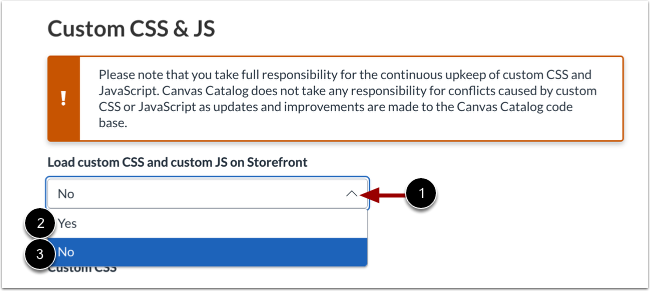
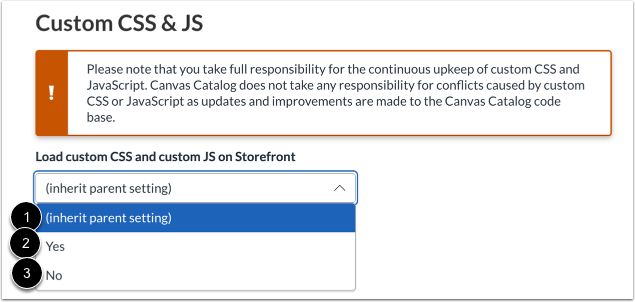
To enable these custom scripts, you must configure the settings by using the Load custom CSS and custom JS on Storefront drop-down menu [1].
In root catalog level, you can select either Yes [2] or No [3].
In subcatalog level,you have independent control and can select (inherit parent setting) [1], Yes [2], or No [3].
When this setting is enabled, the account loads custom CSS, custom JS, and jQuery. However, the Modern Storefront does not automatically loadjQuery UI, jQuery Migrate, or Bootstrap’s JS.
Notes:
- The warning that previously advised against using custom scripts on the Modern Storefront is removed from the Storefront page.
- As an admin, you take full responsibility for the continuous upkeep of custom CSS and JavaScript. Canvas Catalog does not take any responsibility for conflicts caused by custom CSS or JavaScript as updates and improvements are made to the Canvas Catalog code base.
Add Custom Email Header and Footer
Custom email headers and footers do not override email template formatting. Instead, they extend the email header and footer.
Enter the custom header HTML in the Custom Layout HTML Header field [1].
Enter the custom footer HTML in the Custom Layout HTML Footer field [2].
For more information, visit our guide on creating custom email templates for Catalog notification emails.
Save Branding Customizations
Click the Save button.