What is the Pinboard in Ask Your Data?
1. Pinboard
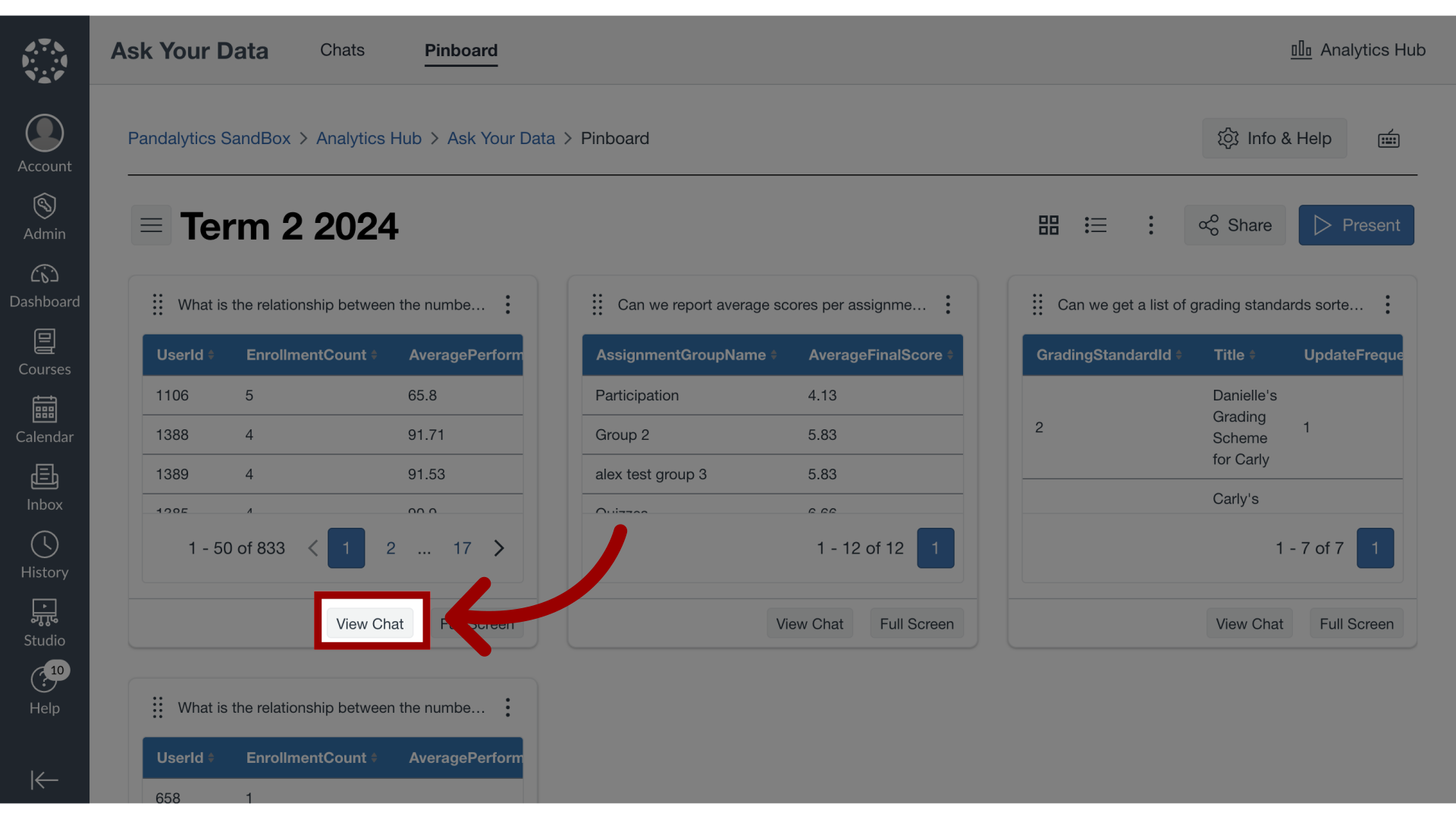
The pinboard feature enables you to bookmark data results for future reference. You can save an unlimited number of pins along with the associated data they represent.
2. Pin Chat
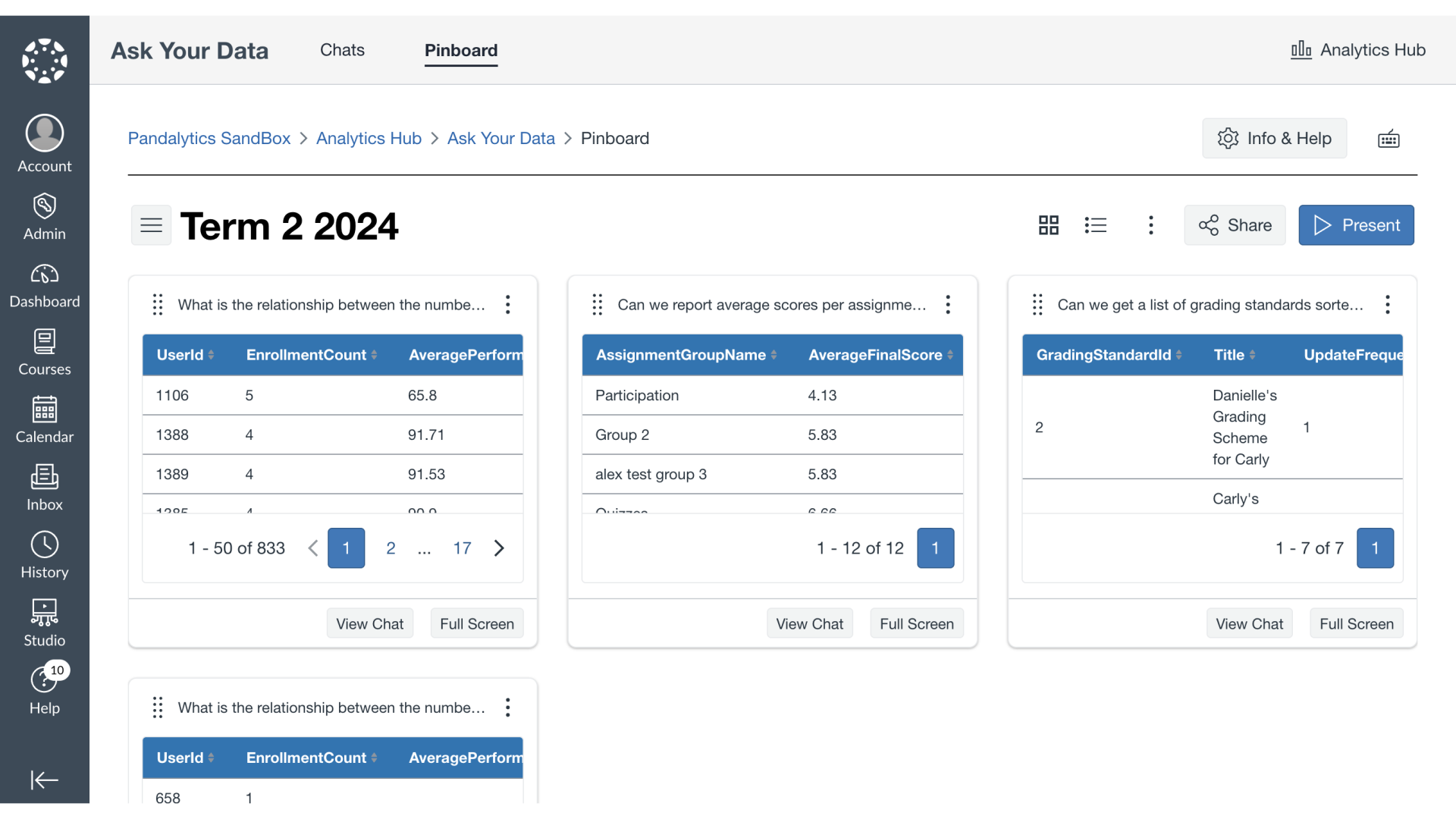
To pin a chat, click the Pin It button.
3. Add to Pinboard
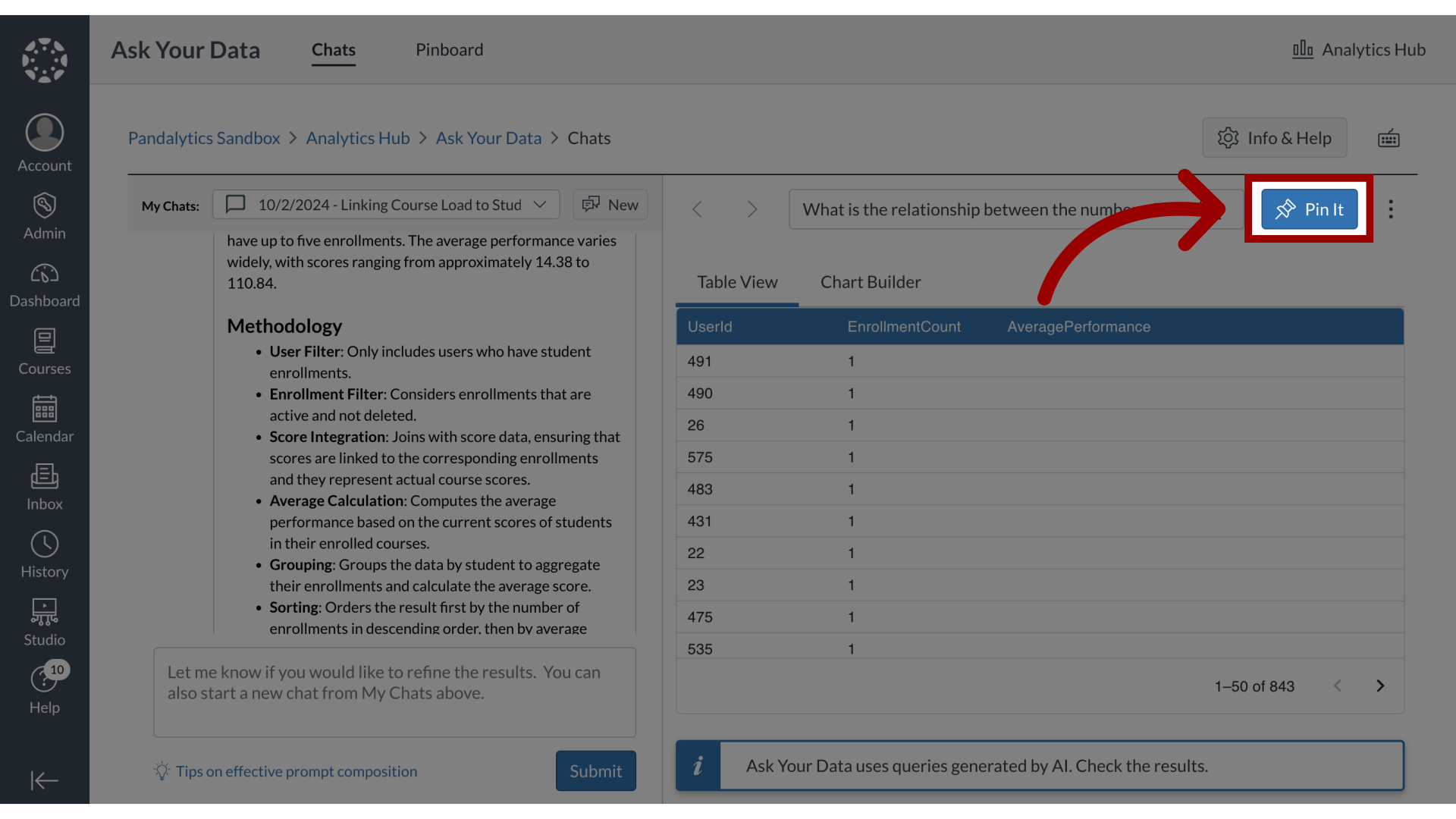
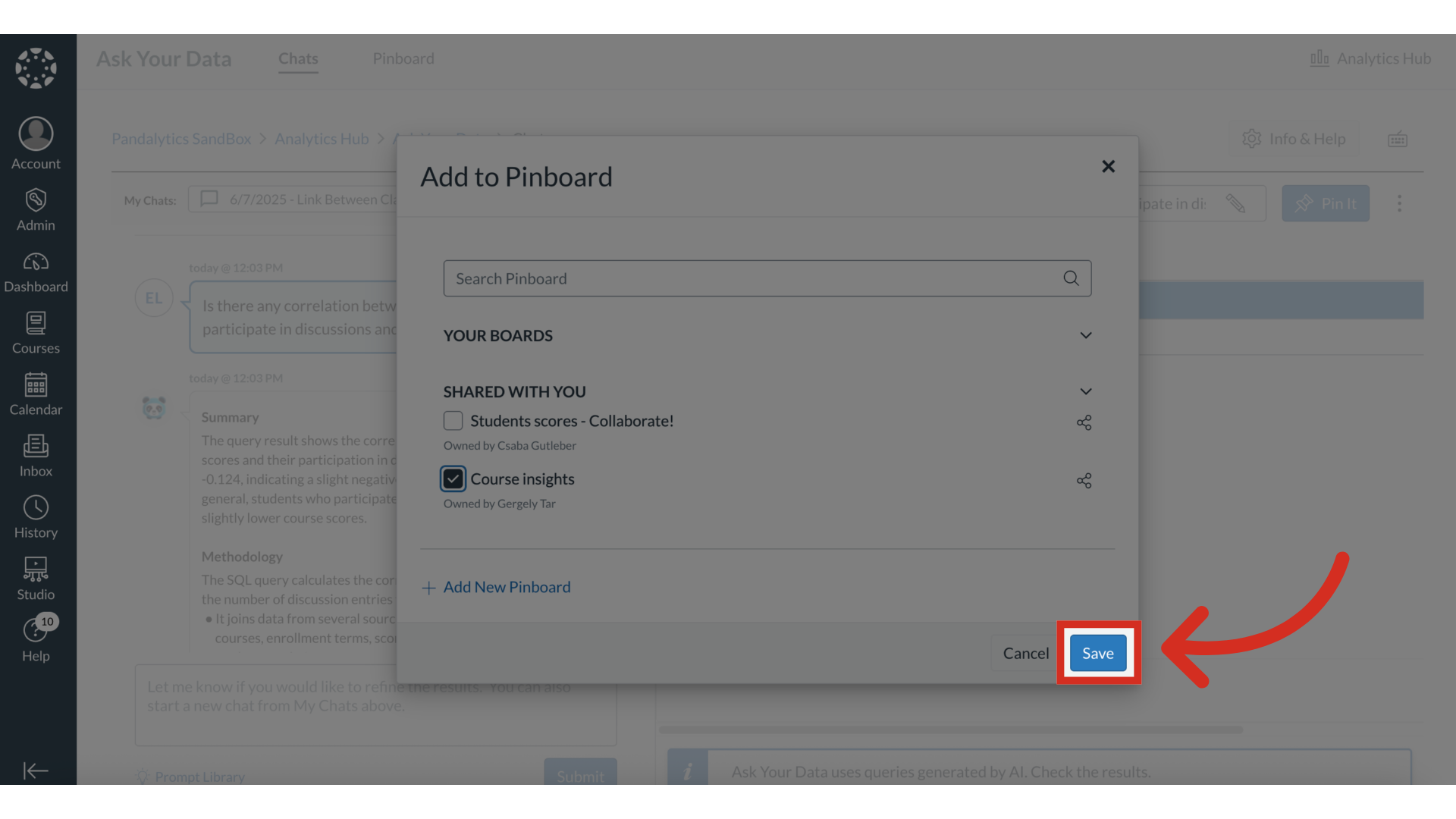
You can add the chat to an existing pinboard by selecting the pinboard checkbox or click the Add New Pinboard link.
4. Save Data
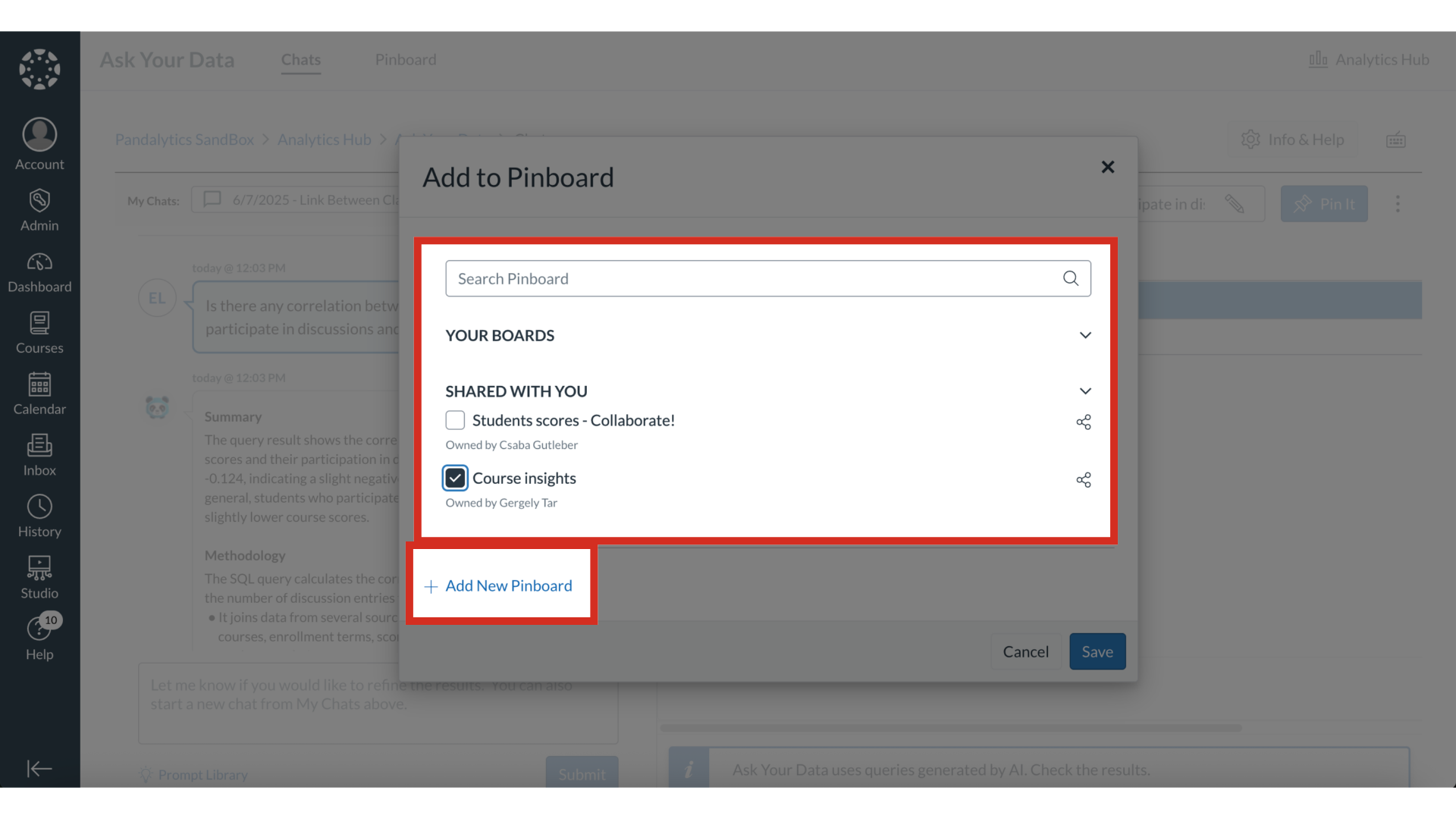
Then click the Save button.
5. View Pin It Notification
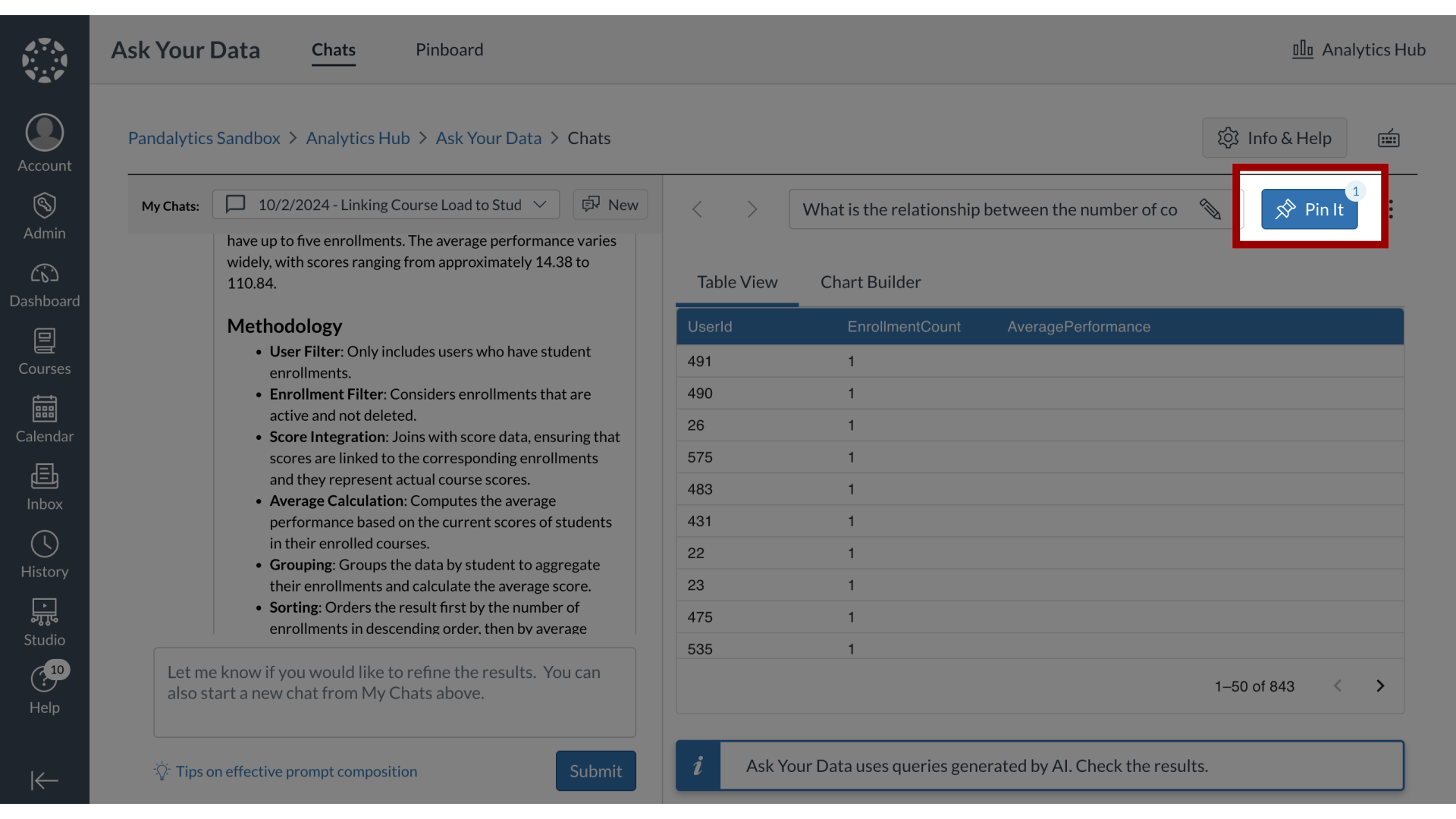
After you have pinned your chat, a notification icon displays on the Pin It button.
6. Open Pinboard
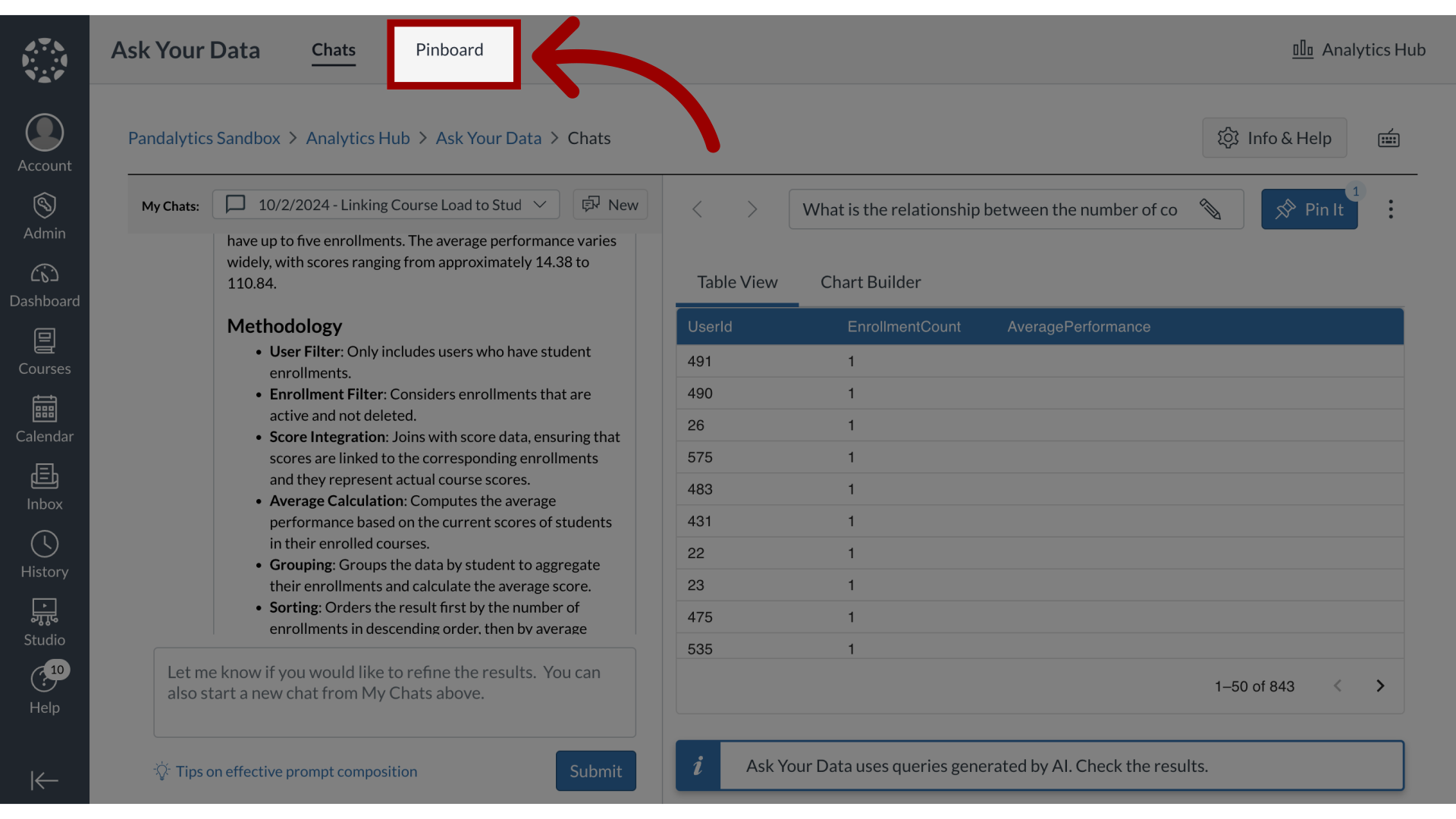
To view your pinboards, click the Pinboard tab.
7. View Pinboard
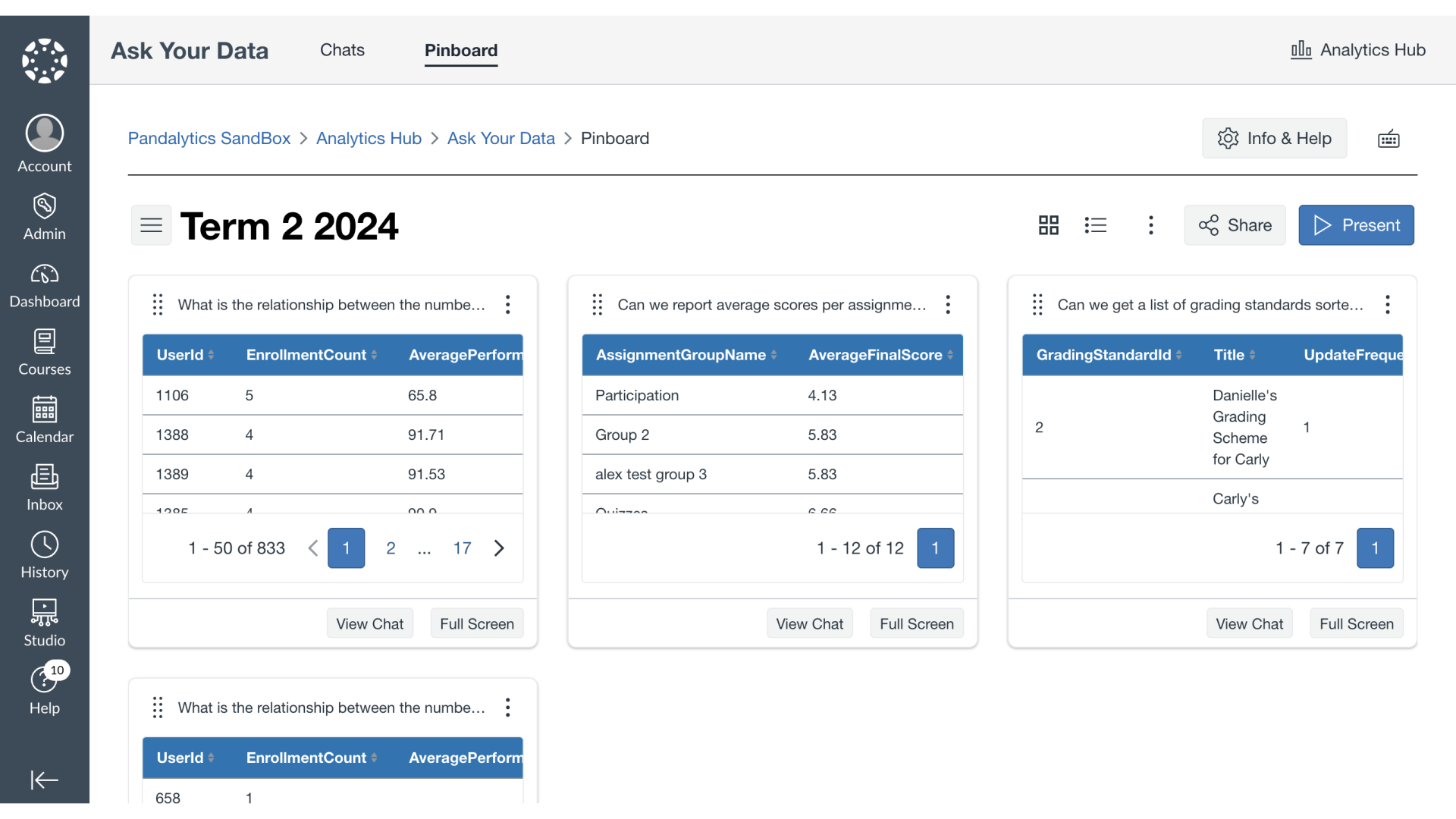
All saved pins are displayed in your pinboard.
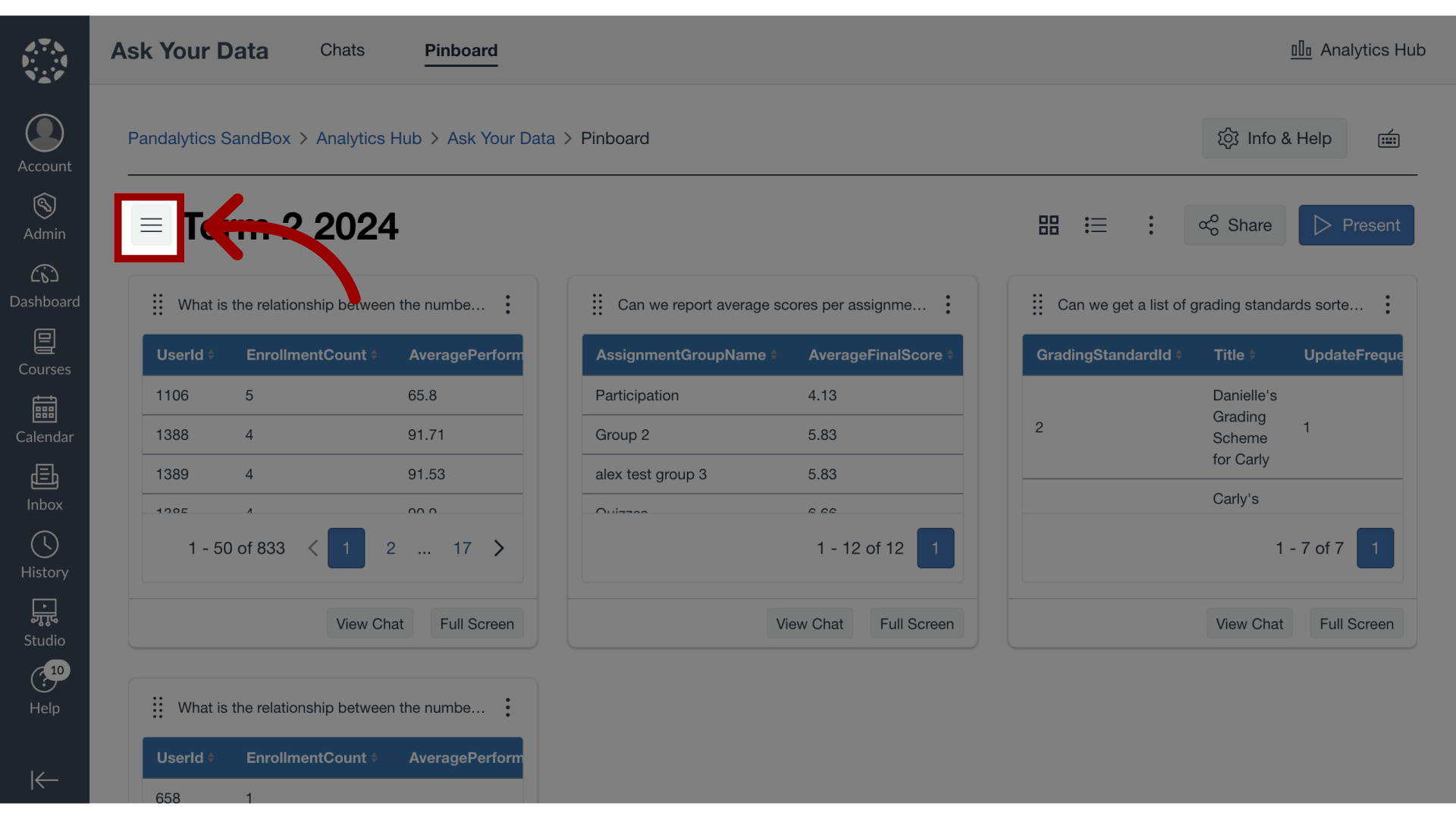
8. Open Pinboard Library
To open the pinboard library, click the Pinboard Library icon.
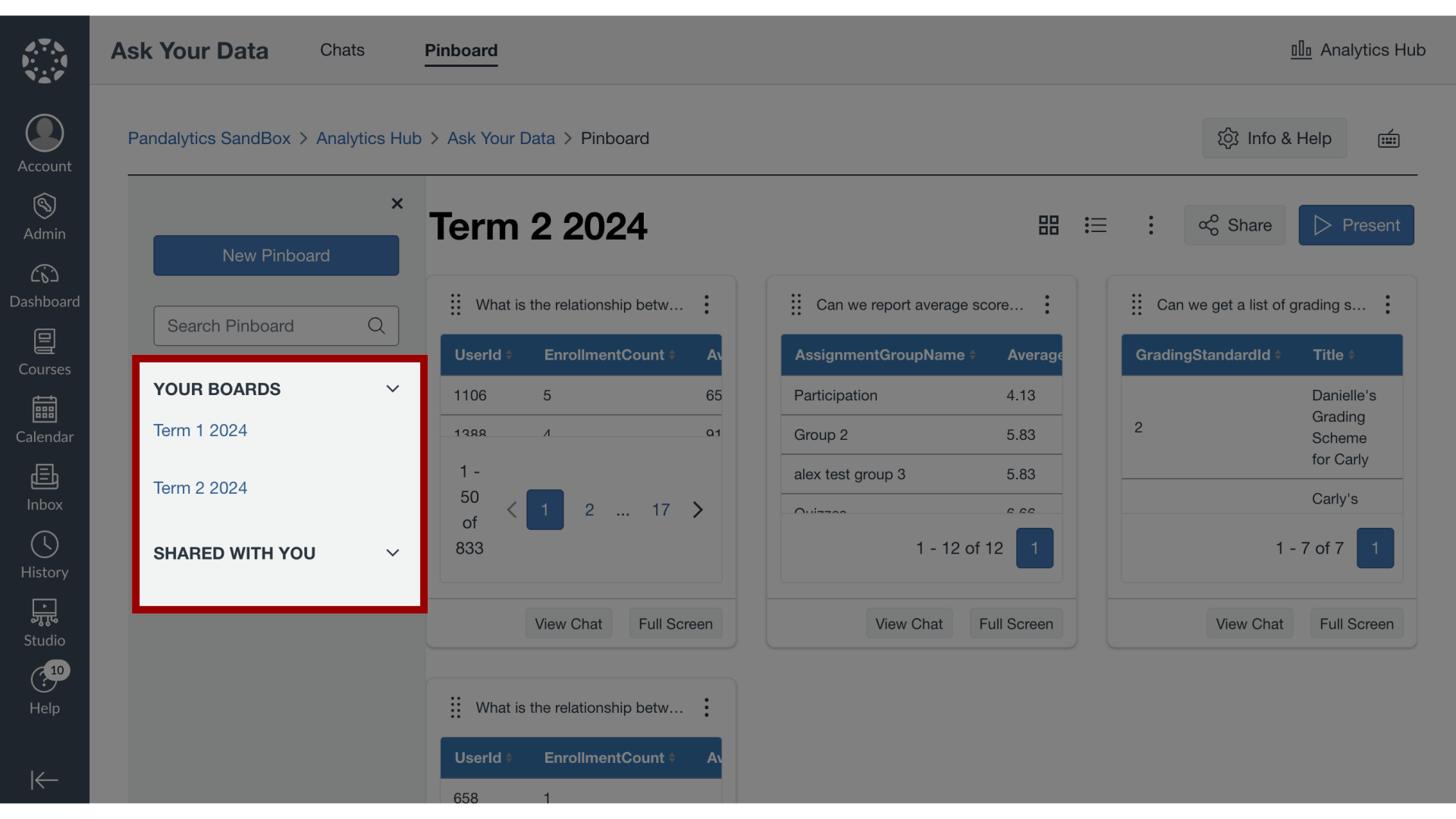
9. View Pinboard Library
The Pinboard library is separated between two categories:
10. Search Pinboards
To search for a pin within a pinboard, enter a keyword in the Search field.

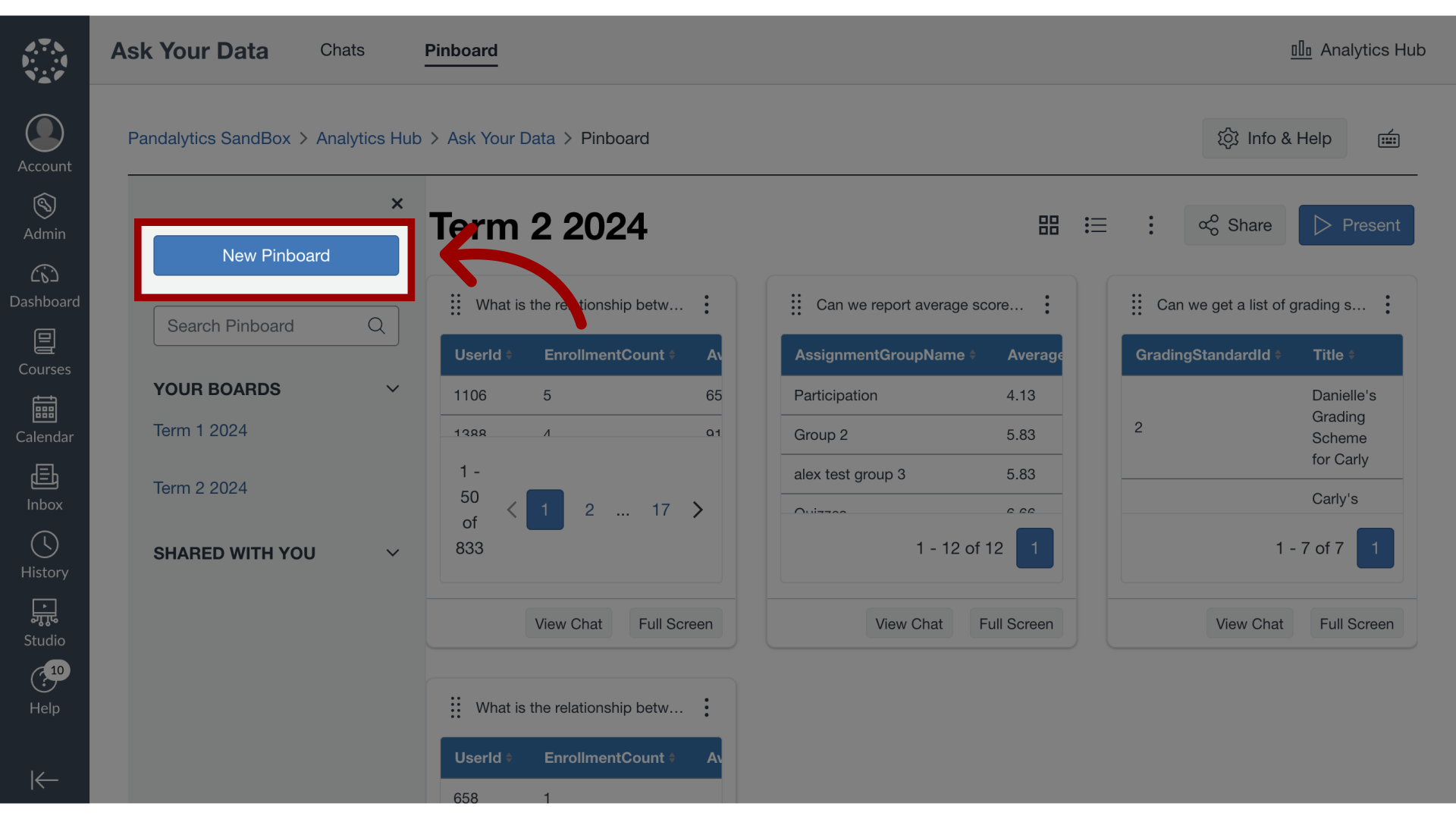
11. Create New Pinboard
To create a new pinboard, click the New Pinboard button.
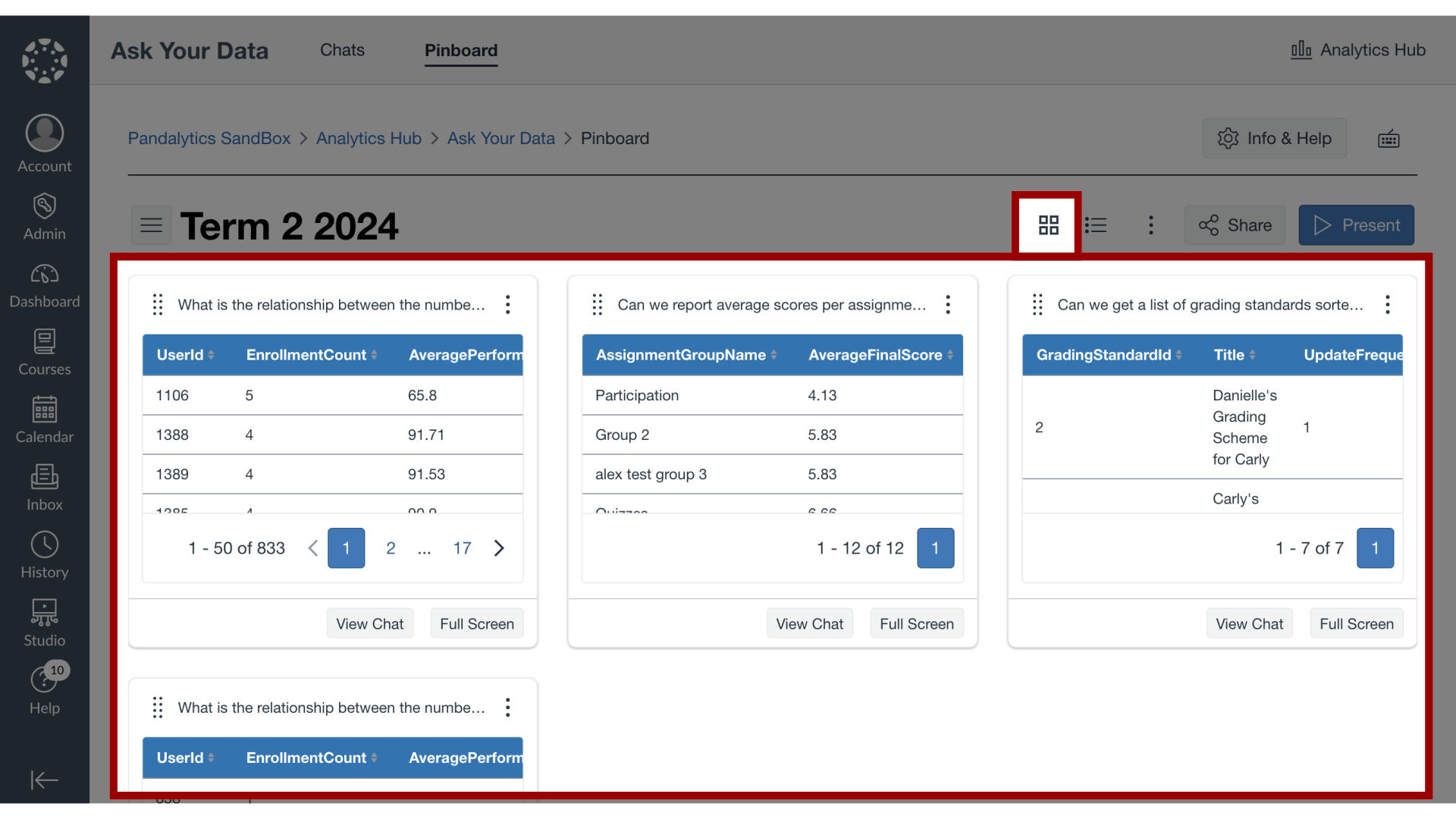
12. Grid View
The Pinboard display is defaulted to Grid View.
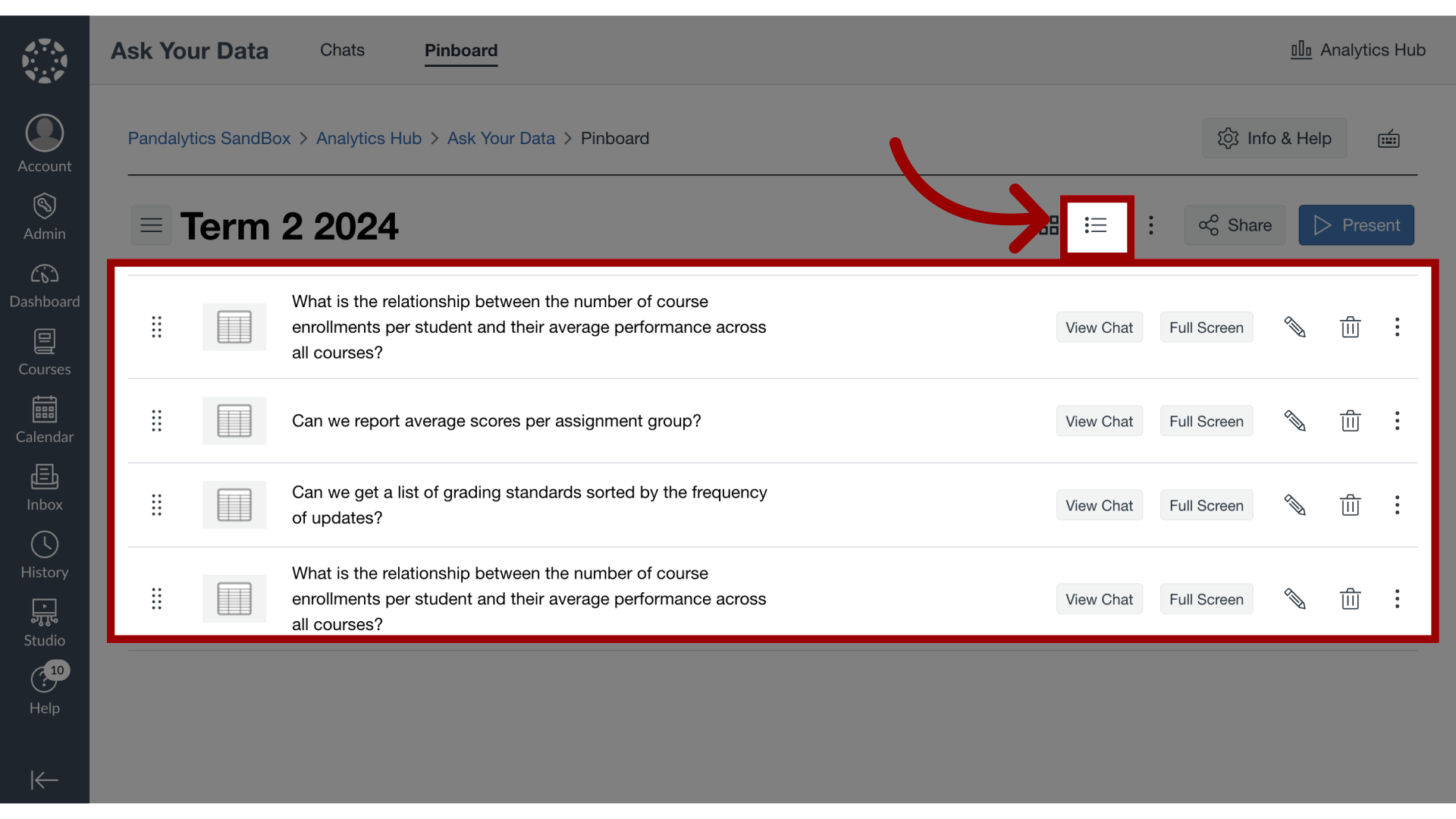
13. List View
To view the Pinboard as a list, click the List View icon.
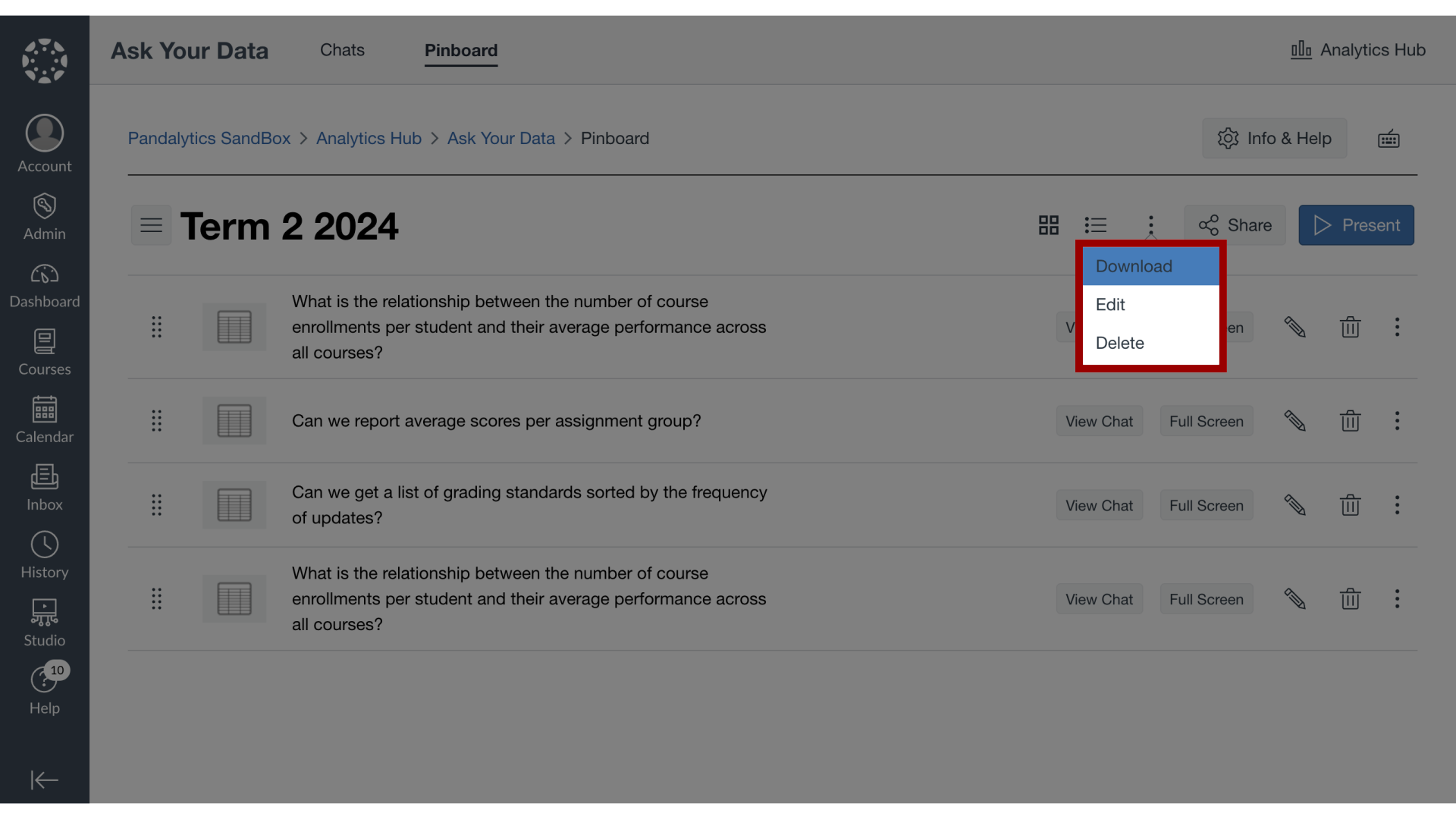
14. View Pinboard Options
To open the Pinboard options, click the Options icon. From the Pinboard options menu, you can Download, Edit, or Delete a pinboard.
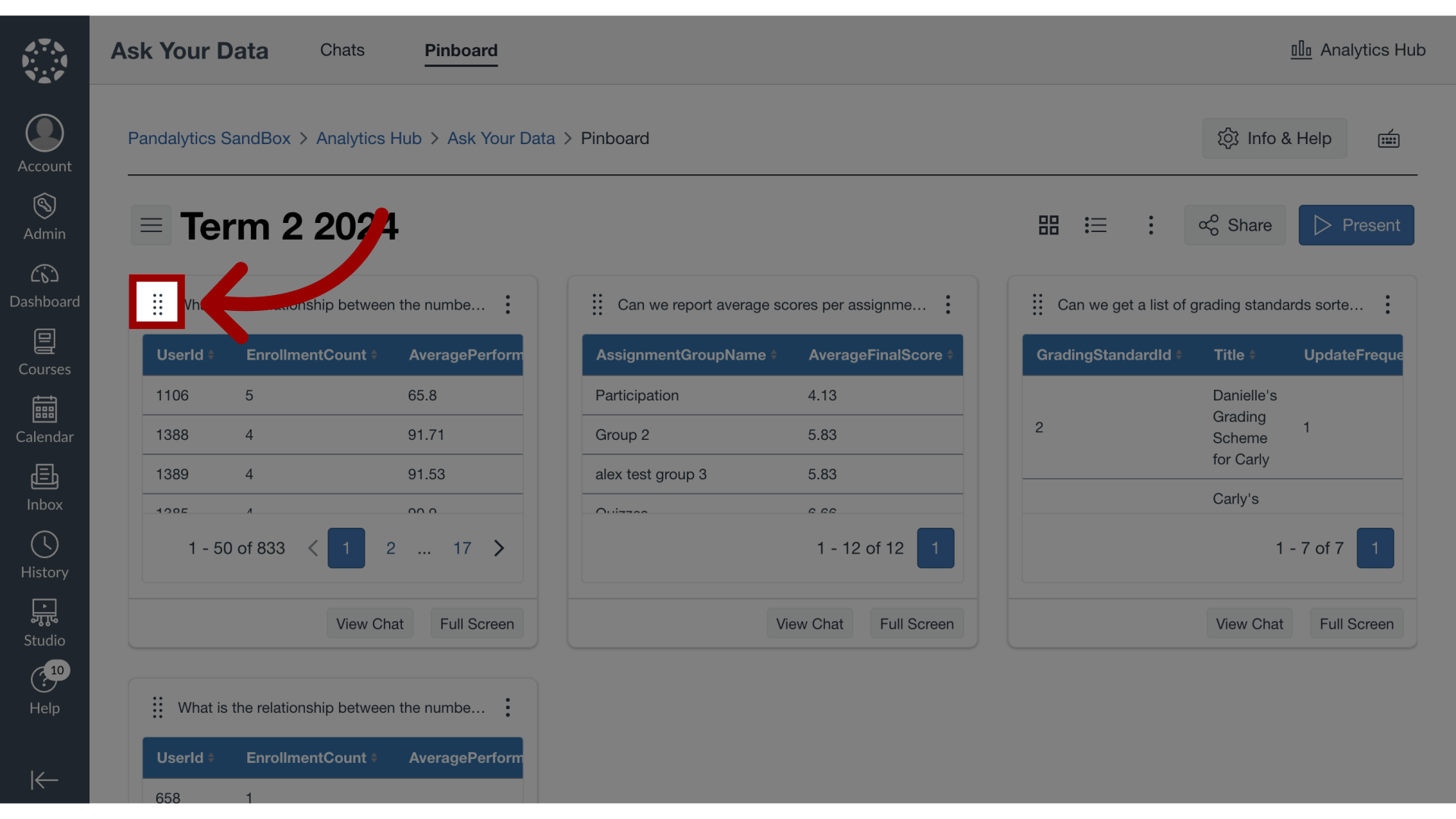
15. Rearrange Pinboard
To rearrange your pins. click and drag the Arrange icon to the desired location.
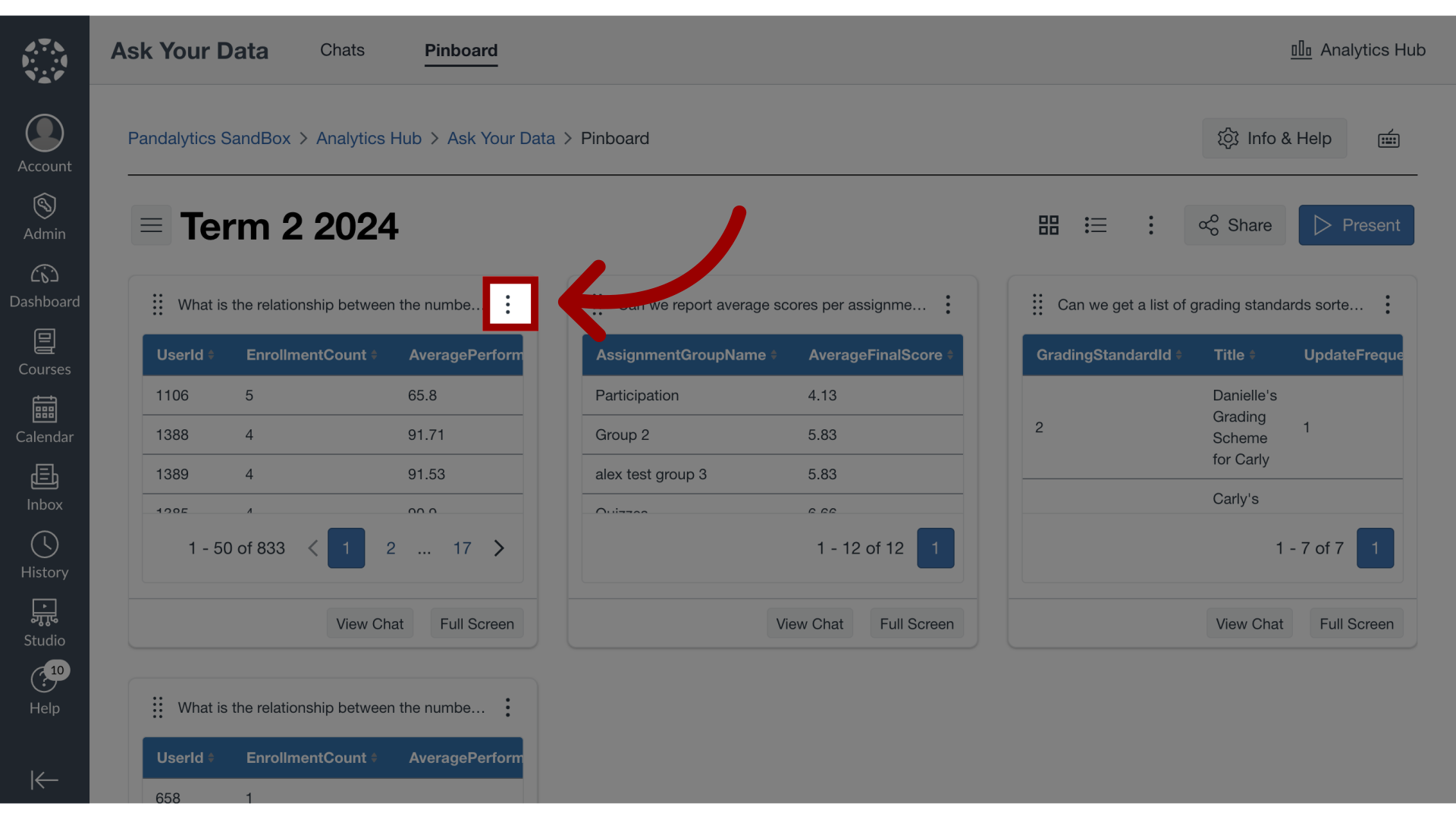
16. View Pin Options
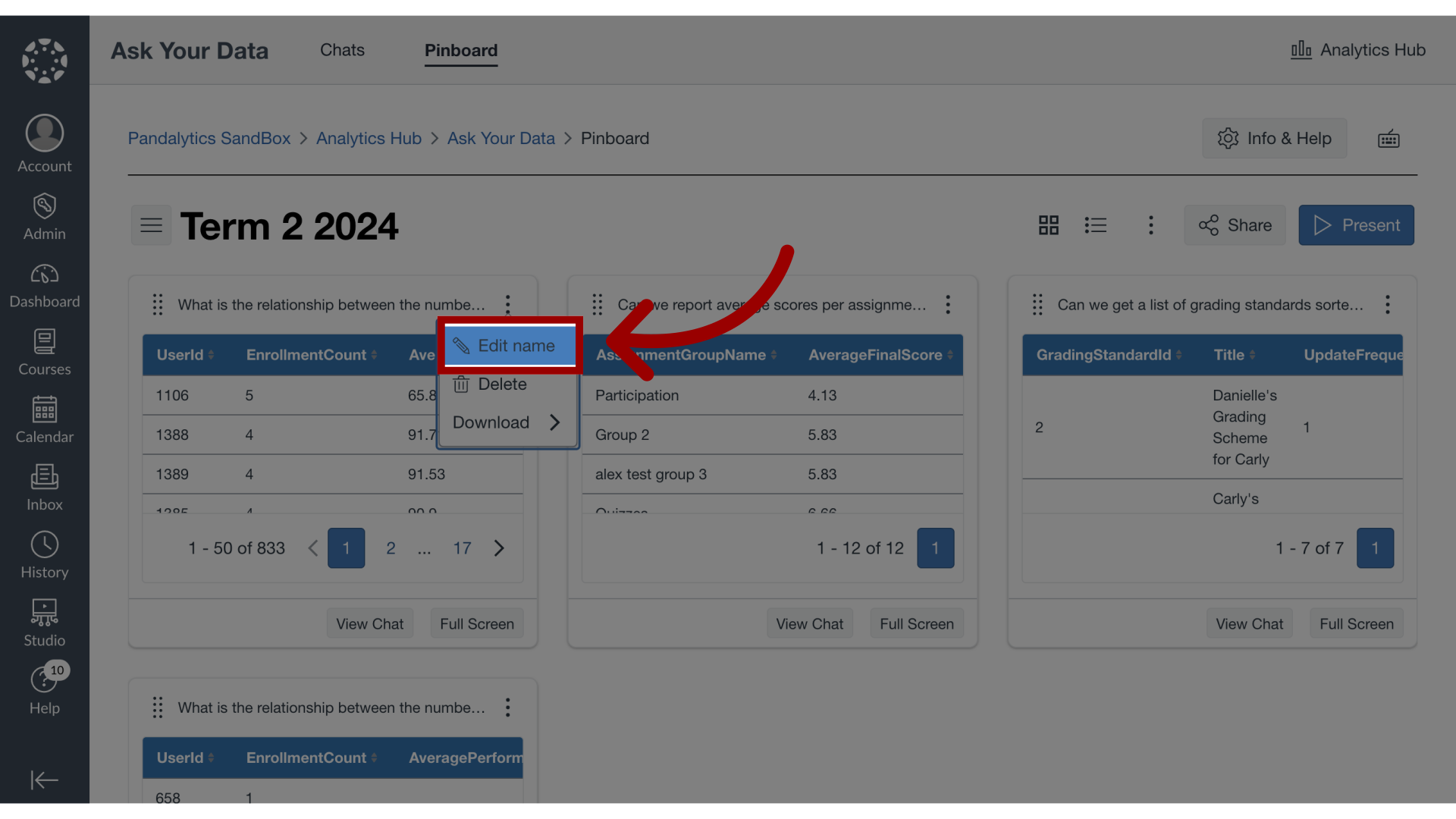
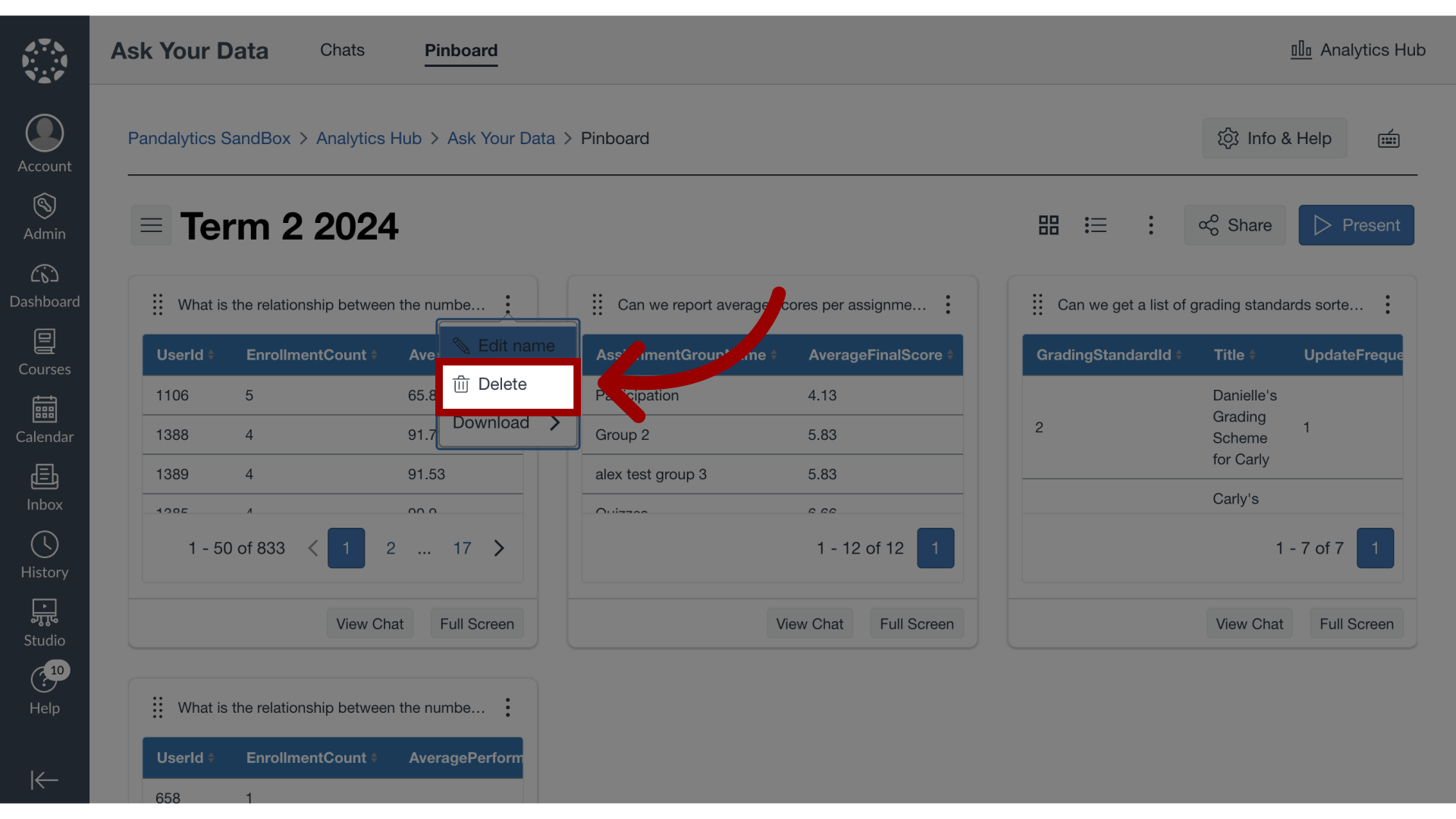
You can edit, delete, or download a pin in the pin options menu. To view pin options, click the options icon.
17. Edit Pin
To edit the pin name, click the Edit name link then edit the name.
18. Delete Pin
To delete the pin, click the Delete link.
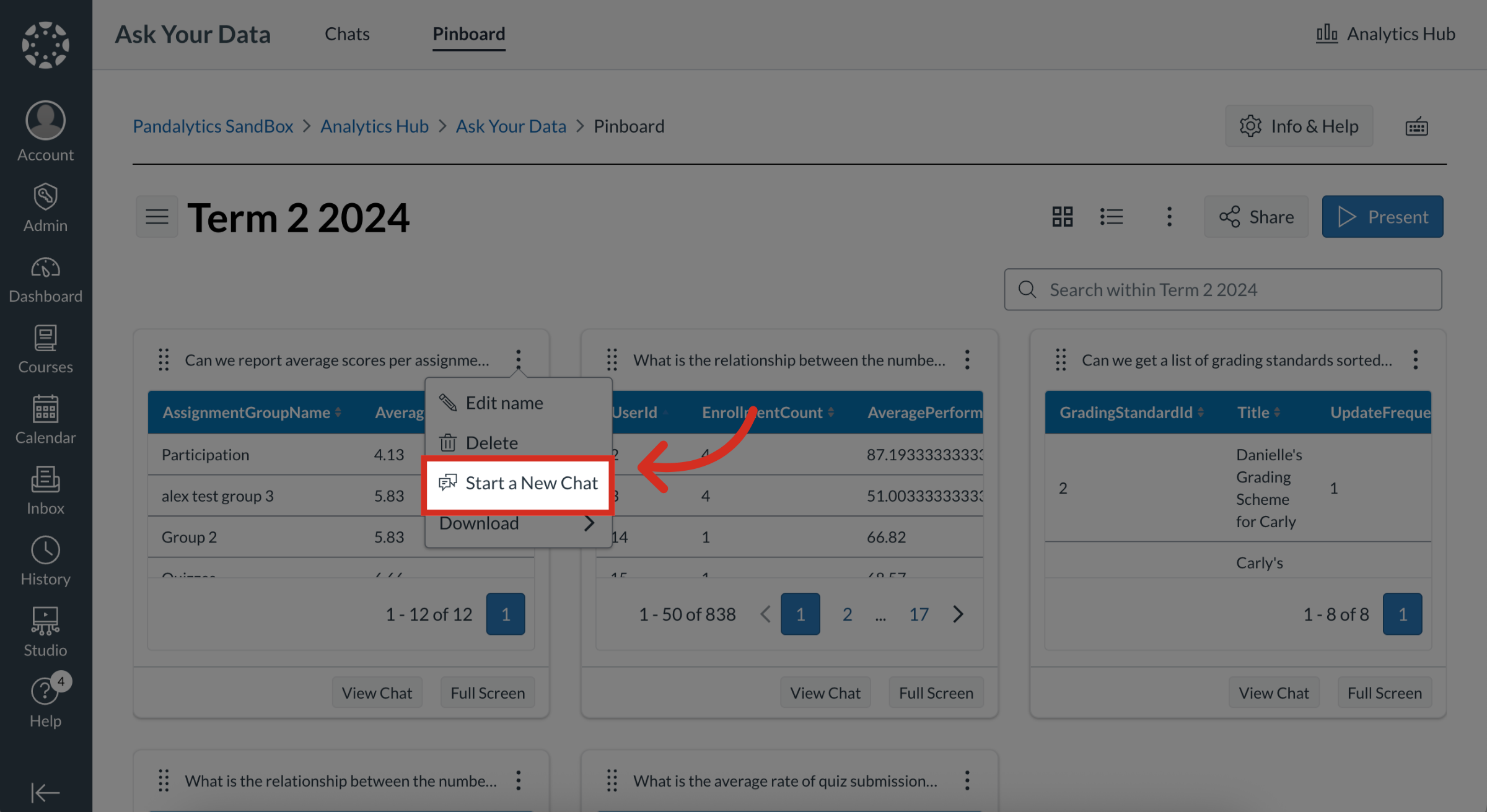
19. Start a New Chat
To start a new chat from a pin, click the Start a New Chat link.
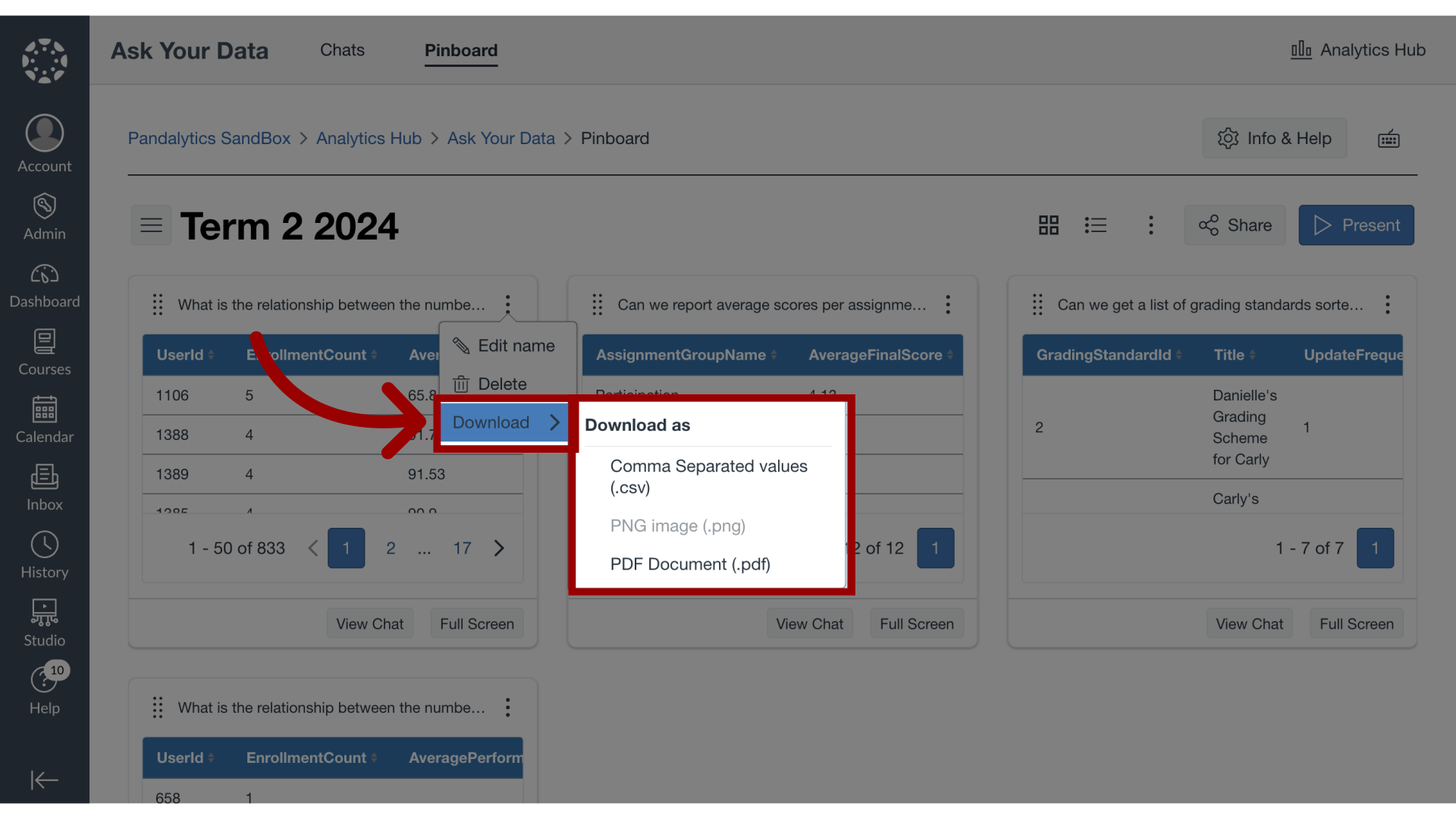
20. Download Pin
To download a pin, click the Download dropdown menu. Then select your download preference.
21. View Chat or Full Screen
To revisit the chatbot conversation of a pin, click the View Chat button.
To view the data in full screen, click the Full Screen button.