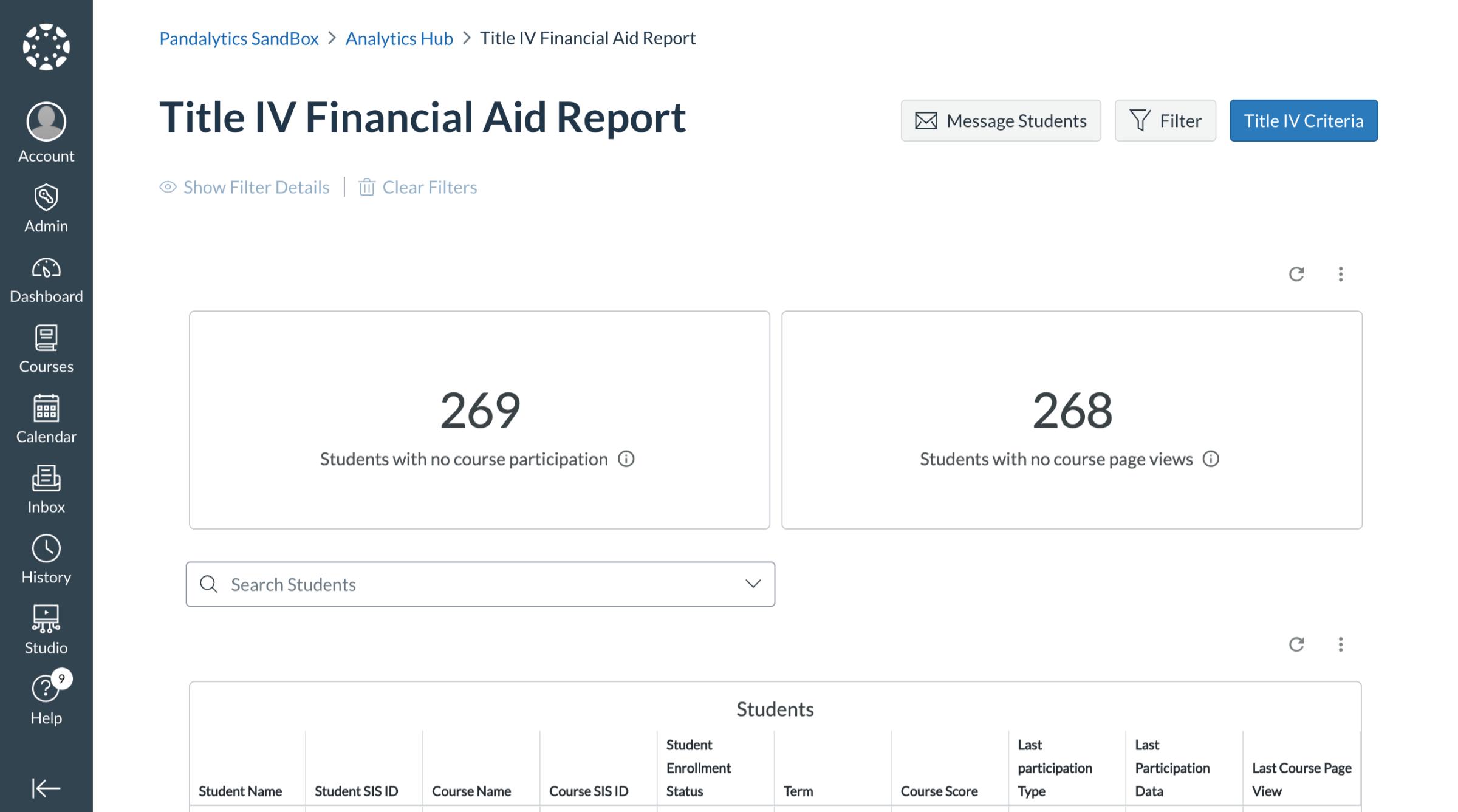
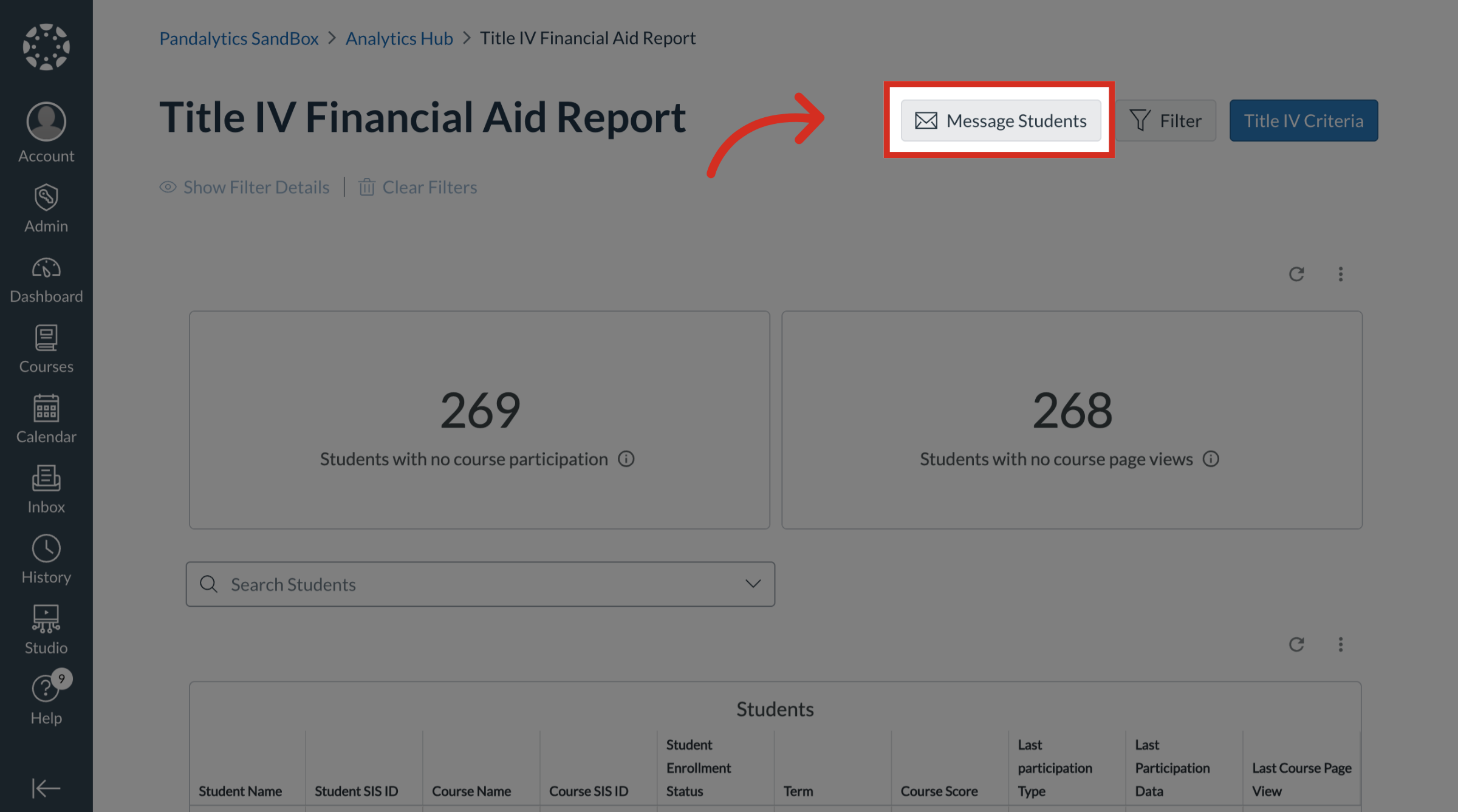
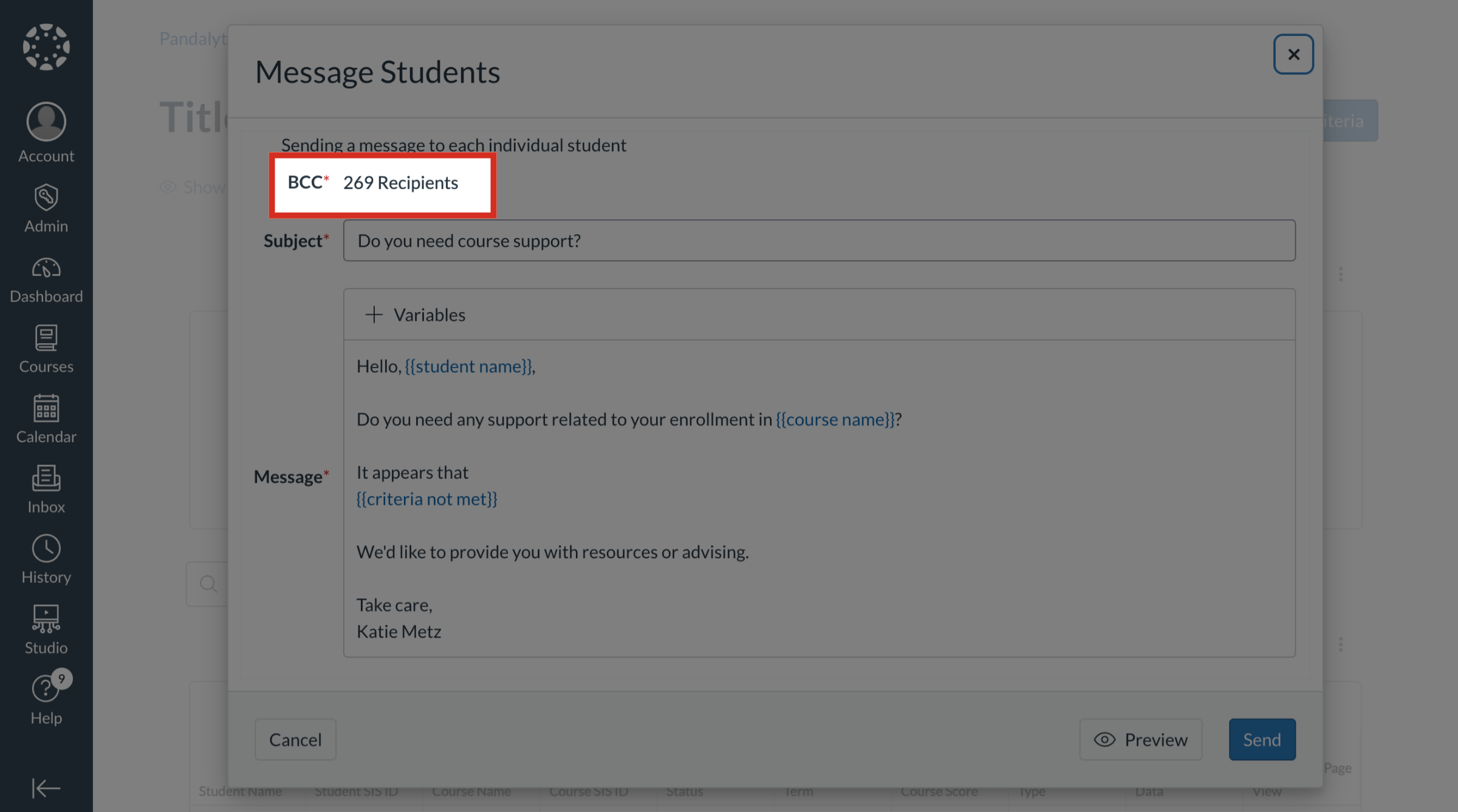
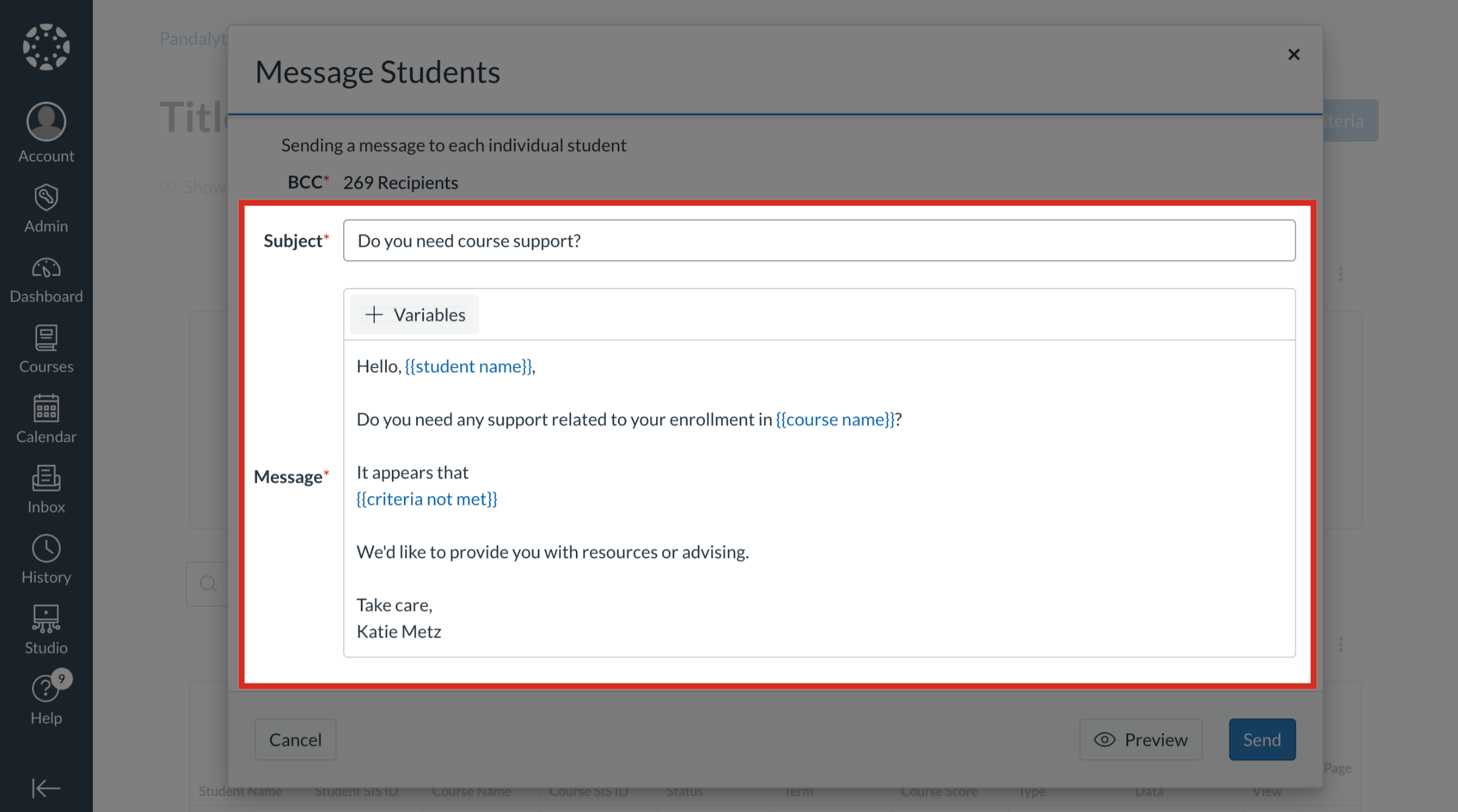
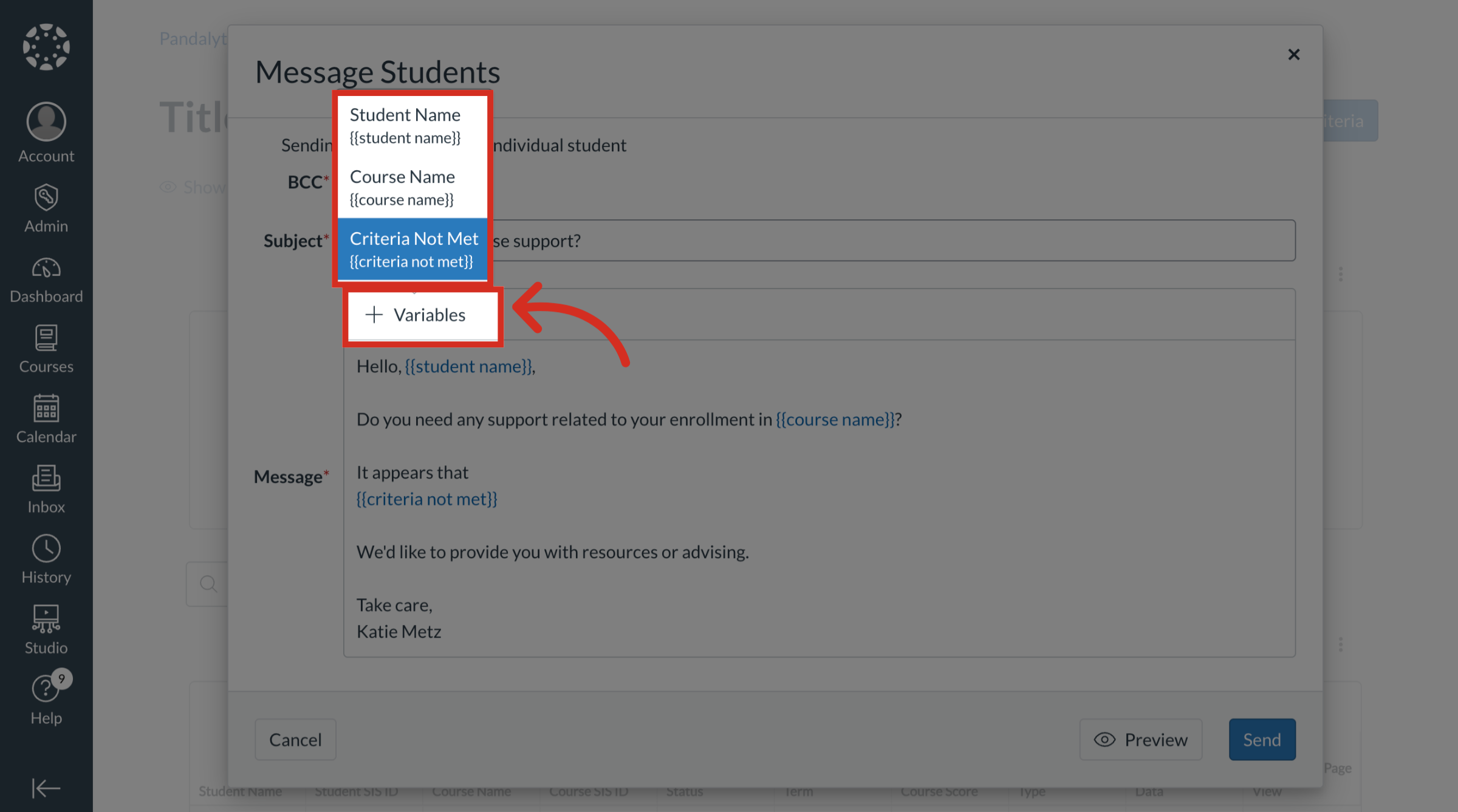
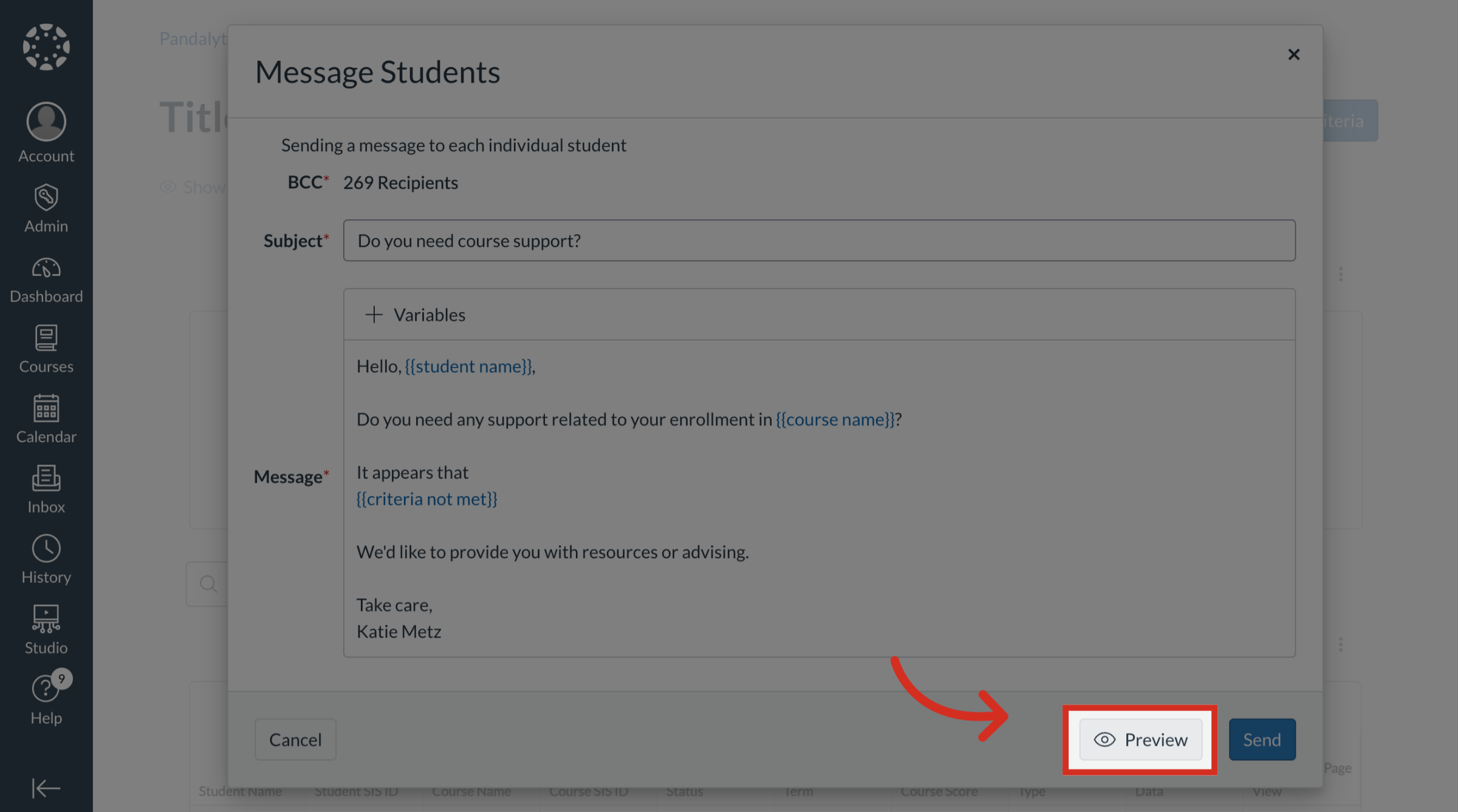
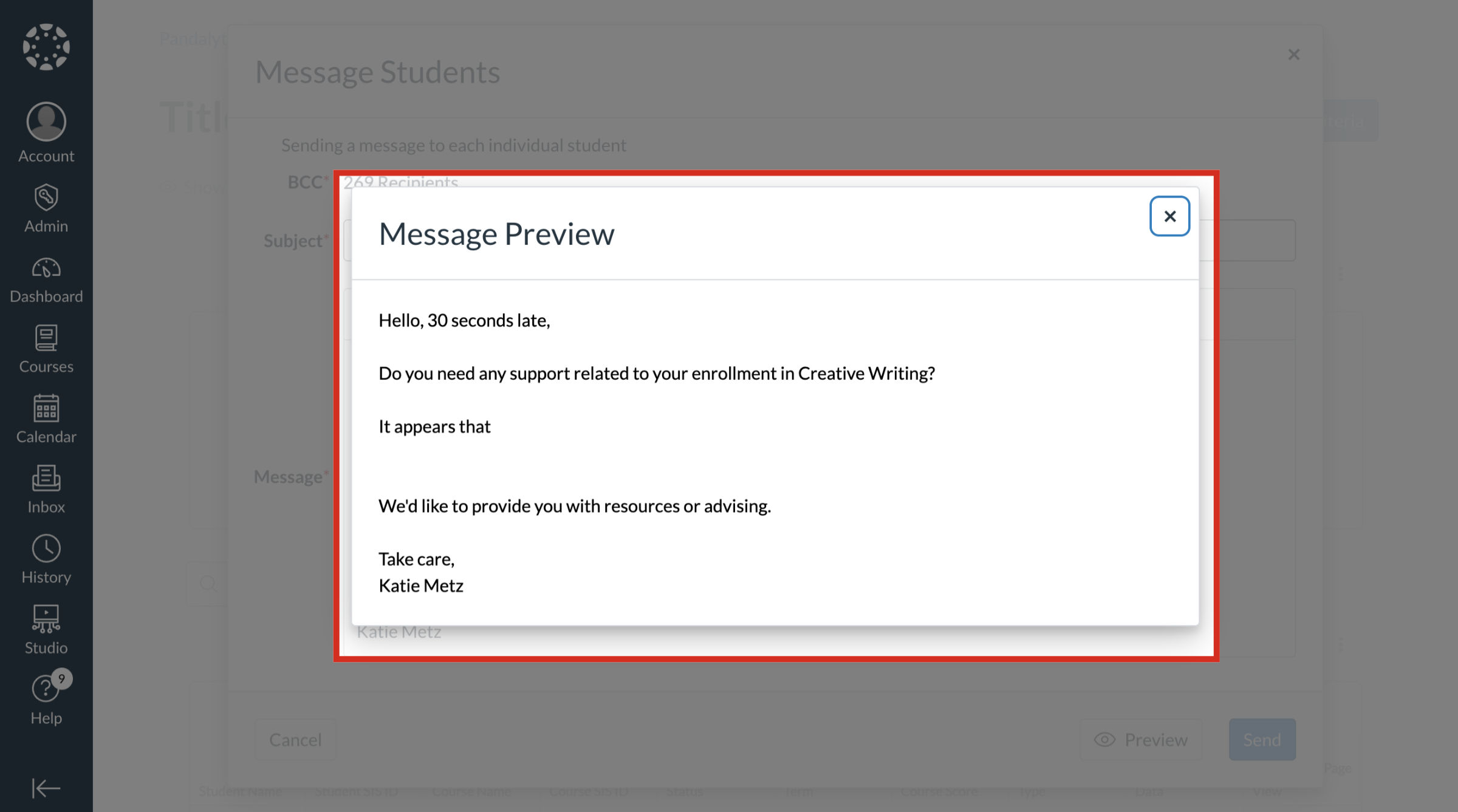
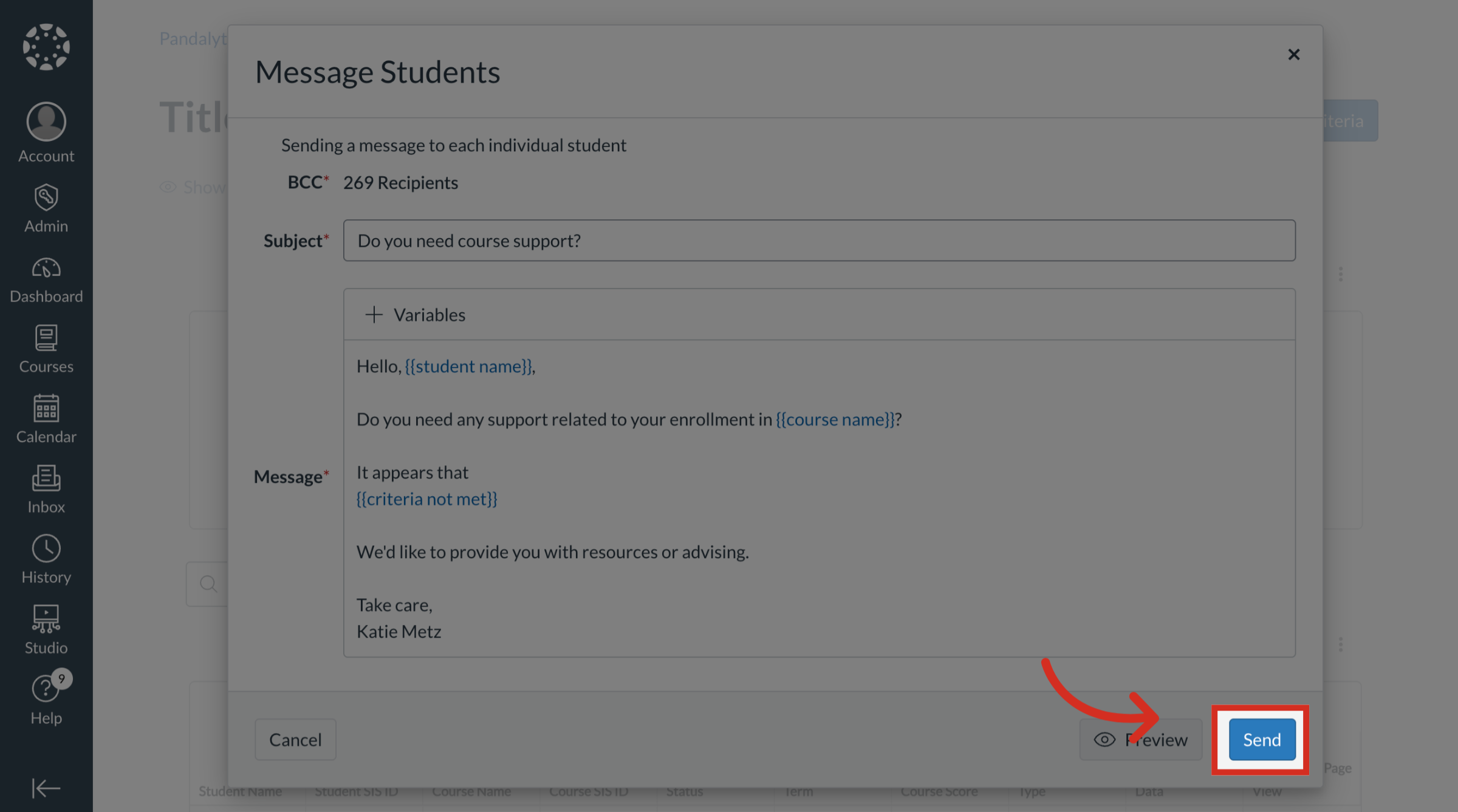
In the Title IV Financial Aid Report, you can take direct action from the dashboard by composing and sending a bulk message to the entire group of students. For privacy, student recipients are message discreetly.How do I bulk message students in Title IV Financial Aid Report?1. Open Title IV Financial Aid Report Data SetOpen the data set of the Title IV Financial Aid Report you need to message students by selecting the specific criteria.2. Open Message StudentsClick the MessageStudents button to begin composing a bulk message to recipients.3. View Recipient ListIn the Message Students popup window, all student recipients will be listed in the BCC field.4. Enter Subject and MessageUse the available template or variables to enter the subject and message you want to send to students.5. Select Message VariablesTo add variables, click the Variables button. Then select Click Student Name, Course Name, or Criteria Not Met to include personalized information for each recipient.6. Open Preview Message ContentTo preview the message as it will appear to each student, click the Preview button.7. Preview Message Content A preview of the message will display with the first recipient on the list.8. Send MessageTo send the message, click the Send button.