How do I message an individual student or their teacher in Students in Need of Attention?
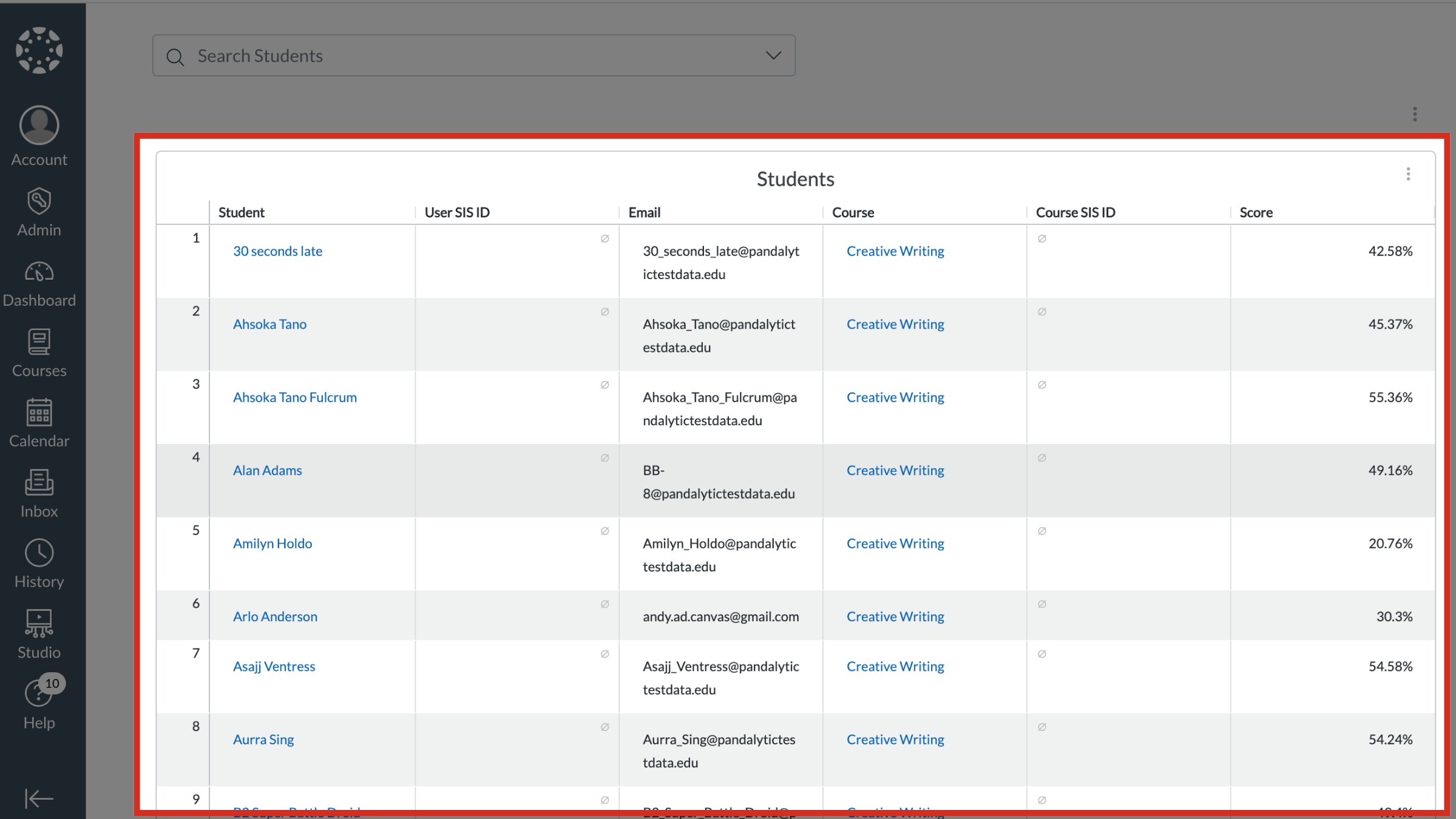
1. Navigate to Students List
Scroll and navigate to the Students list.
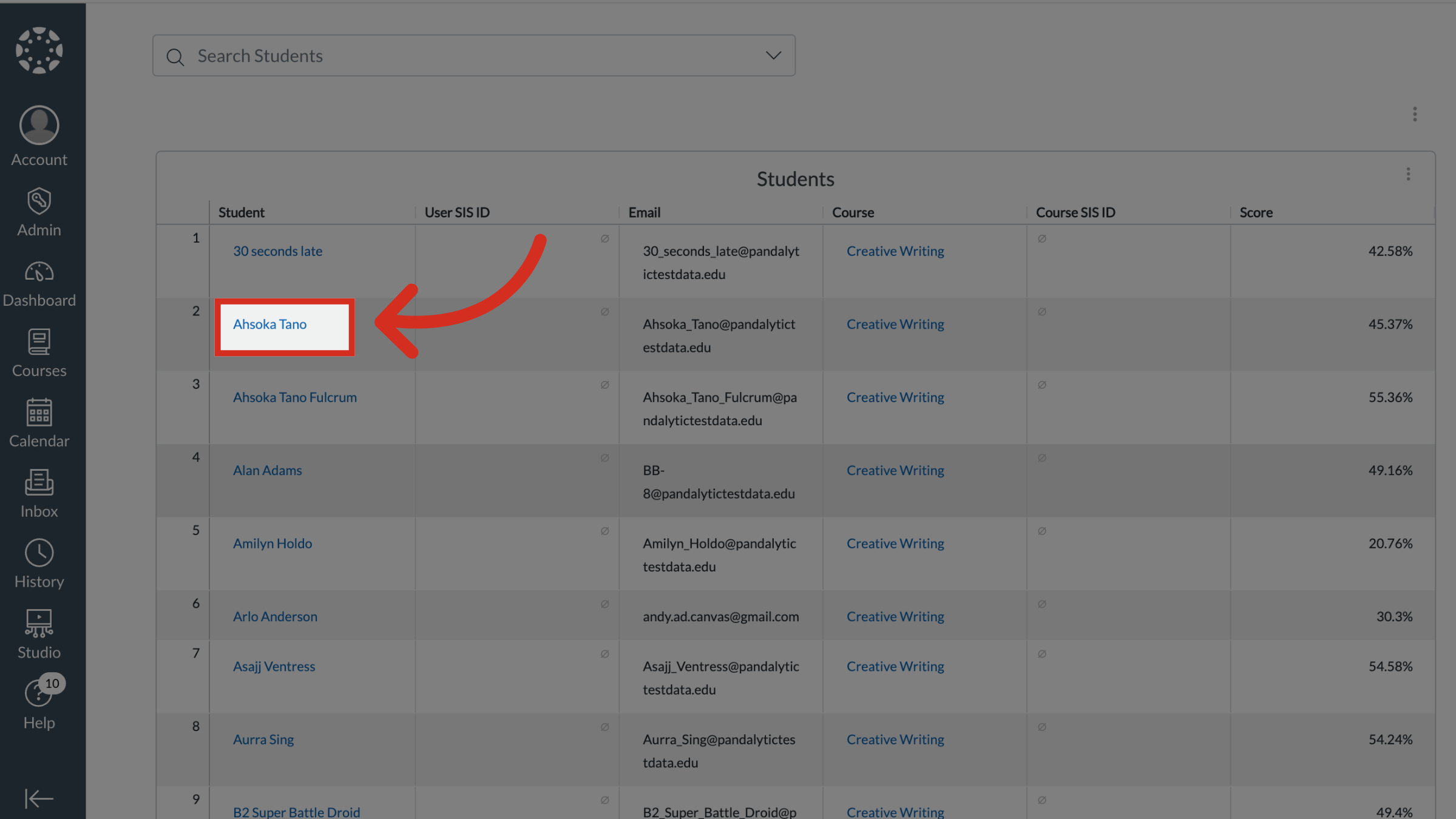
2. Open Student Info
Locate and click the student's name.
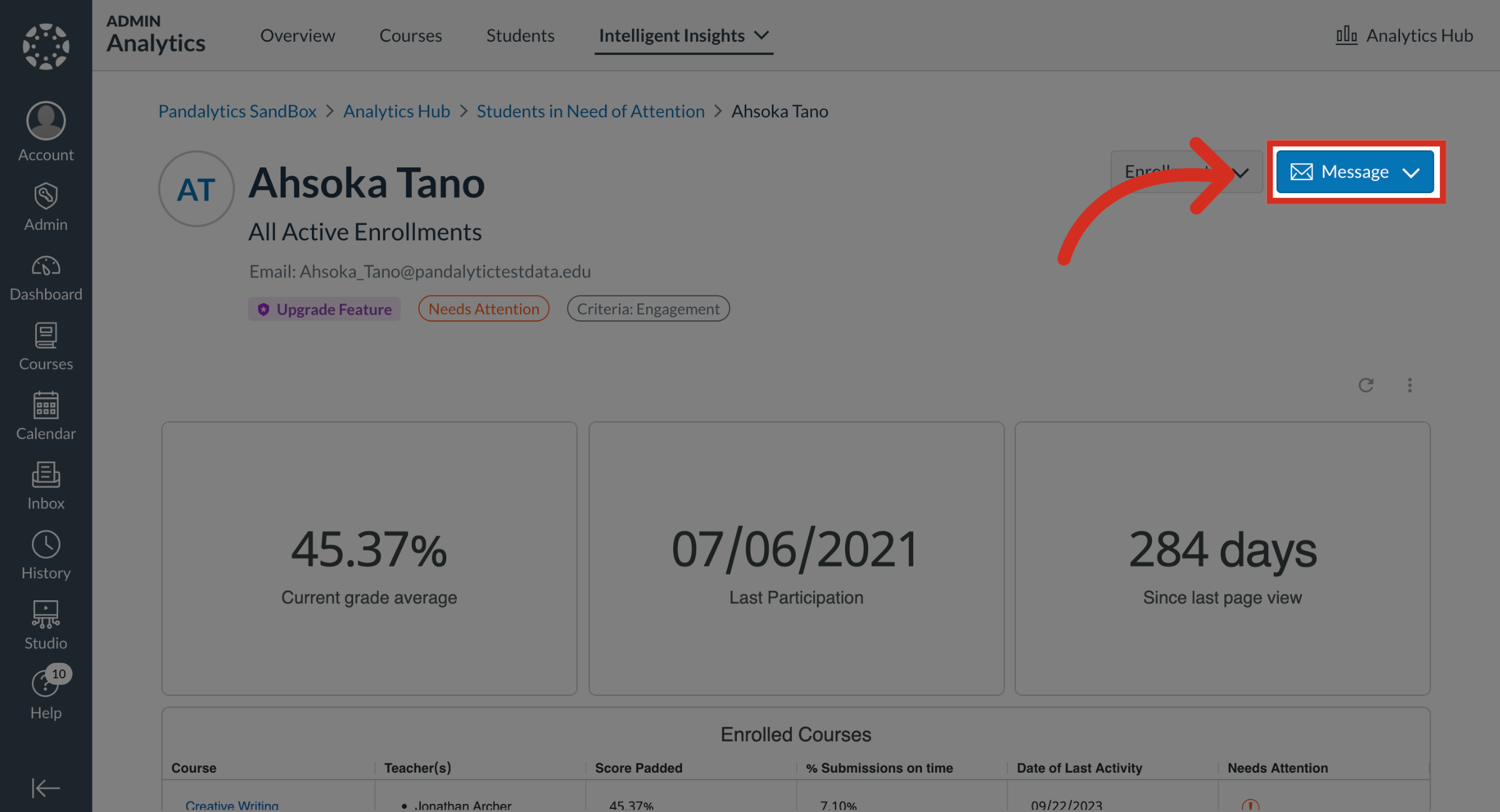
3. Open Message Options
Click the Message dropdown button.
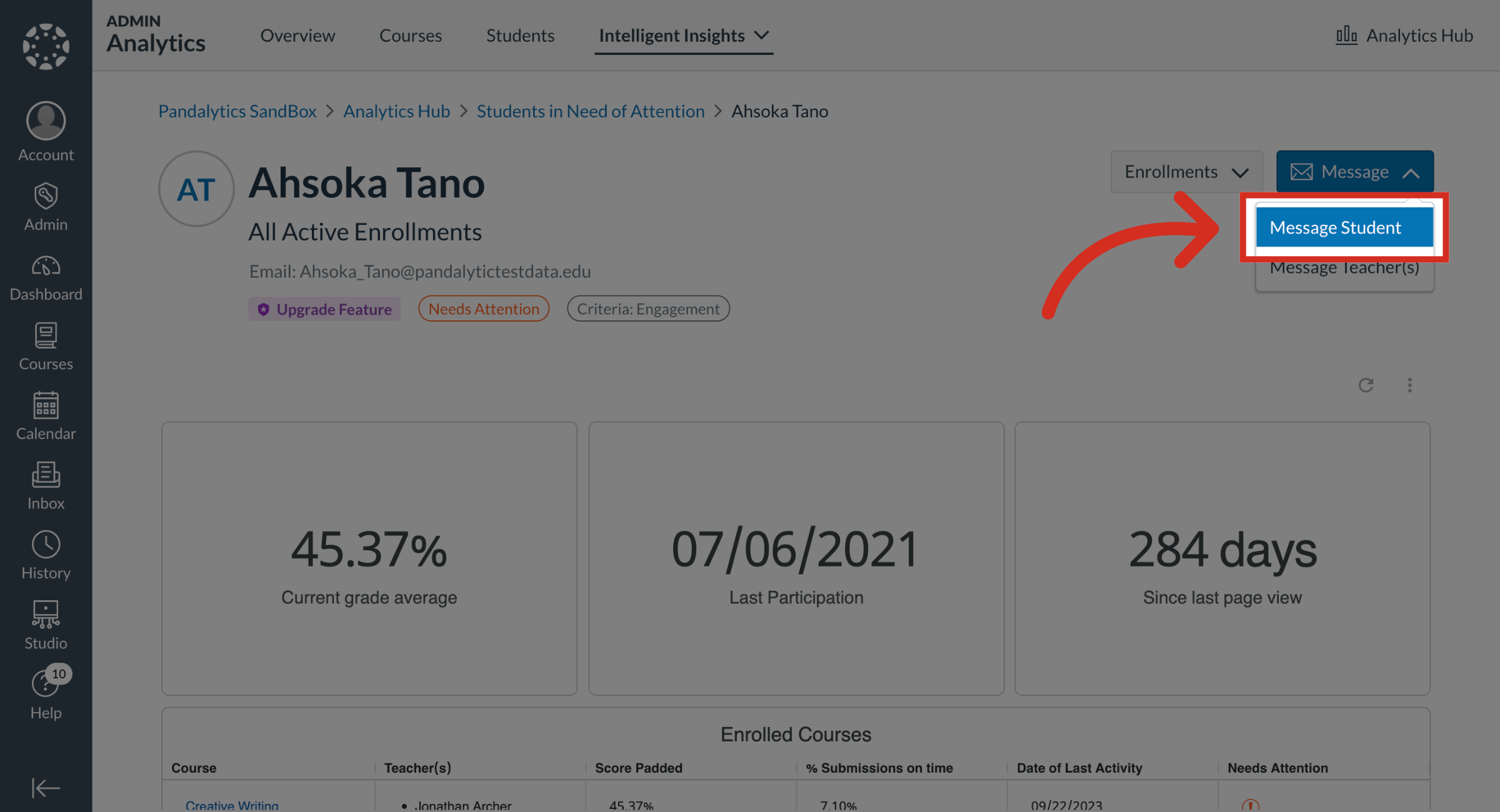
4. Open Message Student
To message the student, click the Message Student link.
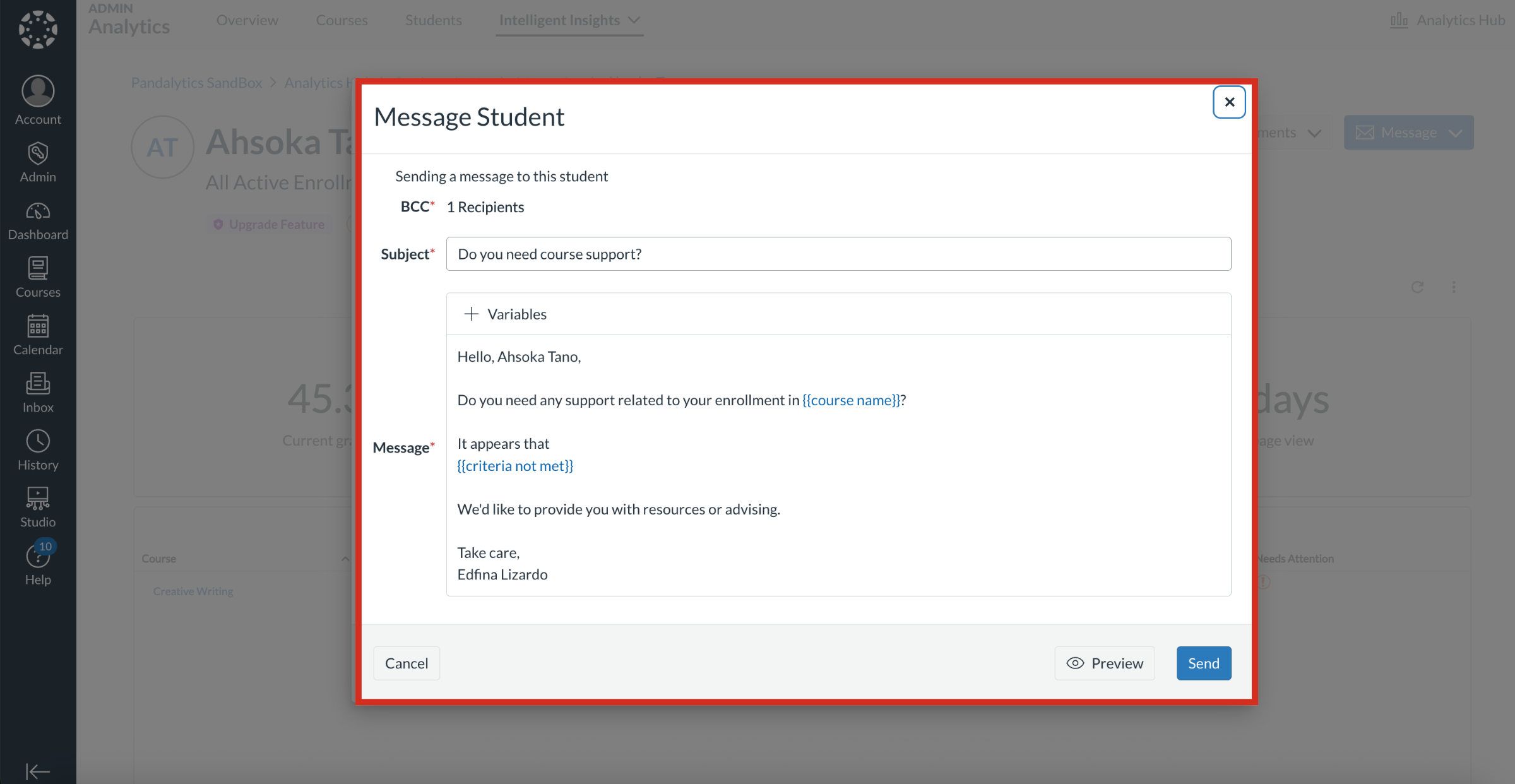
5. Message Student
In the Message Student popup window, the student recipient will be listed in the BCC field.
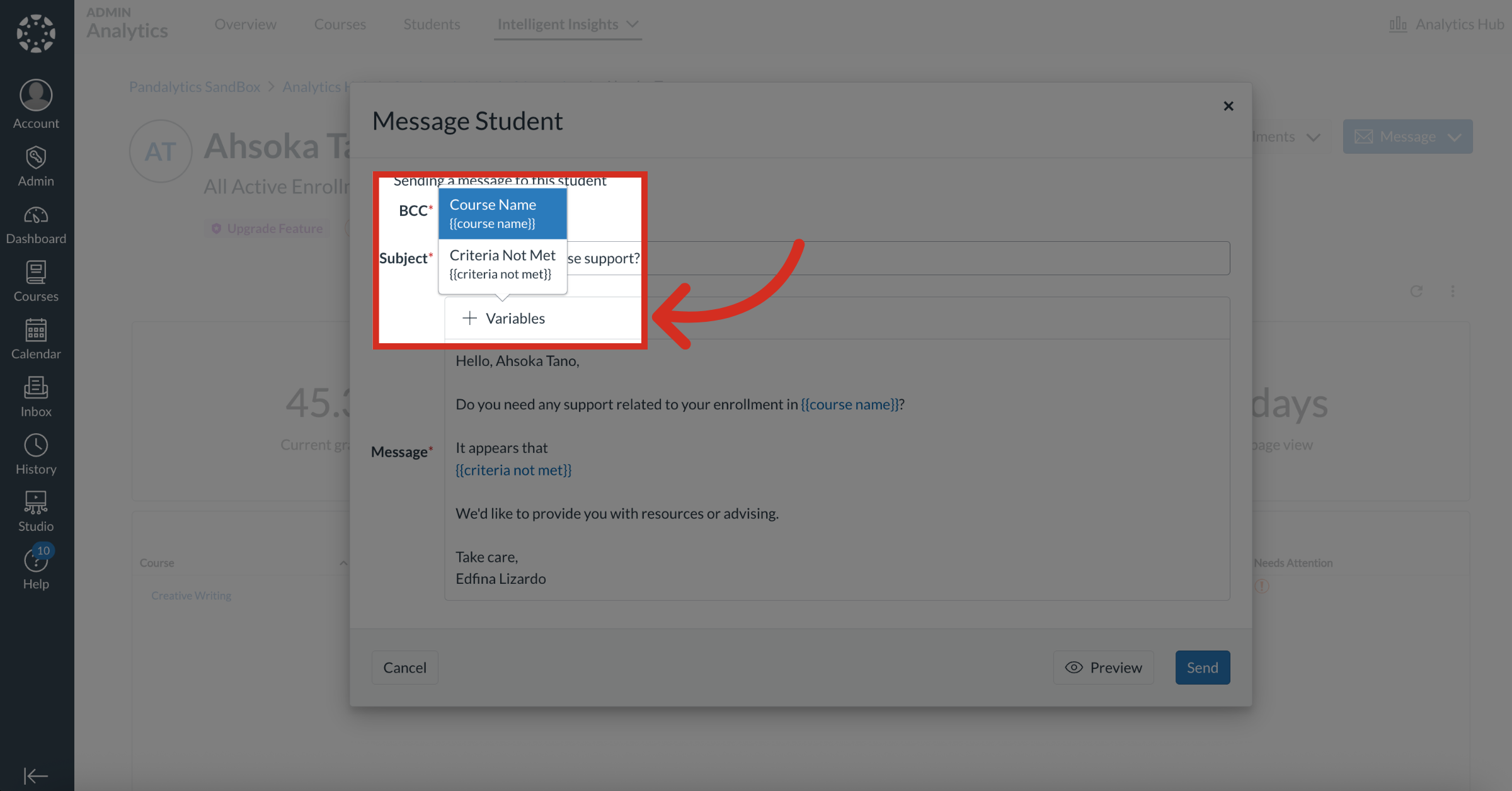
6. Select Variable
To select a variable, click the Variables button. The Course Name and Criteria Not Met variables display in the message body.
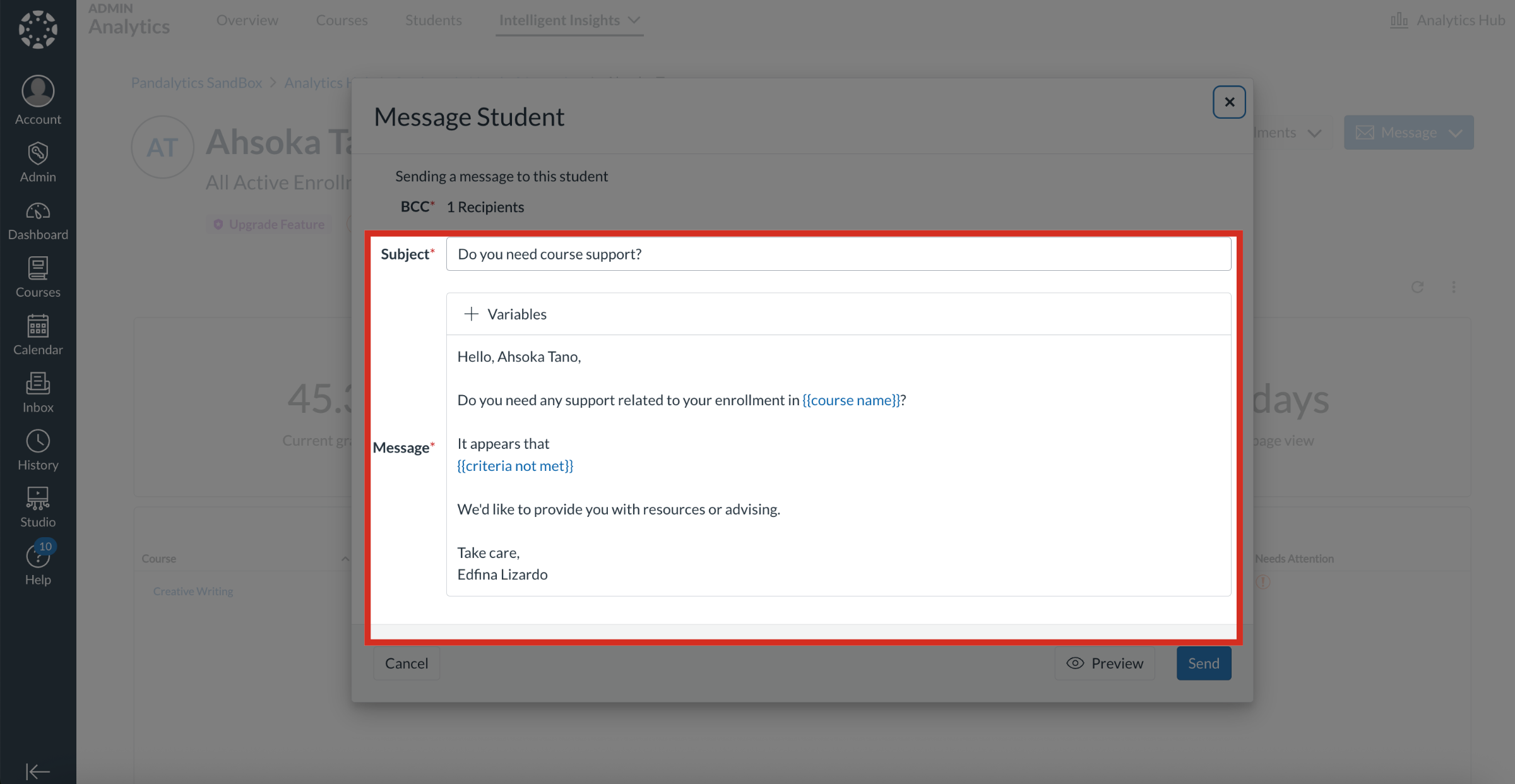
7. Enter Subject and Message
Then, enter the subject and the message to send to the student.
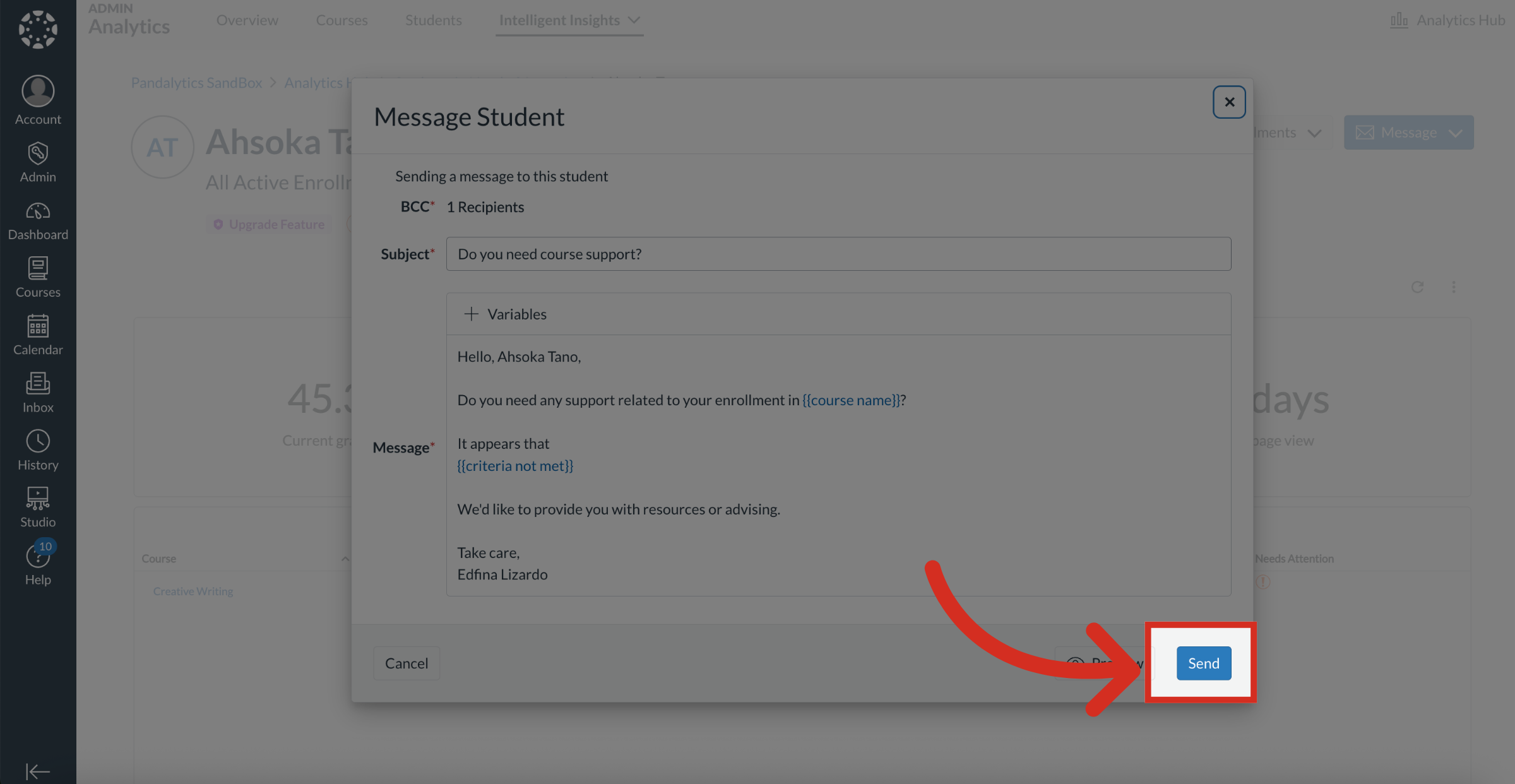
8. Send Message
Then click the Send button.
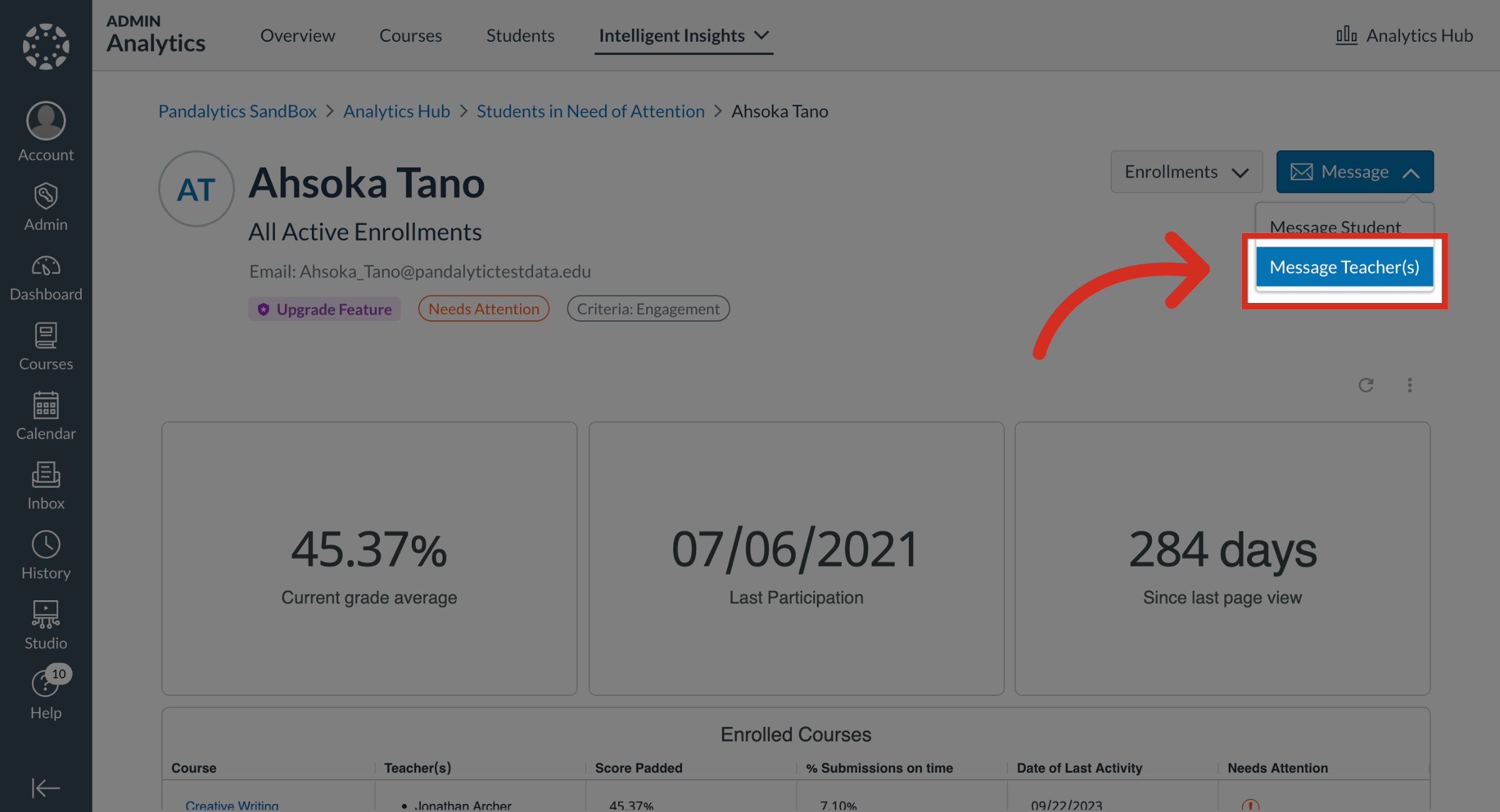
9. Open Message Teachers
To message the student's instructor(s), click the Message Teacher(s) link.
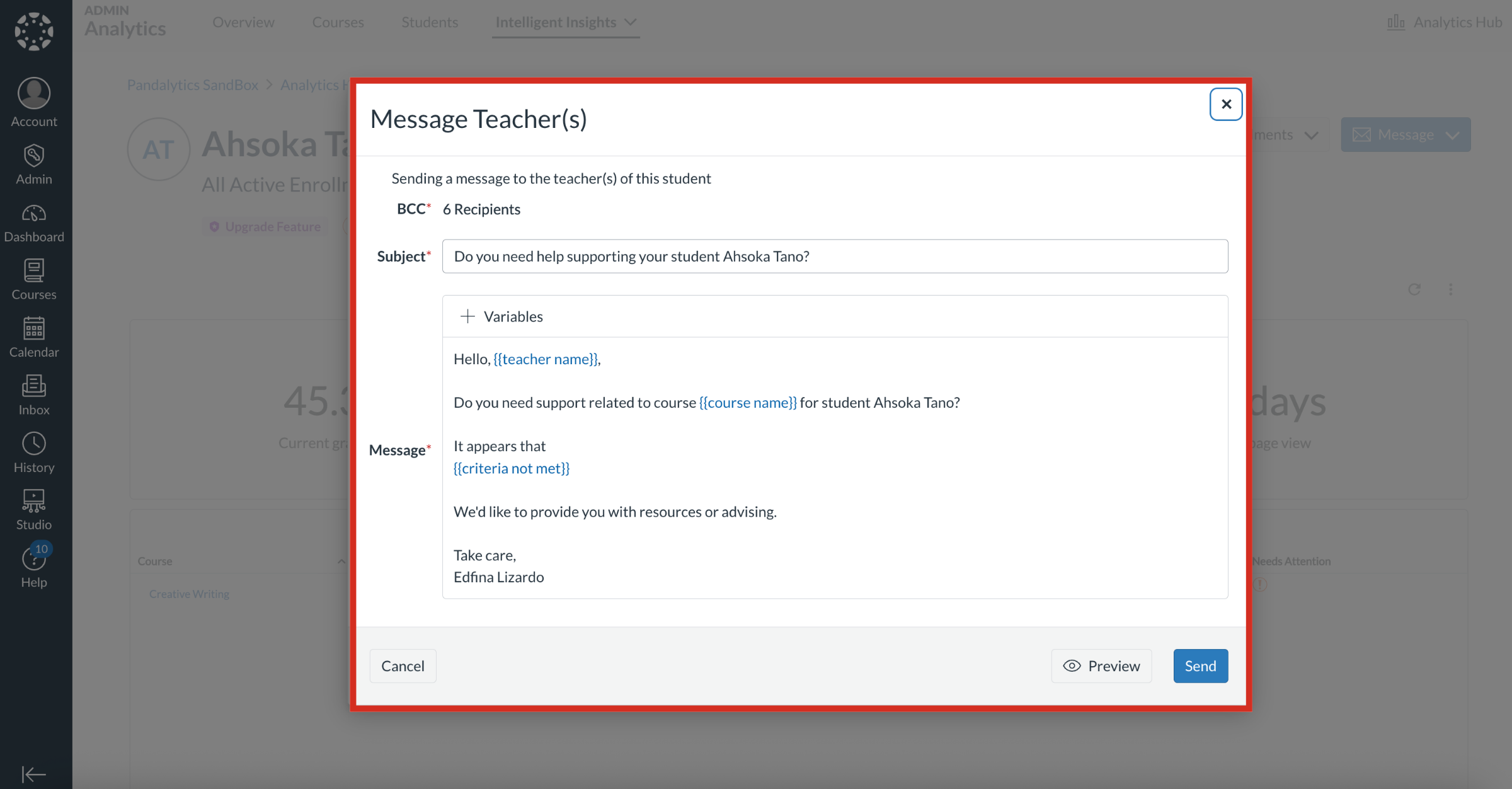
10. Message Teachers
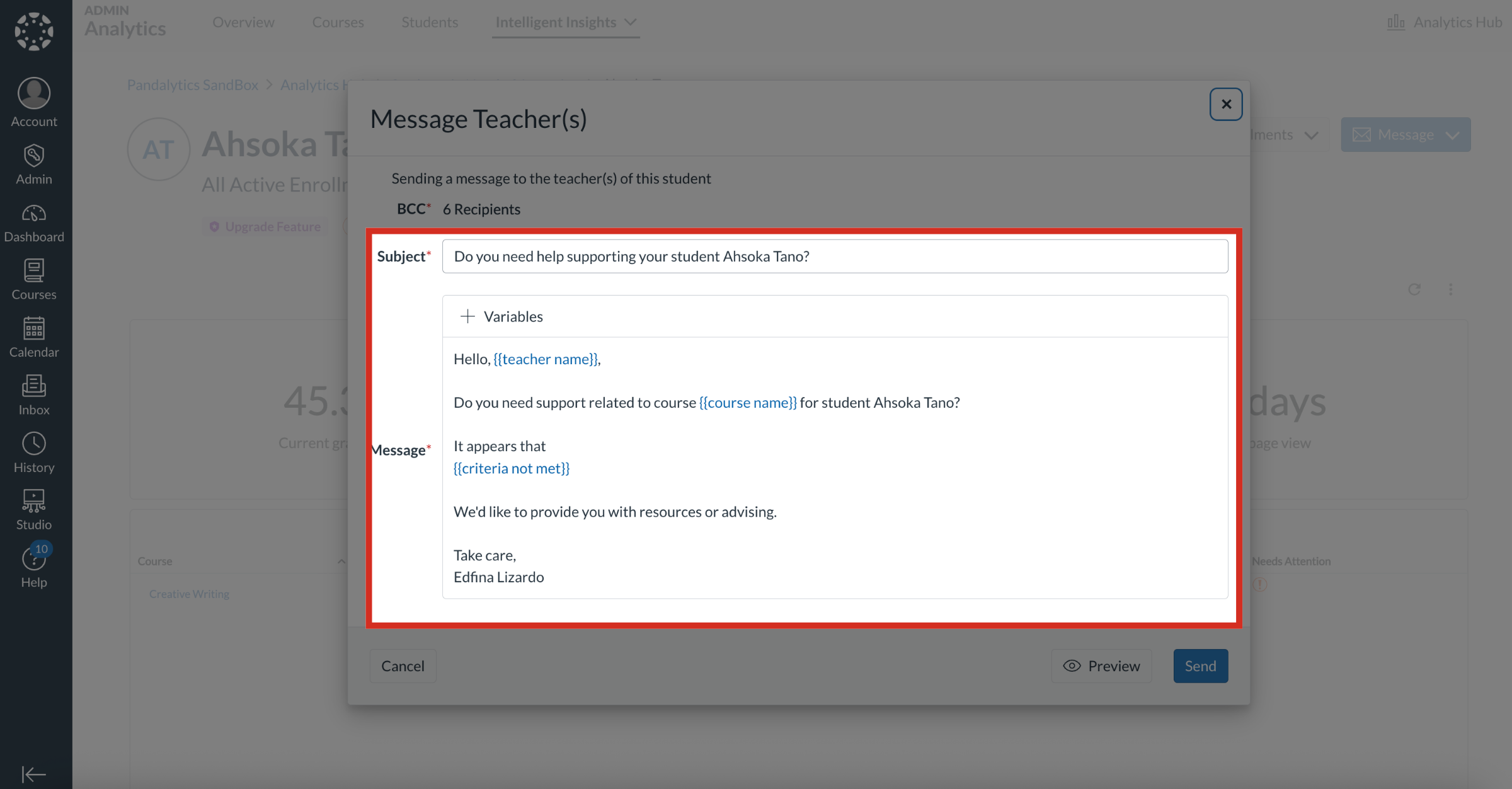
In the Message Teacher(s) popup window, all instructor recipients will be listed in the BCC field.
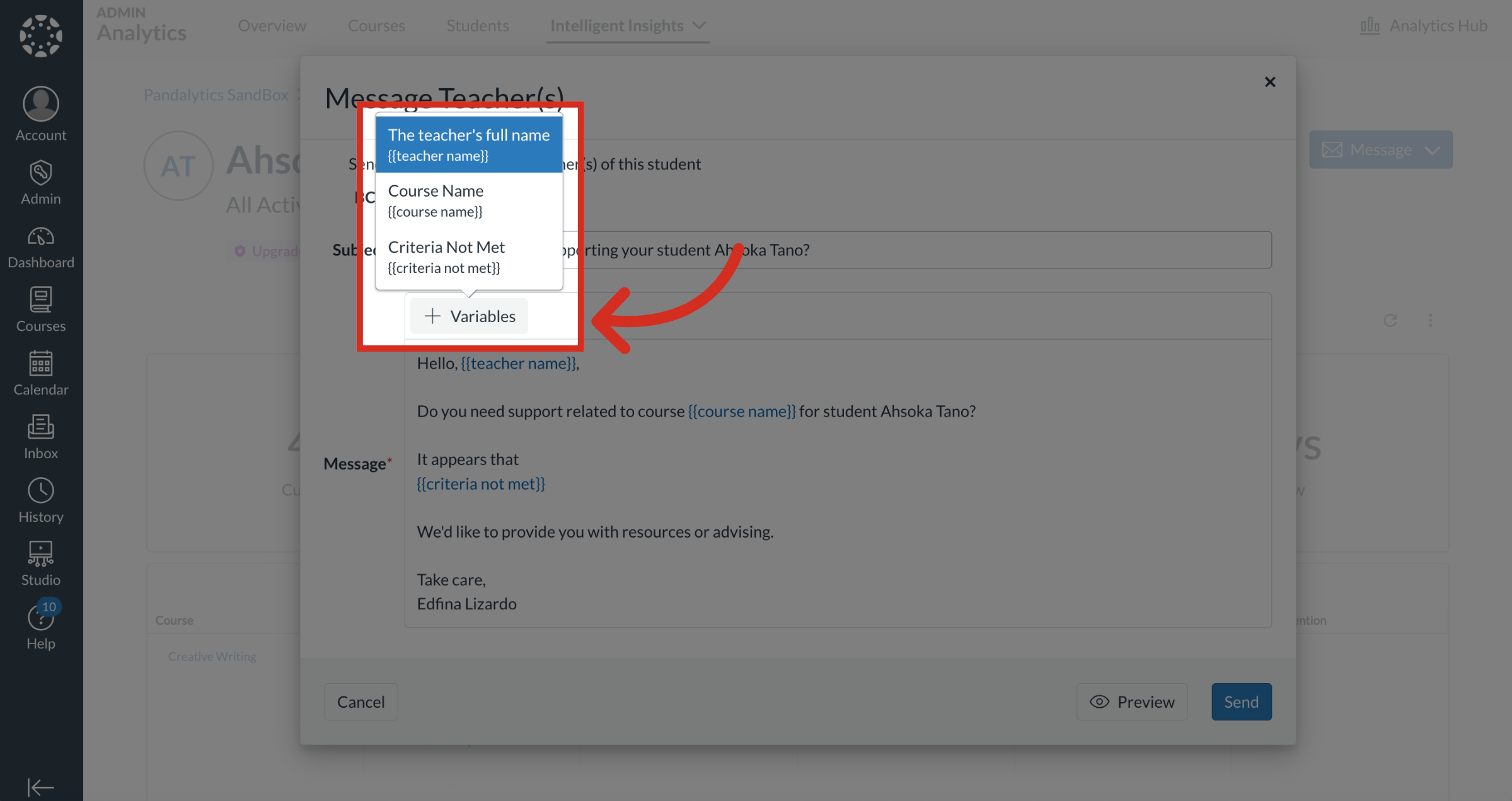
11. Select Variables
To select a variable, click the Variables button. The Teacher's full name, Course Name and Criteria Not Met variables display in the message body.
12. Enter Subject and Message
Then, enter the subject and the message to send to instructors.
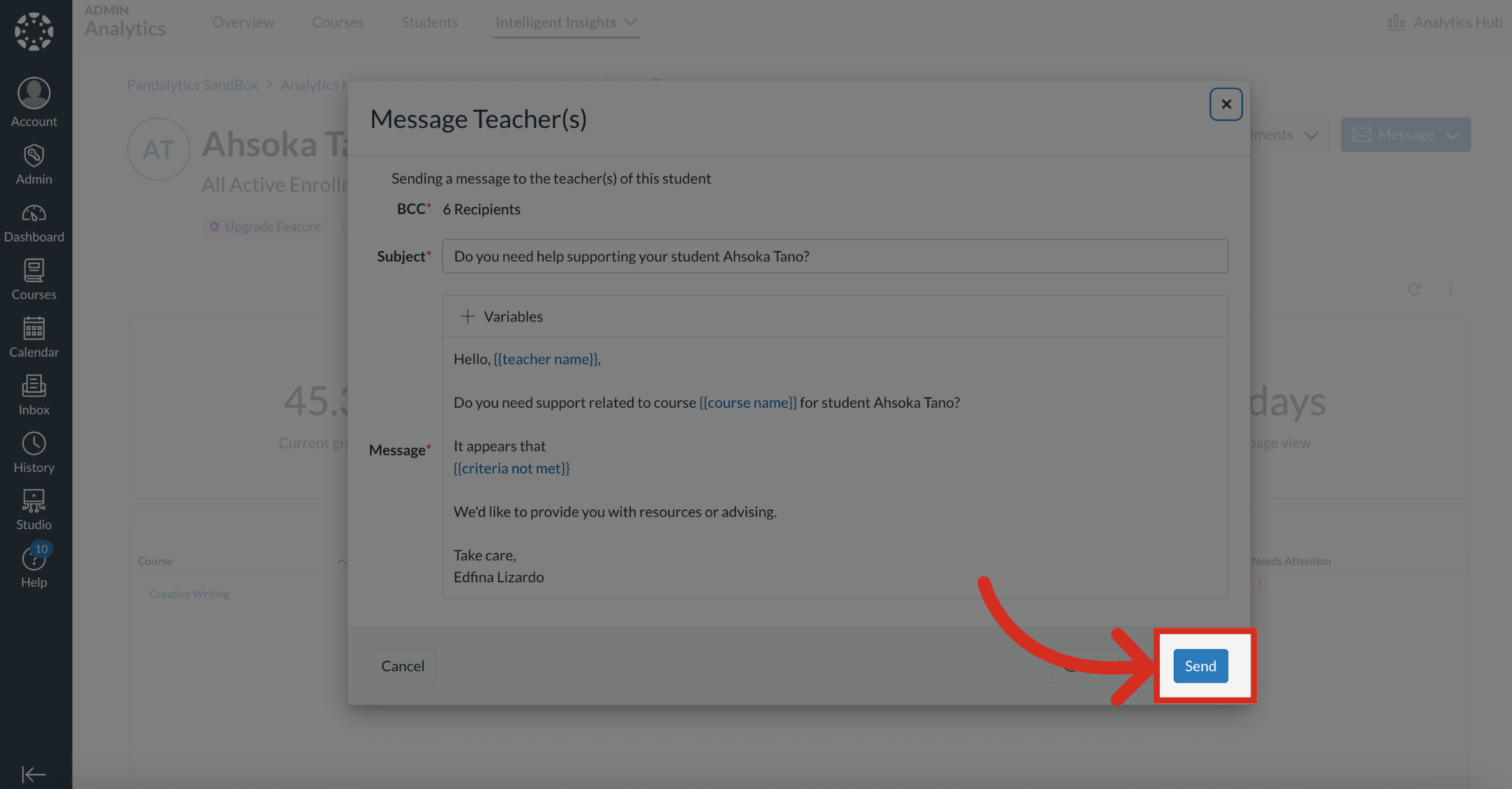
13. Send Message
Then click the Send button.