In the Community, your profile page displays your personal information including your avatar, your introductory statement, your title and Community status details, details about your activity in the Community, and your most recently earned badges.
To view your profile settings, you must be logged in to the Instructure Community.
Notes:
Open My Profile
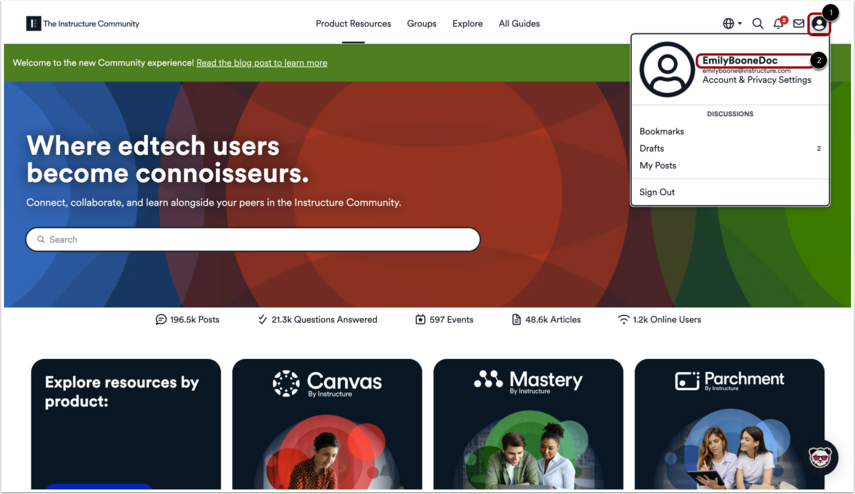
In the Global Navigation menu, click the Avatar icon [1]. Then, click on your Profile Name [2].
View Personal Information
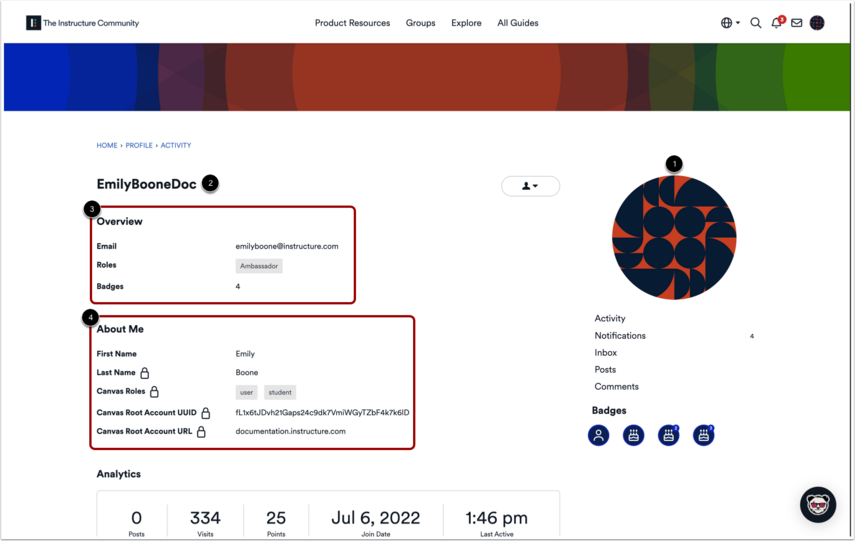
In the Profile page, the header displays your avatar [1] and your username [2].
The profile overview section [3] displays your email, role, and number of badges.
The About Me section [4] includes additional information such as your first name, last name, Canvas Roles, Canvas Root Account UUID, and Canvas Root Account URL.
View Profile Analytics
In the Profile page, you can view your profile analytics [1] which includes the following information:
- Number of posts [2]
- Number of visits [3]
- Number of points [4]
- Join Date [5]
- Time of last activity [6]
View Reactions
In the Profile page, you can view reactions.
Share Activity
In the Profile page, you can also share your activities.
To add content to your activity post, enter text in the Body field [1].
To include emojis in your activity post, click the Add Emoji icon [2].
To include an image in your activity post click the Add Image icon [3].
To add a file using a media URL, click the Add Media Link icon [4].
To attach a file in your activity post, click the Attach File icon [5].
To add a table in your activity post, click the Insert Table icon 6].
To share your activity, click the Share button [7].
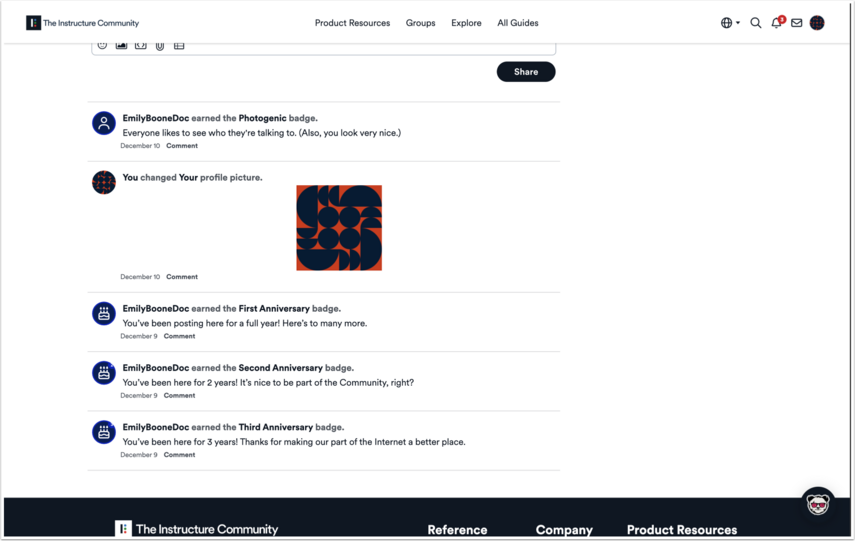
View Recent Activity
In the Profile page, you can also view your recent activities.