You can access notifications in the Instructure Community from the notifications feed and on your profile page. Notifications allow you to catch up on important content, new comments, group invites, new badges, and more from one convenient feed.
To update your notification settings, go to the notification settings page.
View Notifications
When you are logged into your Instructure Community account, you can view the Notification icon in the Navigation menu.
Open Notifications
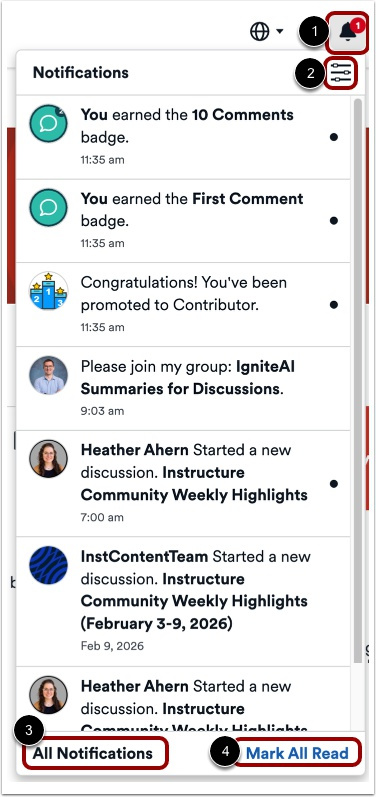
To open notifications, click the Notification icon [1]. You can view all your recent notifications in the Notifications Feed.
To set notification settings, click the Notification Preferences icon [2].
To view all notifications, click All Notifications [3].
To mark notifications as read, click Mark All Read [4].
View Notification Preferences
In Notification Preferences, you can choose to go back to your profile [1] and change the notification language settings. [2]
To change the notification language, click the Language drop-down menu [3].
You can also change notification preferences for your account [1], posts [2], followed categories [3], community task permissions [4], groups [5], and knowledge bases [6].
To add or remove a preference, click the checkbox [7].
View All Notifications
View All Notifications redirects you to your profile, where you can see all notifications along with their timestamps.