View Predicted Learning Objects
Follow the steps to align by standard.
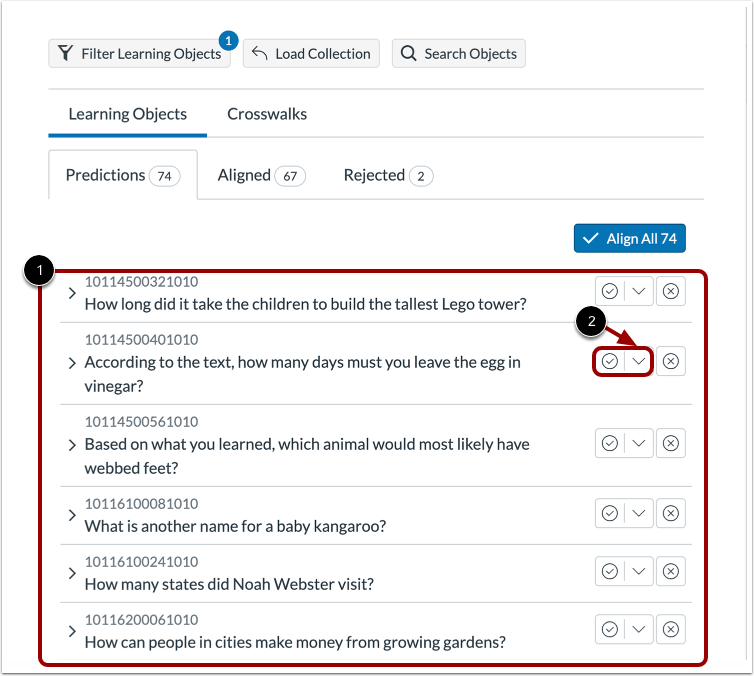
In the Predictions tab of the Alignment page, predicted learning objects for the selected standard display [1].
When alignment tags are enabled, the Accept icon drop-down displays [2].
Select Tag
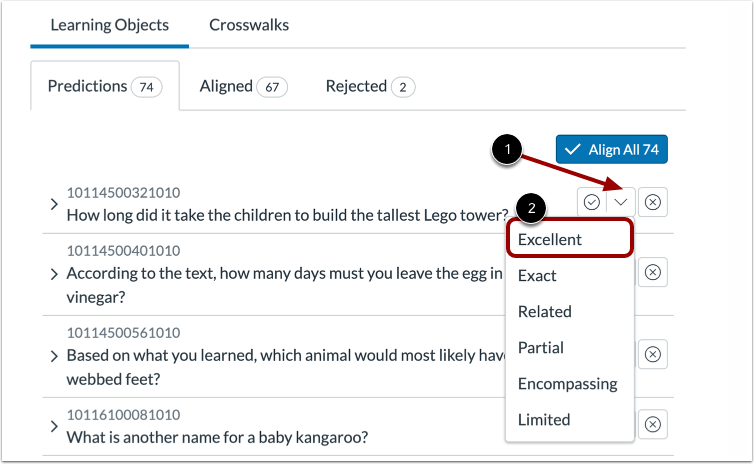
Click the Accept icon drop-down menu [1]. Then, select a tag name [2].
When you tag a predicted learning object, the alignment is accepted and moved to the Aligned tab. Rejected alignments can not be tagged.
Note: You can assign only one tag to a learning object in the Predictions tab, but you can add additional tags from the Aligned tab.
View Aligned Object
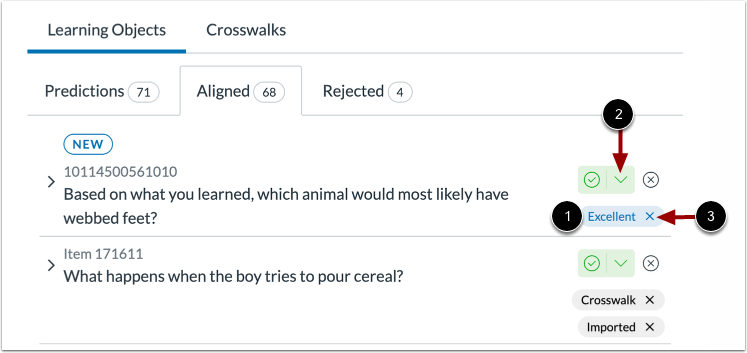
On the Aligned tab, the learning object displays the tag [1].
To add additional tags, click the Accept icon drop-down menu [2] and select a tag name.
To delete a tag, click the Delete icon on the tag label [3].