When you are logged in to the Elevate Standards Alignment App, you can enable tagging for predicted alignments. You can select a tag when you accept a prediction while aligning by standard or by object. Tags are available when copying alignments.
Open Settings
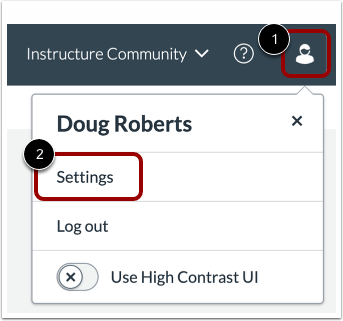
In the Navigation menu, click the Profile icon [1]. Then, click the Settings link [2].
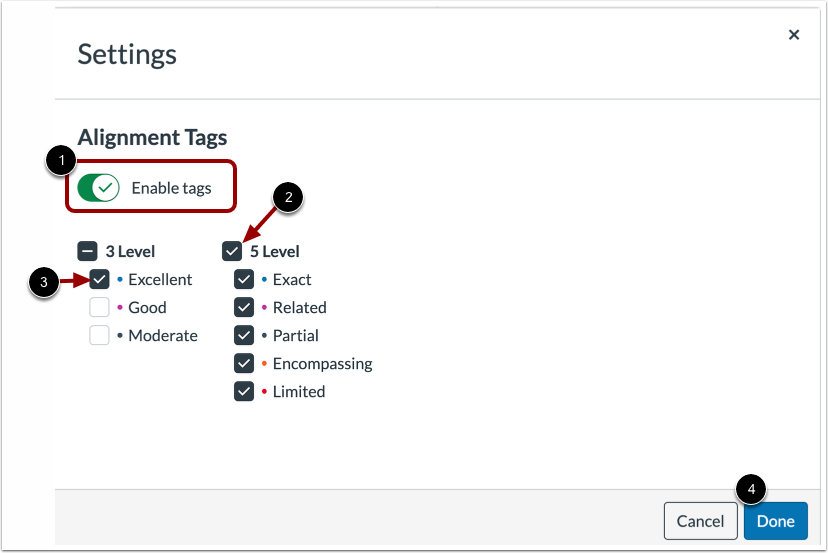
By default, the Enable tags toggle is switched off. To enable alignment tags, click the Enable tags toggle [1].
To select all tags fror a level, click a Level checkbox [2]. To select or deselect an individual tag, click the Tag checkbox [3].
To enable the selected tags, click the Done button [4]
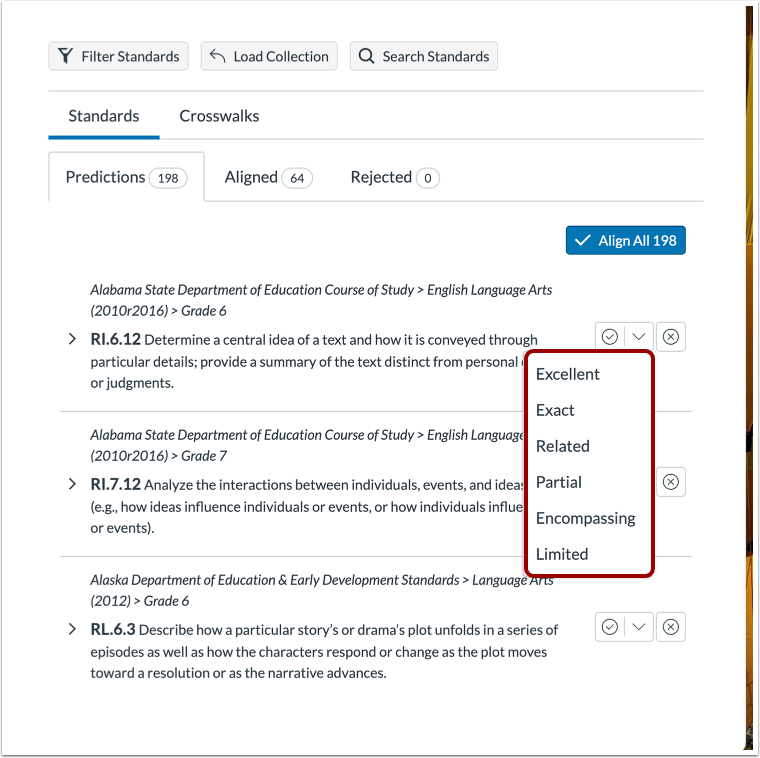
Selected tags display in the Accept icon drop-down menu in the Predictions tab of the Object and Standard alignment pages.