As an instructor, you can add a Studio video or audio file as a module item as an external tool. A copy of the media is saved in Course Collections.
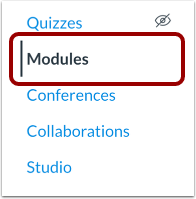
Open Modules
In Course Navigation, click the Modules link.
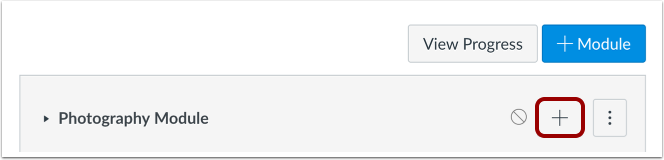
Add Module Item
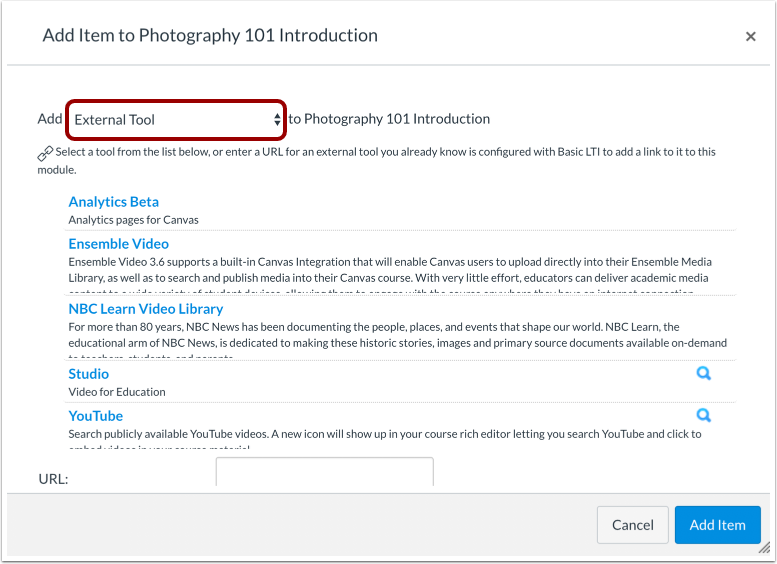
Click the Add Item button.
In the Add [Item Type] To: drop-down menu, select the External Tool option.
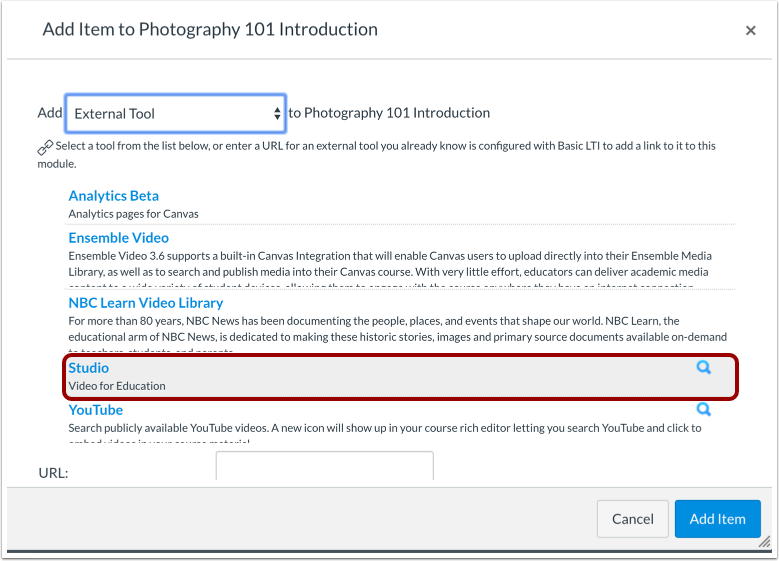
Click the Studio tool.
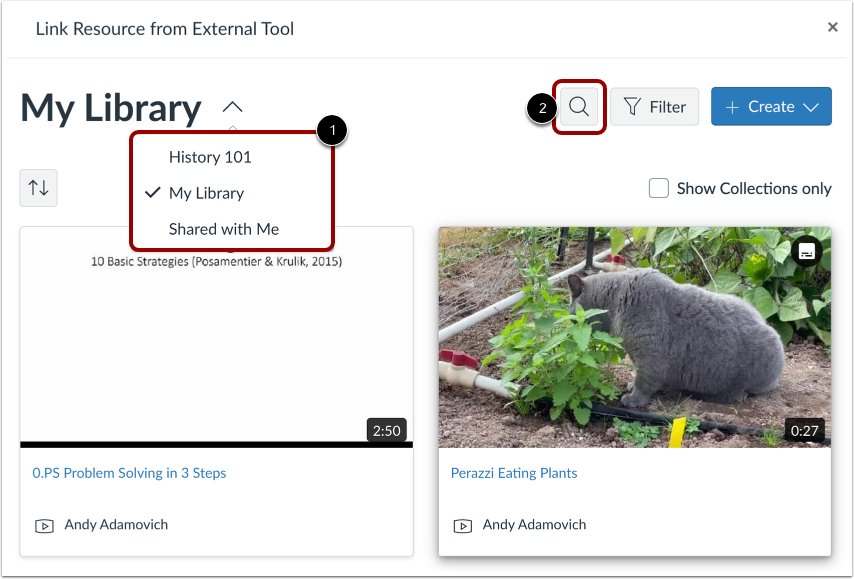
By default, the page displays media from your collection. To view other collections, click the My Library menu and click a collection name link [1].
To search for a video or audio file, click the Search icon [2].
Note: If you are an instructor, you can also view media collections for your courses.
To upload new media, click the Create drop-down menu [1].
If you are using Chrome or Edge browsers:
If you are using Safari or Firefox browsers:
To add a media file from your computer, or from YouTube or Vimeo, click the Add Media link [6].
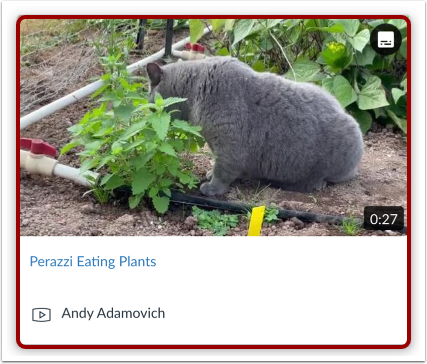
Locate the media you want to embed and then click the media thumbnail.
If the RCE Studio Embed Improvements feature is enabled, you can select one of the following views:
- Thumbnail View [1]: A compact preview that expands into a full-screen Immersive View when clicked. Use this to save space or when students do not need to watch the video immediately.
- Learn View [2]: Built for focused study. Supports playback directly on the page with a synchronized, rolling transcript.
- Collab View [3]: Everything in Learn View, plus a comment section. Best for encouraging peer discussion and feedback alongside the video.
- Quiz View (if available) [4]: Turns the video into an assessment. You can embed specific quizzes and limit playback controls to ensure academic integrity.
Notes: The Quiz View displays only if the media includes a quiz.
Select Embed Options
You can display Media Tabs in the embedded media file. The Media Tabs can include the Details, Comments, Insights, and Captions tabs. To display or hide the Media Tabs in the embedded media file, click the Display media tabs toggle on [1].
When embedding internal media that you created and uploaded in Studio, you can allow students to download the media. To enable student downloads, click the Allow Media Download toggle on [2]. By default, this option is turned off.
Notes:
- By default, the media tabs option may be enabled or disabled. If you are unable to enable media tabs, the feature has not been made available by your Studio admin.
- The Display Download Option toggle only displays if you are the owner who created and uploaded the media file in Studio.
Set Viewer Restrictions
If the RCE Studio Embed Improvements feature is enabled, you can manage playback behavior and security settings.
If you selected Thumbnail, Learn, or Collab views, you can:
- Lock speed at 1x [1]
- Allow media download (except YouTube or Vimeo videos) [2]
- Allow transcript download [3]
- Show rolling transcript [4]
If you selected Quiz View, only the Lock Speed at 1x toggle displays.
Embed at Timestamp
If you are embedding media from an external source such as YouTube or Vimeo, you can set the media to begin playing at a particular timestamp.
To embed media at a timestamp, click or play the video at the desired time [1]. Then, click the Set current button [2]. The time displayed on the Set current button displays in the Timestamp field [3]. Alternatively, enter a time directly into the Timestamp field.
Notes:
- The option to start embedded media at a timestamp only displays if the media is from YouTube or Vimeo.
- Discussions created directly in a group do not include the embed options for Studio media and do not track viewership data. To view the embed options and viewership data when creating a discussion for a course group, the discussion must be created on the course level and then set as a group discussion.
- If the RCE Studio Embed Improvements feature is enabled, the Display Media Tabs toggle does not display.
Click the Embed Media button.
Add Item
To have the media open in a new browser tab, click the Load in a new tab checkbox [1]. Choose whether or not to indent the item in the module drop-down menu [2].
Click the Add Item button [3].
View Module
View the Studio media in your module.