You can add annotations to your media in Studio. Annotations include a headline and text, and you can also add links and hyperlinks. When viewers play the annotated media, the media pauses and annotations display. You can also edit and delete annotations.
Notes:
- After logging into Studio through Canvas Global Navigation, you can add annotations to your uploaded media. Annotations cannot be added to your media anywhere else in the Canvas interface.
- You can only add annotations to your own uploaded media. However, you can add time-stamped comments to media that is shared with you.
Open Media Annotation Tool
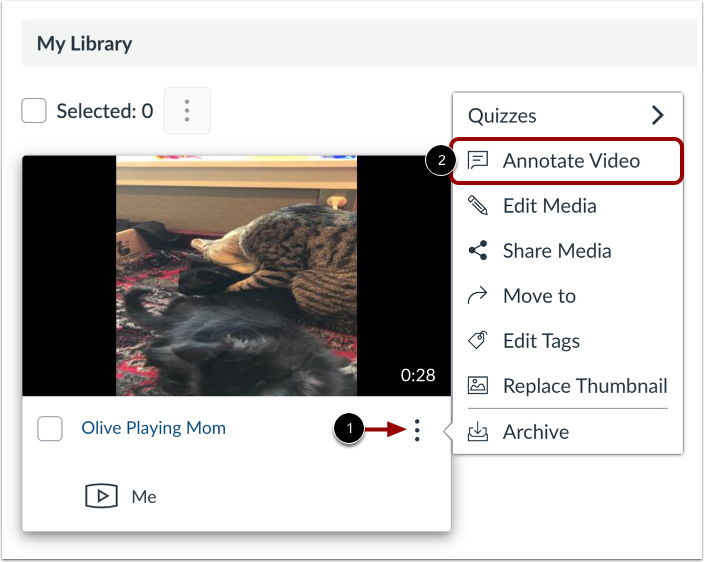
Locate the video you want to annotate. Then, click the Options icon [1] and click the Annotate Video link [2].
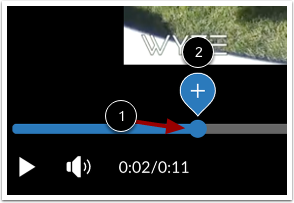
In the media timeline, pause the media where you want to add an annotation [1]. Click the Add icon [2].
Enter Notecard Details
In the Headline field [1], enter a headline of up to 80 characters. In the Description field [2], enter a description of up to 200 characters.
Add Link to Notecard
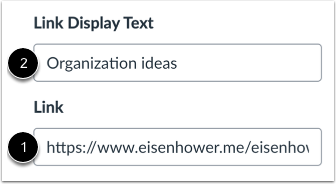
You can add links to your annotation. Enter a link in the Link field [1].
To create a hyperlink, enter up to 30 characters in the Link Display Text field [2].
Save Annotation
Click the Save button.
View Annotation
View the annotation.
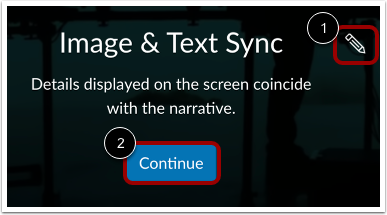
To edit the annotation, click the Edit icon [1]. To dismiss the annotation, click the Continue button [2].
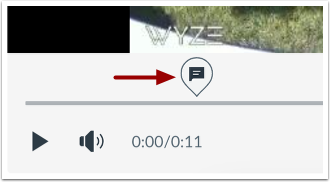
Annotations display in your media timeline. To view and edit the annotation, click the Annotation icon.