In Studio, you can move media that you have uploaded between course collections. You can move individual media, or you can move multiple media items at once using the bulk option.
Notes:
- After logging into Studio through Canvas Global Navigation, you can move uploaded media. You can not move media anywhere else in the Canvas interface.
- You can only move your own uploaded media.
Move Individual Media
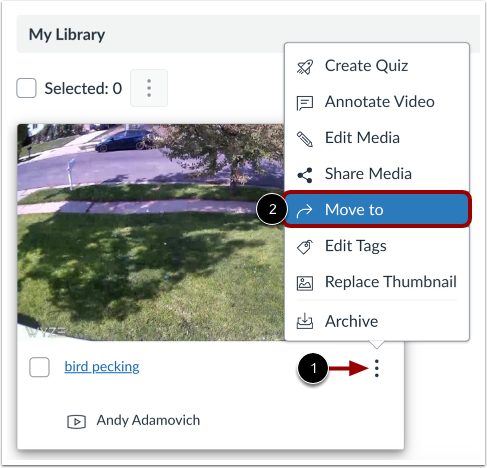
Locate the video you want to move.
Then, click the Options icon [1] and click the Move to link [2].
Select Destination
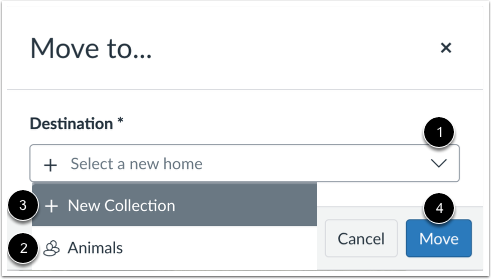
In the Move to... window, click the Destination drop-down menu [1]. To move the media to an existing collection, click the collection name link [2]. To move the media to a new collection, click the New Collection link and create a new collection [3].
Click the Move button [4].
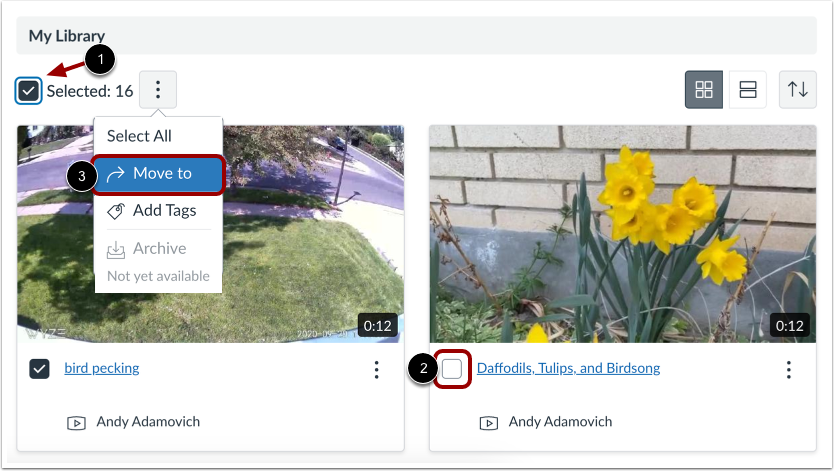
To bulk move media in your library or collection, click the Select All checkbox [1].
To de-select an individual media item from the bulk action, click the media name checkbox to remove the checkmark [2].
Then, click the Move to link [3].
Select Destination
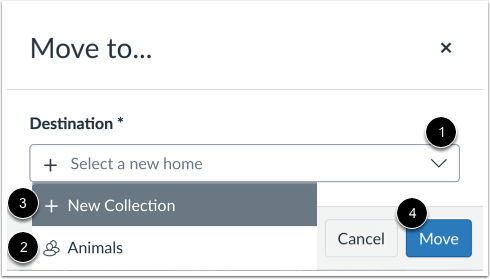
In the Move to window, click the Destination drop-down menu [1]. To move the media to an existing collection, click a collection name link [2]. To move the media to a new collection, click the New Collection link and create a new collection [3].
Click the Move button [4].