As an admin, you can connect Zoom as a conference tool in your institution's Studio account. However, before you can configure the conference tool in Studio, you must first create a cloud recording app in your Zoom account. Learn about configuring your institution's Zoom app to send cloud recordings to Studio using Server-to-Server Authentication or User Authentication.
Open Conferences
In the Settings menu, click the Conferences tab.
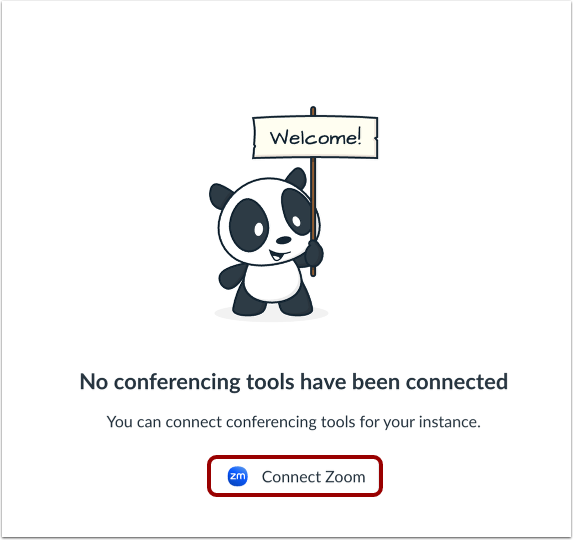
Connect Zoom
In the Conferences page, click the Connect Zoom button.
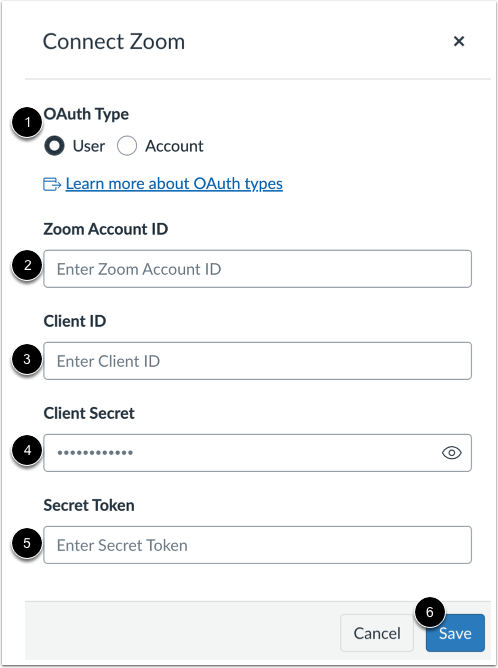
In the Connect Zoom window, select the OAuth Type, User Authentication or Account Server-to-Server Authentication [1].
Add the account ID in the Zoom Account ID field [2]. If you do not know your account ID, refer to our guide on locating the Zoom Account ID.
Add the client ID in the Client ID field [3].
Add the client secret in the Client Secret field [4].
Add the verification token in the Secret Token field [5].
Click the Save button [6].
View Zoom App in Conferences
View the Zoom app. You can also authorize Zoom and manage the Zoom app integration.