If you have been designated as a requirement reviewer, you can access your reviews in the pathway. Currently, experience is the only requirement type which does not require a submission.
Experience requirements can be pass/fail or numeric scored, and if there are a lot of submissions you can use a CSV to bulk score the requirement.
Open Pathways
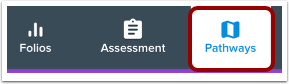
In the Toolbar, click the Pathways icon.
Open Pathway
Click the name of the pathway.
Open Your Reviews
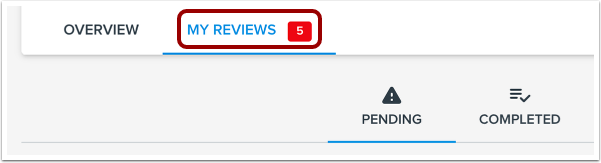
In the pathway, click the My Reviews tab.
Score Pass/Fail Requirement
If the requirement is set to pass / fail scoring, each student will display pass and fail icons. Unshaded icons indicate the student has not yet been scored [1].
To award the student a passing score, click the Pass icon [2].
To award the student a failing score, click the Fail icon [3].
To clear the score, click the Clear icon [4].
When you have entered all the scores, click the Submit Scores button [5].
Score Numeric Requirement
If the requirement is set for numeric scoring, each student row will include a Score field [1].
In the Score field, type a score [2] or use the arrow icons to select a score [3].
To clear the score, click the Clear icon [4].
When you have entered all the scores, click the Submit Scoresbutton [5].
Record Scores
To record the entered scores and award badges or complete pathways, click the Yes, Record Scores button.
View Completed Reviews
View the submitted scores on the Completed tab.