Canvas Student Pathways will be retired on June 30, 2026. For more information, see the Introducing Canvas Portfolio blog post.
When adding requirements to a milestone, you can use a completed pathway as a requirement. To complete the requirement, students will have to complete the requirements for the defined pathway.
Open Pathways
In the Toolbar, click the Pathways icon.
Open Pathway
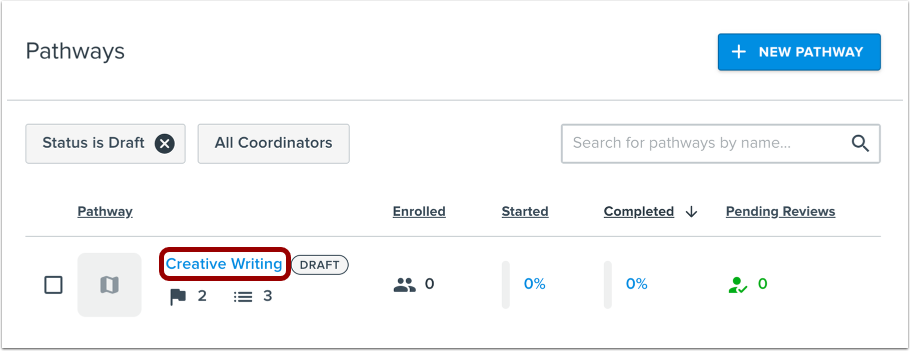
Click the name of the pathway.
Edit Pathway
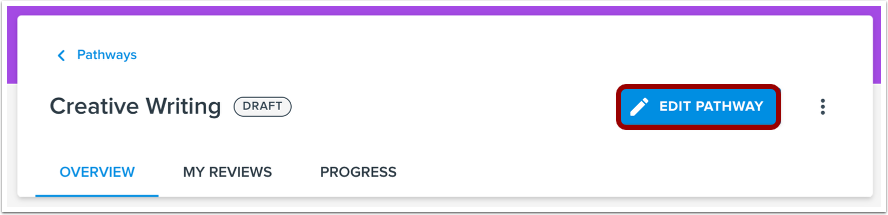
Click the Edit Pathway button.
Open Milestone
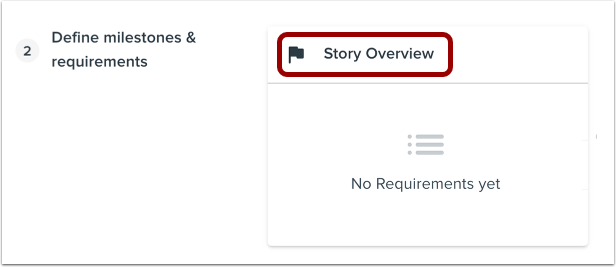
On the Define milestones & requirements tab, click the name of the milestone.
Add Requirement
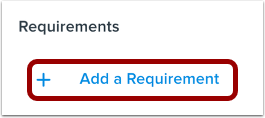
Click the Add a Requirement link.
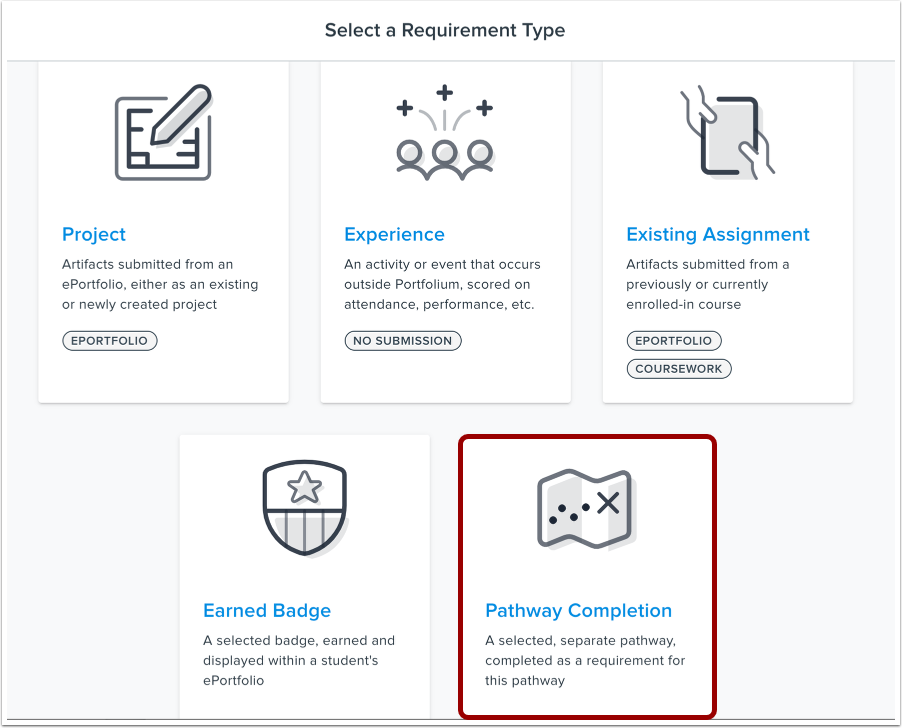
Select Pathway Requirement Type
Click the Pathway Completion button.
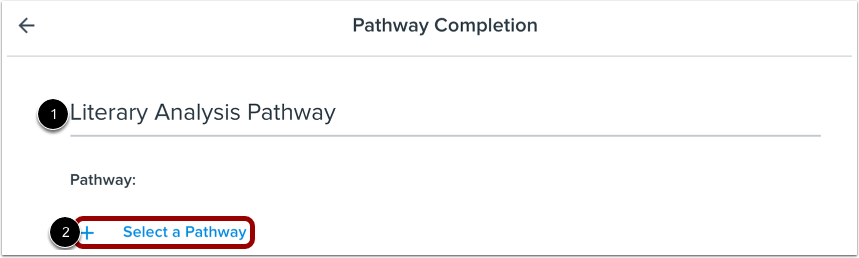
Enter Pathway Details
Enter a name for the requirement [1].
To select from pathways in the account, click the Select a Pathway link [2].
Note: The Pathway Completion Name field has a 50 character limit.
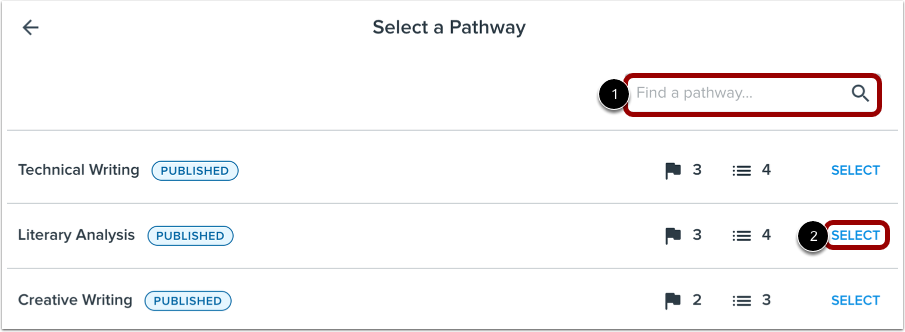
Select Pathway
The pathways window displays a list of all pathways available in the account. To search for a pathway, type the pathway name in the Find a pathway field [1].
To add a pathway to the requirement, click the Select link [2].
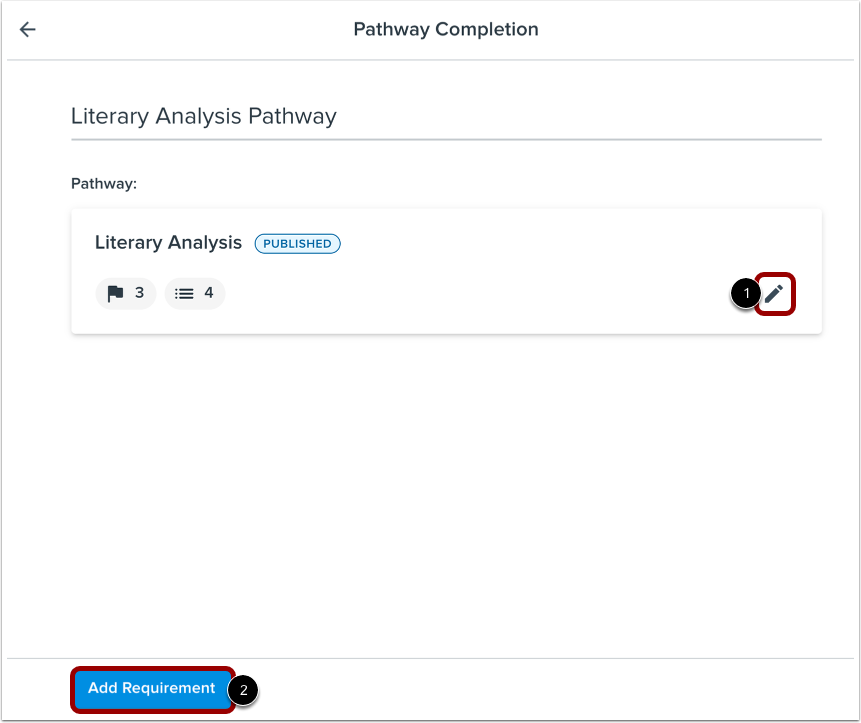
Add Pathway
To select a different pathway, click the Edit icon [1].
To save the pathway to the requirement, click the Add Requirement button [2].
View Added Requirement
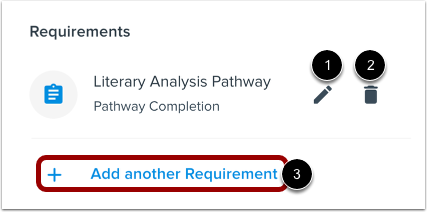
View the added requirement.
To edit the requirement, click the Edit icon [1]. To delete the requirement, click the Delete icon [2].
To add another requirement to the milestone, click the Add another Requirement link [3].