Ever feel like you’re having a hard time determining how your students are engaging with your course? For instructors, it’s important to see and understand how students are engaging with the course content as well as how they’re performing on assignments, projects and quizzes. However, sometimes it's challenging to know exactly what your students are up to, and who might need some additional support. Enter… Course Analytics!
Course Analytics is an incredible feature built right into your course that provides you with interactive graphs and tables to track student data such as grades, your student’s weekly online activity, and reports.

To access Course Analytics, you will need to locate the link on your course navigation menu and click “Course Analytics”. If you don’t see the link on your course navigation menu, it is set to hidden. You will have to make it visible before you can use it. If you’re still stuck, How do I manage Course Navigation links? is a great resource to check out to help you get it enabled! However, if you don’t see this feature option, it might be disabled by your institution.
Course Grades
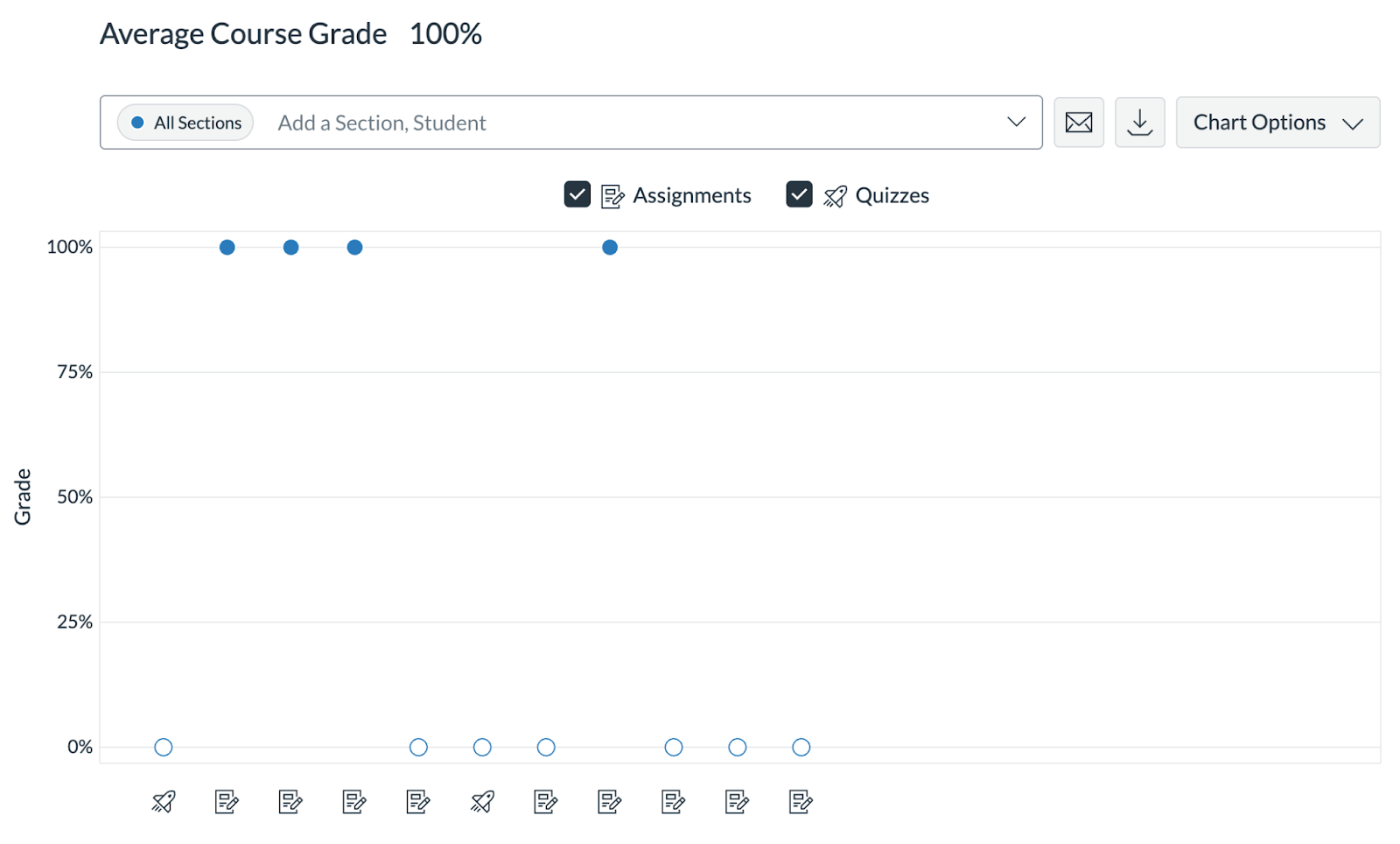
Viewing student grades is crucial for seeing how your students are performing in your class. With the Course Grades tab, you are easily able to view the overall average course grade, as well as the more specific grades and data on assignments, quizzes and interactive discussions for each student. You also have the ability to compare the average course grades between students, sections and assignments! How awesome is that?
Weekly Online Activity
Knowing when your students are accessing the content in your course is super valuable information by allowing you to see what your students have viewed and what they haven’t looked at yet. The Weekly Online Activity tab allows you to view all of your students’ weekly online activity in one place! You’re also able to see which areas of your course your students interacted with, whether it be a discussion post, responding to an announcement, submitting a quiz, or even creating a new page in your course (if enabled in course settings).
Weekly Online Activity
Knowing when your students are accessing the content in your course is super valuable information by allowing you to see what your students have viewed and what they haven’t looked at yet. The Weekly Online Activity tab allows you to view all of your students’ weekly online activity in one place! You’re also able to see which areas of your course your students interacted with, whether it be a discussion post, responding to an announcement, submitting a quiz, or even creating a new page in your course (if enabled in course settings).

Students
It’s also a good idea to check in and see how each of your students are participating with your course content. The Students tab allows you to view a simple yet detailed list of information regarding all of your students’ course participation. You can see when they last participated in your course, the last time they viewed a page, and even their grades, all in one place! You can select the column headers to sort the table in different ways so you can view the data you’re looking for as quickly and as easily as possible.

Reports
Need a way to generate reports regarding things such as missing and / or late assignments or overall course activity? The Reports tab allows you to easily run reports directly inside of your course! There are a vast variety of reporting options to choose from, including but not limited to missing assignments, late assignments, excused assignments and overall course activity! If you are looking to adjust your settings for reports, you can utilize the Settings button located in the top right-hand corner of the page while visiting the Reports tab.

There you have it!
That’s a look into how you can track your students’ engagement and participation in your course! Understanding how your students are interacting and participating is super valuable information to have, as it allows you to make impactful decisions moving forward and also allows you to identify which students may need additional support from you.