The Hidden Levers of Student & Teaching Success
You’ve uploaded your syllabus and built your modules—but is your course working for you… or are you working for the course? The difference often lies between a high-engagement course and a 'where do I get started?' or ‘where is this link?’ course. The course lies in a few “tucked-away” settings.
_____________________________________________________________________________________________________
The “Often Missed” Essentials
It’s important to have a simple yet effective navigation so your students know how to find their way and be successful throughout your course. Some of the settings, when left ignored, can lead to cluttered navigation and confused students.
- Clean up the Course Navigation
The course navigation is the main way students interact with your course, and it’s important to leave useful links available. However, leaving all course navigation links enabled can look cluttered. If your students don’t need it, hide it. For example, if you don’t want your students seeing the ‘People’ page, hide the link so it keeps that tab off their page. You can utilize “Student View” to replicate the same view as your students. Check out this guide to learn more about creating an efficient course navigation menu for your students: How do I manage Course Navigation links?
In Canvas, the syllabus isn’t just an information provider, it’s a whole dynamic list! By enabling the Course Summary checkbox on your syllabus, your students have access to see a chronological list of all the course’s pages, assignments and quizzes all in one place where it’s easy to find! However, if you’re not looking to provide your students with all the information at once, it might be better to toggle it off. More cool information about the course summary can be found here: How do I use the Syllabus as an instructor?
- Image-Based Dashboard Cards
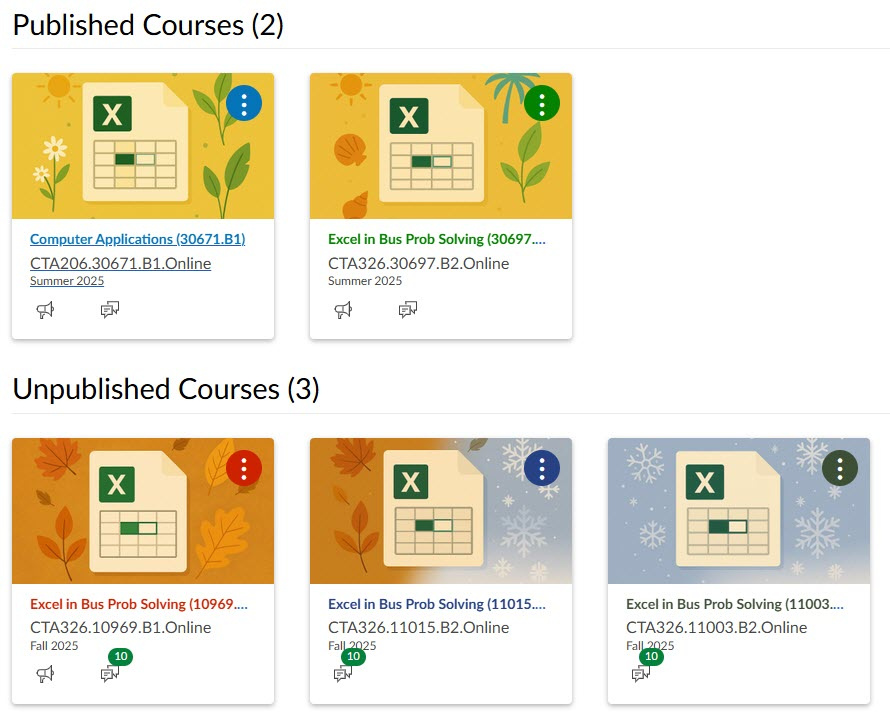
While this might just seem aesthetic, uploading a course card image in your course settings provides a distinct image that helps your students easily locate your course on their dashboard. That way, they can easily find and load into your course, mentally switch gears and be ready to dive into your class. Want to add a fun image to your course’s dashboard card? Check out How do I add an image to a course card in the Dashboard?
_____________________________________________________________________________________________________
High Impact Features for Teaching
As an instructor, it’s important to support your students and ensure that they are always able to access the course content that they need. However, going through and manually checking links one-by-one can be time consuming and takes time away from tasks that need prioritized.
Did you know there is a link validation tool built right into your Canvas course? There is! You can use the link validator to see what links are working for your students and which ones may no longer be available. The link validator is available right in the course settings! More information on this feature can be found here: How do I validate links in a course?
- Setting Requirements and Prerequisites in Modules
Depending on how your course is set-up, sometimes having a guided learning path is the best practice to follow. Setting module requirements and prerequisites allow you to control what content students have access to, based on the assignments they completed prior or how they performed on prior quizzes or projects. You can check out How do I use Mastery Paths in course modules? And How do I add requirements to a module? to learn more about creating a guided learning experience in your course’s modules for your students.
- The Power of “Message Students Who…”
Did you know you can message multiple students at once right from the gradebook, somewhere several educators spend a lot of time? Maybe you want to reach out to students who require some additional support on an assignment, or message students who did exceptionally well on a quiz and tell them nicely done? Well, you can message certain students who satisfy certain criteria all with one click! The guide How do I send a message to students from the Gradebook? has great information on how to message students directly from the gradebook!
_____________________________________________________________________________________________________
Ready to go?
Before you hit publish on your course, take a moment to check out your dashboard card image, double check that link validator and flip into student view to make sure it’s the experience you want your students to have while taking your course. These small tweaks are the secret ingredients to a smooth semester / school year.