Release notes outline upcoming customer-impacting changes that are expected to display in beta and/or production environments. Please note that features considered for future development are not included in the notes.
- New to release notes? Visit Understanding Release Notes for a guide on how to read and use this document.
- Visit the Canvas Collaborative Roadmap to explore upcoming work and share feedback. Your input helps guide future product development.
- For Canvas Platform Service changes (API, GraphQL, Canvas Data), please see the appropriate page in the Change Log.
- Institutions are responsible for conducting thorough evaluations of their custom CSS/JS with each release and deploy to assess potential impacts.
- Canvas Next users can visit the IgniteAI Agent Release notes to stay up to date on the latest agent updates and improvements.
- For a breakdown of what’s included in each tier, see the Canvas Tier Feature Comparison.
Unless otherwise stated, all features in this release are available in the Beta environment on 2026-06-15 and the Production environment on 2026-07-18.
Upcoming Canvas Changes
- Enforcement: New Quizzes Native Canvas Integration is Enforced
For specific dates and more information, please see Instructure Enforcements, Deprecations, and Breaking Changes.
New Features
Authentication
Multi-factor Authentication Required- Admin
Beta Environment Availability | 2026-07-01 Note: This date falls outside the regular beta release cadence. |
|
|---|
Production Environment Availability | 2026-07-01 Note: This date falls outside the regular release cadence. |
Feature Option to Enable | N/A |
Enable Feature Option Location & Default Status | N/A |
Subaccount Configuration | N/A |
Account/Course Setting to Enable | None |
Permissions | Inherent to user role |
Affects User Interface | Yes |
Affected Areas | Login page |
Related Resource | Mandatory MFA for admins coming to all Instructure products |
Summary
Multi-factor authentication (MFA) is required for all admin users in Canvas who log in with an email and password. MFA was previously optional, but is now mandatory for any account with admin privileges.
For Canvas admin users, the MFA requirement depends on how your institution handles authentication:
- Canvas authentication: Admin users must set up MFA. On their next login after enforcement, admin users are prompted to complete setup before continuing. Setup can be completed via an authenticator app (Google Authenticator, Authy, and others) or SMS. Admins won't be immediately locked out.
- Third-party SSO or identity provider (Okta, Microsoft, ClassLink, and others): Instructure won't enforce MFA directly. MFA is managed through an institution's identity provider. Instructure strongly recommends confirming that MFA is enabled and required for admin accounts at the identity provider level.
Note: This change does not impact instructors, students or other non-admin Canvas users.
Change Benefit
- Part of broader platform security improvements: A five-workstream hardening program addresses identity and access, application security, infrastructure, data exposure reduction, and threat detection, making the platform harder to compromise and faster to respond when something looks wrong.
- Stronger protection for admin accounts: Requiring MFA for admin logins ensures a stolen password alone can't be used to access an account with elevated permissions.
Courses
Notebook- Student
Feature Option to Enable | Notebook |
|---|
Enable Feature Option Location & Default Status | Account (Disabled/Unlocked) |
Subaccount Configuration | Yes |
Account/Course Setting to Enable | None |
Permissions | Inherent to user role |
Affects User Interface | Yes |
Affected Areas | Course Navigation, Pages |
Related Resource | Notebook for Learners | Q3 2026 | Feature Overview |
Summary
When the Notebook feature option is enabled, students can capture and organize highlights and notes on pages directly within their course content. Students can mark content as Unclear or Important, add notes, and manage their entries from a dedicated Notebook page in Course Navigation.
Change Benefit
- Encourages active engagement with course materials: Gives students a structured way to interact with content as they learn, making it easier to study, reflect, and retain key information over time.
Feature Workflow

In the Course Navigation, the Notebook link displays when the feature is enabled.

On Pages, students can highlight content and mark it as Unclear [1] or Important [2].
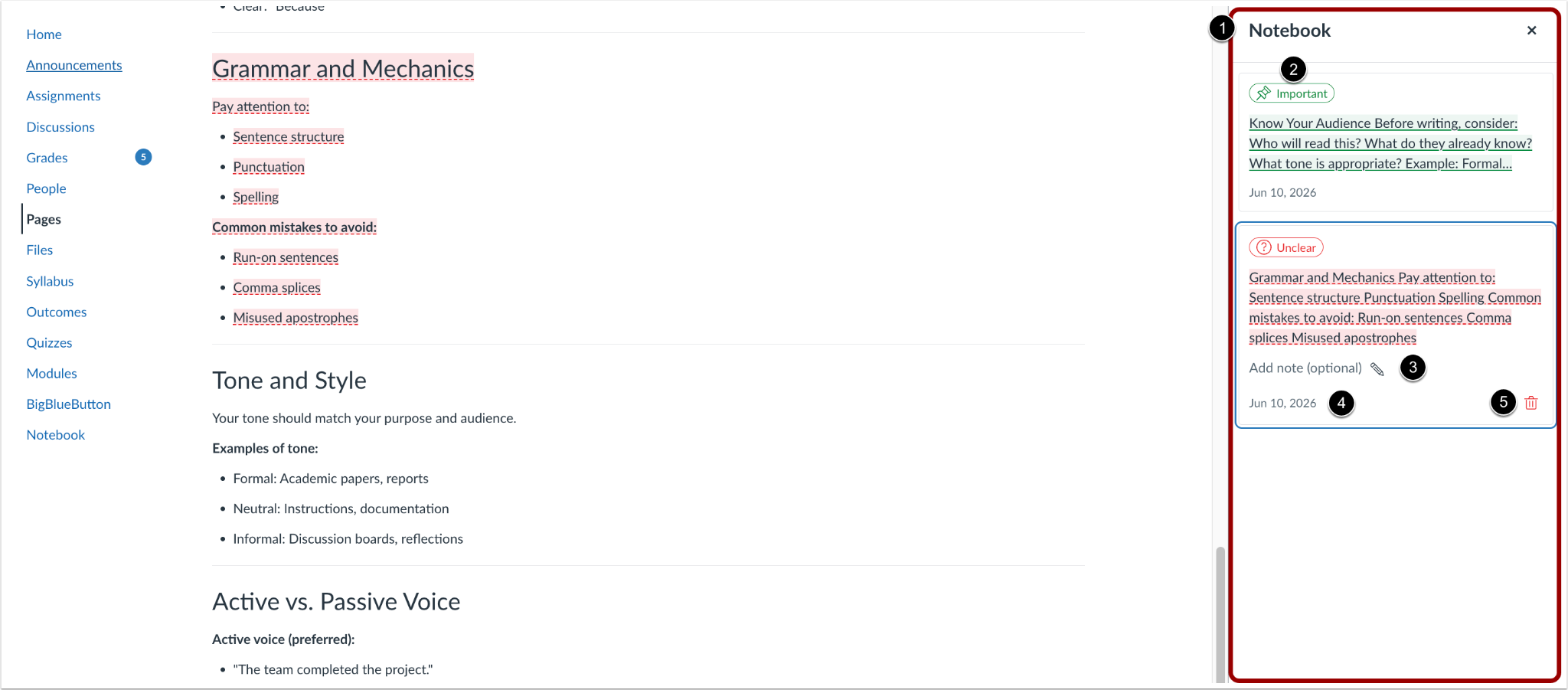
When content is marked, a Notebook tray opens where students can [1]:
- View whether the content is marked as Important or Unclear [2]
- Add notes [3]
- See the date the content was marked [4]
- Delete the note [5]

On the Notebook page, students can sort their notes [1] and click a notecard to return to the marked content [2].
Feature Video
Embed Code:
<iframe width="560px" height="320px" allowfullscreen="true" allow="autoplay *" title="Release Screencast: 2026-07-18 Courses Notebook" src="https://community.instructuremedia.com/embed/f5311d69-04fa-4ec9-bc78-6c90ab6aa584" frameborder="0"></iframe>
Gradebook
Learning Mastery Gradebook Enhancements- Instructor
Feature Option to Enable | Learning Mastery Gradebook |
|---|
Enable Feature Option Location & Default Status | Learning Mastery Gradebook - Account (Disabled/Unlocked)
- Course (Disabled)
|
Subaccount Configuration | Yes |
Account/Course Setting to Enable | None |
Permissions | Inherent to user role |
Affects User Interface | Yes |
Affected Areas | Learning Mastery Gradebook |
Related Resource | Enhanced Learning Mastery Gradebook for Canvas | Q3 2026 | Feature Overview |
Summary
The enhanced Learning Mastery Gradebook gives instructors more flexibility to search, sort, and customize how they view student mastery data. Added options include expandable bar charts, per-outcome display settings, and a student detail tray for quick access to submissions, mastery reports, and feedback.
Note: Outcome scales with more than 5 ratings don't display mastery icons or bar charts in the main table.
Change Benefit
- Increased visibility into student mastery data: Instructors can view the individual scores that contribute to a student's mastery calculation, making it easier to identify assessment issues, verify results, and step in with targeted support.
Feature Workflow

In the enhanced Learning Mastery Gradebook, instructors can:
- Search students [1]
- View mastery bar charts [2]
- View individual mastery [3]
- Search outcomes [4]
- Export data [5]
- Manage settings [6]

Instructors can use the Settings tray to customize their gradebook view.

When an outcome scale has more than 5 ratings, the mastery icons and bar chart don't display in the gradebook.
Note: Instructors with edit permissions will see a banner message when creating or editing an outcome scale that exceeds 5 ratings.

To enlarge the bar chat, click the Expand icon.

Click the Information icon to view a summary of outcome details [1], or click the Configure Mastery link to return to the Mastery tab on the Outcomes page [2].

Click the bar chart to see which students fall into each mastery level [1], the Create Differentiation Tag link to set up differentiation tags [2], or the Message Students link to send students a message [3].

Click the Options icon to access the following options [1]:
- Sort students by ascending or descending scores [2]
- Show contributing scores [3]
- View outcome info [4]
- Show outcome distribution [5]

Selecting Show Contributing Scores expands assignment-aligned outcomes to show each contributing assignment as its own column in the gradebook.

Click the Expand icon to open a student detail tray [1], which displays:
- The name of the outcome [2]
- The assignment aligned outcome [3]
- Note: Instructors can also navigate between aligned assignments.
- A button to open the submission in SpeedGrader [4]
- Navigation to move between students [5]
- A link to view the student's Mastery Report [6]
- A comment field to submit feedback [7]
- These comments show everywhere submission comments display.
Feature Video
Embed Code
https://productmarketing.instructuremedia.com/embed/5c16fbd3-ab56-4421-ae19-205c72868d2a
Navigation
Navigation Links in Account, Course, and User Menus- All Users
Feature Option to Enable | N/A |
|---|
Enable Feature Option Location & Default Status | N/A |
Subaccount Configuration | N/A |
Account/Course Setting to Enable | None |
Permissions | Custom Links-manage (Disabled) |
Affects User Interface | Yes |
Affected Areas | Account, Course and User Navigation, Account and Course Settings |
Previous Release Mention | Canvas Release Notes (2026-06-20) |
Summary
Admins can add links to the account, course and user navigation menus, and instructors can add links to the course navigation menu.
Notes:
- When a course containing a link to an external resource is copied, the link remains functional in the new course.
- When a course containing a link to an internal resource is copied, references are automatically updated to point to the new course.
- When a course is exported, links are included in the exported course content.
- Instructors and students can open custom links in the Course Navigation menu in the Canvas mobile app. Creating links is not currently supported in the mobile app.
Change Benefit
- Expanded navigation customization: Enables admins and instructors to add custom links to account, user, and course navigation menus, making it easier to surface key resources and improve access to important destinations.
Feature Workflow

In Account Settings, within the Custom Links section, click the Add a Link button to create a new navigation link.

Admins can choose to place the link in Account, Course, or User Navigations.
Note: Changes must be saved before leaving the Settings page.

In the Course Settings Navigation tab, click the Add a Link button to add a new navigation link.

Add text [1] and a link [2]. Then click the Add button [3].

Once added, the link is automatically enabled in the Navigation menu [1]. To access additional actions, click the Options menu [2].
Notes:
- Changes must be saved before leaving the Navigation tab.
- Instructors can disable or move Course Navigation links created at the account level, but cannot delete them.
Feature Video: Not Available
Other Updates
Assignments
Accurate Assignment Due Dates in Student LTI Launches- Student [Delayed as of 2026-07-28]
This feature is currently delayed in production and beta environments and will be included in a future release.
Affected Canvas Areas | Assignments, LTI tool integrations |
|---|
Affects User Interface | No |
Summary
When a student launches an LTI tool and an Assign To override is present with a different lock_at than the base assignment, Canvas returns the student's effective due date for the lock_at value instead of a null or base assignment value. This change only affects student launches. Tools that rely on lock_at values during student launches may need to review how they handle assignment availability dates.
Change Benefit
- Returns accurate lock_at dates during student LTI launches: Ensures external tools receive the correct, student-specific lock_at value when an Assign To override is present, instead of a null or base assignment value.
External Tools
Improved LTI person_sourcedid Claim Handling- Admin
Affected Canvas Areas | LTI 1.1 and 1.3 |
|---|
Affects User Interface | No |
Summary
When an LTI tool launches with the person_sourcedid claim, Canvas sends an empty string when a user's value is missing or null, instead of passing through the unresolved variable name ($Person.sourcedId). The literal variable name is only sent when the variable isn't supported. This applies to both LTI 1.1 and LTI 1.3 launches.
Change Benefit
- Ensures LTI tools receive clean, predictable data: Prevents unresolved variable names from being passed through during tool launches, so external tools can reliably interpret whether user data is available.
SpeedGrader
Enforcement of SpeedGrader Upgrades- Instructor
Summary
The Performance and Usability for SpeedGrader feature option is enforced and removed for all institutions, making the improved experience the default.
Change Benefit
- Modernized grading experience by default: Enables the improved SpeedGrader experience for all institutions by default, giving instructors faster load times and a cleaner interface.
Change Log
Date | Description |
|---|
2026-07-28 | Delayed Assignments
Accurate Assignment Due Dates in Student LTI Launches |
2026-07-17 | Added Feature Video to Gradebook: Learning Mastery Gradebook Enhancements |
2026-06-26 | Update Courses: Notebook -Added Feature Video |
2026-06-25 | Update
Navigation: Navigation Links in Account, Course, and User Menus
- Added Note: Instructors and students can open custom links in the Course Navigation menu in the Canvas mobile app. Creating links is not currently supported in the mobile app. |
2026-06-24 | Update
Courses: Notebook
-Added Related Resource |
2026-06-18 | Updates -Gradebook: Learning Mastery Gradebook Enhancements Added Additional Resources Updated images due to spelling error SpeedGrader:Enforcement of SpeedGrader Upgrades Updated Header and Summary Removed Feature option and Default Status |
2026-06-17 | Addition SpeedGrader:Enforcement of SpeedGrader Upgrades Added Beta Environment Availability date |