If an instructor allows observers to edit course pages, you can edit a page in a course.
View the video transcript
00:07: This guide will walk you through the process of editing a course page as an observer
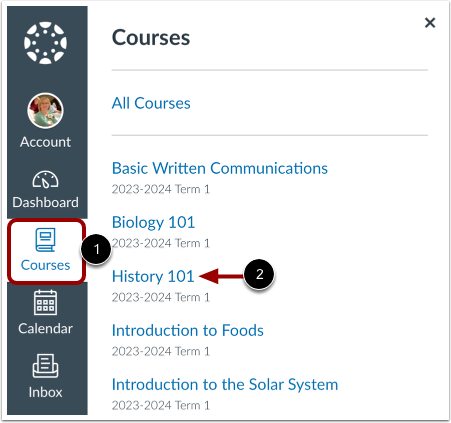
00:12: In global navigation, click the courses link, then click the name
00:16: of the course.
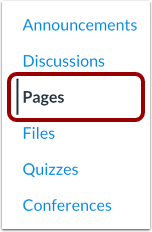
00:18: In course, navigation, click the pages link
00:22: Pages is designed to open to the front page for the course if there is a front page
00:26: selected. To select a page from the Page's index, click
00:31: the view all pages button.
00:34: Click the title of the page. You wish to edit.
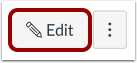
00:37: Click the edit button.
00:39: Edit the content using the rich content editor or switch to the HTML
00:43: editor.
00:45: You can notify users that content Has Changed by selecting the notify users
00:49: that this content has changed checkbox.
00:52: Click the save button.
00:55: View your changes.
00:57: This guide covered how to edit a course page as an observer.
Open Course
In Global Navigation, click the Courses link [1], then click the name of the course [2].
Open Pages
In Course Navigation, click the Pages link.
View Pages
Pages is designed to open to the front page for the course, if there is a front page selected. To select a page from the Pages Index, click the View All Pages button.
Choose Page
Click the title of the page you wish to edit.
Edit Page
Click the Edit button.
Note: You will only see the Edit button if you are allowed to edit the page.
Edit Content
Edit the content using the Rich Content Editor [1] or switch to the HTML Editor [2].
Save Changes
You can notify users that content has changed by selecting the Notify users that this content has changed checkbox [1]. Click the Save button [2].
View Page
View your changes.