00:05: How do I use the icons and colors in the Grades page as an observer?
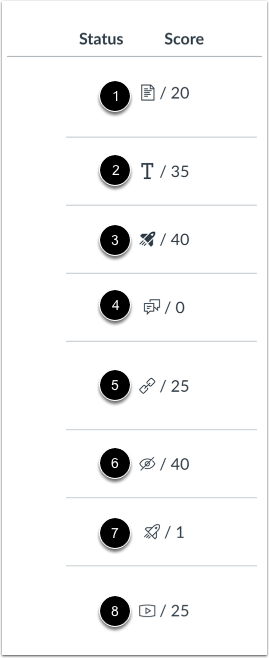
00:10: The following icons on your Grades page represent various assignment submission types that have not yet been fully graded. A Document icon signifies a file upload, a Text icon indicates a text entry, and a Media icon represents a recording. Similarly, Discussion, Link, and Quiz icons appear when those specific formats are submitted but awaiting review. In the case of both Quizzes and New Quizzes, these icons may persist if manual grading is required, if an auto-submitted score was deleted, or if significant edits to the quiz necessitate a manual resolution by the instructor. Finally, a Visibility icon indicates that your instructor is currently grading and has hidden the scores, while some external tool assignments may simply display a dash rather than a specific submission icon.
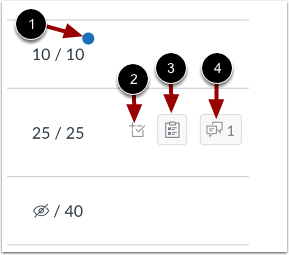
00:58: When an instructor grades an assignment, a blue dot appears next to it on the Grades page to indicate a new update. This indicator is temporary and will disappear once you refresh the page or navigate elsewhere.
01:11: Additionally, specific icons provide further insight into the submission: the Check Plus icon displays scoring details, the Rubric icon opens rubric feedback, and the Discussion icon allows you to view assignment comments.
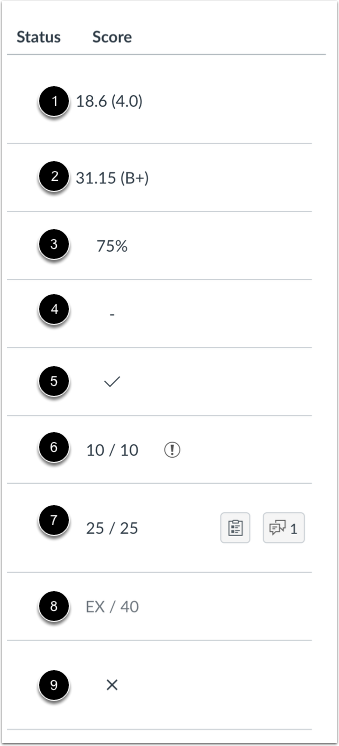
01:26: Each grading type is represented differently on the Grades page to provide clear feedback on performance. A Letter grade or GPA scale may be displayed, or the score may appear as a Percentage or a specific Number of points.
01:40: Status indicators include a Check Icon for completed work, an X Icon for incomplete grades, and an EX label for excused assignments that do not factor into the overall grade. If you see a Grade Info Icon, it means the points earned do not count toward the final grade.
01:57: Finally, a Dash indicates there is no submission, though it may also appear temporarily for certain external tool assignments even after a student has submitted their work.
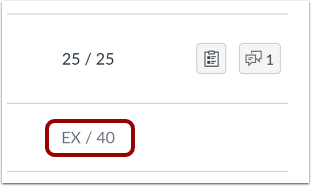
02:07: When an assignment's details display in gray text, this assignment has been dropped as part of an assignment group calculation and does not factor into your student's total score.
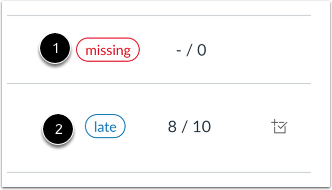
02:18: The status column displays labels for assignments that are late or missing. If an assignment has not been submitted by the due date, it is identified as missing. If an assignment was submitted after the due date, it is identified as late.
02:32: If your student's instructor uses an originality tool, you may be able to view an originality report for your student's submission. To view the originality report, click the Originality Report icon. The icon color indicates the percentage of text matched by the originality tool. A timer icon indicates the originality tool is still checking your student's submission.
02:54: This guide covered how to use the icons and colors in the Grades page as an observer.