If you are enrolled in a course as an observer, the Course Home Page helps you navigate your student's course and manage your student's coursework.
Note: Your student's instructor may choose to display a different font for your course.
00:07: How do I use the course homepage as an observer?
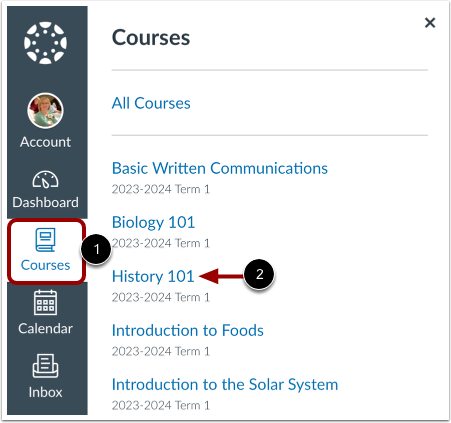
00:10: In global navigation, click the courses link, then click the name
00:14: of the course.
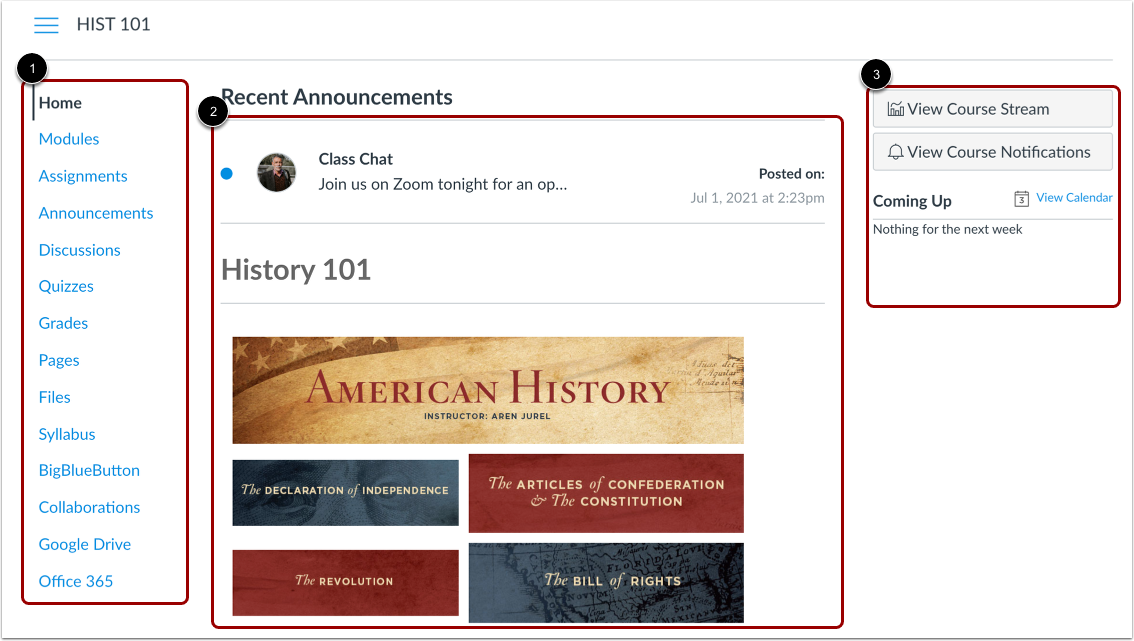
00:16: The course, homepage involves course, navigation, the content area and
00:20: the sidebar.
00:23: The course, homepage is viewed from the course navigation, Homelink.
00:27: Course, navigation includes links that help you in your students, get to specific locations
00:31: in the course. Teachers can customize, what links are shown in a
00:35: course. So if you don't see links that may display in other courses, your students
00:40: teacher has hidden those links from your view.
00:42: The active link of the page. You are viewing is highlighted with different color, text and
00:47: align indicator. This highlight helps you quickly identify the feature
00:51: area. You are currently viewing in canvas.
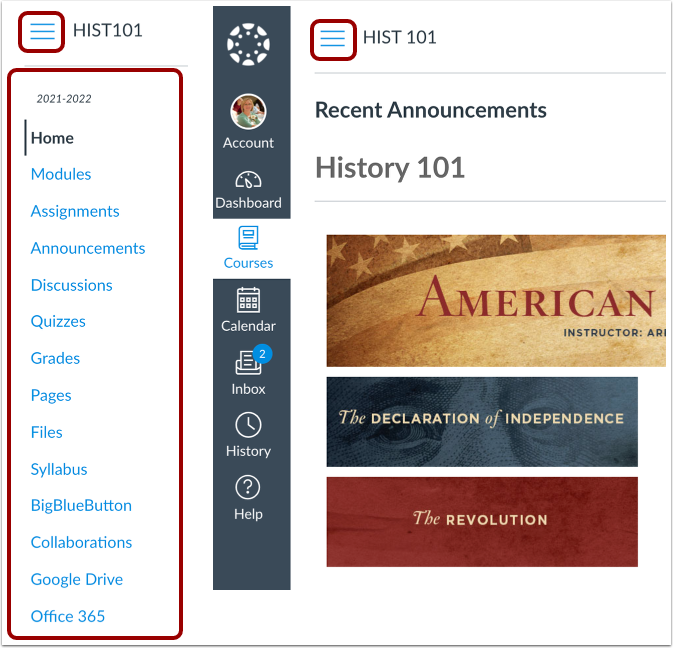
00:55: To expand or collapse, the course navigation, menu, click the menu icon.
01:00: When you choose to expand or collapse, the global navigation menu, your
01:04: preference is applied to all of your courses.
01:07: Homepage content and all canvas content is displayed in the content
01:11: area. The homepage content also defines what sections
01:15: display in the sidebar.
01:18: The content can be a page, the syllabus discussions announcements
01:23: quizzes or imported content.
01:27: The content can also show the course activity stream, which is a list of all recent
01:31: activity in the course. Your students homepage may also display
01:35: recent announcements at the top of the page.
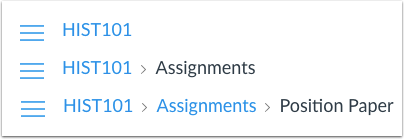
01:39: Breadcrumbs appear above the course content area.
01:42: As you view course, content. The breadcrumbs leave a trail to show where you are
01:46: inside the course. You can follow these links backward to visit prior
01:50: course content.
01:53: The sidebar functions the same as the dashboard sidebar but only shows content
01:57: for the specific course and includes additional options.
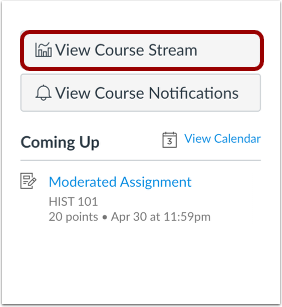
02:01: If your course, homepage displays a page other than the course activity stream, you
02:05: can view the students course activity stream by clicking, the sidebar, view course,
02:10: stream button, When the homepage is set as the course activity stream,
02:14: this button will not appear.
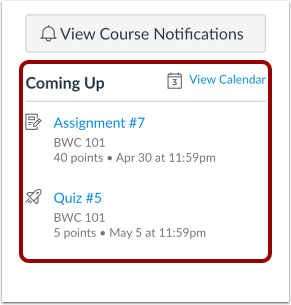
02:17: The sidebar shows the coming up section which shows all your students recent
02:21: announcements and up to seven assignments that are due in the upcoming weeks, including
02:25: ungraded, quizzes and assignments, that do not require a submission.
02:29: Each item in the coming up, list displays the assignment name, the number of
02:33: points, and the due date for the assignment.
02:36: Once the due date has passed items remain, in this section for four weeks,
02:42: This guide covered how to use the course, homepage as an observer.
Open Course
In Global Navigation, click the Courses link [1], then click the name of the course [2].
View Course Home Page
The Course Home Page involves Course Navigation [1], the content area [2], and the sidebar [3].
View Course Navigation
The Course Home Page is viewed from the Course Navigation Home link.
Course Navigation includes links that help you and your student(s) get to specific locations in the course. Instructors can customize what links are shown in a course, so if you don't see links that may display in other courses, your student's instructor has hidden those links from your view.
The active link of the page you are viewing is highlighted with different color text and a line indicator. This highlight helps you quickly identify the feature area you are currently viewing in Canvas.
To expand or collapse the Course Navigation Menu, click the Menu icon. When you choose to expand or collapse the Global Navigation menu, your preference is applied to all of your courses.
View Content Area
Home Page content (and all Canvas content) is displayed in the content area.
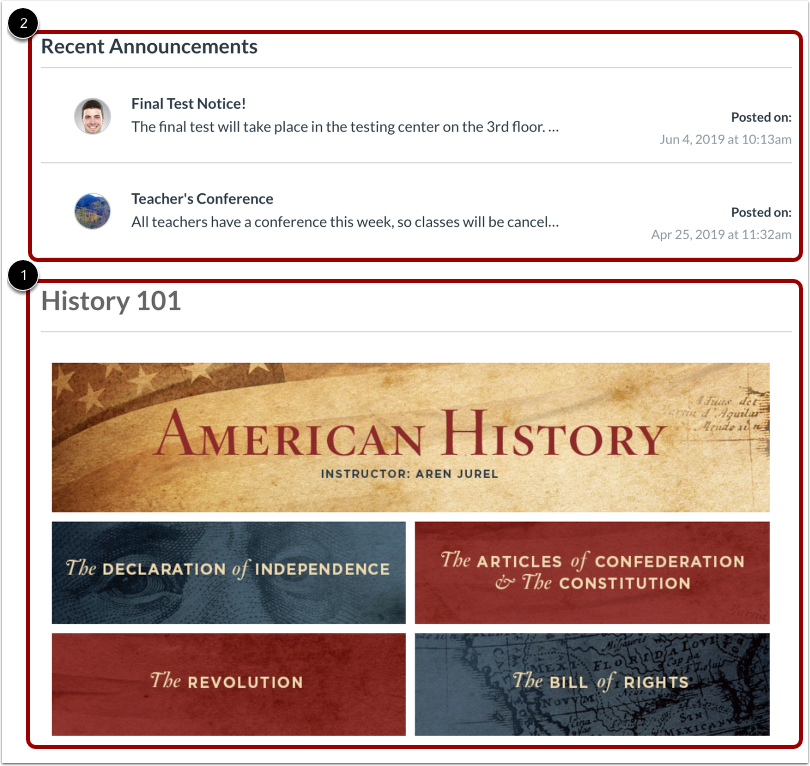
The content can be a page, the syllabus, discussions, announcements, quizzes, or imported content [1]. The content can also show the Course Activity Stream, which is a list of all recent activity in the course. Your student's Home Page may also display recent announcements at the top of the page [2].
The Home Page content also defines what sections display in the sidebar.
View Breadcrumbs
Breadcrumbs appear above the course content area.
As you view course content, the breadcrumbs leave a trail to show where you are inside the course. You can follow these links backward to visit prior course content.
Note: If you have created a nickname for a course, the breadcrumbs display the nickname to identify the course. Otherwise, the breadcrumbs display the course code.
The sidebar functions the same as the Dashboard sidebar but only shows content for the specific course and includes additional options.
If your Course Home Page displays a page other than the Course Activity Stream, you can view the student's course activity stream by clicking the sidebar View Course Stream button. When the Home Page is set as the Course Activity Stream, this button will not appear.
The sidebar shows the Coming Up section, which shows all your student's recent announcements and up to seven assignments that are due in the upcoming weeks, including ungraded quizzes and assignments that do not require a submission. Each item in the Coming Up list displays the assignment name, the number of points, and the due date for the assignment. Once the due date has passed, items remain in this section for four weeks.