The Conferences page allows you to view all the conferences within a course. As an observer, you can join conferences where you have been invited to participate.
00:07: How do I use conferences in a course as an observer?
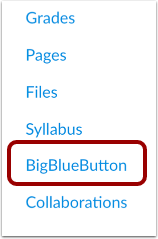
00:10: In course, navigation, click the link for your web conferencing tool.
00:15: The link name reflects the conferencing tool used by your Institution.
00:20: You can view conferences where you have been invited to participate.
00:24: Conferences are grouped in two parts, new conferences and concluded
00:28: conferences. Both always display the conference name and
00:32: description.
00:33: New conferences will be listed in the index, but they cannot be accessed until
00:37: the host has started the conference When the conference is available,
00:41: click the join button. Once the conference has started the conference
00:46: status shows, as in progress. You can join the conference for as
00:50: long as the join button is available. Some conferences only allow
00:54: you to join the conference for a specific amount of time.
00:58: Concluded conferences, display in the concluded conferences section, each
01:03: concluded conference shows the title date and description of the conference.
01:09: When your conference has concluded, click the name of the recorded conference.
01:13: To replay the conference, click the recording format link, the
01:17: recording format displays, as either a presentation or a video.
01:22: The recording format link does not appear until the conference has been rendered for playback.
01:27: The rendering process, may take some time to complete the length of the conference
01:31: is indicated in hours minutes.
01:33: EG 018 is 18 minutes.
01:37: If your conference included closed captioning.
01:39: The playback bar for the video displays a cc button to view the available
01:44: captions.
01:46: The guide covered how to use conferences in a course, as an observer.
Open Conferences
In Course Navigation, click the link for your web conferencing tool. The link name reflects the conferencing tool used by your institution.
View Conferences
You can view conferences where you have been invited to participate.
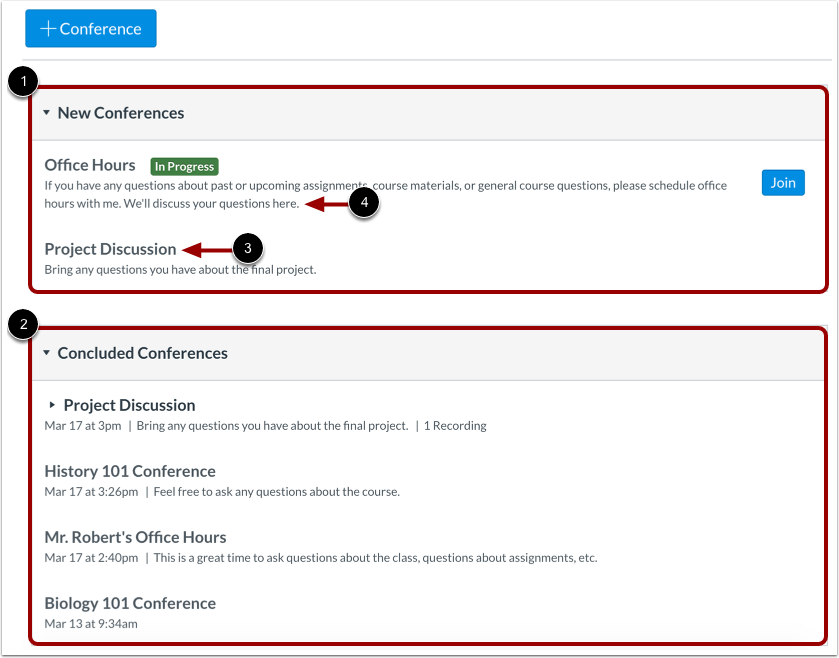
Conferences are grouped in two parts: New Conferences [1] and Concluded Conferences [2]. Both always display the conference name [3] and description [4].
View In Progress Conference
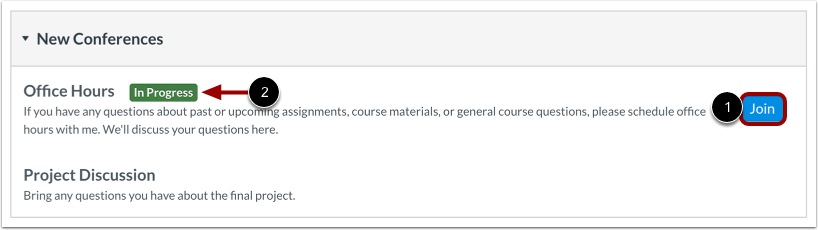
New conferences will be listed in the index, but they cannot be accessed until the host has started the conference. When the conference is available, click the Join button [1]. Once the conference has started, the conference status shows as in progress [2].
You can join the conference for as long as the Join button is available. Some conferences only allow you to join the conference for a specific amount of time.
View Concluded Conferences
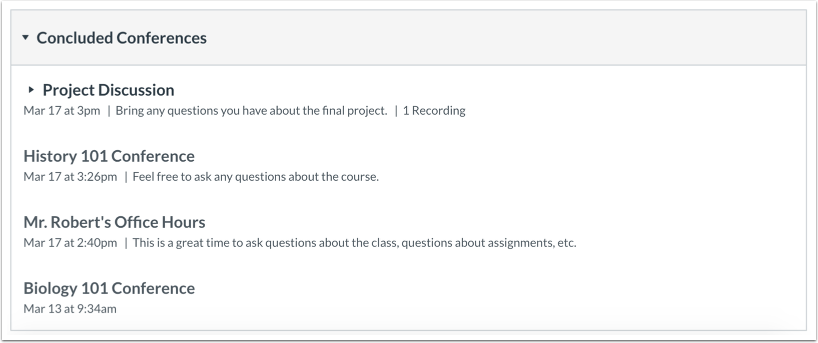
Concluded conferences display in the Concluded Conferences section. Each concluded conference shows the title, date, and description of the conference.
View Recorded Conference
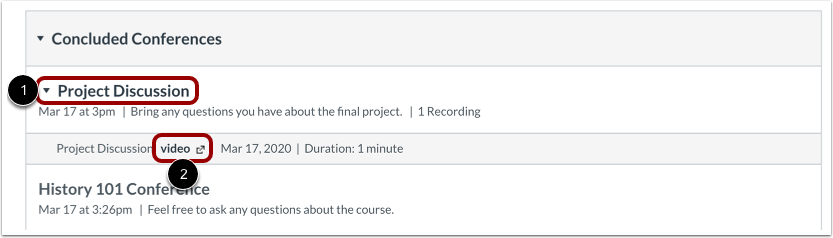
When your conference has concluded, click the name of the recorded conference [1]. To replay the conference, click the recording format link [2]. The recording format displays as either a presentation or a video.
The recording format link does not appear until the conference has been rendered for playback. The rendering process may take some time to complete. The length of the conference is indicated in hours:minutes (e.g. 0:18 is 18 minutes).
If your conference included closed captioning, the playback bar for the video displays a CC button to view the available captions.
Note: For all basic Conference accounts, recordings are automatically deleted 7 days after the conference ends.