Release notes outline upcoming customer-impacting changes that are expected to display in beta and/or production environments. Please note that features considered for future development are not included in the notes.
Unless otherwise stated, all features in this release are available in the Beta environment on 2026-01-19 and the Production environment on 2026-02-21.
Upcoming Canvas Changes
2026-03-21
- Breaking Changes: User-Agent Header Enforcement
2026-03-25
- Deprecation: Removal of Unauthenticated File Access
2026-04-18
- Breaking Changes: Improving Canvas Infrastructure with a Content Delivery Network (CDN)
For more information, please see Instructure Enforcements, Deprecations, and Breaking Changes.
New Features
Assignments
Document Processing App
Affected User Roles: Admin, Instructor
Feature Option to Enable | Document Processor See the Canvas Feature Option Summary to learn more about Feature Options. |
|---|
Enable Feature Option Location & Default Status | Account (Disabled/Unlocked) Course (Disabled) |
Subaccount Configuration | No |
Account/Course Setting to Enable | None |
Permissions | Inherent to user role |
Affects User Interface | Yes |
Affected Areas | Assignment Details page, Grades, SpeedGrader, |
Summary
Instructors can add an LTI 1.3 document processing tool to file upload or text entry assignments. Once enabled, student submissions are sent to the selected tool for analysis, such as originality or writing review. Resulting reports are available to instructors in SpeedGrader and to students on the assignment or grades page, with clear indicators highlighting items that may require review.
Notes:
- Currently, Turnitin is the only supported document processing tool, and configuration settings for the Turnitin Inherited Key are enabled automatically. Additional tools may be supported in the future.
- More guidance for Turnitin users, including CPF, coming soon. Check emails and blog posts for updates.
Change Benefit
This integration streamlines plagiarism detection and provides transparency for both instructors and students.
Feature Workflow
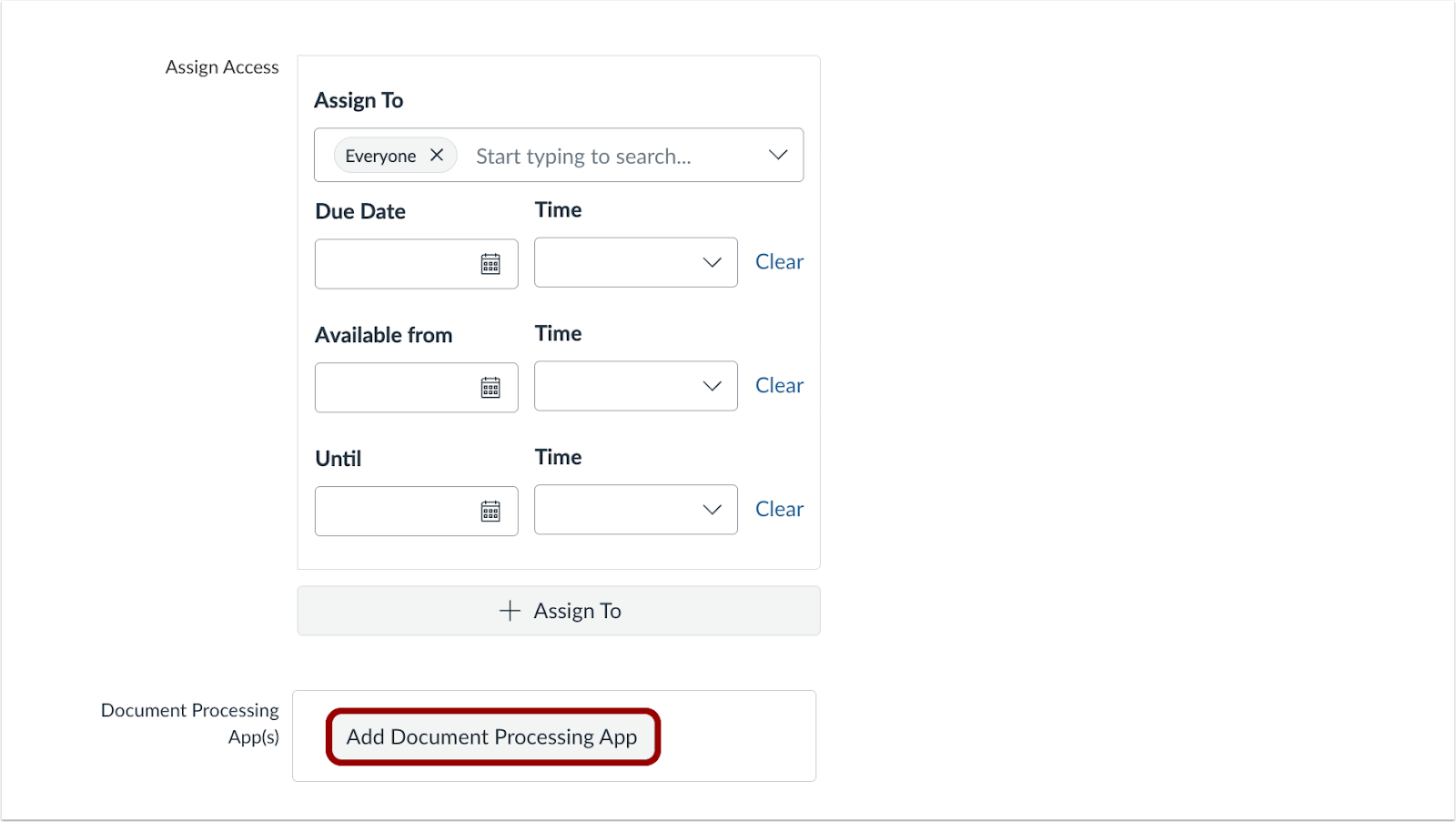
When the Document Processor feature option is enabled, assignments with text entry or file upload submission types display an Add Document Processing App button.

Select the desired tool.
Note: At this time, Turnitin is the only available document processing tool. Additional tools may be supported in the future.

Depending on the tool, instructors may have the option to configure document processing settings.

After saving and publishing the tool, instructors can modify the tool options [1] or remove the tool [2].

In SpeedGrader, instructors can view the tool’s report.
Note: Report generation may take some time, and the report may not be available immediately after submission.

When allowed by the instructor, students can view their report on the Grades page.

Click the View Report button.

Students can also access their report in the Assignment Details page.
Feature Video:
Embed Code:
<iframe width="560px" height="320px" allowfullscreen="true" allow="autoplay *" title="Release Screencast 2026-02-21 Assignments: Document Processing App" src="https://community.instructuremedia.com/embed/5233ae61-de70-4d91-a077-c101ca0f6acf" frameborder="0"></iframe>
Canvas Apps
Availability and Exceptions [Added 2026-01-28]
Affected User Roles: Admin
Feature Option to Enable | N/A |
|---|
Enable Feature Option Location & Default Status | N/A |
Subaccount Configuration | Yes |
Account/Course Setting to Enable | None |
Permissions | Account level settings-manage LTI registrations-manage |
Affects User Interface | Yes |
Affected Areas | Apps |
Previous Mention | Canvas Release Notes (2026-01-17) |
Summary
Root account admins can manage LTI 1.3 tool availability from a single location within the root account. This management includes the ability to grant access to specific sub-accounts or contexts, or conversely, to make the tool available everywhere except for specific contexts.
Note: To ensure proper permissions, availability exceptions set by the root administrator at the course level are excluded during the course copy process.
Change Benefit
This feature provides a clearer, more efficient way to manage LTI 1.3 tool availability within Canvas.
Feature Workflow

In the Apps page, click the desired App link.

In the Availability and Exceptions tab, click the Create Deployment button.

Click the Add Exception button.

In the Add Availability and Exception modal, select the desired subaccount or course [1]. Then, select availability [2] and click the Save button [3].
Note: Courses can also be searched by course code.

In the Availability and Exceptions tab, admins can view LTI availability of a course or sub-account [1]. Click the Edit button [2] to make changes or the Delete button [2] to remove the exception.

Click the History tab [1] to view when an update occurred [2], who updated it [3] and which fields were affected [4]. To view more details related to the change, click the Affected Fields link [5].
Feature Video
Embed Code:
<iframe width="560px" height="320px" allowfullscreen="true" allow="autoplay *" title="Release Screencast: 2026-01-17 Canvas Apps: Availability and Exceptions" src="https://community.instructuremedia.com/embed/111c1f15-fc4e-4164-bd04-03792230991e" frameborder="0"></iframe>
Canvas Apps
Sub-account Apps & Monitor Access
Affected User Roles: Admin
Feature Option to Enable | LTI Apps-Monitor
See the Canvas Feature Option Summary to learn more about Feature Options. |
|---|
Enable Feature Option Location & Default Status | Account (Enabled) |
Feature Option Sub-account Configuration | No |
Account Setting to Enable | None |
Permissions | LTI Registrations - Manage |
Affects User Interface | Yes |
Affected Areas | Sub Account Canvas Apps page |
Summary
Sub-account Canvas admins can access the Apps page and Monitor tab to view data for their sub-accounts without needing Root Account admin permissions.
Notes:
- Sub-account admins can access the Apps link in the account navigation within their sub-account. They have access only to LTI usage information for the sub-account they are in and any child sub-accounts.
- Root Admins can restrict sub-account admin access to the Monitor tab by disabling the LTI Registrations – Manage permission.
Change Benefit
This update gives users with access to LTI usage the ability to monitor activity directly, reducing the need to contact a Root Account admin.
Feature Workflow

Root admins must enable the LTI Registrations - Manage permission for the role or roles assigned to sub-account admins.
Note: Sub-account admins should contact a Root Account administrator to complete the steps outlined above.
Feature Video: Not Available
Course
Accessibility Checker
Affected User Roles: Admin, Instructor
Beta Environment Availability | 2026-01-30 Note: This date falls outside the regular beta release cadence. |
|---|
Feature Option to Enable | Accessibility Checker
See the Canvas Feature Option Summary to learn more about Feature Options. |
Enable Feature Option Location & Default Status | - Account (Enabled/Unlocked)
|
Subaccount Configuration | Yes |
Account/Course Setting to Enable | None |
Permissions | Inherent to user role |
Affects User Interface | Yes |
Affected Areas | Course Navigation Bar |
Related Resource | Course Accessibility Checker |
Summary
In Course Navigation, an Accessibility Checker is available.
The tool checks for the following accessibility issues:
Rule | Description |
|---|
Adjacent links | Adjacent links with the same URL should be a single link. This rule verifies link errors where the link text may include spaces and break the link into multiple links. |
Heading paragraphs | Headings should not contain more than 120 characters. |
Image alt text | Images should include an alt attribute describing the image content. |
Image alt filename | Image filenames should not be used as the alt attribute describing the image content. |
Image alt length | Alt attribute text is recommended to contain fewer than 200 characters. |
Large text contrast | Text larger than 18pt (or bold 14pt) should display a minimum contrast ratio of 3:1. |
Lists | Lists should be formatted as lists. |
Sequential headings | Heading levels should not be skipped (e.g. H2 to H4). |
Small text contrast | Text smaller than 18pt (or bold 14pt) should display a minimum contrast ratio of 4.5:1. |
Table captions | Tables should include a caption describing the contents of the table. |
Table header scope | Table headers should specify scope and the appropriate structure. |
Table header | Tables should include at least one header. |
Change Benefit
This feature provides a course-level interface that gives instructors and administrators an overview of accessibility issues and guided tools for quick remediation. It initially supports scanning Canvas Pages and Assignments, enabling faster, more effective fixes.
Feature Workflow

In Course Navigation, click the Accessibility link [1], then start the process by clicking the Scan Course link [2] or the Scan Course button [3].

The central interface displays high-level information, including the total number of active issues and a bar chart illustrating their distribution by type [1]. It also provides a detailed breakdown of issues for learning resources, such as Pages and Assignments, showing the number of issues per resource [2].

Instructors can see the number of issues for each resource [1]. To view a specific issue, click the Fix button [2]. A tray then displays the problem area [3] and issue description [4]. To correct the issue, click the Reformat button [5].

Once reformatted, the problem area is updated to improve accessibility [1]. Instructors can click Undo to revert the change [2] or click the Save and Next button to proceed to the next resource [3].
Feature Video
Embed Code:
<iframe width="560px" height="320px" allowfullscreen="true" allow="autoplay *" title="Release Screencast 2026-02-21 Course: Accessibility Checker" src="https://community.instructuremedia.com/embed/c7c0b599-2d62-42e9-bdb0-92ecd85af0c6" frameborder="0"></iframe>
New Quizzes
Native Canvas Integration Production Environment Availability
Affected User Roles: All Users
Feature Availability | Released to the beta environment on December 15, 2025. |
|---|
Feature Option to Enable | New Quizzes See the Canvas Feature Option Summary to learn more about Feature Options. |
Enable Feature Option Location & Default Status | Account (Disabled/Unlocked) |
Subaccount Configuration | Yes |
Account/Course Setting to Enable | None |
Permissions | Inherent to user role |
Affects User Interface | No |
Affected Areas | New Quizzes |
Previous Release Mention | Canvas Release Notes 2026-01-17- Beta environment availability announcement. |
Summary
The New Quizzes experience is moved out of its isolation layer (iframe) to run natively within the main Canvas page in production environments.
Notes:
- The architectural block (iframe) is removed, but some third-party tools may not work immediately.
- Providers may need to update their tools to interact with the new New Quizzes structure.
- Proctoring solutions may require updates to work seamlessly with the new architecture.
- New Quizzes remains a secure external LTI tool.
- The change only affects the presentation in the browser (iframe removed). There are no other interface changes.
- LTI protocol continues to handle secure communication, grade passback, and authentication. Existing LTI limitations still apply.
Change Benefit
This architectural change improves accessibility, enhances compatibility with assistive technologies, and lays the foundation for additional feature support in New Quizzes.
Survey Results Visibility
Affected User Roles: Instructor
Feature Option to Enable | New Quizzes See the Canvas Feature Option Summary to learn more about Feature Options. |
|---|
Enable Feature Option Location & Default Status | Account (Disabled/Unlocked) |
Subaccount Configuration | Yes |
Account/Course Setting to Enable | None |
Permissions | Manage Assignments and Quizzes- add/edit |
Affects User Interface | Yes |
Affected Areas | New Quizzes Survey Results page |
Summary
In New Quizzes Survey Reports, instructors can click the response count to view a list of students who selected a specific answer. For anonymous surveys, student identities are masked as Student 1, Student 2, and so on to ensure privacy.
Change Benefit
This update enhances visibility into student engagement and feedback patterns, improving clarity when reviewing survey results and supporting fair assessment practices.
Feature Workflow

In the Reports tab, instructors can click the response link to view individual student responses.

In anonymous surveys, participant names display as Student followed by a number.
Feature Video: Not Available
Export Survey Responses
Affected User Roles: Instructor
Feature Option to Enable | New Quizzes See the Canvas Feature Option Summary to learn more about Feature Options. |
|---|
Enable Feature Option Location & Default Status | Account (Disabled/Unlocked) |
Subaccount Configuration | Yes |
Account/Course Setting to Enable | None |
Permissions | Manage Assignments and Quizzes- add/edit |
Affects User Interface | Yes |
Affected Areas | New Quizzes Survey Results page |
Related Resource | New Quizzes Surveys in Canvas | Product Overview |
Summary
Instructors can export survey responses to a CSV file.
Included Data: The file includes respondent name for non-anonymous surveys, submission timestamp, question text, and all answers for every question type.
Anonymity Handling: For anonymous surveys, student name and ID are excluded or marked as Anonymous to protect privacy.
Change Benefit
This update makes it easier for instructors to analyze survey results, maintain records, and securely share information while respecting student anonymity.
Feature Workflow

To download a CSV file of a survey’s results, click the Generate CSV link [1], then click the Export button [2].
Feature Video: Not Available
Other Updates
Canvas Apps
Updated Apps Page Text for Sub-Accounts
Affected User Roles: Admin
Account/Course Setting to Enable | None |
|---|
Permissions | Inherent to user role |
Affects User Interface | Yes |
Affected Areas | Canvas Apps description text |
Summary
The Canvas Apps page text is updated to clarify access for sub-accounts on the Monitor tab. Sub-account users will see the page but may not have access to all features.
Change Benefit
This update clarifies access for sub-account users on the Monitor tab and apps page, helping them understand which features are available.
Feature Workflow

The Canvas Apps page description text is updated.
Developer Keys
Canvas Apps Link [Added 2026-01-28]
Affected User Roles: Admin
Account/Course Setting to Enable | None |
|---|
Permissions | Name of Permission relevant to feature area |
Affects User Interface | Yes |
Affected Areas | Developer Keys |
Related Ideas | None |
Summary
In Developer Keys, the Show Key button is removed for LTI Keys and replaced with a View in Canvas Apps link. The Show Key button remains available for API keys.
Change Benefit
This change streamlines the Developer Keys page by replacing an unused option with a direct link to Canvas Apps, making it easier for admins to manage integrations in the appropriate location.
Feature Workflow

To open the Canvas Apps page, click the View in Canvas Apps link.
Navigation
Lucid Placement Updates
Affected User Roles: Admin
Feature Availability | Not available in the beta environment |
|---|
Feature Option to Enable | N/a |
Enable Feature Option Location & Default Status | N/A |
Subaccount Configuration | N/A |
Account/Course Setting to Enable | None |
Permissions | Inherent to user role |
Affects User Interface | Yes |
Affected Areas | External Apps Placement |
Summary
The Lucid Education Suite tool includes placements for Global Navigation and User Navigation. These placements are disabled by default.
Notes:
- These placements will be turned off for all users by default, though there may be a brief window of a few hours where they are visible.
- Admin can enable these placements in the External apps page.
Change Benefit
This update makes Lucid Education Suite easier to access, ensuring students can use the tool and continue work across courses without barriers.
Change Log
Date | Description |
|---|
2026-02-02 | Course: Accessibility Checker - Removed Course (Enabled/Unlocked)- This feature option is only available at the account level.
|
2026-01-30 | - Assignments: Document Processing App
- Added More guidance for Turnitin users, including CPF, coming soon. Check emails and blog posts for updates.
- Default Feature Option Status changed to Unlocked
|
2026-01-28 | - Added Feature Video for Assignments: Document Processing App
- Added Canvas Apps: Availability and Exceptions
- Added Developer Keys: Canvas Apps Link
|
2026-01-27 | Added Related Resource to New Quizzes: Export Survey Responses |
2026-01-22 | Changed Course Accessibility Checker to Accessibility Checker
Added Related Resource |