Imagine yourself walking into a library where books are piled randomly on the floor. You’d eventually find the book that you’re looking for, however you’d lose your momentum in the process. For students, most Canvas courses without organized Modules is that library. Just like in a library where organized books are crucial, so is the content in your course’s modules page.
Modules are the perfect way to “stack” your content in a logical sequence, saving your students from hunting through various areas of your course like Pages, Assignments, or Quizzes to locate the day’s tasks.
That’s great, but how do I even create a module in my course?
Creating a module is easy peasy! All you need to do is go into your course, click on the Modules link via your course navigation, then click on the + Module button! After, you will enter a name for your module, set any requirements or prerequisites, and that’s it!

By default, all modules that you create are unpublished, meaning your students cannot see the module on their modules page until you publish it for them. That means you don’t have to worry about students seeing a module that you’re not yet done building. Speaking of building modules, you can get really creative and tailor it to how your class runs!
Here is what one of my modules looks like:
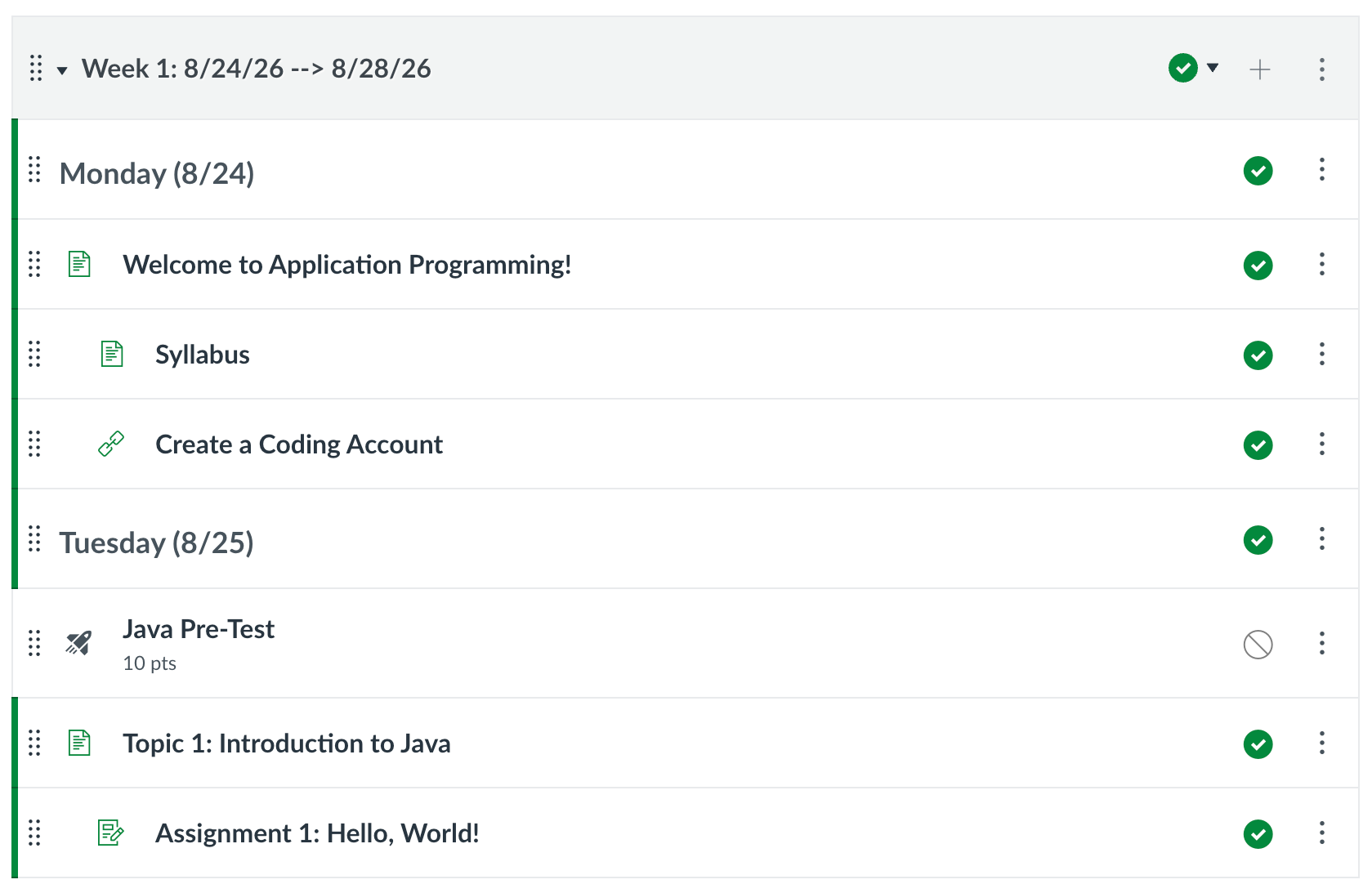
In this case, I decided to create a module for each week of class. This is my first week module, and each day is separated by a header with the day of the week and the specific date. Embedded beneath that I have the resources and assignments that my students are expected to review / complete that day. One of the great things about modules is after I publish the module, I don’t have to publish everything inside of it if I don’t want to! As you can see under Tuesday, I decided to not publish the java pre-test, which means my students won’t see it in their module.
Now, there are multiple ways to set up your modules in your course. Maybe instead of creating a module for per week, you want to do it for per month, per unit or even per day!
What can go inside of Modules?
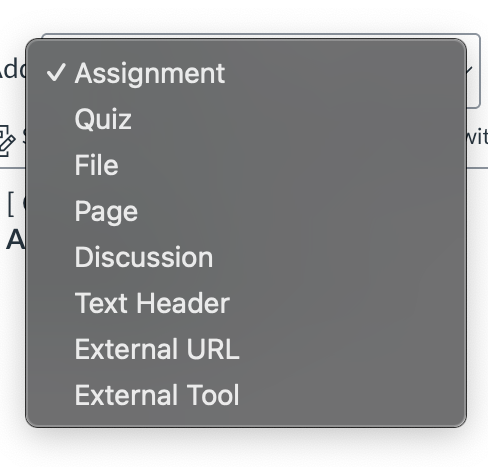
The short answer: Anything! You aren’t limited to just traditional files. By clicking the + sign on the right side of a module header, you can add:
- Assignments
- Quizzes
- Discussion Boards
- Files
- Text Headers
- Pages
- External URLs
Step 1: Click the + sign button.

Step 2: View the Add Item menu and locate the Add dropdown box.
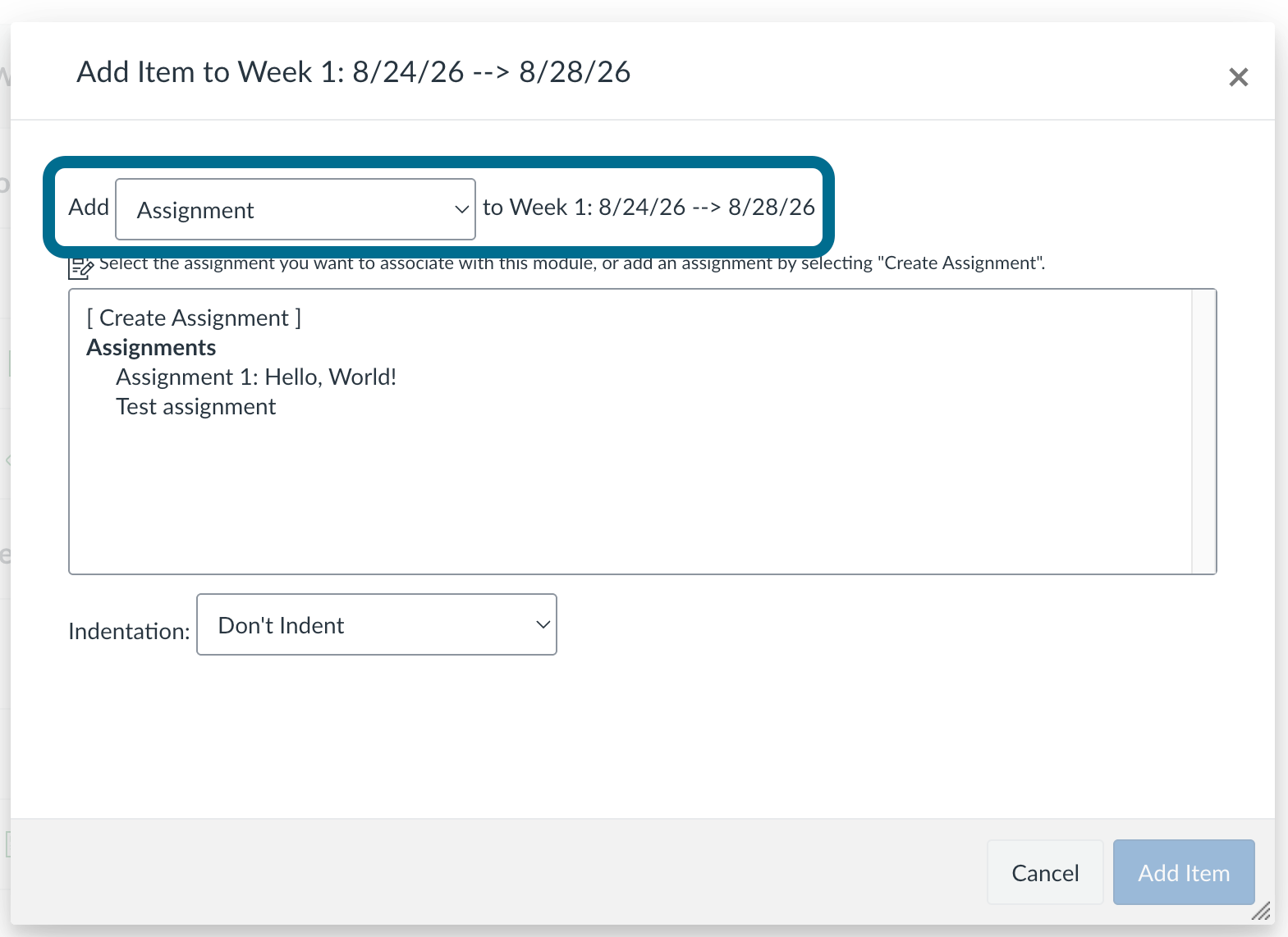
Step 3: Select an option from the dropdown menu.
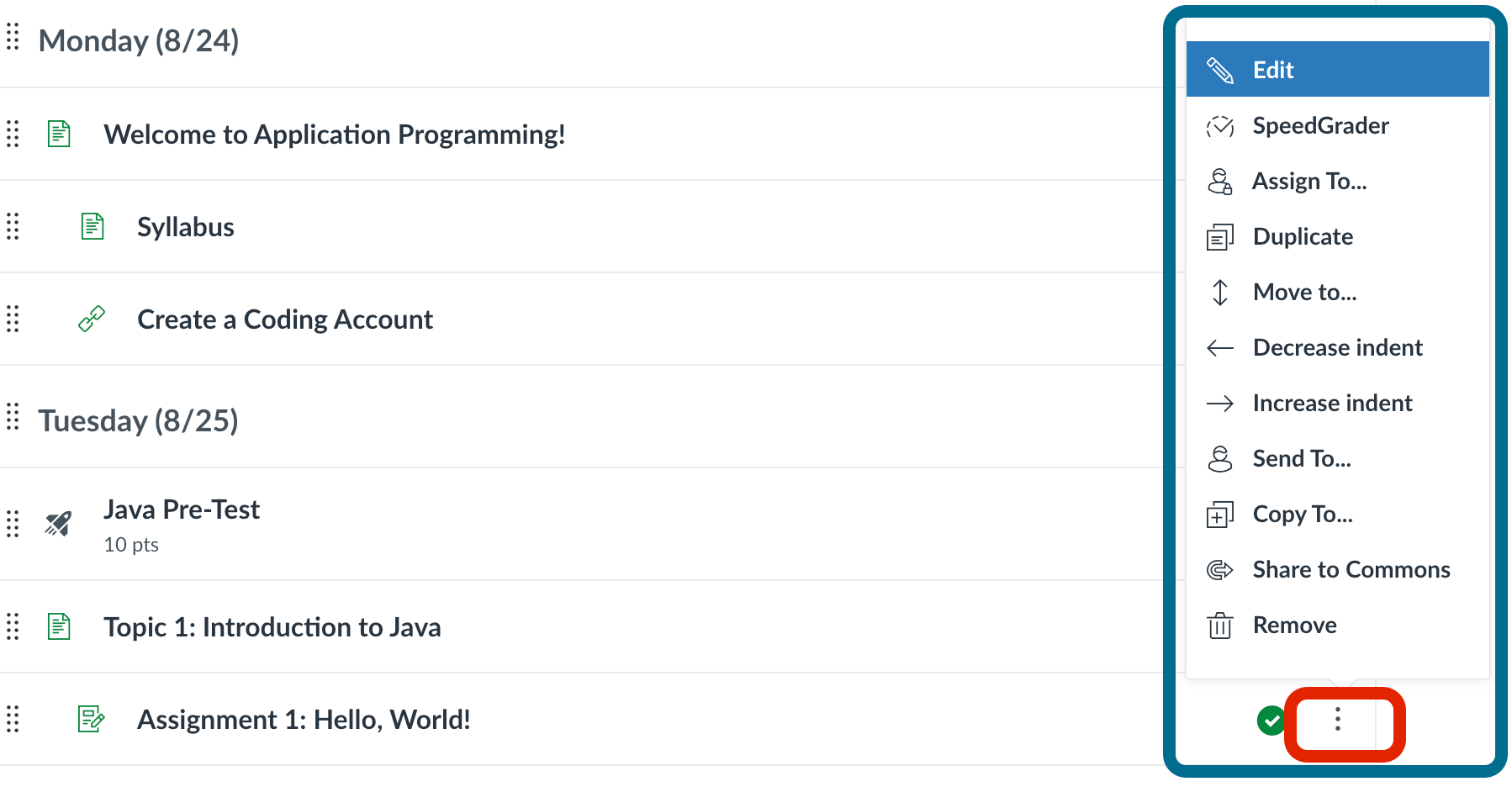
Step 4: Locate the item in your module and edit the information by clicking on the options button (the 3 dots)!
Pro-Tips for Success:
- Removing an item from a module does not fully delete it from your course. To fully delete an item from your course, you will need to either open the resource from the module or go to the respective area of the course via the course navigation (i.e. assignments) and delete it from that menu instead.
There you have it!
Using modules is one of the best ways to enhance your course’s structure, and it also allows your students to easily find what they’re looking for without having to navigate through different areas of your course.