You can leave audio comments on student assignment submissions. Comments can be added before or after grading a submission.
You can also add text comments or video comments.
This lesson shows images for a phone display; however, unless otherwise noted, the steps are the same for tablets.
Note: To learn more about audio comments, view the Canvas Media Comparison resource document.
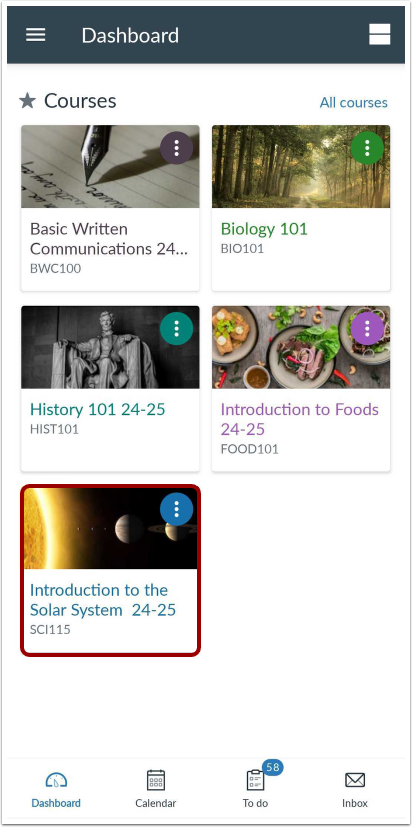
Open Course
In the Dashboard, tap the name of the course you want to view.
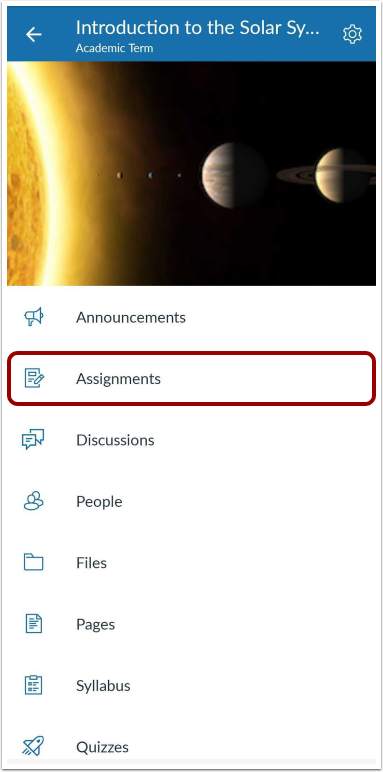
Open Assignments
Tap the Assignments link.
Note: All assignment types can be viewed in the Assignments page, but submissions can also be viewed in the page for their respective assignment type.
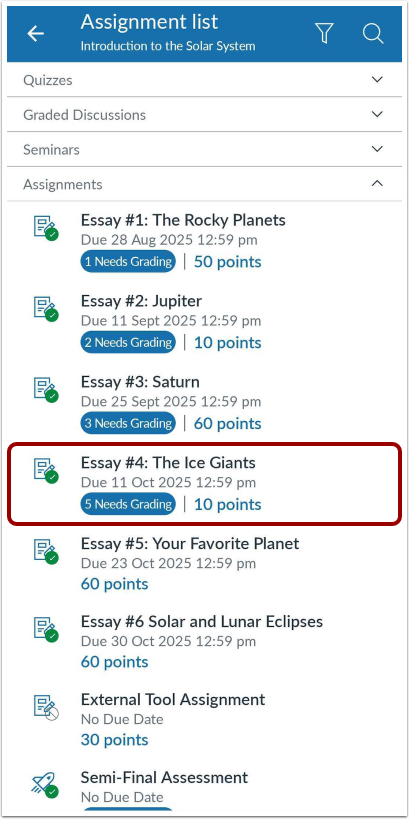
Open Assignment
Tap the name of the assignment.
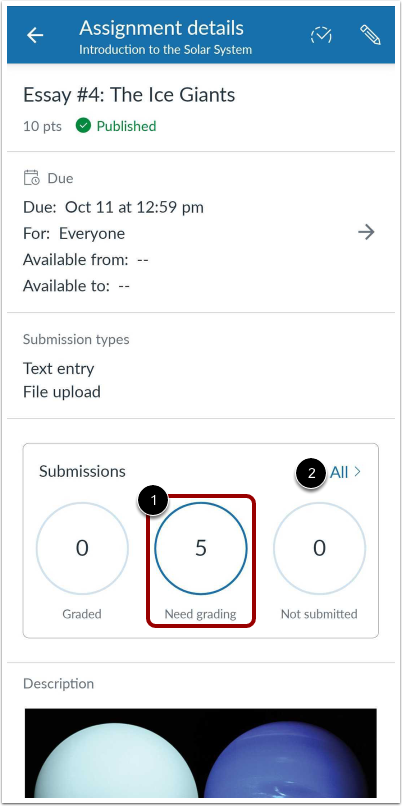
Open Submissions
Tap the Need Grading status link [1].
Note: If you want to filter submissions by a different status, tap the All link [2] and apply the filter in the Submissions page.
Open Submission
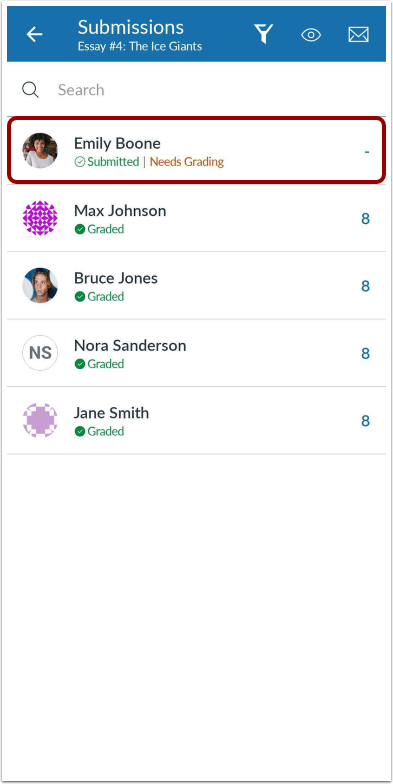
Locate the student's submission and tap the name of the student.
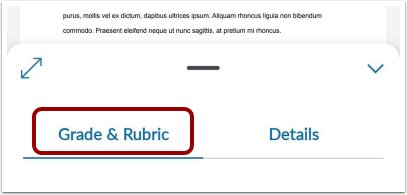
Tap the Grade & Rubric tab.
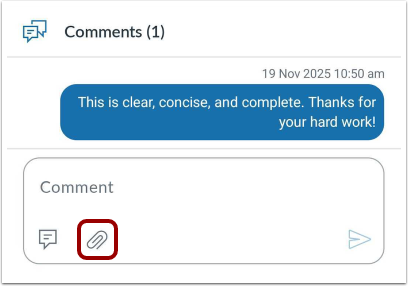
Tap the Attach icon.
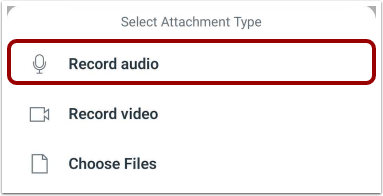
Tap the Record audio link.
Start Audio Recording
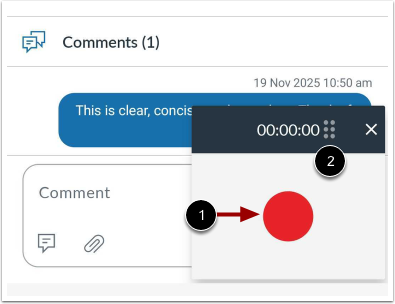
To start recording, tap the Record button [1]. To move the audio window, tap the Move icon [2] and drag the window to its new location.
Stop Audio Recording
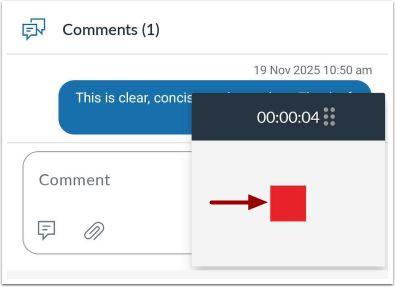
To stop recording, tap the Stop button.
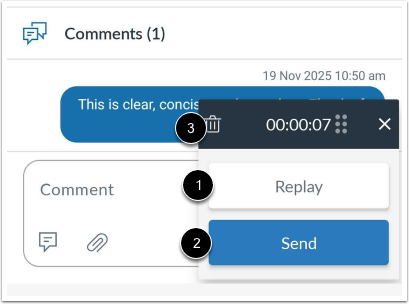
To replay your audio comment, tap the Replay button [1]. To send your recorded audio as a comment, tap the Send button [2].
To delete the recording, tap the Delete icon [3].