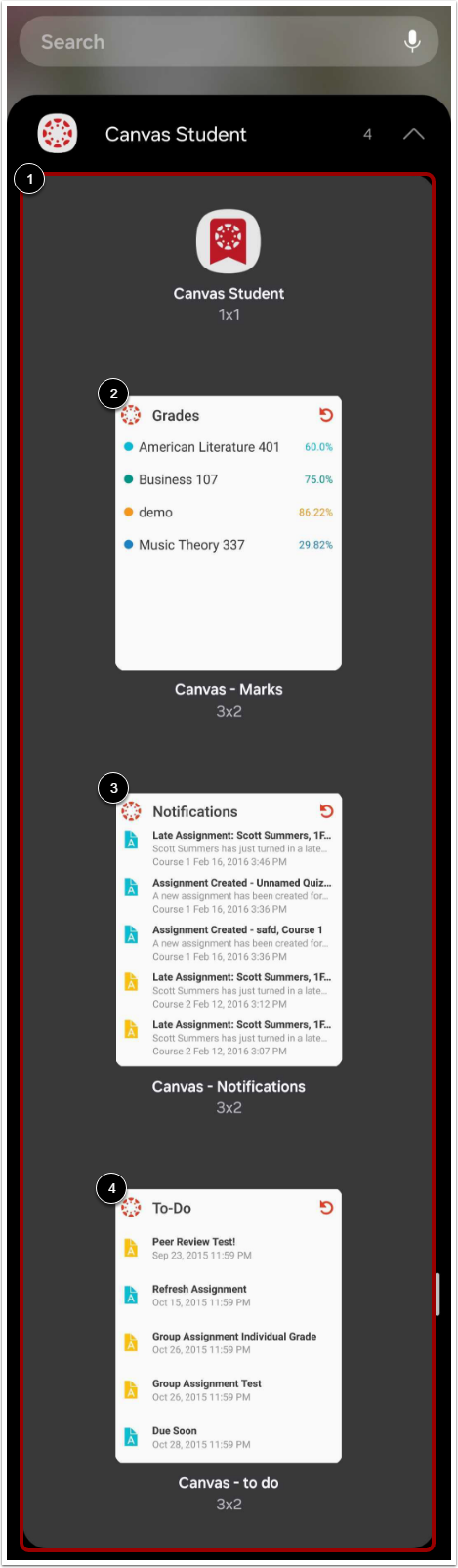
The Canvas app comes with several widgets for quick access to grades, notifications, to-do items, and bookmarks.
The images in this lesson are shown for a phone display, but unless otherwise noted, tablet displays mirror the same steps.
Notes:
- Depending on your Android device, the steps to install a widget may vary from what is pictured below. If you have questions, please refer to your device instructions about how to install a widget.
- Widgets are not available for the Canvas Teacher or Canvas Parent apps.
Tap and Hold Screen
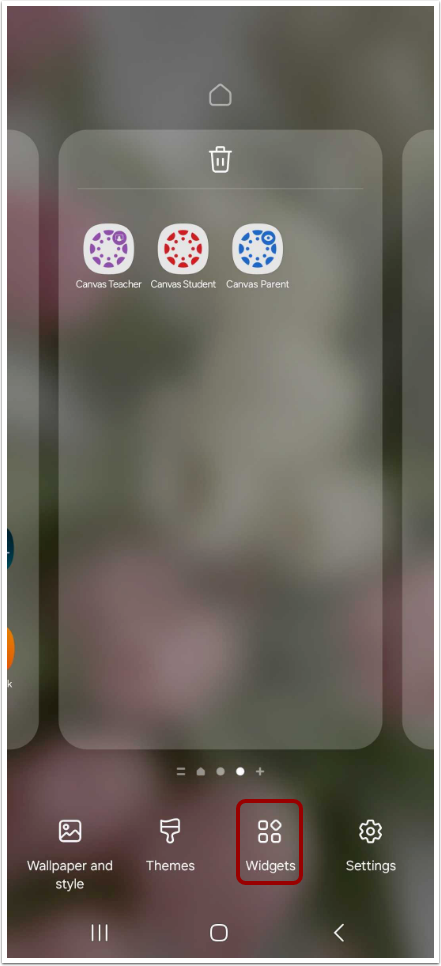
Tap and hold the home screen.
Tap the Widgets icon.
Find the Canvas widgets [1]. The following widgets are available:
Tap and hold the widget, then select a screen to place it on.
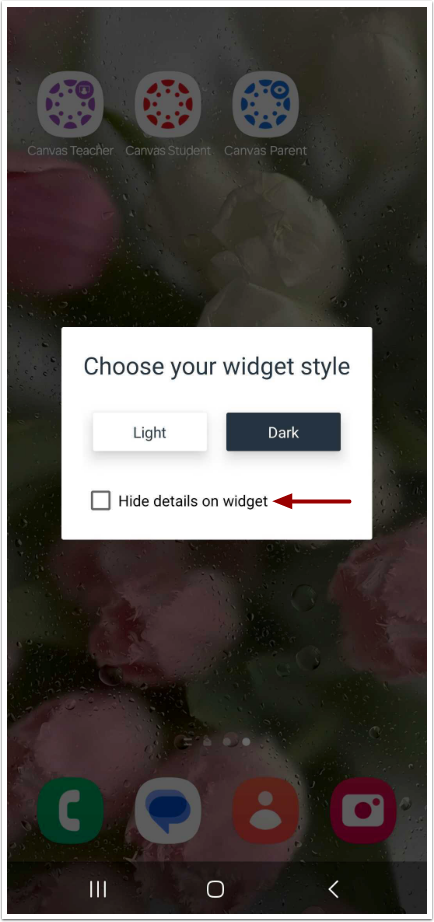
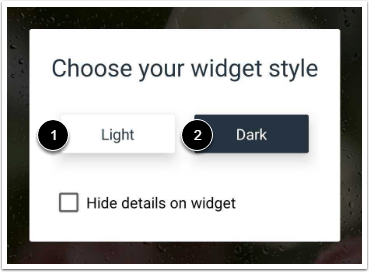
If you want to hide the details in the widget, tap the Hide details on widget checkbox.
Note: The Hide details on widget option is not available for the bookmark widget.
Select Style
Tap your preferred widget style: light [1] or dark [2]. The light widget style will style the widget has dark text over a light background. The dark widget style will style the widget as light text over a dark background.
Note: Widget styles are not available for the bookmark widget.
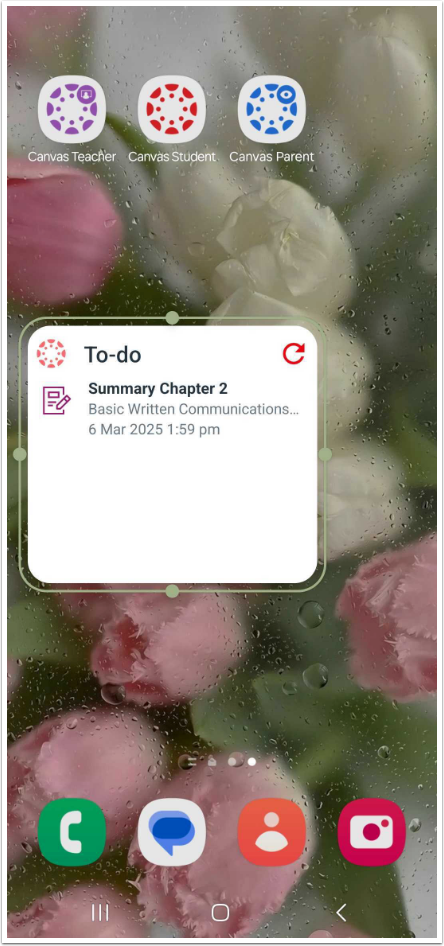
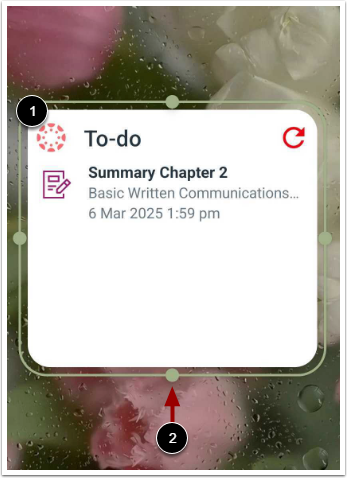
To move the widget, tap and hold on the widget [1]. To resize the widget, tap and drag the resize icons [2].
View your Canvas widget. To view a widget item directly in the app, tap the item [1].
To refresh the widget information, tap the Refresh icon [2].