In Studio you can record a screen capture using a Safari or Firefox browser. Screen captures can be created from any page in your account. You can use the screen capture tool to record media for any length of time, depending on your computer's memory.
You can also record Studio screen capture video with a Chrome or Edge browser.
Notes:
Open Screen Capture
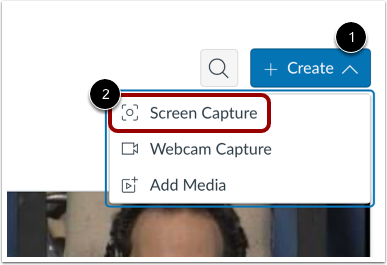
Click the Create drop-down menu [1]. Then, click the Screen Capture link [2].
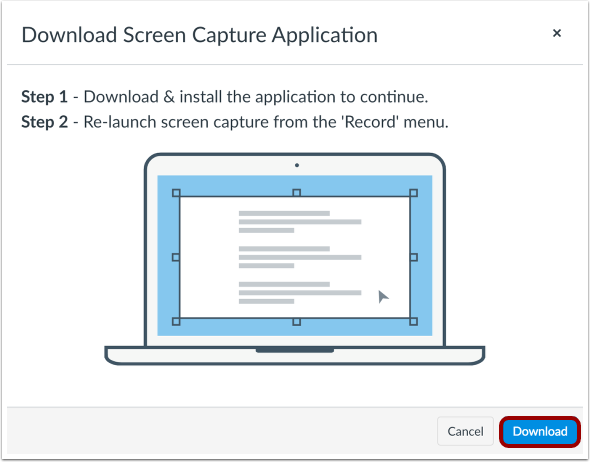
Download and Install Screen Capture Application
To record the screen, download and install the screen capture application. To download the application, click the Download button.
Note: If you have downloaded a different version of the screen capture application, uninstall the previous version and download the most recent version from Studio.
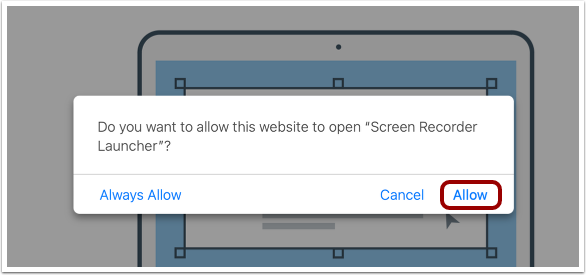
Allow Screen Recorder Launcher
To launch the screen recorder, click the Allow link.
View Capture Settings
To manage screen capture settings, click the Settings icon [1].
By default, the record screen option is selected [2]. To record using a webcam, click the Webcam option [3]. To record using screen capture and your webcam, click the Both option [4].
You can set a custom size for the recorded image, or you can record in Fullscreen. To chose the recorded image size, click the Size button [5].
By default, your default microphone setting is used to record audio. To change the microphone, click the Narration button [6].
By default, computer audio is turned off. To enable recording of system sounds, click the Computer Audio button [7].
To manage additional recording preferences, including keyboard controls, hotkeys, and cursor settings, click the Preferences button [8].
Manage Draw and Zoom Controls
To open the draw and zoom toolbar, click the Draw icon [1].
To use drawing and zoom tools, use the icons in the toolbar [2].
For more information about drawing and zoom tools, and a list of keyboard shortcuts, click the Information icon [3].
Record Capture
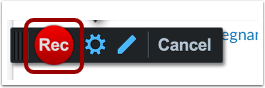
Click the Record button.
Pause Recording
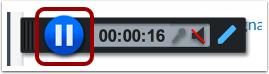
Click the Pause button.
Preview and Manage Recording
To preview the screen capture, click the Play button [1].
The timestamp displays [2]. To move forward and backward through the video, click the Forward and Back buttons [3].
To resume the recording, click the Record button [4].
To upload the screen capture, click the Done button [5].
To delete the screen capture and start over, click the Delete button [6].
Upload Screen Capture
Enter a name for the capture in the Title field [1], and a short description of the capture in the Description field [2]. Then, click the Upload button [3].
To edit the capture click the Edit link [4].
To delete the file and begin a new capture, click the Redo link [5].
To cancel the capture, click the Cancel button [6].
Return to Uploads
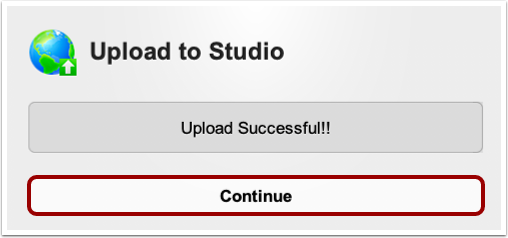
Click the Continue button.
View Screen Capture
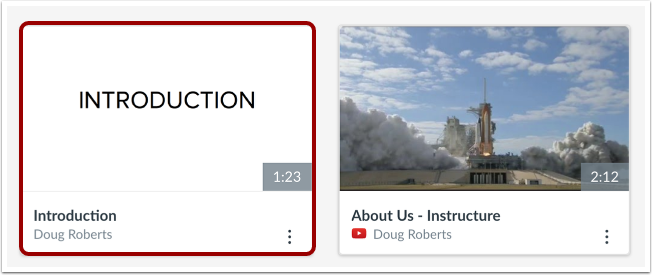
In the My Library page, the screen capture displays. When processing is complete, you can manage all controls and settings.