Upcoming Canvas Changes
2026-05-16
- Breaking Change: LTI 1.3 Tool Configuration Schema Updates
2026-06-30
- Deprecation: Removal of Legacy Login User Interface.
- End of Life: Legacy Canvas Native Portfolios
For more information, please see Instructure Enforcements, Deprecations, and Breaking Changes.
Release notes outline upcoming customer-impacting changes that are expected to display in beta and/or production environments. Please note that features considered for future development are not included in the notes.
Unless otherwise stated, all features in this release are available in the Beta environment on 2026-03-16 and the Production environment on 2026-04-18.
New Features
Dashboard
Customizable Dashboard- Students
Feature Option to Enable | Customizable Dashboard for Learners See the Canvas Feature Option Summary to learn more about Feature Options. |
|---|
Enable Feature Option Location & Default Status | Account (Disabled) |
Subaccount Configuration | No |
Account/Course Setting to Enable | None |
Permissions | Inherent to user role |
Affects User Interface | Yes |
Affected Areas | Dashboard |
Related Resources | Customizable Dashboard: Feature Overview |
Summary
When the Customizable Dashboard for Learners feature option is enabled, students can use a personalized dashboard with widgets to track their progress. Features include:
- Centralized Coursework Widget: View all assignments from every course in one list.
- Filtering: Sort tasks by course or status (e.g., “Missing” or “Upcoming”).
- Direct-to-Task Access: Open assignments or quizzes directly from the dashboard.
- Updated To-Do List: See upcoming deadlines and required tasks.
- Instant Grades Widget: Check overall course grades at a glance.
- Recent Grades & Feedback: View teacher comments and scores without opening each course.
- People Widget: Find and message instructors quickly.
- Announcements Feed: New design for familiar announcements feature.
- Customize Layouts: Add, remove, or rearrange widgets to highlight students’ top priorities.
- Dashboard View Option: Switch between the new dashboard and classic view.
Note: The customized dashboard is currently supported only for users with a student-only role. Users with both student and non-student roles will not see this feature.
Change Benefit
- Improved student experience: The updated dashboard makes it easier for students to access key course information and tools, putting assignments, grades, and announcements front-and-center.
Feature Workflow

Students can switch to the new customizable dashboard by clicking the Switch to new dashboard view button when the feature is enabled.

The student dashboard includes several tabs and widgets to help students access key course information and manage their learning:
- Dashboard tab [1]: Displays various widgets for quick access to course information.
- Courses tab [2]: Shows only course cards for easy navigation.
- Course work widget [3]: Shows the number of assignments that are due, missing, or submitted. Students can filter by course or submission status.
- Course grades widget [4]: Displays grades for each course. Use the Show all grades toggle [5] to hide or reveal grades. Click the View Gradebook link to view the course Grades page [6].
- Announcements widget [7]: Displays new announcements. Students can filter by Read, Unread, or All.
- People widget [8]: Lets students filter users by course or role and send Inbox messages.
- Dashboard options: Students can switch back to the classic dashboard view [9] or customize the dashboard [10].
- Feedback [11]: Students can share feedback on the new dashboard view.
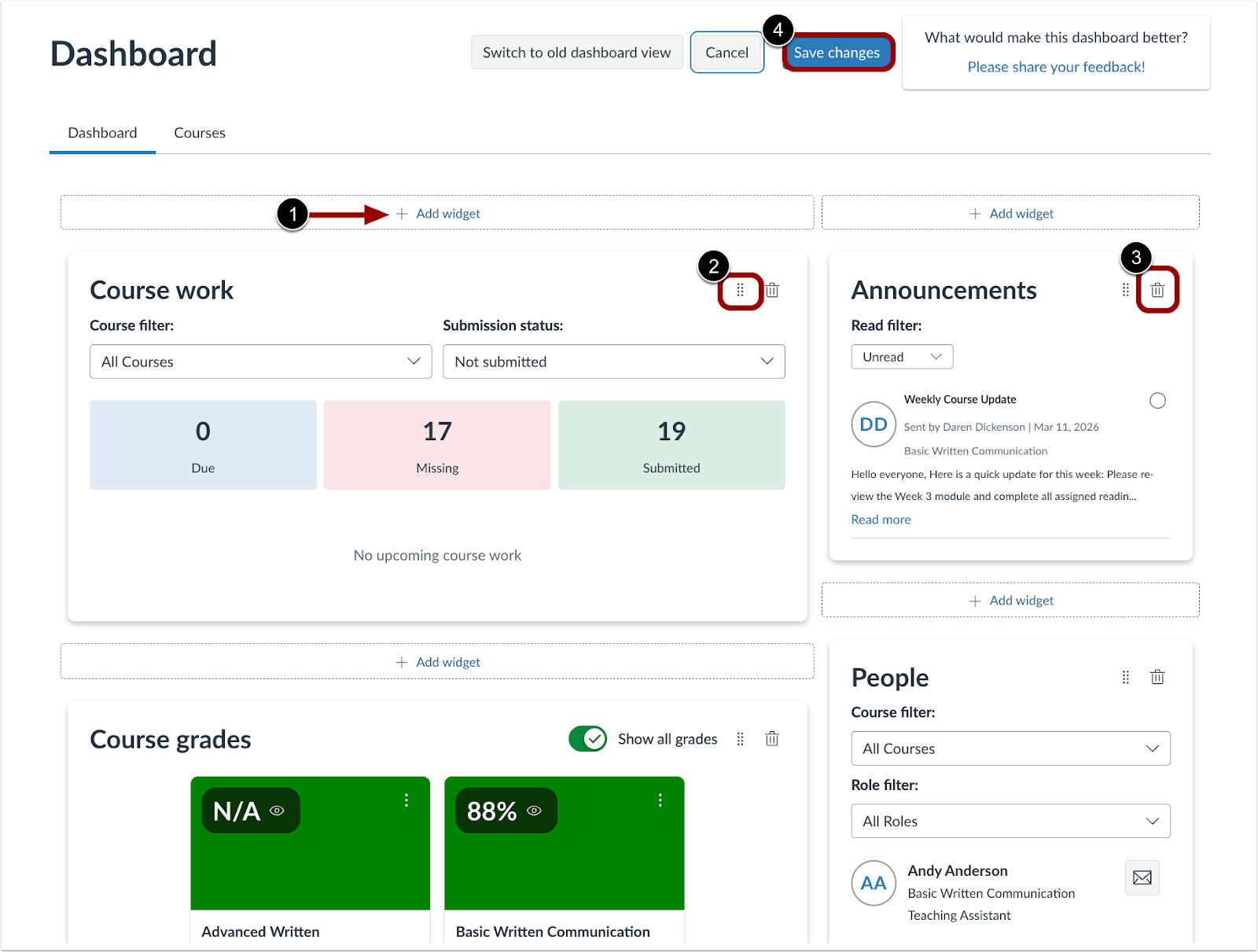
Students can customize their dashboard by adding, moving, or removing widgets and saving their layout:
- Add widget [1]: Click to add additional course information to the dashboard.
- Rearrange widgets [2]: Drag widgets to different areas to organize the dashboard.
- Delete widgets [3]: Remove widgets not needed on the dashboard.
- Save changes [4]: Click when finished customizing to apply the dashboard layout.
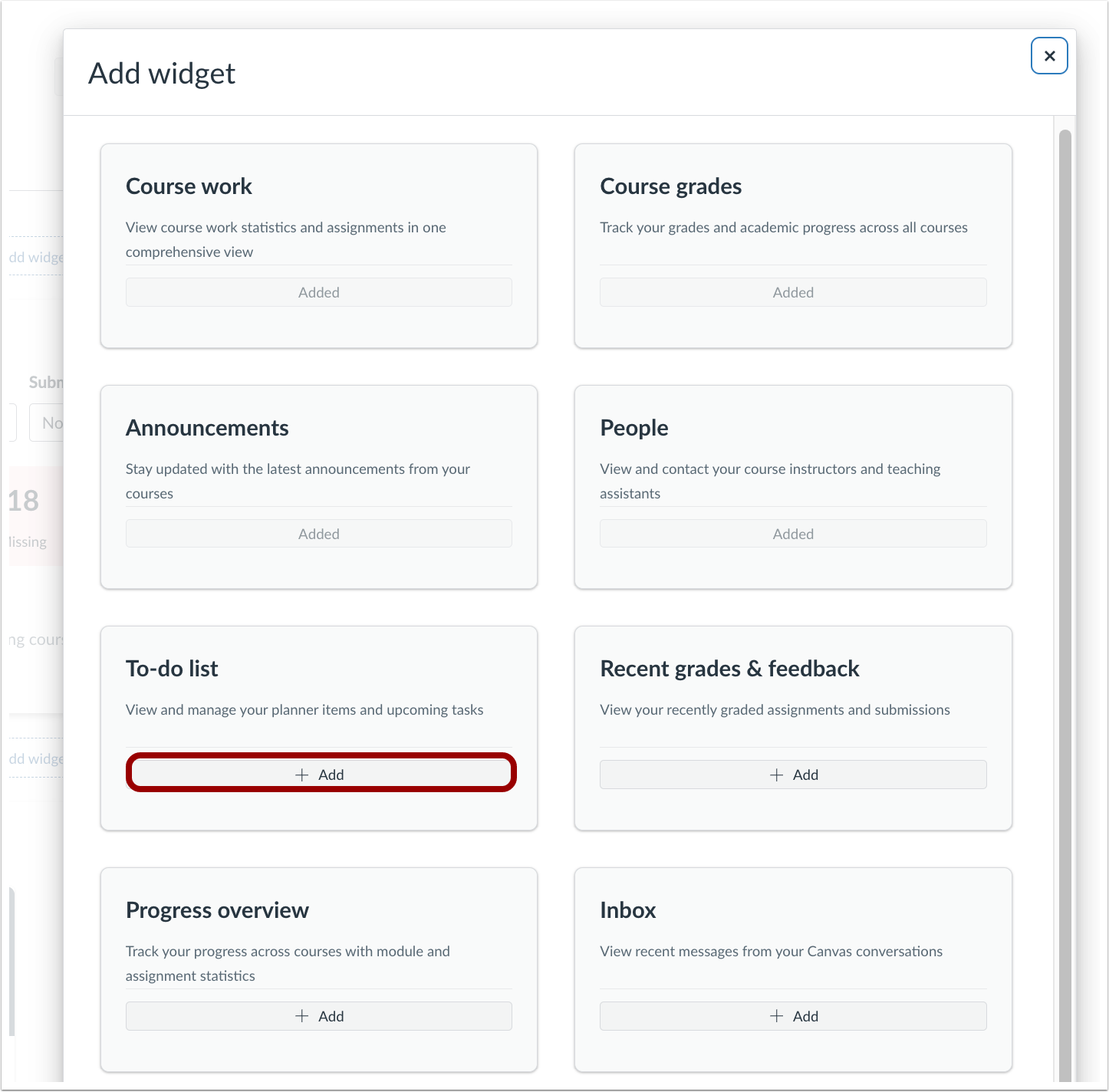
Click the Add link to add widgets to the dashboard.
Feature Video
Embed Code:
<iframe width="560px" height="320px" allowfullscreen="true" allow="autoplay *" title="Release Screencast 2026-04-18: Customizable Dashboard" src="https://community.instructuremedia.com/embed/22891371-7fe0-4b69-9630-f156f7b0bf54" frameborder="0"></iframe>
Grades
IgniteAI Grading Assistance for SpeedGrader- Instructor
Beta Environment Availability | 2026-03-30 Note: This date falls outside the regular beta release cadence. |
Feature Option to Enable | - Performance and Usability Upgrades for SpeedGrader
- Enhanced Rubrics
- Grading Assistance
See the Canvas Feature Option Summary to learn more about Feature Options. |
|---|
Enable Feature Option Location & Default Status | Performance and Usability Upgrades for SpeedGrader - Account (Enabled/Locked)
- Course (Enabled)
Enhanced Rubrics - Account (Enabled/Unlocked)
- Course (Enabled)
Grading Assistance - Account (Disabled/Unlocked)
- Course (Disabled)
|
Subaccount Configuration | Yes |
Account/Course Setting to Enable | None |
Permissions | Inherent to user role |
Affects User Interface | Yes |
Affected Areas | SpeedGrader |
Related Resources | IgniteAI Grading Assistance for SpeedGrader | Product Overview |
Summary
The Grading Assistance feature option lets instructors use an AI-assisted grading tool to generate scores and feedback suggestions for written assignments based on the associated rubric. To use this feature fully, the Enhanced Rubrics and Performance and Usability Upgrades for SpeedGrader feature options must also be enabled.
Note: This feature is designed to support teachers, not replace professional judgment. All AI-generated scores, feedback, and comments should be reviewed and approved by a teacher before being used or submitted.
Feature Limitations
- Grading Assistance does not detect or flag inappropriate, harmful, or sensitive content.
- The system has limited defenses against attempts to manipulate or bypass grading instructions.
- It does not verify the accuracy of factual claims.
- The legitimacy or credibility of cited sources is not evaluated.
- Formatting requirements (e.g., word count, structure, citation style) are not checked.
- Grades and feedback are based only on criteria explicitly stated in the rubric.
- Grading Assistance is not well-suited for objective, single-correct-answer assignments.
Using Grading Assistance
- Use clear, detailed rubrics.
- Apply Grading Assistance primarily to text-based, essay-style assignments.
- Avoid using it for quantitative or objective assignments.
Change Benefit
This feature helps instructors save time and streamline the grading process by providing AI-generated scores and feedback suggestions for written assignments. By using the associated rubric, the feature ensures feedback is aligned with assignment criteria, allowing teachers to focus on reviewing and refining feedback rather than starting from scratch.
Feature Workflow

In SpeedGrader, click the Auto-Evaluate button.

Once the evaluation is complete, the following actions occur:
- Criteria selections [1]: Applied automatically based on the evaluation results.
- Comments generated [2]: Review the feedback populated by the system.
- Reset button [3]: Click to clear the current evaluation and begin a new one.
Note: The Reset button will replace all existing ratings and comments and cannot be undone.

Once the criteria selections and comments have been reviewed, click the Submit Assessment button.
Feature Video: Not Available
Navigation
Enhanced Accessibility Reporting- Admin, Instructor
Feature Option to Enable | Accessibility Checker
See the Canvas Feature Option Summary to learn more about Feature Options. |
|---|
Enable Feature Option Location & Default Status | Account (Disabled/Unlocked) |
Subaccount Configuration | Yes |
Account/Course Setting to Enable | None |
Permissions | Inherent to user role |
Affects User Interface | Yes |
Affected Areas | Account Navigation, Course Accessibility |
Related Resources | Accessibility Checker: Feature Overview |
Summary
An Account-level accessibility dashboard is available in the account navigation, and the course-level accessibility report includes additional features:
- At the course level, the report includes Announcements, Syllabi, and Discussions.
- A close remediation feature allows users to mark a resource as complete, removing any remaining issues from the total counts and statistics.
Notes:
- Users will need to update existing course level reports to surface additional resources.
- Automatic course rescans are paused when users manually update content.
- Manual updates are initiated by clicking the “Update report” button in the course-level report.
Change Benefit
- Enhanced Accessibility Reporting: Provides an account-level overview of courses with active and resolved issue counts, expands resource scanning to include announcements, syllabi, and discussions, and allows users to dismiss or exclude issues and resources they do not wish to remediate.
- Remediation Control: Allows users to dismiss or exclude issues and resources they do not wish to remediate.
Feature Workflow

At the Account level, click the Accessibility link to view the Accessibility Report.

A Close Remediation button displays at the end of the remediation wizard for any unresolved items.

The Close Remediation option can also be accessed through the Options icon.
Feature Video: Not Available
Rich Content Editor
Automated Captions and Interactive Transcripts for Canvas Media- Instructor, Student
Summary
Enhancements to the video experience in Canvas include Automated Captioning and Interactive Transcripts, along with improvements to media playback and caption management.
Canvas Media Captions and Transcript Features:
- Automatically generated captions for supported video and audio media
- Option to upload caption files
- Interactive rolling transcript that syncs with video playback
- Transcript editing within Canvas
- Player layout options to support different viewing and transcript display configurations
- Expanded full screen playback for media
- Viewer restriction to control transcript visibility
- Click-to-jump navigation to specific timestamps
- Search functionality within the transcript
- Support for multiple caption languages
Student Experience
- Search for key terms in the transcript.
- Click transcript text to jump to specific moments in the video.
- Follow along with highlighted text as the video plays.
Change Benefit
- Video Caption Generation: Automatically creates captions, removing the need to manually create or upload SRT files and ensuring all students, including those with hearing impairments or ESL learners, can access content.
- Precision Studying: Searchable transcripts let students quickly find specific concepts without skimming through the entire video.
- Improved Retention: Following along with highlighted transcript text while listening helps students better understand and retain lecture material.
- Streamlined Caption Editing: Educators can easily correct caption errors directly in Canvas without using external text editors.
Feature Workflow

Students and instructors can manage video captions using the Caption Manager with the following options:
- Video Options link [1] – Click to access the Caption Manager.
- Player Layout drop-down menu [2] – Select if you want to change the player layout.
- Add New button [3] – Click to upload captions.
- Request button [4] – Click to request automatic captioning.
Notes:
- Small layouts (below 720px): The media player displays without the transcript panel in inline view.
- Larger layouts (720px and above): If the Show Rolling Transcript restriction is enabled, the transcript panel can appear alongside the media.
- Extra Large layout: Recommended for comfortably displaying the transcript inline.

To add captions to a video, follow these steps:
- Select the Language [1]
- Choose a caption file [2]
- Click the Upload button [3]

To automatically generate captions, select the Language [1], then click the Request button [2].
Notes:
- Caption generation may take up to 24 hours.
- While captions are being generated, an Automatic caption entry displays in the list with a Processing status.
- If caption generation fails, an error message displays and instructors can retry the request.
- Once completed, captions are available for transcript display and caption playback.
- Automated caption generation supports both video and audio media.

Instructors can control transcript visibility using the Show Rolling Transcript viewer restriction.
Notes:
- When the toggle is off, the transcript panel does not appear in inline, immersive, or fullscreen playback.
- When the player width exceeds 720px, the media player expands to fill the available space.
- The control for immersive playback is removed.
- If Hide Rolling Transcript is enabled in the Video Options tray, the transcript panel is not available in any playback view.

When captions are available, Canvas media displays an interactive rolling transcript alongside the player.
Notes:
- If captions are not yet generated, a placeholder transcript may display in immersive or fullscreen playback.
- The transcript panel can be shown or hidden using the sidebar icon in the media player.
- Inline transcript is only available when the player width exceeds 720px.
- When transcripts are available, the transcript panel can display in immersive and fullscreen views, even if it is hidden in the inline player due to layout size.

Instructors can edit transcript text directly within the transcript panel when the Rich Content Editor is in Edit mode. Editing is available inline (when space allows) or in fullscreen playback.
In Edit Transcript mode, instructors can:
- Modify existing transcript text directly within the panel
- Save changes automatically when moving to another transcript entry
- Correct text without needing to re-upload caption files (transcript entries cannot be deleted)

Canvas media supports immersive view and fullscreen playback for a larger viewing experience.
- If Hide Rolling Transcript is enabled in the Video Options tray, the transcript panel is not available in any playback view.
Feature Video: Not Available
Other Updates
Platform/Integrations
AWS CloudFront Transition- Admin
Summary
Canvas updated its platform infrastructure to use AWS CloudFront (CDN). This update is fully behind the scenes with no changes to the Canvas interface or workflows, and no action is required for users.
Change Benefit
Improved Platform Performance: Enhances speed, scalability, and reliability by using a global CDN, with no expected impact for users.
Portfolio
Publish Portfolio Modal Update and Enrollment Sync Improvements- Instructor, Student
Production Environment Availability | 2026-03-30 Note: This date falls outside the regular production release cadence. |
|---|
Feature Option to Enable | N/A |
Enable Feature Option Location & Default Status | N/A |
Subaccount Configuration | Yes |
Account/Course Setting to Enable | None |
Permissions | Inherent to user role |
Affects User Interface | No |
Affected Areas | Portfolio |
Summary
The Publish portfolio modal text is updated. Additionally, Evaluation Portfolios automatically sync with Canvas course enrollments, keeping learner access accurate and reducing manual management.
- Learner access reflects course enrollment changes automatically.
- Updated publishing guidance clarifies that enrollments sync automatically.
Change Benefit
- Supports Late Enrollments Seamlessly: Learner access automatically updates when students join a course after portfolios are published.
- Improves Accuracy of Dashboards and Reporting: Portfolio data reflects current course enrollments, ensuring reports are up to date.
- Eliminates Manual Fixes: Changes in enrollment are applied automatically.
- Enables Long-Running Portfolios: Portfolios remain accurate over extended course durations.
Feature Workflow

The Publishing portfolio modal text is updated.
Change Log
Date | Description |
|---|
2026-03-30 | Update - Grades: IgniteAI Grading Assistance for SpeedGrader
- Updated Beta Environment Availability date
|
2026-03-20 | Update - Customized Dashboard
- Added Note: The customized dashboard is currently supported only for users with a student-only role. Users with both student and non-student roles will not see this feature.
|















.png)