Have you ever looked at your Gradebook in your Canvas course and wished that you could give one student a little extra time on an assignment, another student a more challenging assignment, and a third a second chance, without having to change the course experience for everyone in your course? Well, the answer lies in the awesome Assign To feature, which is a tool designed to personalize learning for students in your course.
What can it be used for?
The Assign To feature can be used for all sorts of things! Maybe you want to:
-Provide a student who has been absent from class an extension for an assignment’s due date
-Provide a few specific students with a different quiz without granting every student access to it
-Personalize which modules in whole your students see so they only focus on the content you want them to focus on without feeling overwhelmed with information or assignments they don’t need.
All of these scenarios, plus more, can be solved with this feature!
How can I access the Assign To option in my course?
The Assign To feature can be found under modules specifically, as well as pages, assignments, quizzes (both Classic and New) and discussion boards. All you need to do is locate the item, whether that be from a module or the appropriate area of the course corresponding to that item (i.e. an assignment under the assignments page / tab), and clicking on the options button located on the right and locating the “Assign To” button.

That’s cool but… how do I use this feature exactly?
Using the Assign To feature is a piece of cake! No really, it is. Upon clicking the Assign To button via the options menu, all you have to do is enter in the student(s)’s names or section(s) that you want to change access for. By default, everyone will have access to the assignment, page, quiz or discussion that you create. You can modify access to these resources just by utilizing the scroll-menu and clicking on the student’s name. If you have many students enrolled in your course, you can also type and search for their name in the text field box. That’s all you need to do! If enabled by your institution, you can also use differentiation tags to differentiate access, too.
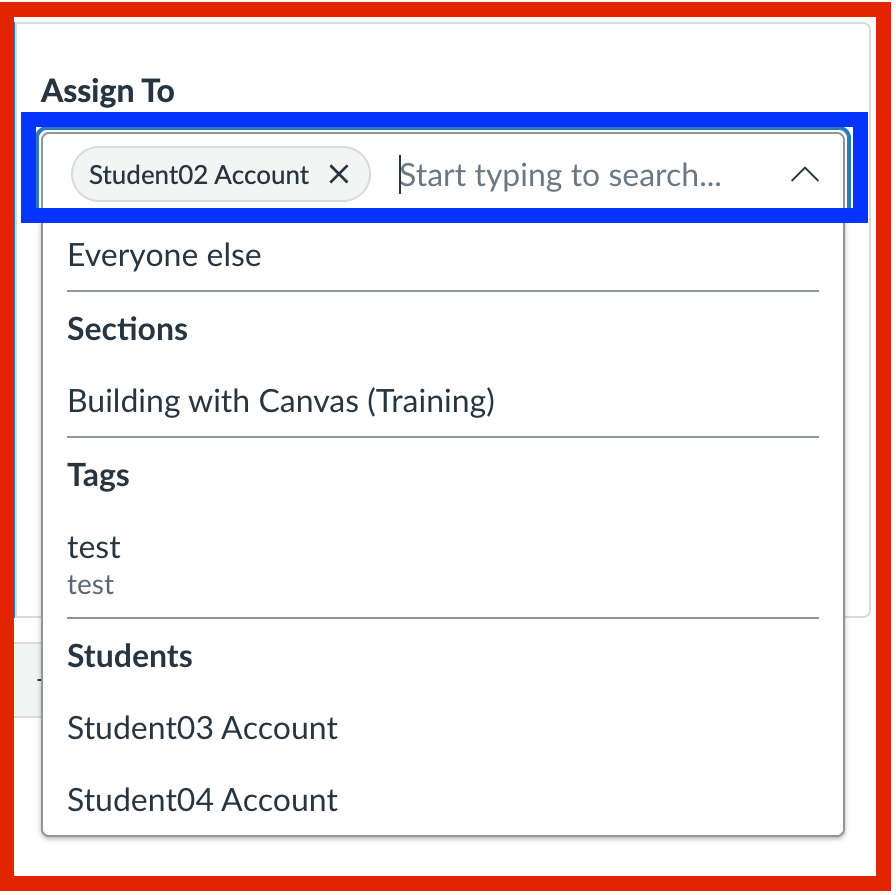
That’s great! But what if I want to change the settings for just one or two students and keep it the same for everyone else?
No problem! You’re easily able to modify the assign to settings for one or two students while still keeping the same settings for everyone in your course. All you need to do is upon clicking on the Assign To button via the options menu and opening the assign to menu, you’ll want to keep the default box that is already there, which will be assigned to Everyone. Now, below that you will want to click on the + Add button, and you’ll see an additional, new box appear.
In the new box is where you’ll enter in the names of the students that you want to provide with different availability / due dates. Depending on the type of resource you are using the Assign To feature with, some fields, such as the due date field, may not appear. In the image below, I am using it on a page.
Click the + Add Button:

You’ll then get a second box (outlined in blue for reference)! That is where you’ll want to enter the student(s), section(s), or differentiation tag(s) that you want to give different access dates to. In my second box, I adjusted one of my student’s availability dates so they were different from everyone else’s.

Some additional facts to know:
- On the page of the quiz / assignment, you’re able to scroll down and find the assign to details that you entered without having to back into the Assign To menu! This saves you time from going through the assignment settings by providing you with an easy to access glance of what the availability and due dates are for which students.

- If you create a resource that is not assigned to everyone in the course, you may come across a warning message giving you a heads up. It’s important for you to double check that everyone that needs access to the resource during the appropriate time frames has access. If everything looks good, you can click continue!

You did it!
Congratulations! You now know the basics on how to create a personalized learning path for your students! Using the Assign To feature is a great way to ensure your students are being supported the way they should and allows them to be successful in your course. I hope you found this post helpful!
