New Features
Back to Table of Contents
Discussions
Instructor Student
|
Beta Environment Availability
|
2024-06-17
|
|
Production Environment Availability
|
2024-07-20
|
|
Location to Enable Feature
|
None
|
|
Name of LTI Tool
|
None
|
|
Permissions
|
Discussions-create
Discussions-moderate
Additionally, either a course admin enrollment or an enrollment that's not section restricted
|
|
Related APIs
|
None
|
|
Affects User Interface
|
Yes
|
|
Affected Areas
|
Discussions
|
|
Related Ideas
|
None
|
Summary
In Discussions, instructors can assign ungraded discussions to students and sections. Additionally, section restricted enrollments allowing students to post discussions to a specific section is removed. Instructors can still create groups, and students within those groups can initiate discussions that are visible only to their group members.
Change Benefit
This update streamlines instructor workflow and improves the ability to differentiate instruction.
Feature Workflow
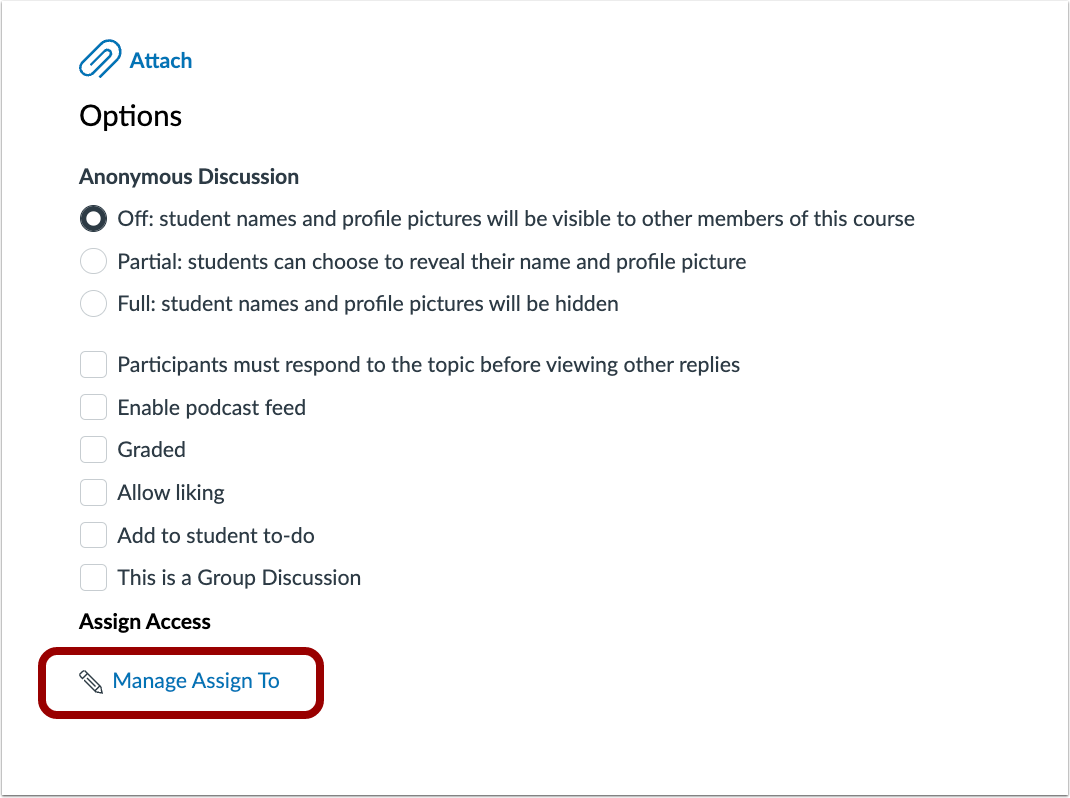 Manage Assign To Link
To assign students or sections to an ungraded discussion, click the Manage Assign To link on the create or edit a discussion page.
 Assign To Tray
Instructors can select which students are assigned the ungraded discussion.
Note: Only students assigned to the discussion can view and participate in the ungraded discussion.
Feature Video
|
See Feature Video for Modules and Assignment Differentiation
|
Navigation
Analytics Hub
Admin
Summary
In Account Navigation, an Analytics Hub link is available. The Analytics Hub displays all data and analytics for the following features:
- Admin Analytics: Usage overview, Student overview, Course overview
- Impact Insights
- LTI Usage Data
- Intelligent Insights: Students in need of attention, Course readiness, LTI Usage Data, Ask Your Data
- Standards overview
- Formative assessments
- Benchmark assessments
- State and National Assessments
- Canvas Data 2 services
- DAP CLI & Client library
- DAP Query API
Note: Specific data and analytics solutions are based on feature option settings and individual users permissions.
Change Benefit
This feature improves an admin’s workflow by consolidating all data and analytics capabilities in one page.
Feature Workflow
 Analytics Hub Link
In Account navigation, an Analytics Hub link is available.
 Analytics Hub View
Users without access to Intelligent Insights can access other product data and analytics in the Analytics Hub.
 Analytics Hub Data Options
Using the Analytics Hub, admins can view data for the following areas depending on feature option settings and individual users permissions:
- AI Assisted Data [1]
- Usage and Adoption [2]
- Student Success [3]
- Course Effectiveness [4]
- Standards Proficiency [5]
- Assessment Results [6]
- Data Access [7]
Feature Video
Inbox
Add Signature to Messages
All Users
|
Beta Environment Availability
|
2024-06-17
|
|
Production Environment Availability
|
2024-07-20
|
|
Location to Enable Feature
|
Account Settings
|
|
Account Setting to Enable
|
Enable Inbox Signature Block
|
|
Subaccount Configuration
|
No
|
|
Name of LTI Tool
|
None
|
|
Permissions
|
Inherent to user
|
|
Related APIs
|
None
|
|
Affects User Interface
|
Yes
|
|
Affected Areas
|
Inbox
|
|
Related Ideas
|
[Inbox] Signature Block
|
Summary
When the Enable Inbox Signature Block is enabled, users have the option to configure a signature when composing a message. Additionally, admins have the option to disable the Inbox Signature Block for students.
Note: The Enable Inbox Signature Block setting is disabled by default.
Change Benefit
This feature streamlines communication and enhances the effectiveness and professional appeal of inbox messages.
Feature Workflow
 Account Setting Enable Signature Block
In Account settings, select the Enable Inbox Signature Block checkbox to enable for all users. To disable this feature for students select the Disable Inbox Signature Block for Students checkbox.
Note: By default, the Disable Inbox Signature Block for students checkbox is not selected.
 Inbox Settings Icon
In the Inbox, click the Settings button.
 Create Signature Modal
To create a signature, select the Signature On radio button [1] and enter the desired signature in the Signature field [2]. Then, click the Save button [3].
 Compose Message Signature Display
Once a signature is saved, it displays in the message body when composing a message.
Feature Video
|
See the Feature Video for Add Auto Response to Messages.
Subscribe to this article to be notified of updates
|
Add Auto Response to Messages
All Users
|
Beta Environment Availability
|
2024-06-17
|
|
Production Environment Availability
|
2024-07-20
|
|
Location to Enable Feature
|
Account Settings
|
|
Account Setting to Enable
|
Enable Inbox Auto Response
|
|
Subaccount Configuration
|
No
|
|
Name of LTI Tool
|
None
|
|
Permissions
|
Inherent to user
|
|
Related APIs
|
None
|
|
Affects User Interface
|
Yes
|
|
Affected Areas
|
Inbox
|
|
Related Ideas
|
[Inbox] Auto-reply for Canvas messages
|
Summary
When Enable Inbox Auto Response is enabled, users have the option to set an auto-response for messages. Additionally, admins have the option to disable the Inbox Auto Response for students.
Note: The Enable Inbox Auto Response setting is disabled by default.
Change Benefit
This feature streamlines communication and enhances the effectiveness and professional appeal of inbox messages.
Feature Workflow
 Account Setting Enable Auto Response Checkbox
In Account Settings, select the Enable Inbox Auto Response checkbox to enable the feature for all users. To disable this feature for students select the Disable Inbox Auto Response for Students checkbox.
Note: By default, the Disable Inbox Signature Block for students checkbox is not selected.
 Inbox Auto Response Modal
To create an auto-response message, select the Response On radio button [1] and enter the Start Date [2], End date [3], Subject [4] and Message [5]. Then, click the Save button [6].
Feature Video
Embed Code:
<iframe width="560px" height="320px" allowfullscreen="true" allow="autoplay *" title="Release Screencast: 2024-07-20 Inbox Add Signature to Messages and Add Auto Response to Messages" src="https://community.instructuremedia.com/embed/1dff4ce4-2e02-4b9a-9d32-85806a7bcef5" frameborder="0"></iframe>
Intelligent Insights
Analytics and AI
Admin
|
Beta Environment Availability
|
Not available in the beta environment
|
|
Production Environment Availability
|
2024-07-09
|
|
Location to Enable Feature
|
None
|
|
Name of LTI Tool
|
Contact Customer Success Manager
|
|
Permissions
|
Name of Permission relevant to feature area
Intelligent Insights Account Role
- Students in Need of Attention
- Course Readiness
- Ask Your Data
- LTI Usage
|
|
Related APIs
|
None
|
|
Affects User Interface
|
Yes
|
|
Affected Areas
|
Intelligent Insights
|
|
Related Ideas
|
None
|
Summary
Intelligent Insights is Instructure’s new product offering in the area of analytics & AI.
The four features of Intelligent Insights are:
- Course Readiness: Provides the insights administrators need to manage and assess course readiness and effectiveness. Institutions can customize the criteria to set standards for course readiness, enabling data-informed decisions and actions to enhance the consistency and effectiveness of teaching and learning.
- Students in Need of Attention: Institutions establish leading indicators to proactively identify students needing attention and take action to improve their experience and outcomes. By implementing proactive and continuous monitoring, institutions can enhance student retention and graduation rates.
- Ask Your Data: AI-powered query tools enable account admins to ask and answer questions in natural language. This allows educators to make data-informed decisions regardless of their data literacy or technical expertise.
- LTI Usage: A meaningful and personalized data and analytics dashboard on LTI usage within Canvas provides admins with insights into where, when, by whom, and how often LTIs are used. This enhances understanding and management of LTIs in Canvas.
Note: Intelligent Insights is a paid product offering, please contact your Customer Success Manager for more information.
Change Benefit
This product enables self-service analytics and proactively surfaces actionable insights that inform strategic initiatives to improve course and edtech effectiveness, student retention, and graduation rates.
Feature Workflow
 Analytics Hub Link
Admins can access Intelligent Insights through the Analytics Hub or Admin Analytics.
 Edit Criteria Page
In Course Readiness, admins can create specific criteria to define course readiness for their institution.
 Course Readiness Data
Then, the admin can view data based on the institution's criteria for course readiness.
 Students In Need Of Attention Page
In the Students in Need of Attention page, admins can customize criteria [1], message students in need [2], filter results [3], and view bulk data [4].
 Individual Student View
Additionally, admins can view more detailed information about individual students.
 Ask Your Data View
Admins can interact with and query their data instantly, quickly visualizing results.
 LTI Usage Overview
With the LTI Usage dashboard, admins can gather insights on the following questions:
- Which LTI tools are/are not being utilized and where?
- Who are our LTI tool champions?
- What are our trends in LTI tool usage?
Additional Details
Please note that the LTI Usage dashboard is a part of Intelligent Insights and Impact. As such, LTI Usage Release Notes can be found with the Impact Release Notes in the Instructure Community when available.
Feature Video
Modules
Module and Assignment Differentiation
Instructor
|
Beta Environment Availability
|
2024-06-17
|
|
Production Environment Availability
|
2024-07-20
|
|
Location to Enable Feature
|
None
|
|
Name of LTI Tool
|
None
|
|
Permissions
|
To change the Assign To settings for Modules and Module Items:
- Assigning Modules: Course Content - Edit
- Assigning Assignments: Manage Assignments and Quizzes - edit
- Assigning Quizzes: Manage Assignments and Quizzes - edit
- Assigning Graded Discussions: Discussions - moderate and Manage Assignments
- and Quizzes - edit
- Assigning Ungraded Discussions: Discussions - moderate and either a course admin enrollment or an enrollment that's not section restricted
- Assigning Pages: Pages - update
To open the Assign To tray from a module item’s create page:
- Launch Assign To tray from the assignments create page: Manage Assignments and Quizzes - add
- Launch Assign To tray from the quizzes create page: Manage Assignments and Quizzes - add
- Launch Assign To tray from graded discussions create page: Discussions - create and Manage Assignments and Quizzes - add
- Launch Assign To tray from ungraded discussions create page: Discussions - create and either a course admin enrollment or an enrollment that's not section restricted
- Launch Assign To try from Pages the Create page in Pages - update
|
|
Related APIs
|
Update a module’s overrides
Learning Object Dates API
|
|
Affects User Interface
|
Yes
|
|
Affected Areas
|
Modules
|
|
Related Ideas
|
[Modules] Module access to specific groups, sections or students
[Modules] Hiding and Viewing Modules for Individual Sections
|
|
Related Blogs
|
Releasing Modules to Students and Sections
The latest on releasing modules to students & sections
|
Summary
On the Modules page, instructors can assign students to an entire module and individual module items from the Modules page. Additionally, the Add Module and Edit Module Settings pages are redesigned as trays.
Notes:
- If a student is assigned only a specific item within a module and not the entire module, they will see only that item in the feature area, such as an assignment on the assignment page, and not the rest of the module.
- If a student is assigned an entire module, but only specific items within that module, students can only view the items they are assigned.
Change Benefit
This feature improves the differentiation of Modules to create a more dynamic and adaptive learning environment.
Feature Workflow
 Add Module Tray
When creating a new module, the Add Module modal is changed to a tray.
 Edit Module Tray
When editing a module, the Edit Module Settings is redesigned to display as a tray with a Settings tab and an Assign To tab.
Note: The existing module settings remain unchanged.
 Assign To Tray
Using the Assign To tab, instructors can set the module visibility to Everyone [1] or assign it to specific students [2]. In the Assign To field [3], instructors can select students or sections using the drop-down menu, typing student names, SIS IDs (if available), or section names . Lastly, click the Save button [4].
Note: By default, the modules and items are assigned to everyone.
 Module Assign To Link
On the Modules page, instructors can also access the Assign To tab by clicking the Options icon [1]. Then, select the Assign To link [2].
 View Assign To Link
When a module is differentiated for specific students, a View Assign To link displays to easily review or edit visibility.
Note: The View Assign To link does not display if the module is assigned to everyone.
 Module Item Assign To Link
To assign a specific module item to a student, click the Options icon [1], then select the Assign To link [2].
 Module Item Assign To Tray
After selecting the Assign To link, a tray displays where instructors can differentiate assignment availability dates and due dates. Then, click the Save button.
 Module Item Assign To Tray for Pages
Additionally, instructors can edit and differentiate visibility dates for students for pages.
Note: Pages and ungraded discussions cannot be assigned due dates.
Additional Details
This feature is not available in the Mobile app. However, the feature can be used on a mobile device when viewing in a web browser. This feature is not yet available when using Course Pacing.
Feature Video