In your user settings you can view which portfolio models you are enrolled in, update your personal information, and change your password.
Open Settings
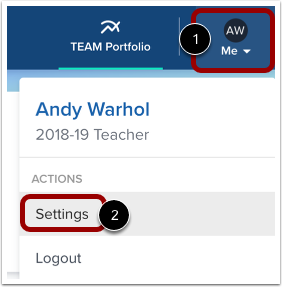
In the Toolbar, click the Me icon [1] and click the Settings link [2].
View Portfolio Models
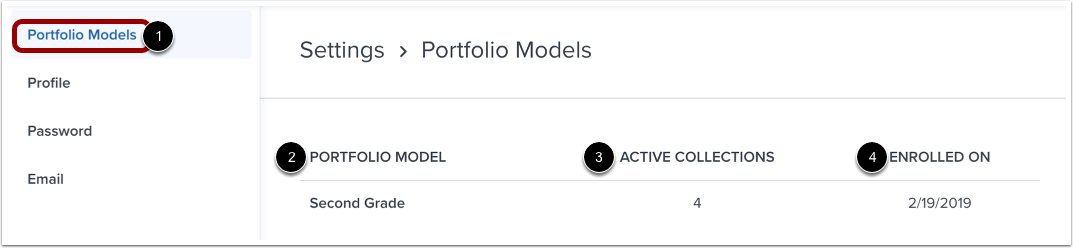
By default, user settings opens to the Portfolio Models page [1].
You can view a list of all portfolio models in which you are enrolled. Each portfolio model includes the model name [2], number of active collections [3], and the date you were enrolled in the model [4].
Note: To edit your portfolio models, contact your admin.
To view and update your profile information, click the Profile link [1].
On the Profile page you can view your username [2], first and last name [3], tagline [4], job title [5], and phone number [6]. To update your information, type in the corresponding field [7].
To save your changes, click the Update button [8].
Change Password
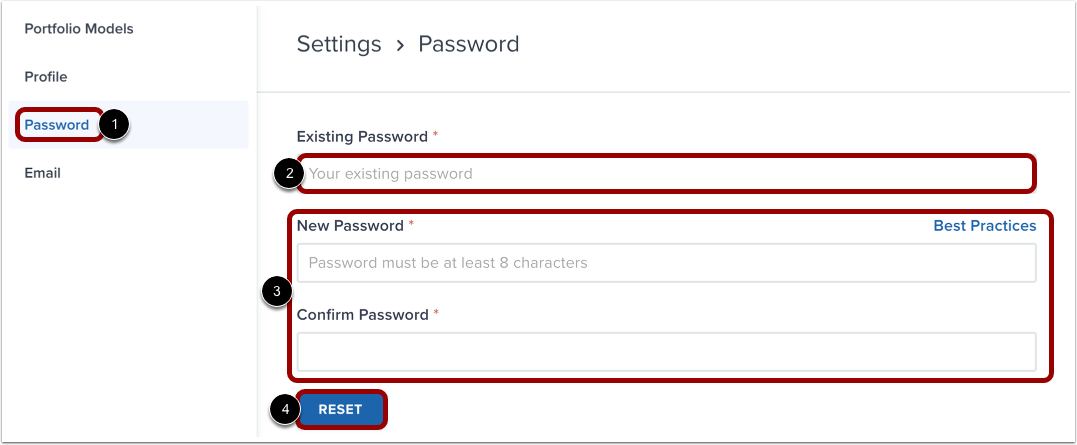
To change your password, click the Password link [1].
Enter your existing password [2].
Enter a new password in the New Password field and then enter the password again in the Confirm Password field [3].
To save your changes, click the Reset button [4].
Add New Email
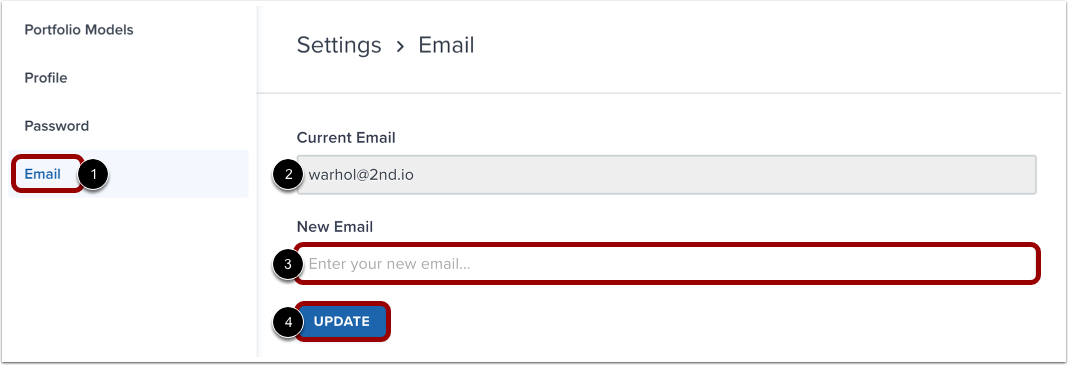
To add a new email to your account, click the Email link [1].
On the Email page, you can view your current email address [2].
Enter a new email address in the New Email field [3], and then click the Update button [4].