You can view all the projects you have added to your profile.
Open Profile
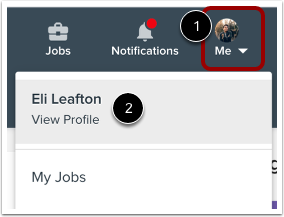
To open your profile, click the Me icon in the toolbar [1], and then click the View Profile link [2].
Open Portfolio
Click the Portfolio tab.
Open Project
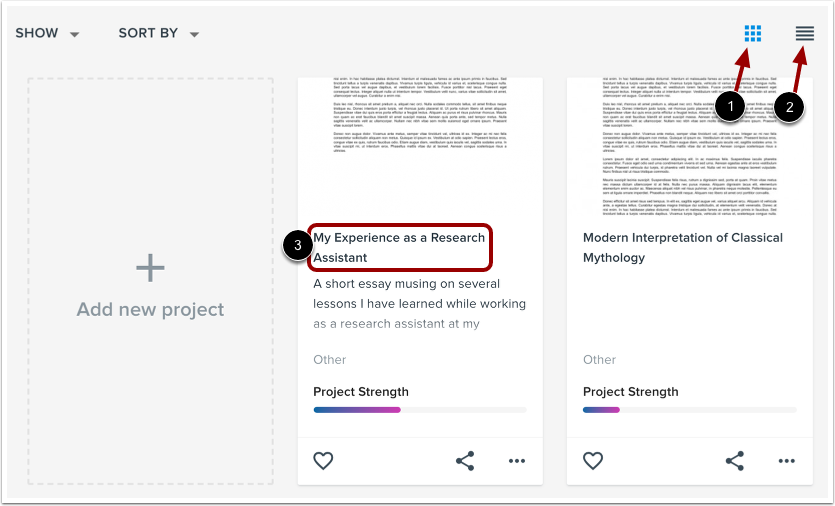
On the Portfolio page, you can view projects you have added. You can view your projects as a grid [1] or a list [2].
To view a project, click the project name [3].
View Project
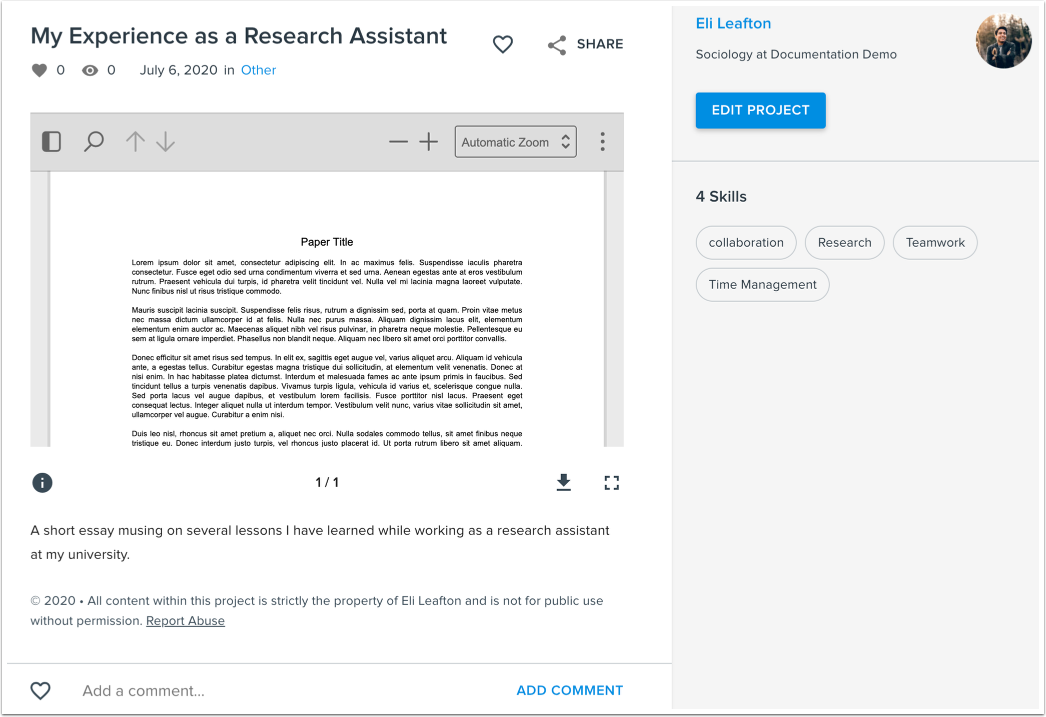
View the uploaded project in the project window.
Reorder Projects
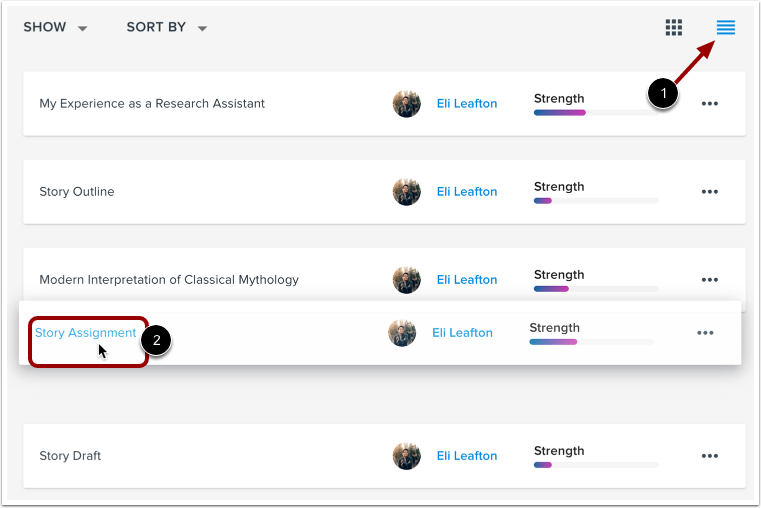
You can reorder the projects in your portfolio. Click the List View option [1]. Then drag and drop projects into the desired order [2].
Filter Projects
You can filter the projects displayed in your portfolio.
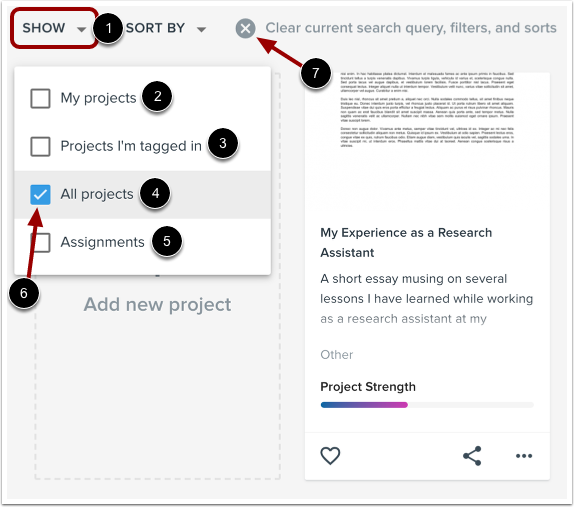
Click the Show drop-down menu [1]. You can view your projects [2], projects you are tagged in [3], all projects [4], and assignments [5].
To select an option, click the checkbox next to the option name [6]. To clear the current filter, click the X icon [7].
Filter Projects by Skill
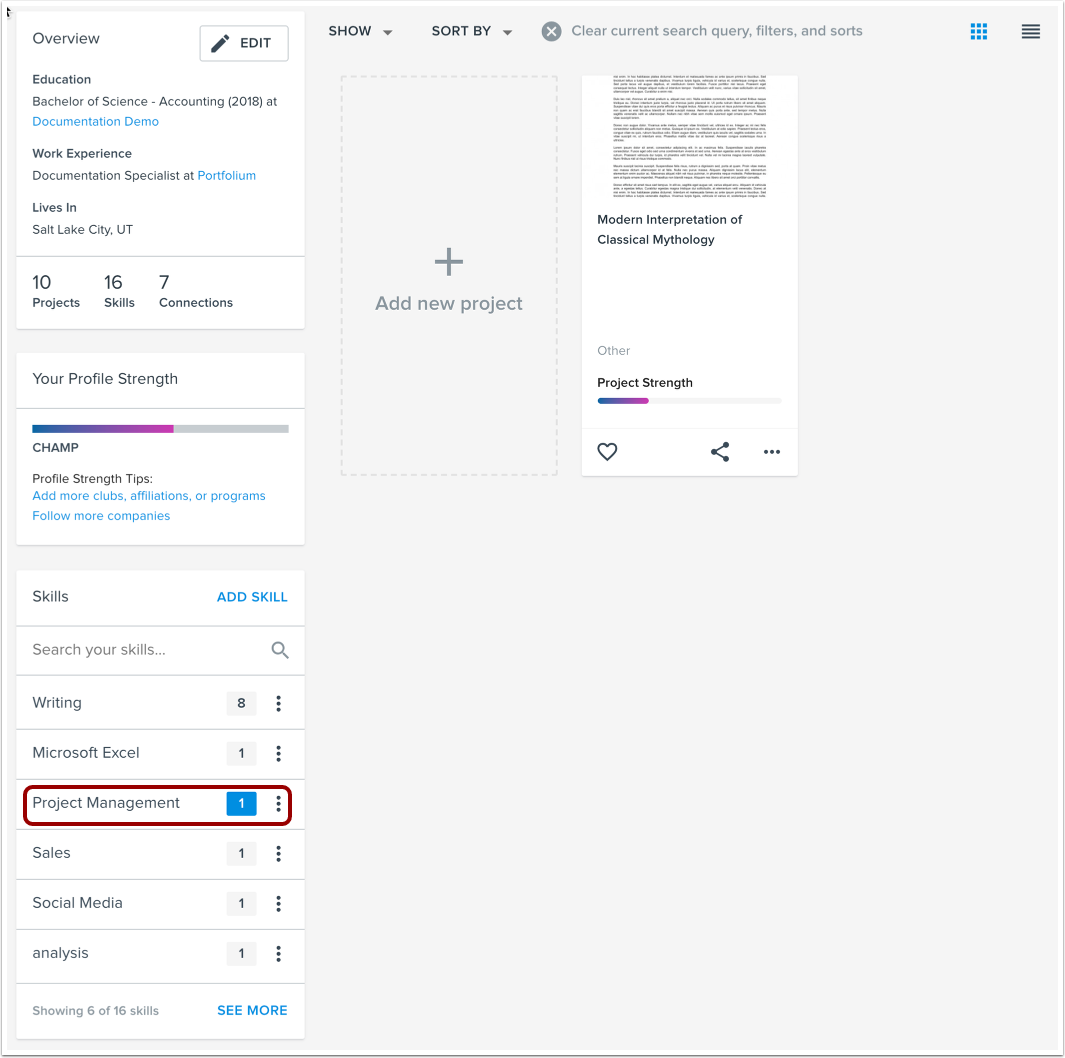
To filter projects by skill, click a skill in the skill list.
Sort Projects
You can sort the projects displayed in your portfolio.
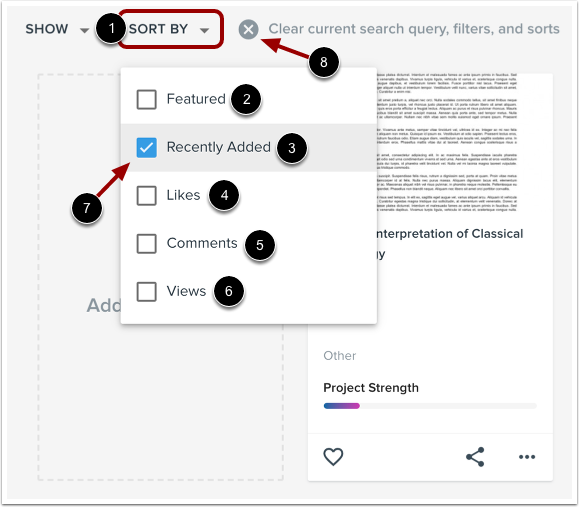
Click the Sort By drop-down menu [1]. You can sort by featured projects [2], recently added projects [3], number of likes [4], projects with comments [5], number of views [6].
To select a sort option, click the checkbox next to the option name [7]. To clear the current sort filter, click the X icon [8].
View Project Drafts
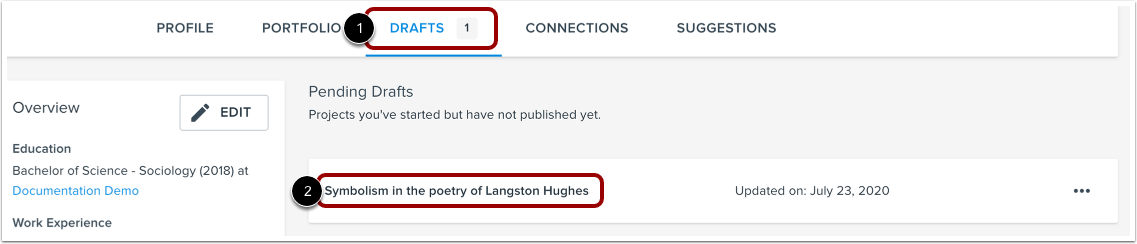
To view your project drafts, click the Drafts tab [1]. To view or edit the project, click the project name [2].