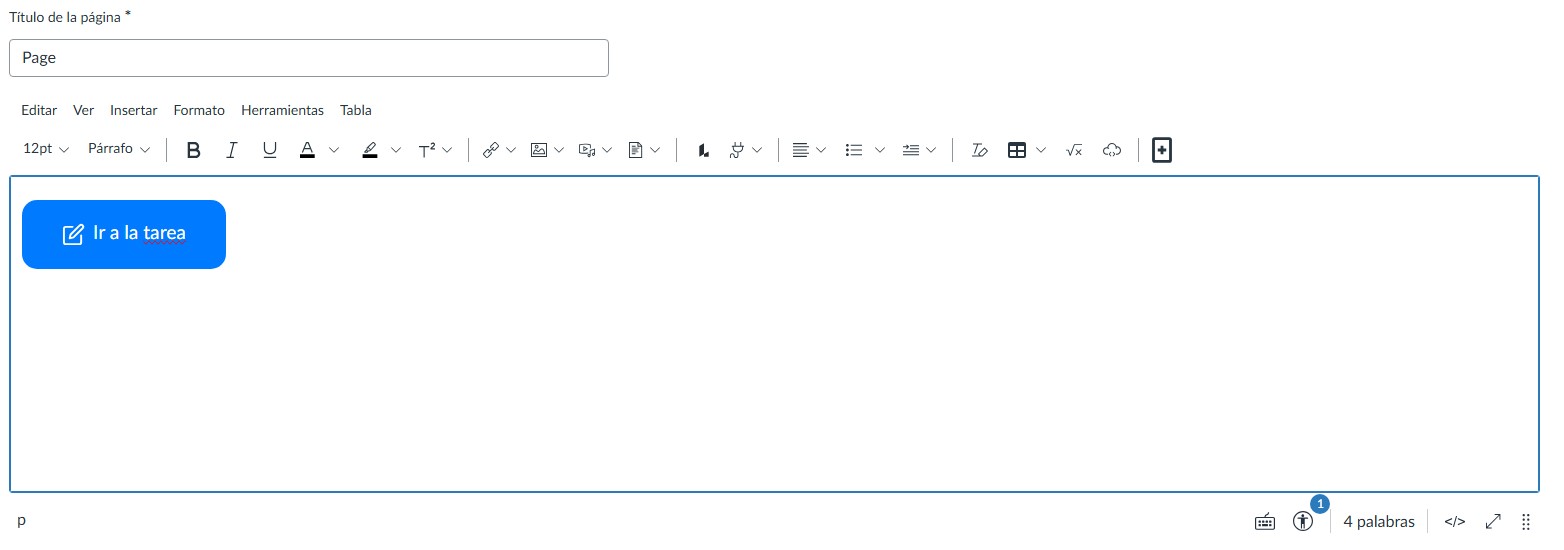
Have you ever wished you could easily create beautiful, clickable buttons directly within the Rich Content Editor (RCE) without having to manually code HTML?
I'd like to share a user script I developed with the help of Gemini that solves this exact problem. It adds a new button to your RCE toolbar that opens a powerful, user-friendly tool to design and insert custom buttons in just a few clicks.
 (1)
(1) (2)
(2)
✨ Key Features
-
Seamless Integration: Adds a new icon right into the RCE toolbar.
-
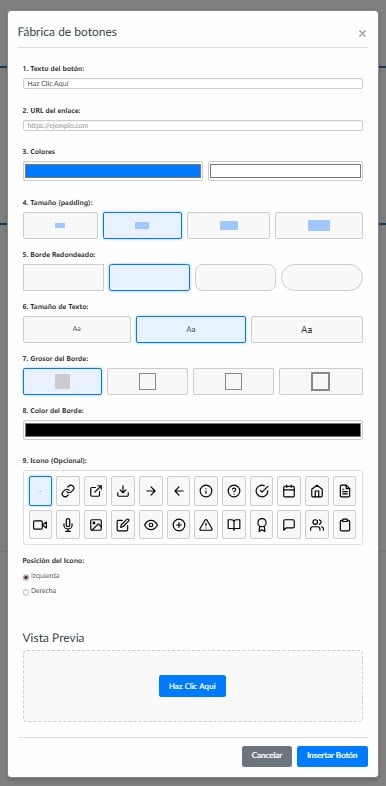
Live Preview: See your button design update in real-time as you make changes.
-
Full Customization:
-
Colors: Control the background, text, and border colors.
-
Sizing & Shaping: Adjust padding and border-radius with visual selectors.
-
Borders: Add borders of varying thickness.
-
Text Size: Choose from small, normal, or large text.
-
Icon Library:
-
Select from over 20 professional icons from the Feather Icons library.
-
Place the icon to the left or right of your text.
-
The icon color automatically matches your text color for a perfect look.
-
Smart Link Detection: If you highlight an existing link in your content, the tool will automatically import its URL and text!
🔧 How to Install and Use
You'll need the Tampermonkey browser extension to use this script.
-
Install Tampermonkey: Get the free extension for your browser from tampermonkey.net.
-
Install the Script:
-
Open your Tampermonkey Dashboard, click the <SPAN class="selected">+</SPAN> tab to create a new script.
-
Delete the default code, then copy and paste the entire script below.
-
Go to <SPAN class="selected">File > Save</SPAN> or press <SPAN class="selected">Ctrl + S</SPAN>.
The script will automatically run the next time you open the Canvas RCE.