Upcoming Canvas Changes
2025-07-19
- Deprecation: Removal of Legacy Course Analytics
2025-08-13
- Deprecation: Removal of the UUID field from the File API
For more information, please see Upcoming Canvas Changes.
Release notes outline upcoming customer-impacting changes that are expected to display in beta and/or production environments. Please note that features considered for future development are not included in the notes.
Unless otherwise stated, all features in this release are available in the Beta environment on 2025-05-19 and the Production environment on 2025-06-21.
All Resources | Features in this release may be included in product blogs and other content areas.
- Institutions are responsible for conducting thorough evaluations of their custom CSS/JS with each release and deploy to assess potential impacts.
- Subscribe to the Canvas release notes to be notified of updates.
New Features
Back to Table of Contents
Account Navigation
Canvas Apps
Admin
Beta Environment Availability | 2024-12-16 |
|---|
Feature Option to Enable | None |
Enable Feature Option Location & Default Status | N/A |
Subaccount Configuration | No |
Account/Course Setting to Enable | None |
Permissions | Account level settings-manage LTI registrations-manage |
Affects User Interface | Yes |
Affected Areas | Account Navigation |
Related Ideas | None |
Previous Feature Mention | Canvas Release Notes (2025-01-18) |
Summary
The Canvas Apps page is available in the Account Navigation menu and enabled for all institutions.
Change Benefit
This feature streamlines app integration and management for Canvas root admins.
Feature Workflow

Account Navigation Canvas Apps
Click the Apps link to access the Canvas Apps page [1]. Use the Discover tab to explore new tools [2].

Canvas Apps Configure Button
Click the Configure button to quickly add LTI tools.
Note: The current Developer Keys page remains available, data is synced between both pages.

Install App Modal-Permissions
A modal displays, listing the tool's available permissions.

Install Apps Modal- Data Sharing
Admins can select what data the tool can access.

Install Apps Modal-Placements
Also, available placement options display.

Install App Modal-Nickname
Admins can enter a nickname and description for the tool.

Install Apps Modal-Icon URLs
When available, the Tool icons display.

Install Apps Modal-Review
After reviewing all the options, click the Install App button.

Manage Tab Tool Options
After installation, the tool appears in the Manage tab, allowing admins to manage the app.

Manage Tab Install a New App Button
Additionally, admins can add a new tool on the Manage tab using the Install a New App button.

Install App Manage Tab Modal
This workflow launches the same workflow for installing a new tool.
Additional Details
The Canvas Apps feature preview user group will be archived on August 15, 2025.
Feature Video
Embed Code:
<iframe width="560px" height="320px" allowfullscreen="true" allow="autoplay *" title="Release Screencast: 2025-06-21 Account Navigation Canvas Apps" src="https://community.instructuremedia.com/embed/d31cf480-4400-4505-b80c-20155b152aa1" frameborder="0"></iframe>
Canvas Apps
Monitor Tab- LTI App Usage
Admin
Summary
In Canvas Apps, a Monitor tab is available allowing Root Canvas Admins to see, filter, compare and understand which LTI apps are being used by whom, when, and how often.
Note: Only data for the most commonly used LTI apps is surfaced for all Canvas Admins as part of this feature.
Change Benefit
This feature simplifies workflows for admins and developers, enhances access to security information, and improves overall accessibility. It also allows educational institutions to easily view and analyze all LTI data, supporting more informed, data-driven decisions.
Feature Workflow

Monitor Tab LTI Usage Data
In the Monitor tab [1], admin can view the total launches [2], Unique Users [3], Sub-Accounts [4], Courses [5] view a list of all installed apps [6] and filter [7].
Feature Video
See Account Navigation: Canvas Apps Feature Video |
|---|
Dashboard
Interface Updates for Instructure Net Promoter Score (NPS) Survey
Admin Instructor
Feature Availability | Not available in the beta environment |
|---|
Feature Option to Enable | None |
Beta Environment Availability | N/A |
Enable Feature Option Location & Default Status | N/A |
Subaccount Configuration | N/A |
Account/Course Setting to Enable | None |
Permissions | Inherent to user role |
Affects User Interface | Yes |
Affected Areas | Dashboard |
Regions | Currently only Customers with US Billing Address |
Related Ideas | None |
Related Blog | We're Listening: How Your Feedback Shapes Our Future |
Related Resource | In-App Canvas NPS Survey FAQ |
Summary
The Instructure Net Promoter Score (NPS) Survey used to collect user satisfaction feedback for Canvas LMS is redesigned and relocated.
Key Changes:
- The NPS Survey is moved from a global announcement to a widget on the dashboard.
- Eligibility criteria for receiving the survey is also updated.
- 0.27% of active eligible users (across all eligible Canvas Instances) are selected to receive the NPS survey if they login within a 14 day window and navigate to their user dashboard.
- 100% of eligible users (users with admin and teacher roles) to have opportunity to submit NPS survey once over a 1 year period
Note: Currently only Canvas Instances linked to a Billing Address within the USA are eligible for surveys. Additionally, users with multiple roles will receive a survey as long as one of their roles is not student. Users with only the student role will not receive a survey.
Change Benefit
This update provides better usability, accessibility, and aggregation of the survey.
Feature Workflow

Net Promoter Score Survey Widget
The survey window displays as a widget [1]. To skip the current survey, users may dismiss the widget by clicking the Dismiss button [2] or close the survey window using the Close icon [3]. To launch the survey, click the Take me to Survey button [4]. To opt out of the survey, click the Opt-out link [5].
Note: Opting out of the survey will permanently remove the user from all future in-app surveys.

Survey Scale
During the survey, a scale displays allowing users to select their desired value.

Survey Optional Feedback Field
Clicking certain numeric values may prompt users to provide optional feedback [1]. After responding to all questions, click the Submit button to complete the survey [2].

Close Survey Icon
Click the Close icon to dismiss the survey pop-up.
Feature Video
Files
Redesigned Files Page [This feature is currently delayed in production and will be included in a future release.]
All Users
Summary
The Files page is redesigned. Key updates include:
Interface & Navigation
- A temporary toggle allows users to switch between the new and original interface. This preference is retained across login and logout sessions.
- Large sets of files include pagination.
- The folder tree view is removed.
- The All My Files button opens to a landing page instead of a folder tree.
File Management Enhancements
- Column headers support sorting.
- Manage Permissions and Manage Usage Rights open in separate modals for improved clarity.
- The View button is removed.
File Interaction Changes
- Moving files or folders by dragging them into other folders is no longer supported.
- Drag-and-drop functionality for uploading files into the upload files modal remains available.
Selection Behavior Updates
- A Select All checkbox and Individual file selection checkboxes are available.
- The Ctrl+A / Cmd+A shortcut for selecting all rows is removed.
- Ctrl+Click / Cmd+Click to select individual rows is removed.
- Shift+Click to select a range of rows is not supported.
- Users can bulk Download, Delete, Move and Edit Permissions and Manage Usage rights.
Link Sharing
- Preview links are no longer shareable outside the platform.
Change Benefit
This update offers a cleaner, more intuitive interface that simplifies file organization and management. Improvements like pagination, sorting, and streamlined selection tools enhance usability, especially for users working with large file sets.
Feature Workflow
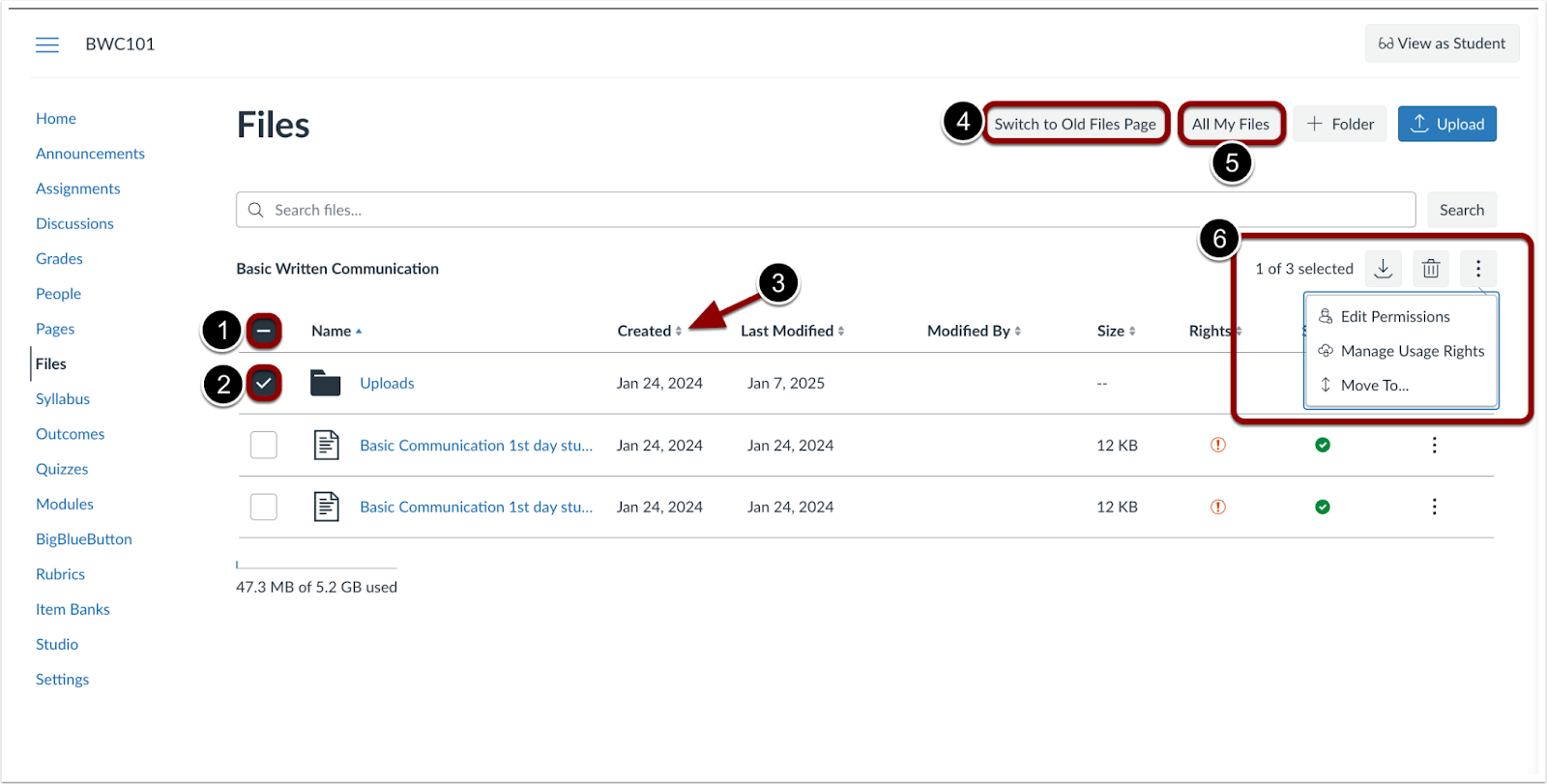
Updated Files Page
To select all files and folders at once, click the Select All checkbox [1]. To select files or folders individually, use the checkbox next to each file or folder[2]. Column headers can be clicked to sort files and folders [3]. To switch between the new and original Files page, click the Switch to Old/New Files Page button [4]. To view the files landing page, click the All My Files button [5]. Bulk action options are available when files and/or folders are selected [6].

File Options Edit Permissions and Manage Usage Rights Links
Edit Permissions and Manage Usage Rights links open in separate modals.
Feature Video
Other Updates
Back to Table of Contents
Accessibility Updates
All Users
Over the coming months, a series of updates will be introduced to enhance Canvas's accessibility, intuitiveness, and equity, with a focus on improving usability for assistive technology users. These updates will include changes in the following areas:
Enhanced Structural Clarity
Refined semantic markup in the user interface to improve communication of content relationships and hierarchy.
Improved Error Feedback
In the user interface, improved error messages in forms and interactive elements provide clearer and more accessible feedback. Error messages were added to required fields that previously lacked them, while existing error states were updated to follow a consistent pattern. Focused states for missing or incorrect fields ensure a uniform experience for all users, whether using a mouse, keyboard, or screen reader.
Improved Visual Clarity and Semantic Structure
This update improves visual clarity to better support users with low vision, color blindness, and other visual impairments. Changes include enhanced color contrast for text and interactive elements, upgraded components for improved keyboard and screen reader compatibility, and more accurate use of semantic HTML for navigation and interactive elements.
Streamlined Navigation and Keyboard Accessibility
This update enhances keyboard and screen reader navigation to ensure a consistent and intuitive user experience. Improvements include full keyboard operability for interactive elements, clear and descriptive headings and labels, removal of redundant accessibility attributes, responsive page layouts that reflow properly, and consistent use of semantic HTML for navigation components.
Related Blog: Advancing Accessibility in Canvas: On the Path to Full WCAG 2.1 AA Compliance
New Feature Previews
Back to Table of Contents
A Feature Preview indicates a feature option in active development. Users who opt in to the feature and join the Community user group can help improve the feature through direct feedback.
Differentiation Tags
Admin Instructor
Summary
Instructors can use differentiation tags to assign specific content to customized sets of students. These sets are not visible to students. Additionally, admins can access differentiation tags through Canvas Data for reporting and analysis.
Notes:
- If the Differentiation Tags feature option is enabled and locked at the root account, the sub-account setting will display. However, if the feature option is enabled and unlocked at the root account but disabled in the sub-account, the sub-account setting will not be displayed.
- Both the Differentiation Tags Feature Option and Account setting must be enabled.
- CSV upload is not currently supported.
- Differentiation tags are not retained during course exports or imports.
- Each course is limited to 40 tags total and 10 variants per tag set.
- There is no limit to the total number of tags a student can have; however, a student can only be assigned one tag per tag set.
Change Benefit
This feature allows Instructors to organize students into custom groups based on learning needs, interests, or accommodations. These tags streamline assigning content, communicating, tracking accommodations, and filtering the gradebook—making personalized instruction easier and more discreet.
Feature Workflow

Account Setting Differentiation Tags Checkbox
In Account Settings, click the Differentiation Tags checkbox to enable the feature.
Note: The account setting will only display if the Differentiation Tags feature option is enabled.

People Page Manage Tags Button
In the People page of a course, click the Manage Tags button.
Note: Due to permission caching, changes may take up to an hour to appear unless a user’s cache is manually cleared in Canvas.

Manage Tags Get Started Tray
In the Manage Tags tray, click the Get Started button.

Create Tag Modal
Enter a Tag Name [1] and a Tag Set [2]. Then, click the Save button [3].

People Page Tag As Button
To add tags to students, click the checkbox of the desired student(s) [1]. Then, click the Tag As button [2]. Instructors can either select an existing tag [3] or create a new tag [4].
Note: Creating a new tag using the Tag As button does not automatically apply the tag to previously selected users. Additionally, instructors can bulk select users via shift click.

Differentiated Tag Icon
Once a tag is assigned to a student, a tag icon displays. To view the assigned tags, click the icon.

Student Tag Modal
All tags assigned to a student display in a modal.
Note: Students can have multiple tags. However, if the tags are part of the same tag set, a student can only be assigned one tag from that set.

Manage Tags Tray
In the Manage Tags tray, instructors can add a tag [1], edit an existing tag [2] or delete a tag [3].

Edit Tag Modal
When editing a tag, instructors can change from a single tag to multiple tags [1], and add additional tags to a tag set [2].

Assign To Specific Tags
In the Assign To field, instructors can assign items to students with specific tags.
Notes:
- When a student belongs to multiple tags or sections with conflicting due dates for the same assignment, the assignment with the latest due date will apply. However, if there's an individual override set for the student, that due date will take precedence over all others.
- Tags are not supported for Group Assignments and will not appear as an option when creating them.

Gradebook Filter by Differentiation Tags
In the Gradebook, instructors can filter by tag. Currently, the filter displays in the Student Groups section.

Inbox Sent Message to Differentiation Tags
In the Inbox, instructors can send messages to specific tag groups.
Note: When sending a message to students with differentiation tags, the Send an individual message checkbox is disabled. This prevents accidental exposure of which students are associated with a tag.
Feature Video
Embed Code:
<iframe width="560px" height="320px" allowfullscreen="true" allow="autoplay *" title="Release Screencast: 2025-06-21 Feature Preview Differentiation Tags" src="https://community.instructuremedia.com/embed/e1dcf027-462a-427a-b03d-dc0e45cc43cd" frameborder="0"></iframe>
Performance and Usability Upgrades for SpeedGrader
Instructor
Summary
SpeedGrader is updated for faster load times and enhanced stability. Additional interface updates include:
- A streamlined interface for the Section drop-down menu.
- A clearer and more prominent No Submission alert.
- An improved interface for courses without content.
- The Submission Status is updated to a drop-down menu.
- Rubrics are automatically displayed in the traditional view.
- Media attachments and submission comments are moved and the delete icon is changed.
Change Benefit
This feature enhances performance for a faster, smoother experience for users handling larger courses or complex assignments. Upgrading the backend technology improves SpeedGrader's ability to manage high-demand tasks more efficiently and reliably.
Feature Workflow

SpeedGrader Sections Drop-Down Menu
The Sections drop-down menu is redesigned for a more streamlined and user-friendly interface.

SpeedGrader No Submission Alert
The No submission alert is enhanced for better visibility and clarity.

Empty Course Text
Courses without content display a streamlined interface.

SpeedGrader Assignment Status Drop-Down Menu
Instructors can edit the submission status using the updated Status drop-down menu.

SpeedGrader Rubric Display
Rubrics automatically display in the traditional view.
Note: When the Enhanced Rubric feature option is enabled, instructors can choose additional rubric views.
Feature Video