Impact Guides supports right-to-left (RTL) languages. In the Visual Design Studio, use the styles and text design options to design your guide for an RTL language.
Note: Localization for RTL languages is not supported.
See Creating a Guide for in-depth details on how to create a guide.
The information in the table details how to use the building blocks to design your guide for use with an RTL language.
Component | How it works |
| Text direction | Whenever you input texts throughout the VDS using an RTL language, Pendo automatically sets the direction accordingly.Pendo recognizes which language you are using and determines the text direction based on this. 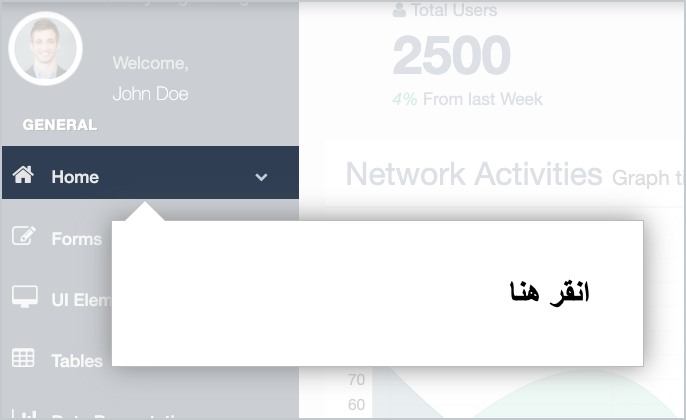
Text direction also determines the positioning of: - Bullets and numbering
- Punctuation marks
- Arrows for drop-down lists
- Radio buttons
Note: Numbers in the Number Scale Poll will remain 1..5 and won’t change direction. |
| Text style and alignment | To set text alignment, go to Edit text > Styles and set the alignment. 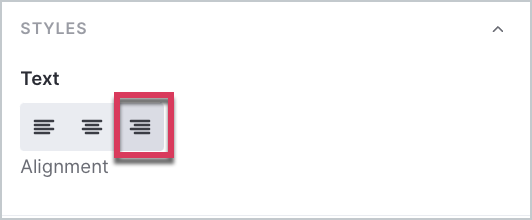
|
| Row alignment | To align row content, hover over the row and select the Edit Row button, then select the alignment. 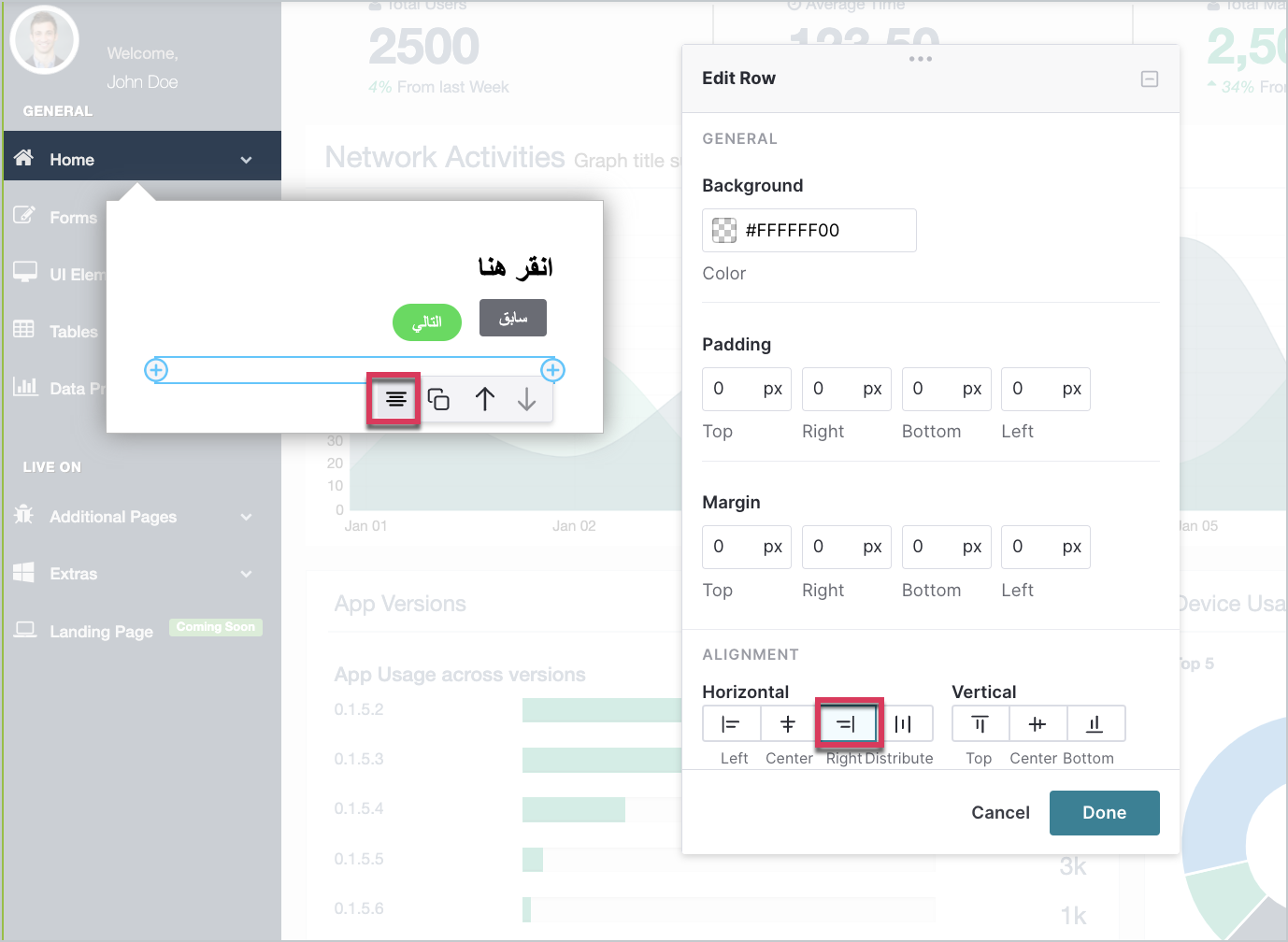
|
| Guide Close button | Click the ‘X’ button, then in the Edit Close Button window, change Close button style to Custom, and set the alignment. 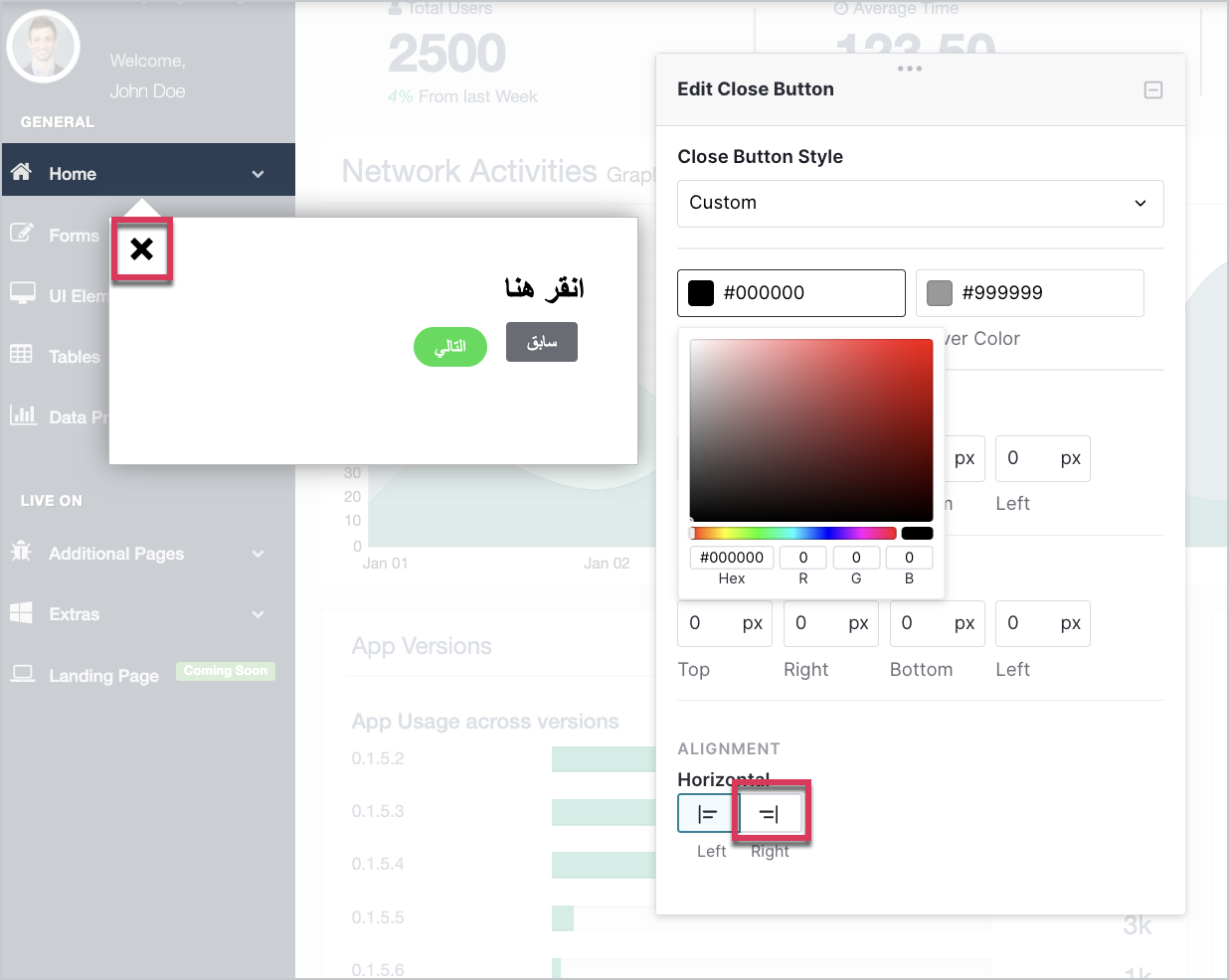
|