If your institution has set up Canvas grade passback (GPB) with your Student Information System (SIS), you can sync your Canvas course gradebook to your SIS gradebook. However, you must first specify which assignment(s) in the course should be included in a GPB sync.
You can also specify which graded discussions and quizzes should be included in GPB sync.
Notes:
- Once set up for SIS sync, you can enable or disable synced items on the Assignment Index Page and Quizzes Index Page. In the Assignments Index Page, you can also disable all assignments from being synced to your SIS.
- You must enter assignment scores in Canvas before an assignment's scores can sync to your SIS.
- Non-graded assignment types cannot be synced to your SIS.
- The Lucid Education Suite Global Navigation and User Navigation placements are disabled by default. To make Lucid available in these navigation areas, enable the placements for the tool in the External Apps page.
Open Assignments
In Course Navigation, click the Assignments link.
Add Assignment
Click the Add Assignment button.
Edit Assignment
Alternatively, you can edit an existing assignment. To edit the assignment, click the assignment menu [1]. Then on the assignment's details page, click the Edit button [2].
Add Assignment Name
Enter a name for the assignment in the Assignment Name field.
Select Sync to SIS
On the assignment details page, select the Sync to SIS checkbox. The assignment and any student scores will be included when you sync your Canvas gradebook to your SIS.
Notes:
- Your institution can auto-enable all assignments to be sent to your SIS. To exclude an assignment from SIS sync, de-select the Sync to SIS checkbox.
- The SIS checkbox also displays on quizzes and graded discussions details pages.
- The SIS checkbox does not display for non-graded assignment types.
- The Sync to SIS option may display the name of your institution's SIS.
If the assignment already exists, you can enable or disable Sync to SIS directly from the Assignments page by clicking the Sync to SIS icon next to the Publish button to toggle SIS syncing on or off.
When disabled, the icon displays with a disabled indicator (gray with a slash). When enabled, the icon displays as active (green with a check mark). Click the icon to toggle between states.
Note: The Sync to SIS icon (green check mark inside a circle with arrows) is separate from the Publish icon (green check mark). Publishing an assignment does not enable SIS sync.
Add Due Date
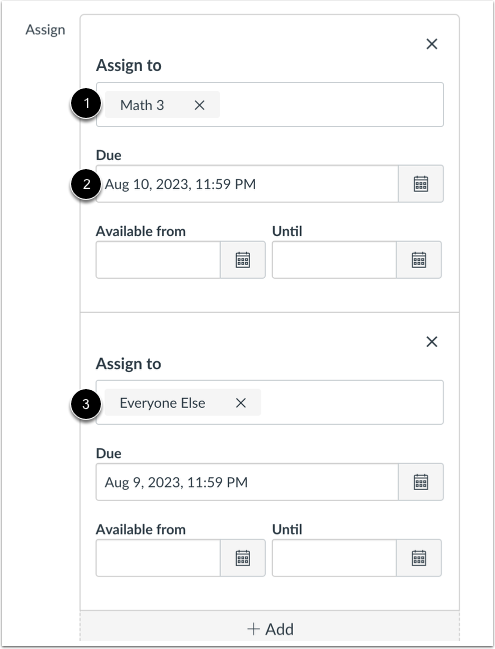
Enter an assignee in the Assign to field [1]. You can assign to everyone, individual users, and/or a section.
Enter a due date in the Due field [2].
Notes:
- If you use differentiated assignments to allow different sections different due dates, you must also include a due date for the remaining students using the Everyone Else option in the Assign to field [3]. However, only the specified sections are included in the grade sync.
- When an individual section is added to an assignment, the Everyone option changes to Everyone Else.
Save Assignment
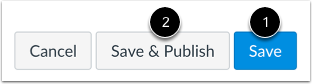
Click the Save button [1].
Note: For new assignments, you can click the Save & Publish button [2].
View Assignment Errors
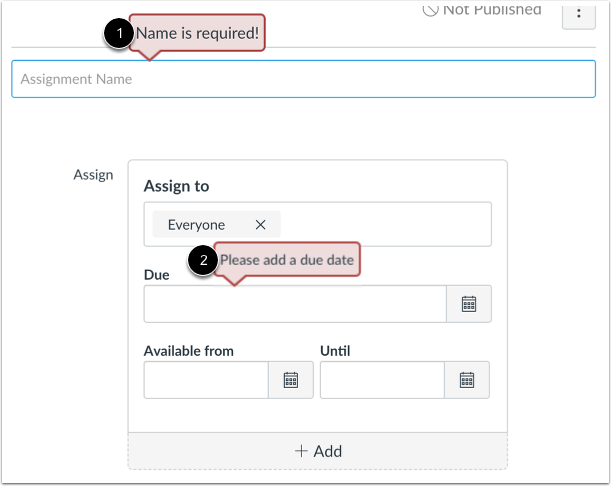
If you cannot save your assignment, view the assignment error messages.
Assignment names are required [1]. For GPB, due dates are required [2].
Correct any errors and save the assignment.