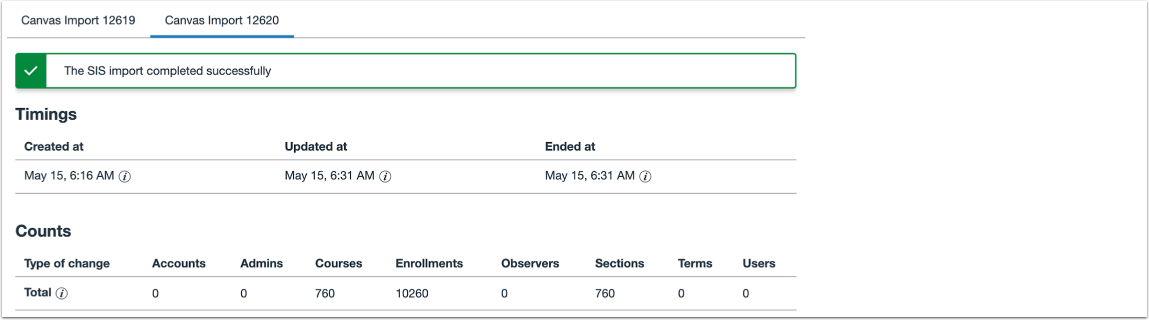
As an admin, you can view details about your institution's scheduled rostering job history syncs. The Rostering Job Details page includes the name of the sync, download links to imported files, and a job identification number.
In the event that a rostering job fails, you can identify the import and view details about the data where the failure occurred.
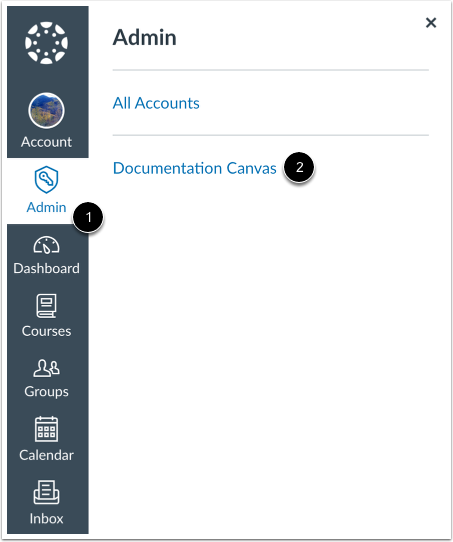
Open Account
In Global Navigation, click the Admin link [1], then click the name of the account [2].
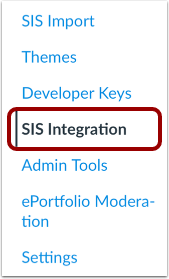
Open SIS Integration
In the Account Navigation menu, click the SIS Integration link.
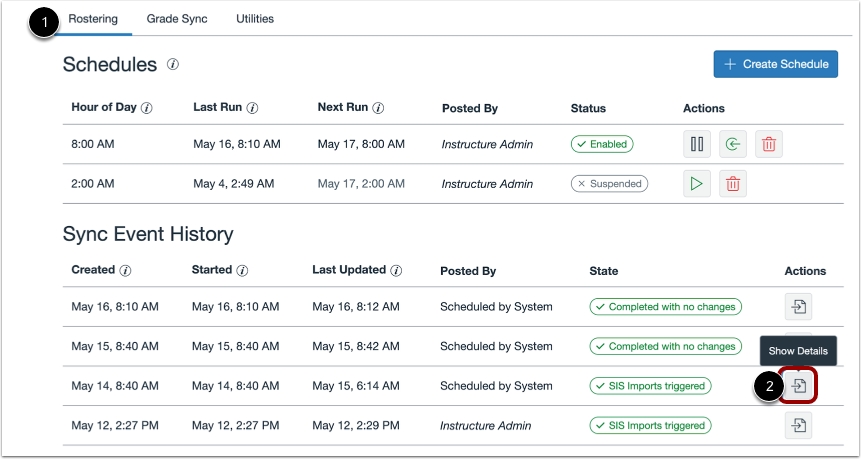
Open Sync Event Details
Locate the job in the Rostering list [1].
Click the Show Details link [2].
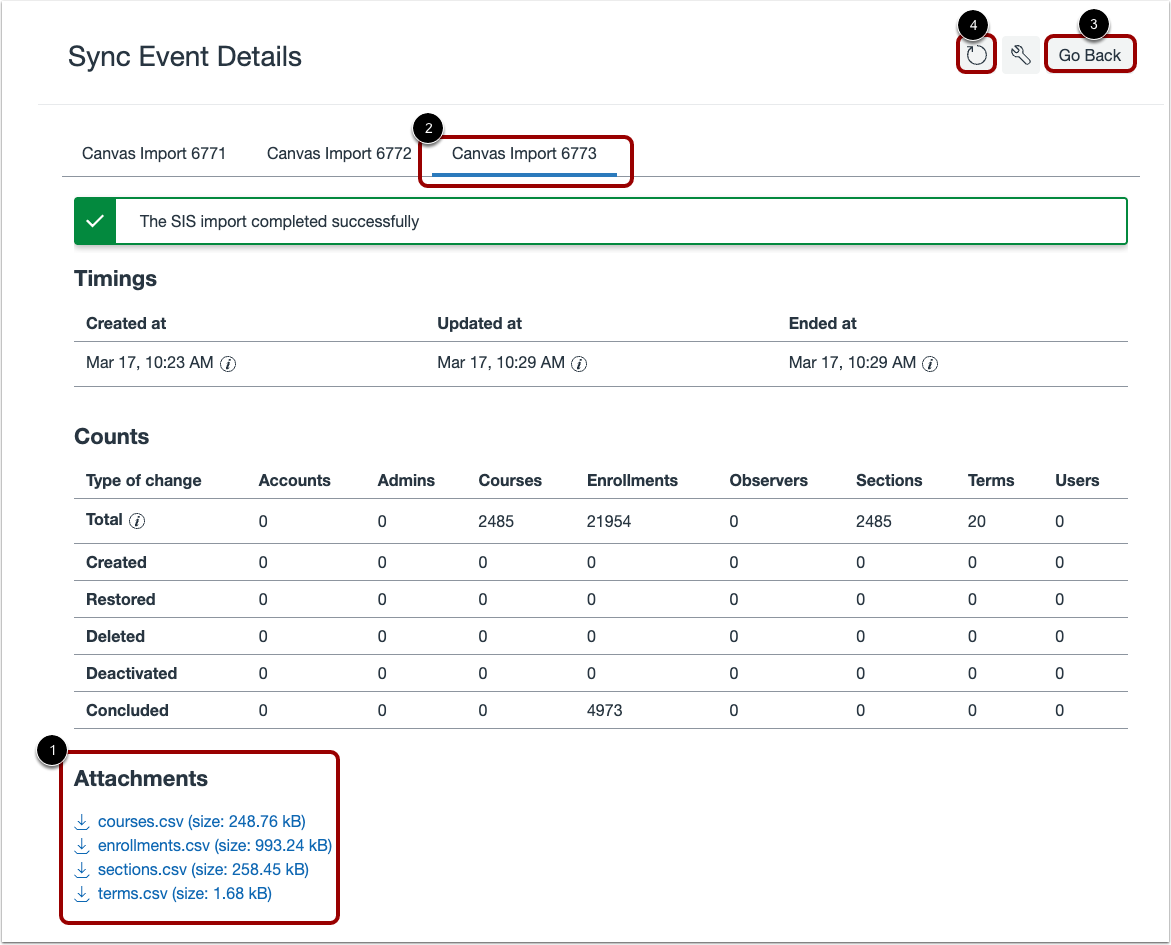
View Sync Event Details
The Rostering Job Details page includes the scheduled sync name and associated CSV file download links [1] and the rostering job ID number [2].
To return to the SIS Imports Rostering page, click the Back to all Rostering Jobs button [3]. To refresh the details page, click the Refresh button [4].
View Rostering Import Job Progress
When a rostering import completes, the section displays a Complete label.