Canvas Student ePortfolios/Pathways will be retired on June 30, 2026. For more information, see the Introducing Canvas Portfolio blog post.
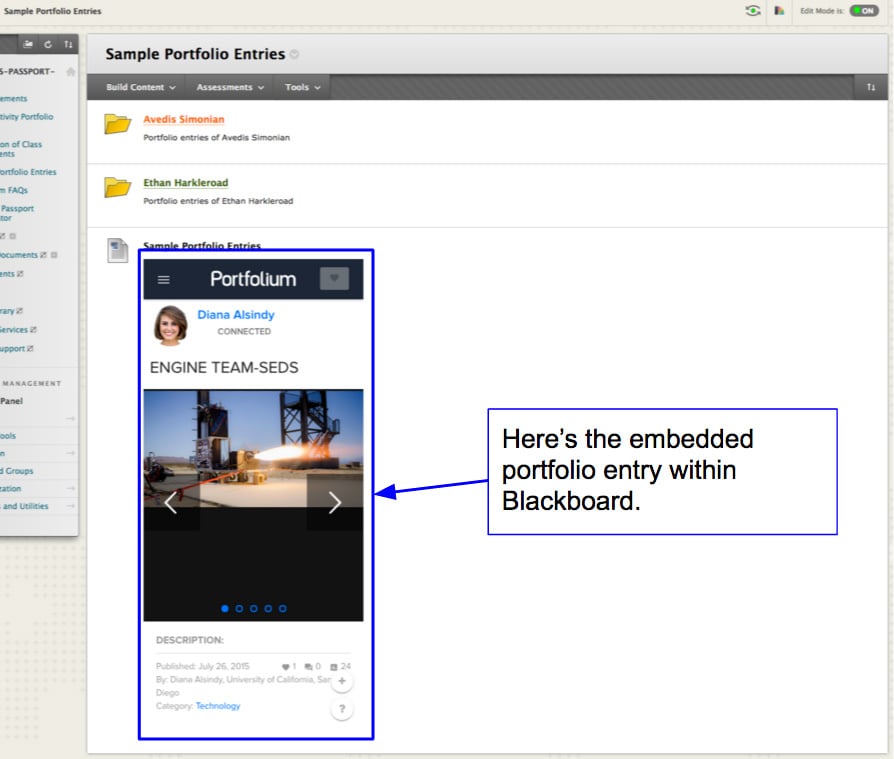
This quick how-to guide walks you through three simple steps to embed your students’ portfolio entries from Portfolium directly into Blackboard. See How to embed within Blackboard for additional information.
Why embed Portfolium entries?
There are quite a number of benefits of embedding work and projects from Portfolium into Blackboard including:
- Allow your students to view sample work from your course module in Blackboard
- Allow your students to engage with portfolio entries from within Blackboard
- Keep the experience within Blackboard, rather than linking off to Portfolium
- Maintain a gallery of exemplary work within the Blackboard class module
- Play and view multimedia content from a portfolio entry within Blackboard
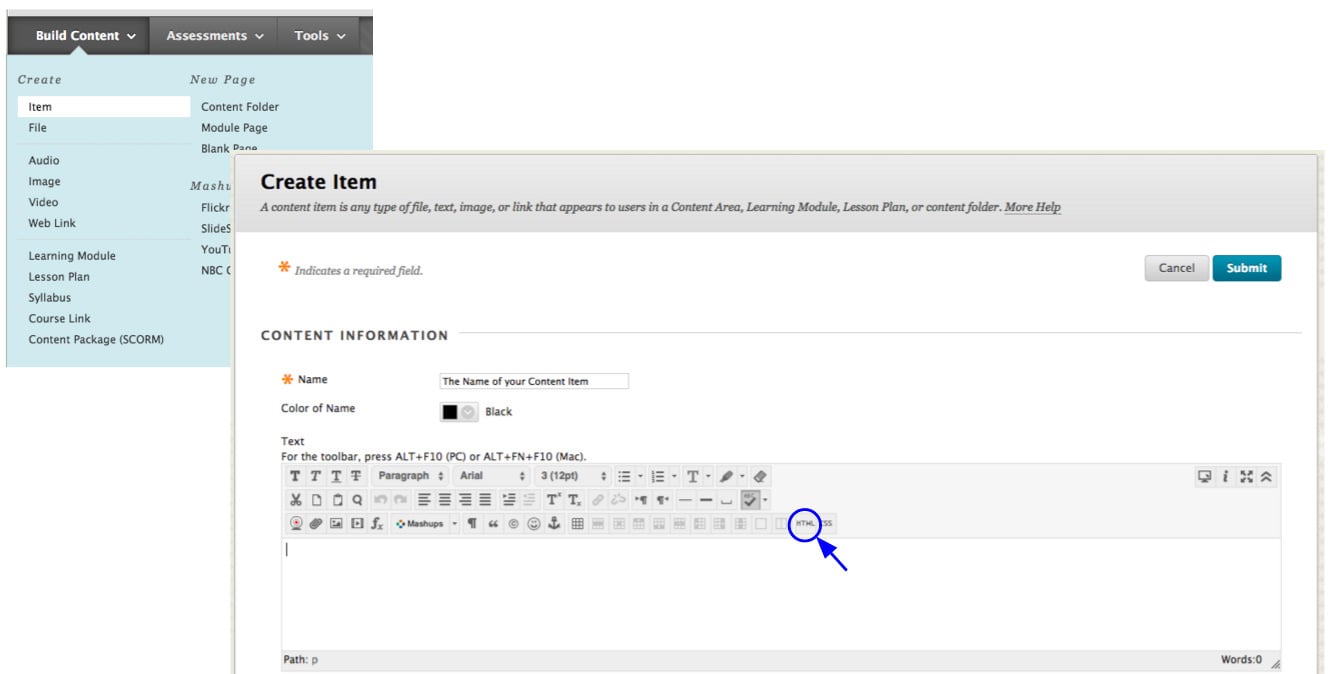
Inside of your Blackboard class module, create a new Item under Build Content.On the Create Item page, click the "HTML" button.
Step 1: Create an Item in Blackboard
- In your Blackboard course module, go to Build Content and select Item.
- On the Create Item page, click the HTML button.
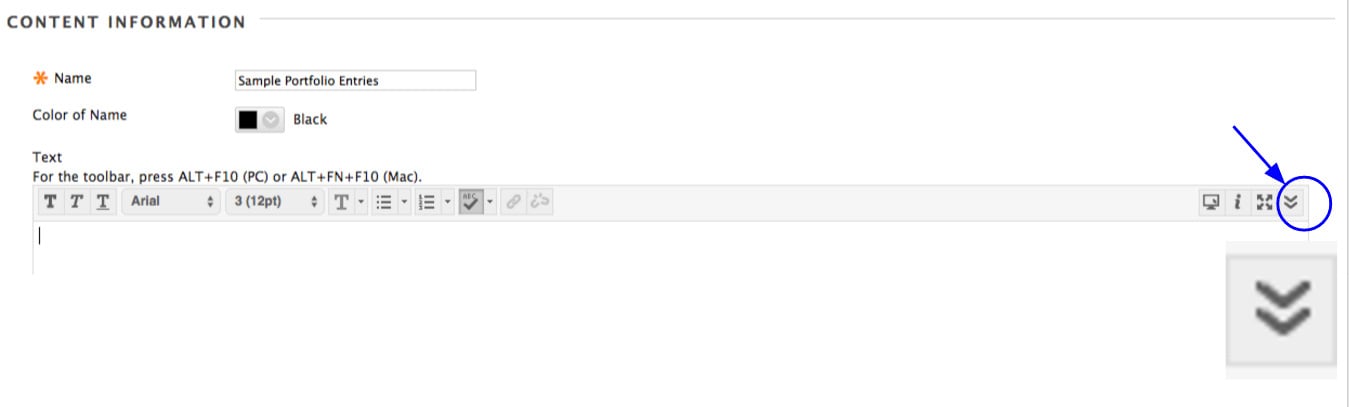
Note: If the HTML button is hidden, click the double-down arrow on the far right of the text editor toolbar to expand it.
STEP 2: Copy and Paste Code Snippet
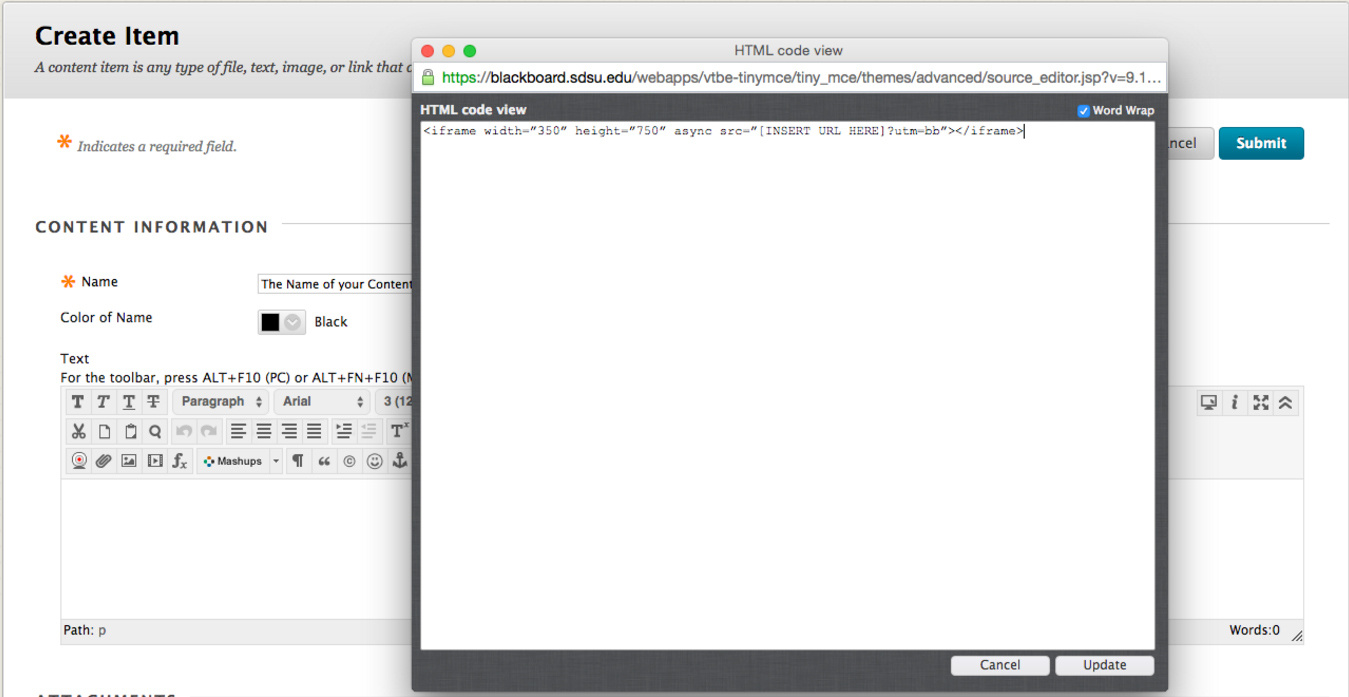
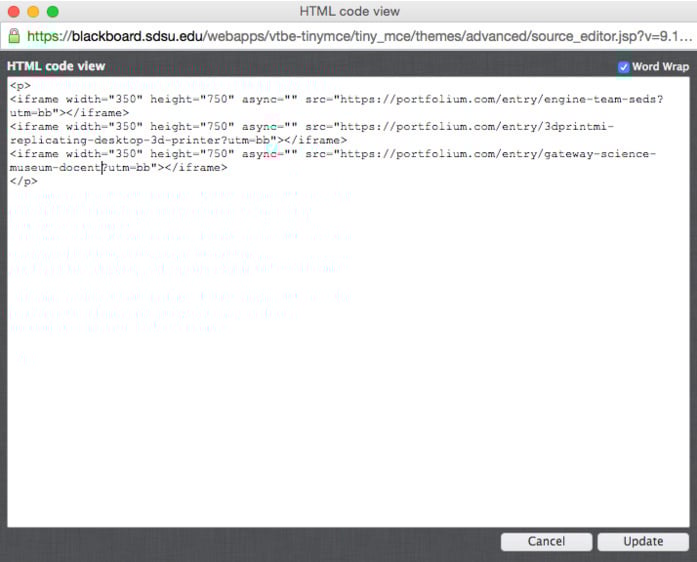
- Copy the HTML code below, including the angle brackets:
<iframe width="350" height="750" async src="<em>[INSERT URL HERE]</em>?utm=bb"></iframe>
- Paste the code into the HTML code view window inside the Create Item module.
Step 3: Add Portfolio Entry URL
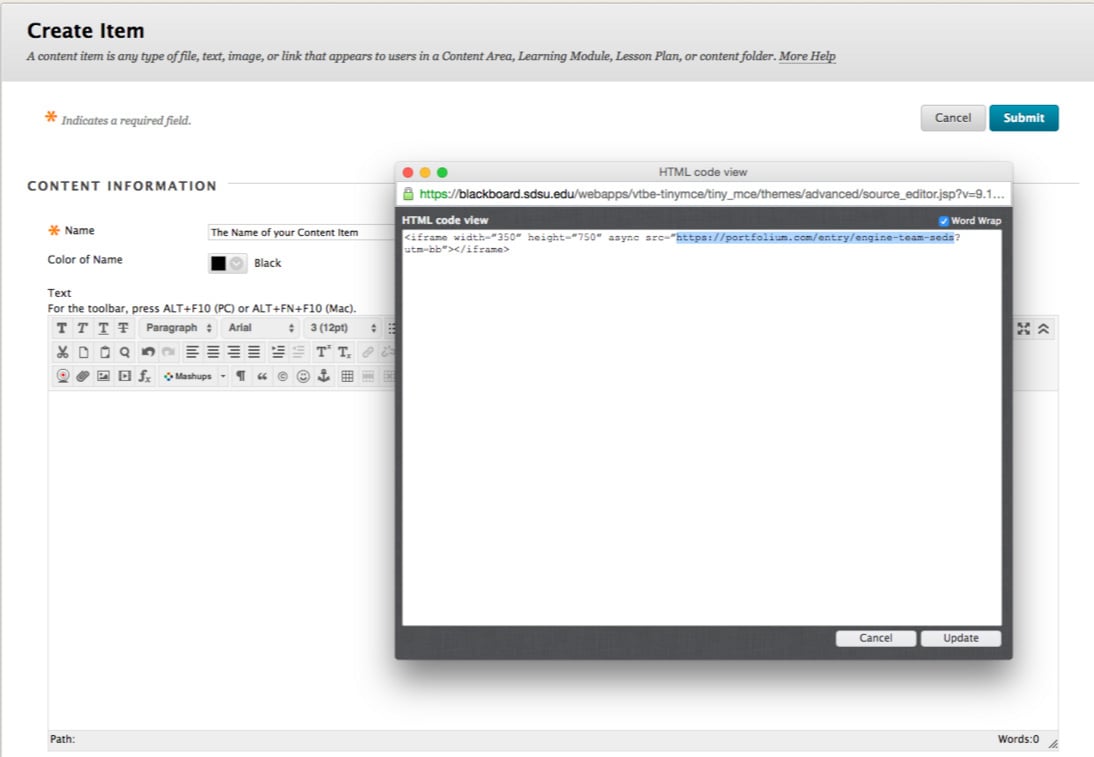
- Copy the portfolio entry URL from Portfolium.
- Replace
[INSERT URL HERE] in the code snippet with the actual URL (remove the brackets).
- Click Update, then Submit.
- Confirm that the portfolio entry displays directly within your Blackboard course module.
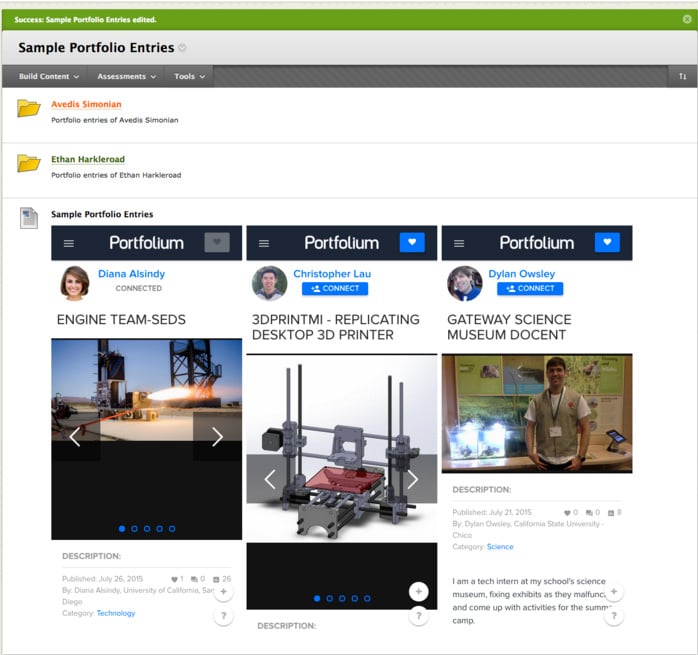
- To embed more entries, repeat the same steps. You can add multiple entries side by side by pasting multiple iframe blocks in the HTML window.