Canvas Student ePortfolios/Pathways will be retired on June 30, 2026. For more information, see the Introducing Canvas Portfolio blog post.
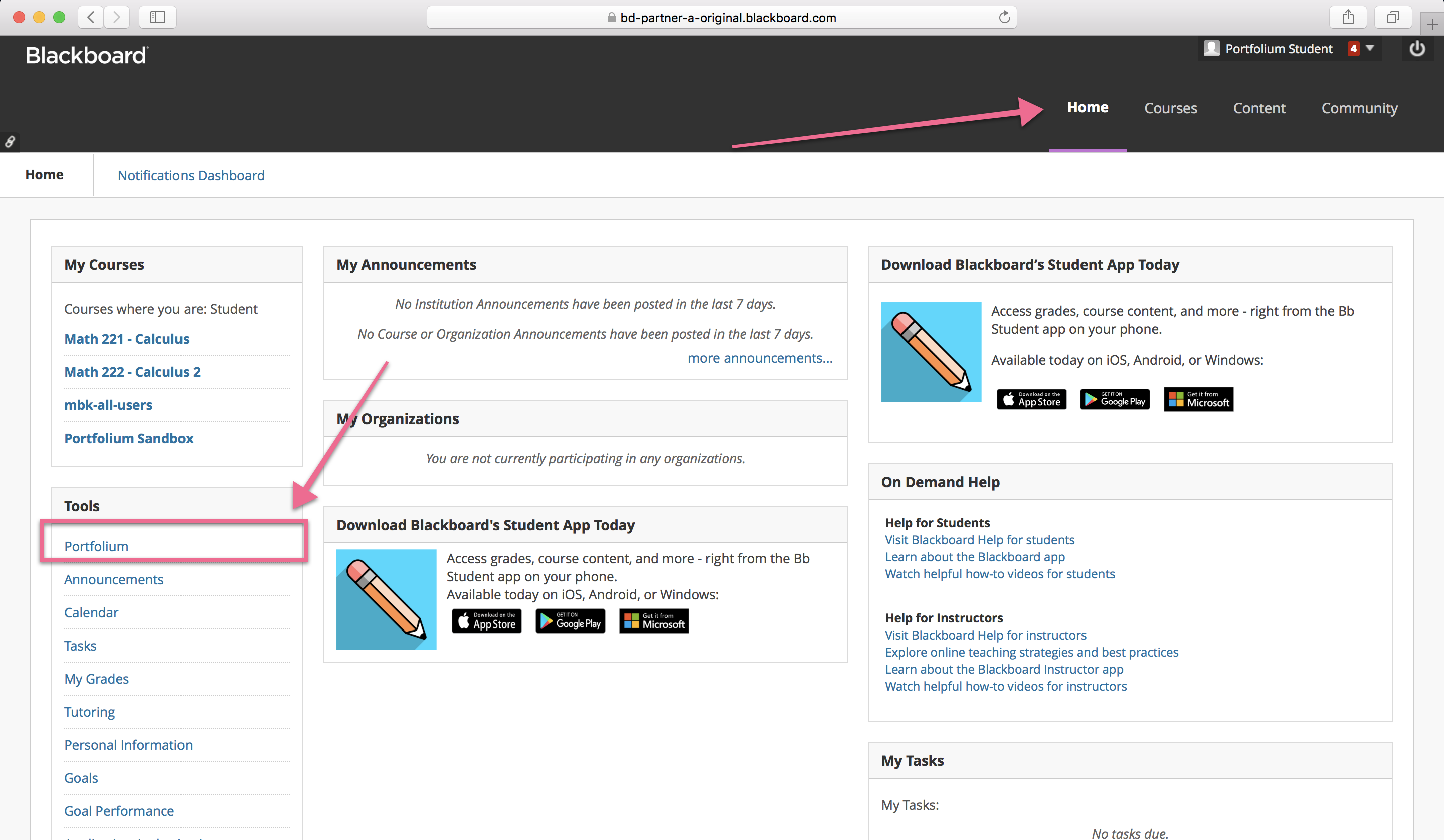
By default, the Portfolium LTI SSO link displays in the course sidebar. If you want Portfolium to be installed in a Tools menu on the home page, you need to install the Basic LTI Building Block by Stephen Vickers.
Links:
Note: This only works if you are on a managed or self-hosted client. If you use the new Blackboard Learn SaaS (Blackboard Ultra), it will not work.
Step 1: Download the BasicLTI Building Block from Oscelot.
Step 2: Install the BasicLTI building block.(System Admin → Building Blocks (section) → Building Blocks → Installed Tools → Upload Building Block)
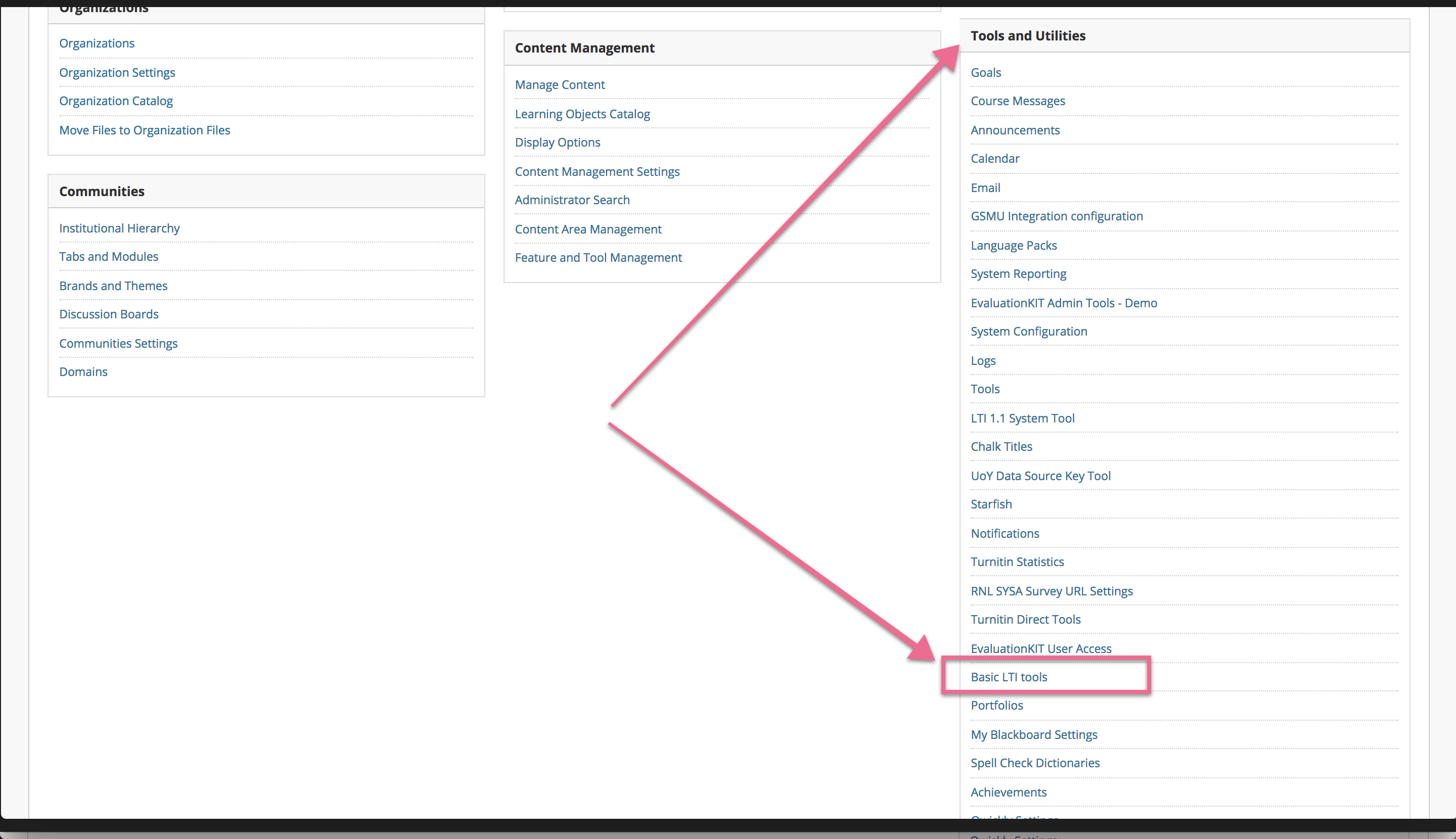
Step 3: Configure the tool.(System admin → Tools and Utilities (section) → Basic LTI tools)
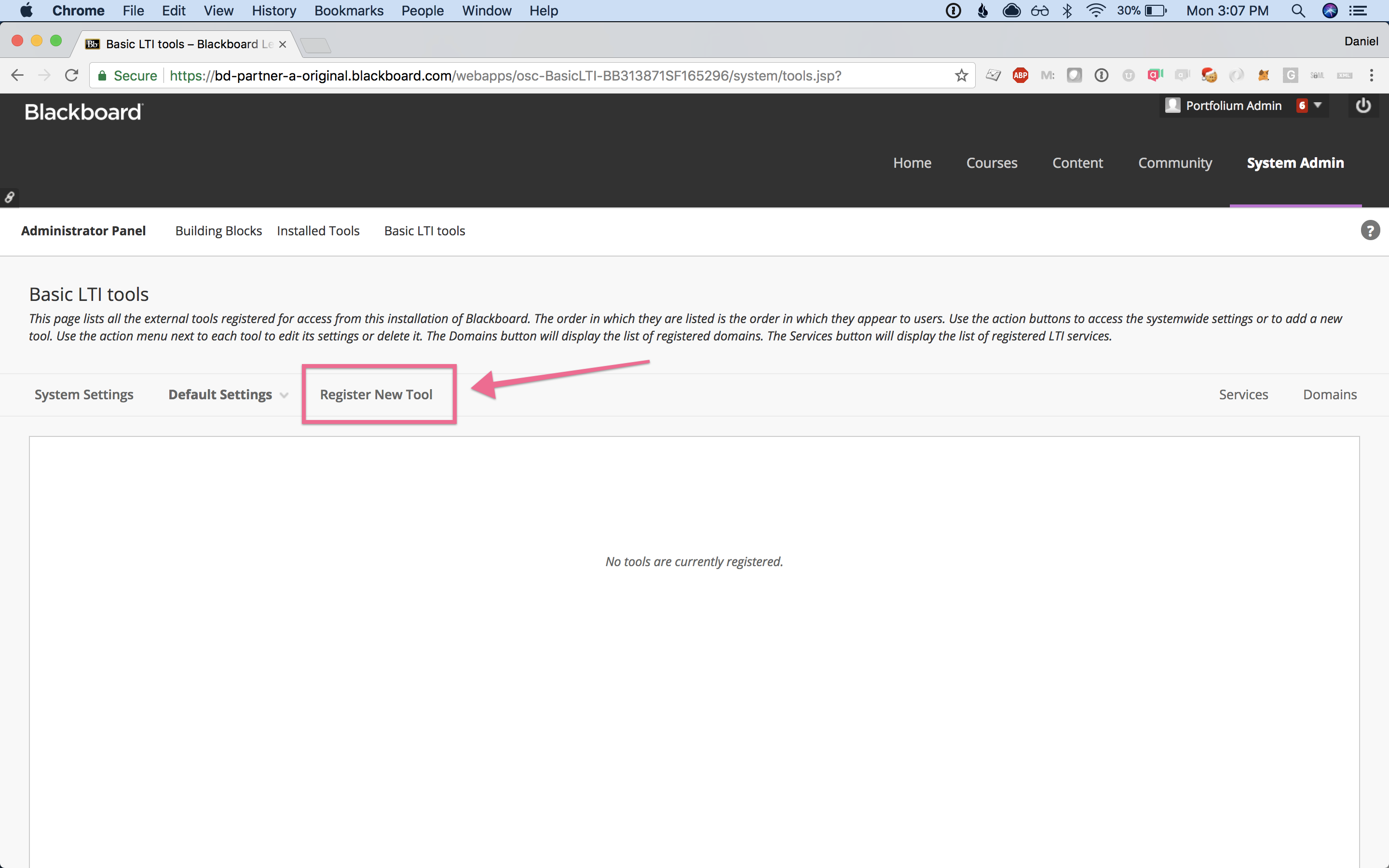
Step 4: Select the Register New Tool button.
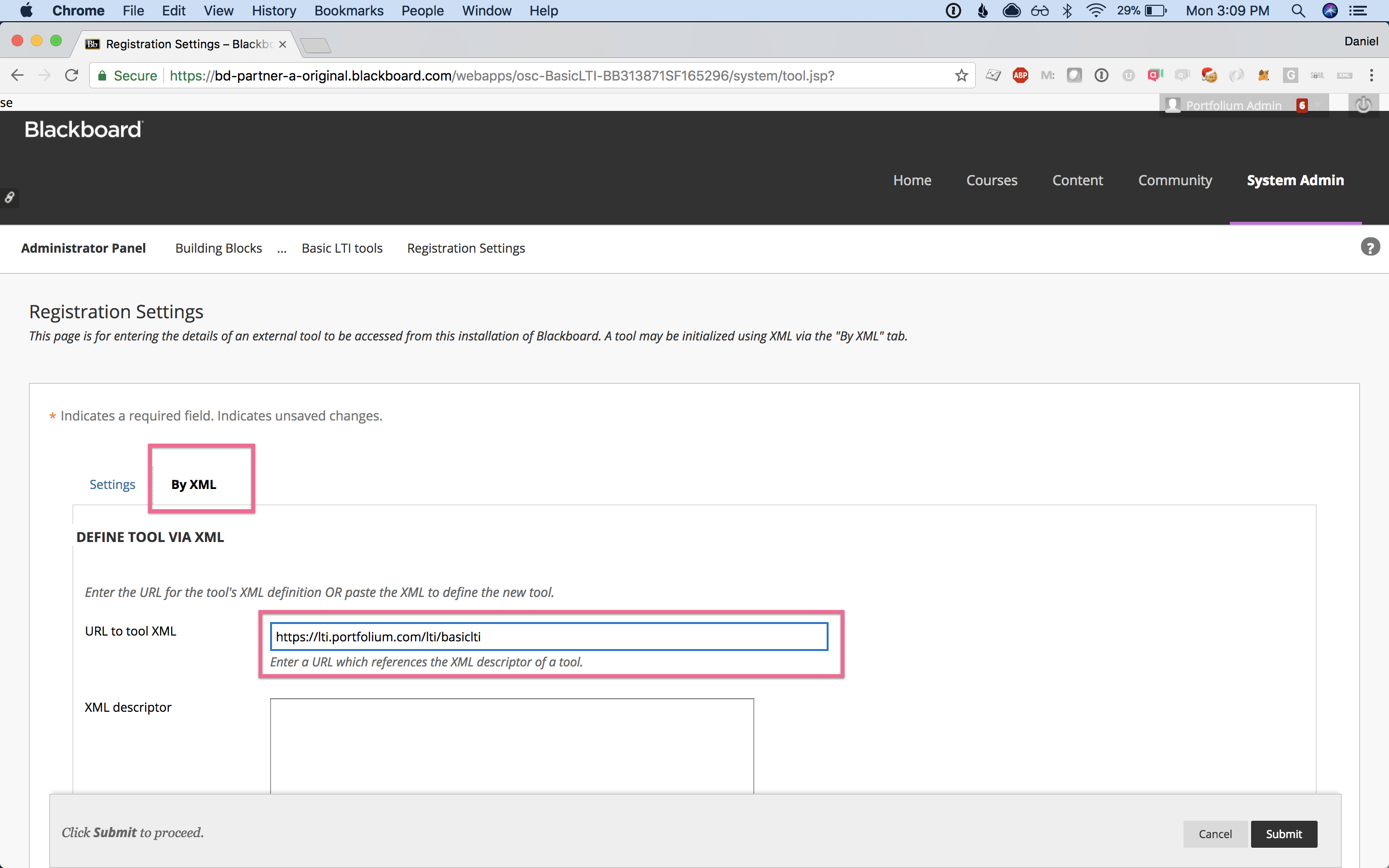
Step 5: Select the By XML tab, and use the following URL (leave the XML descriptor empty): https://lti.portfolium.com/lti/basiclti
Step 6: To submit the form, click the black Submit button in the bottom-right corner of the screen.
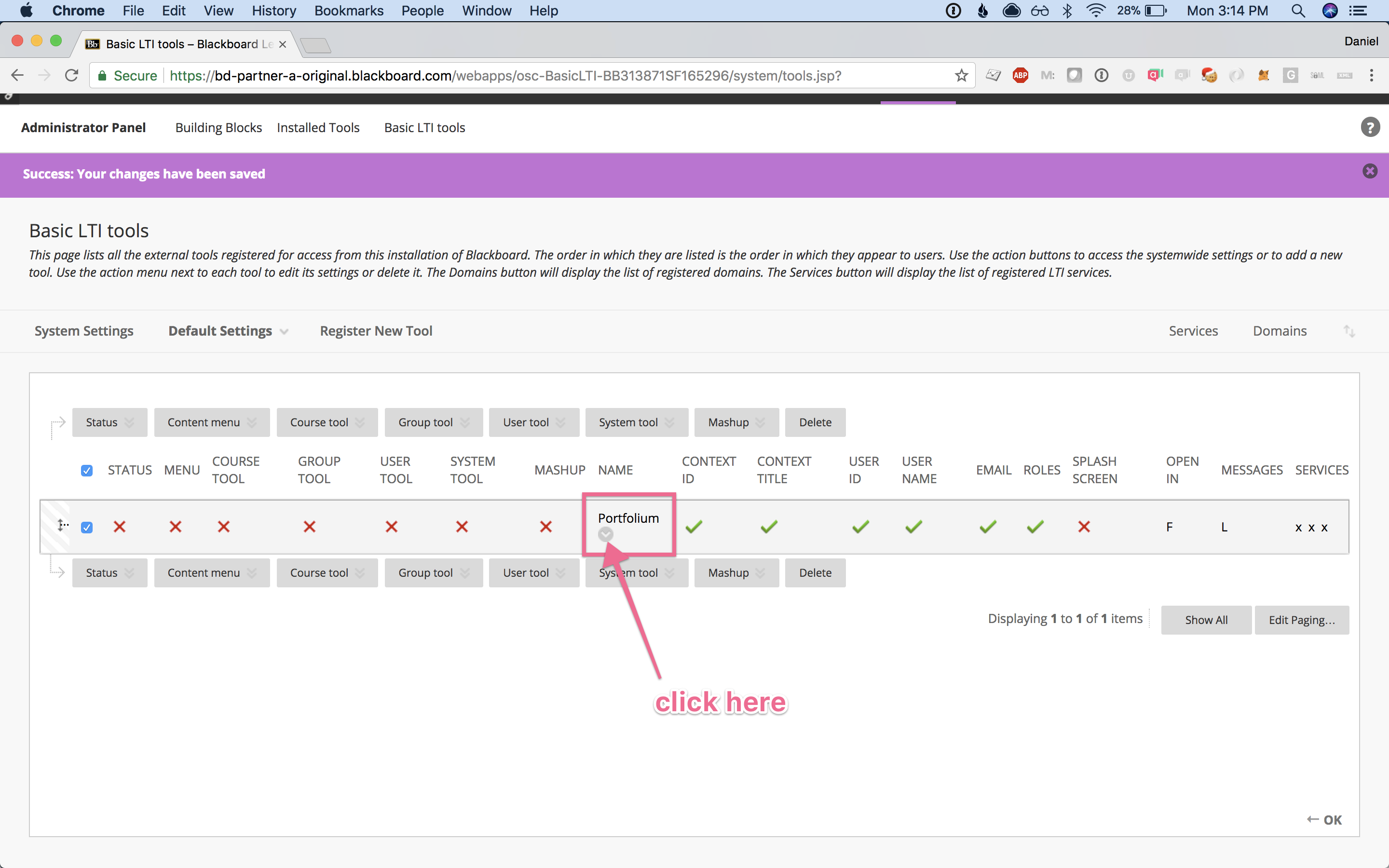
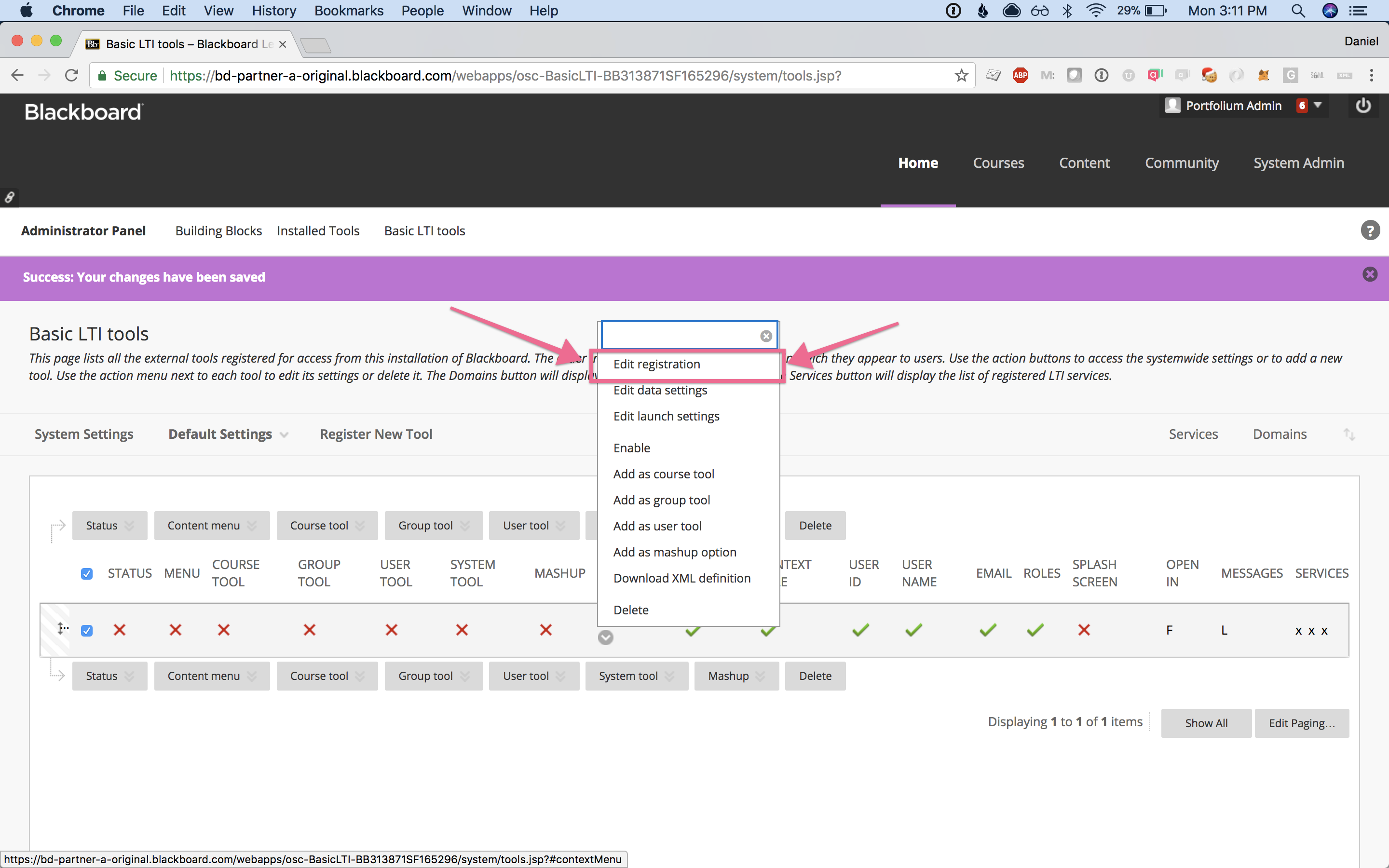
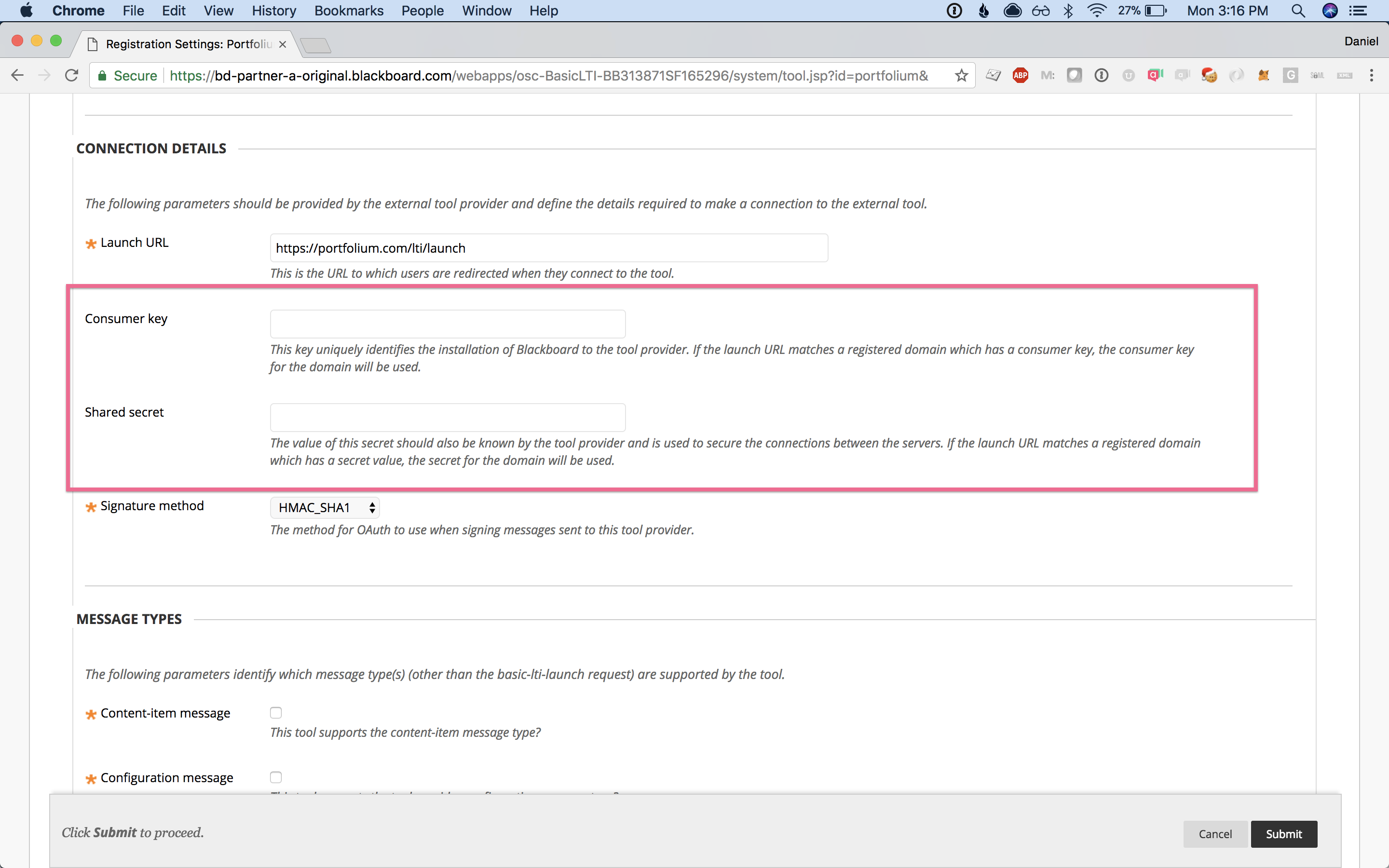
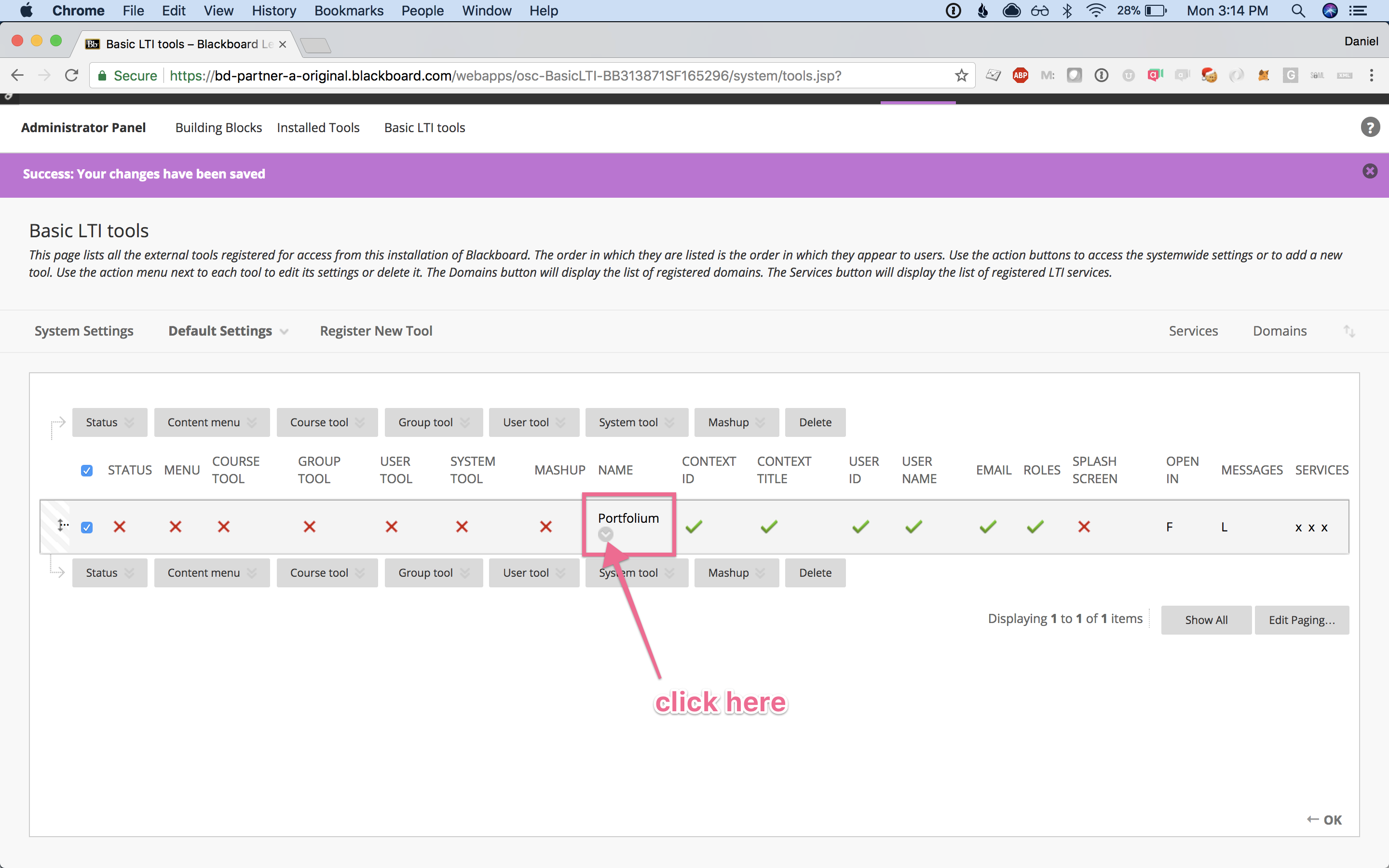
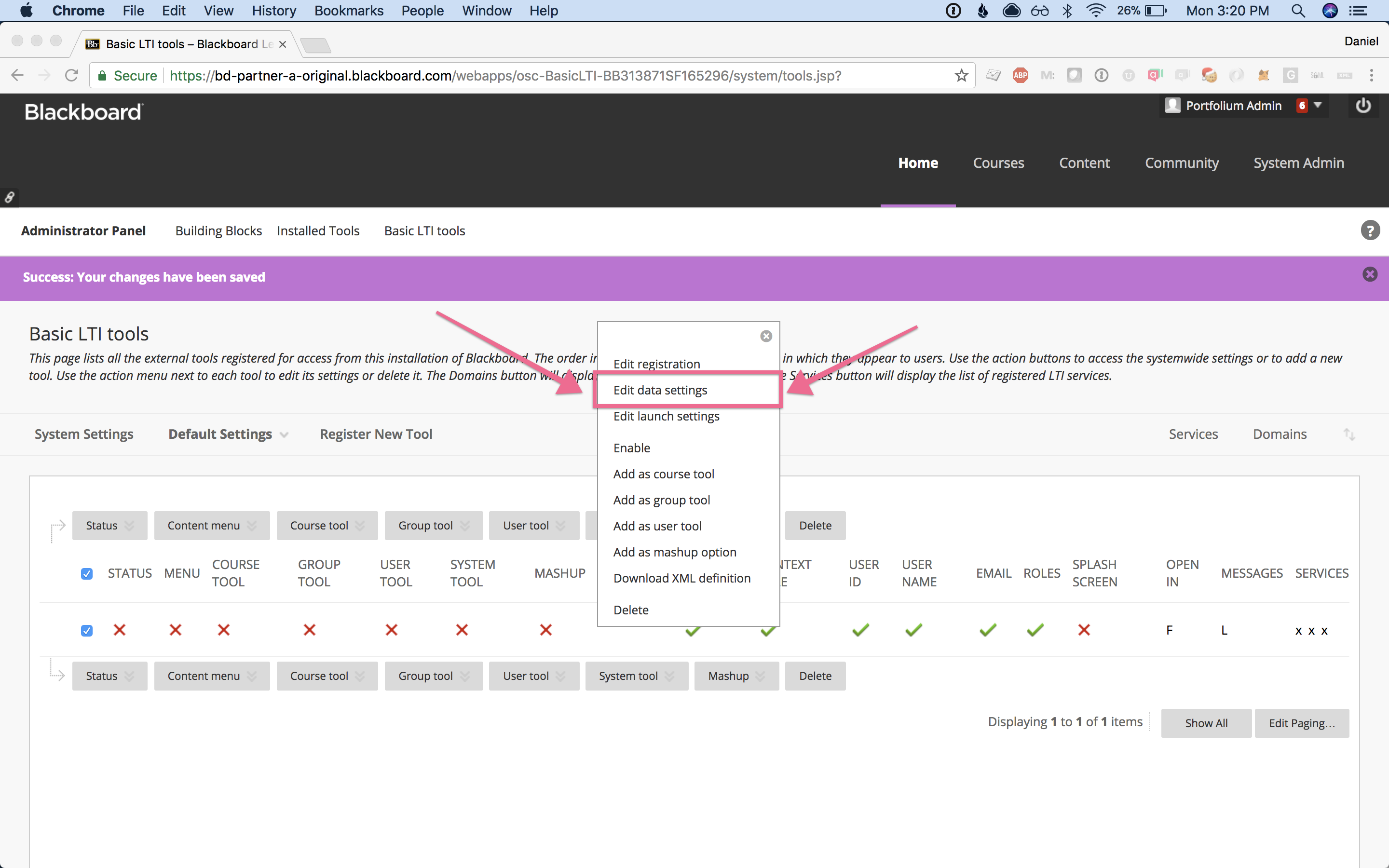
Step 7: Add the Consumer Key and Secret in the Edit registration settings for the tool.
Step 8: To submit the form, click the black Submit button in the bottom-right corner of the screen.
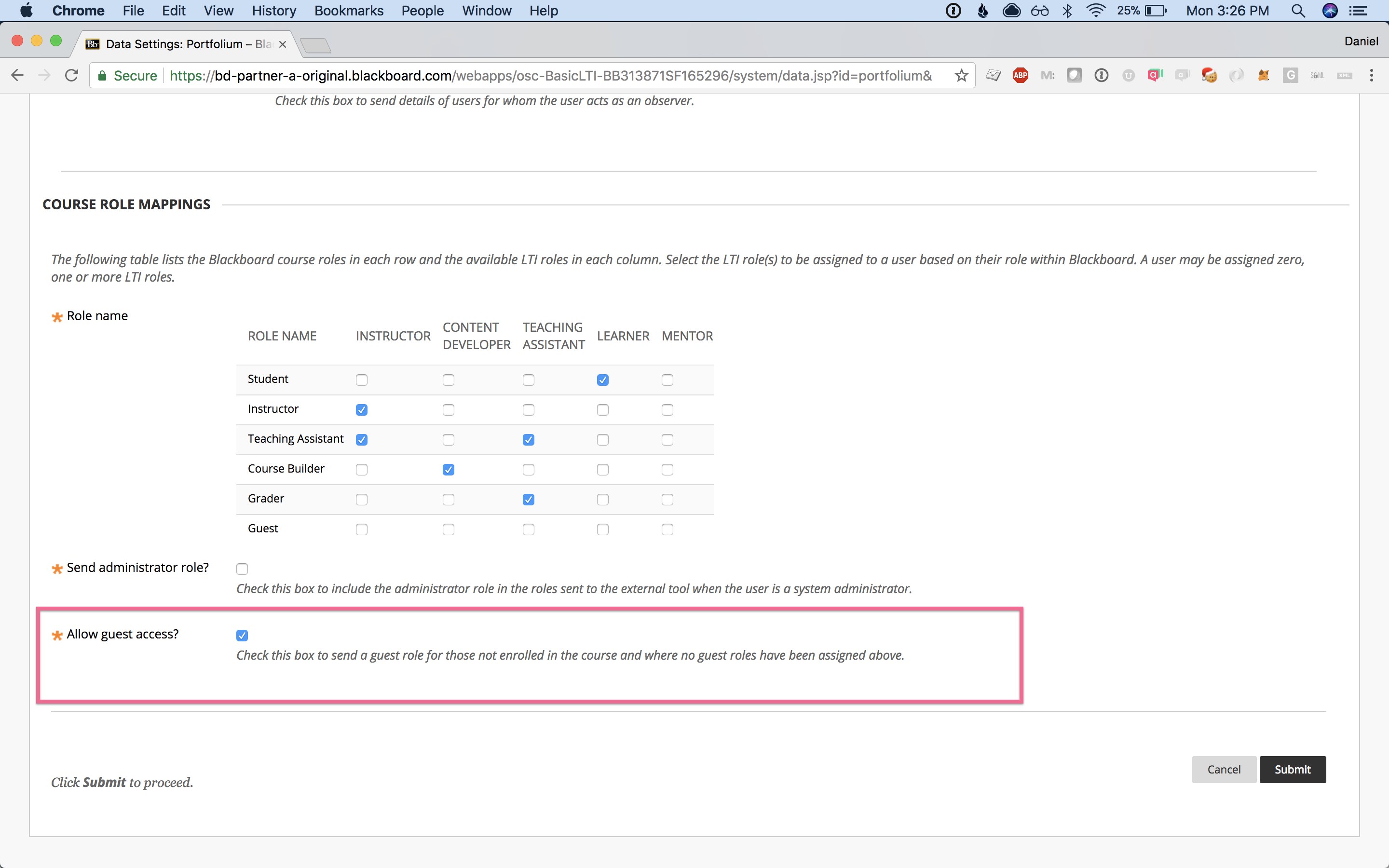
Step 9: To display the Portfolium LTI SSO link in the Tools block on the homepage for instructors and students, allow guest access in the Edit registration settings for the tool.(Hint: the checkbox is at the bottom of the page)
Step 10: To submit the form, click the black Submit button in the bottom-right corner of the screen.
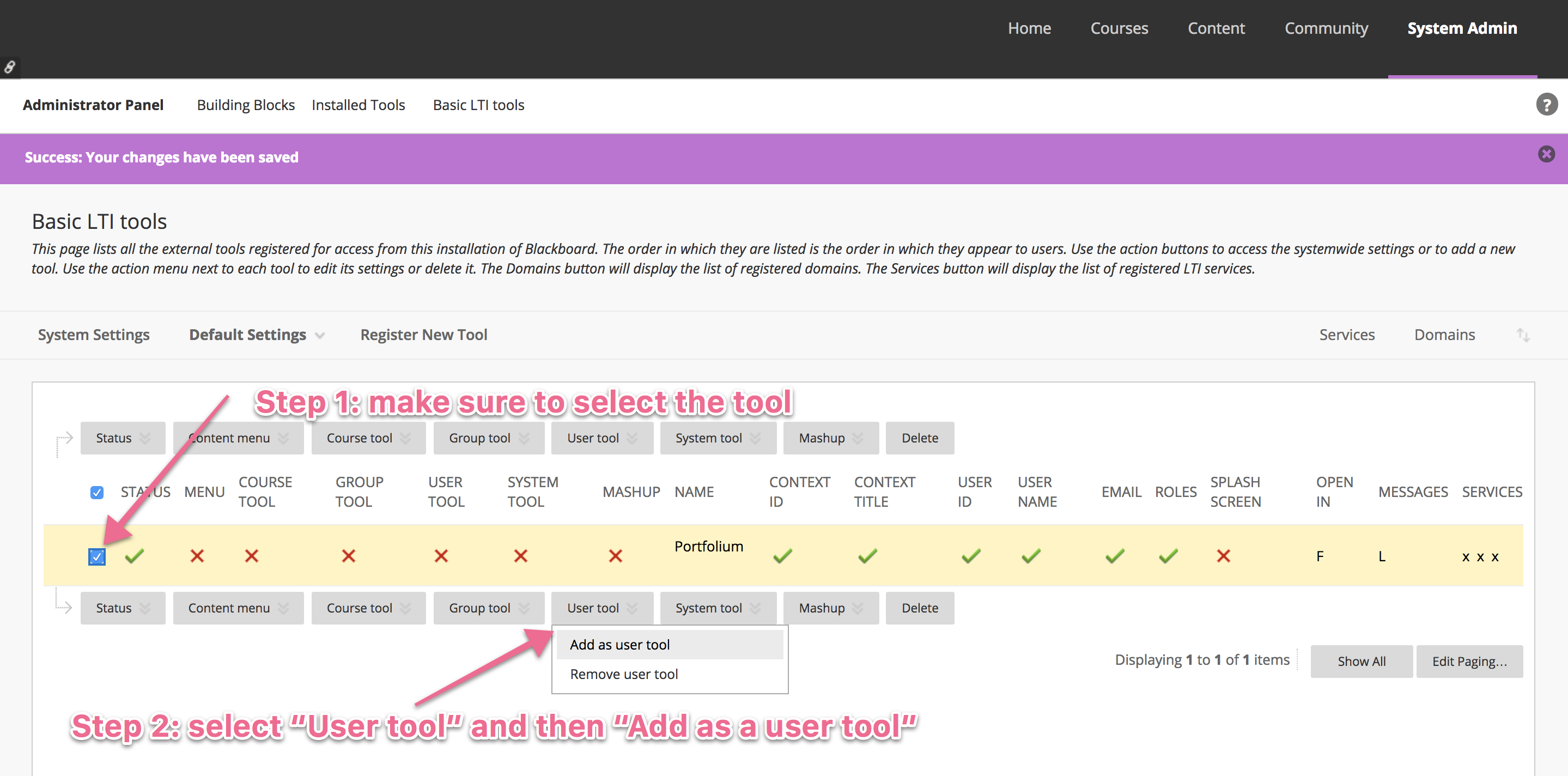
Step 11: To make the tool available to users, first select the tool using the checkbox on the left. Then, click the User tool dropdown and select Add as user tool.
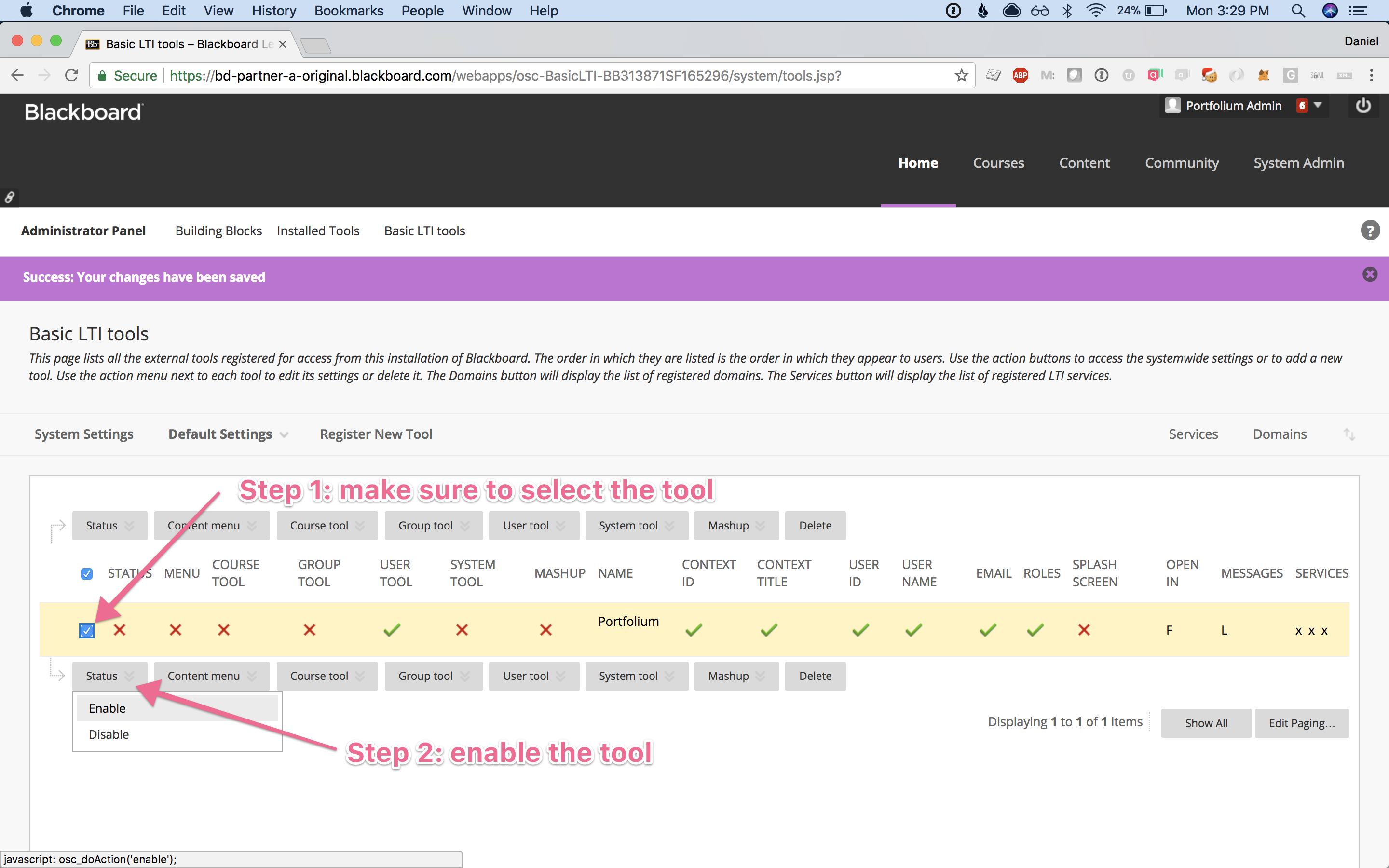
Step 12: To activate the tool, select the checkbox next to it, click Status, then choose Enable.
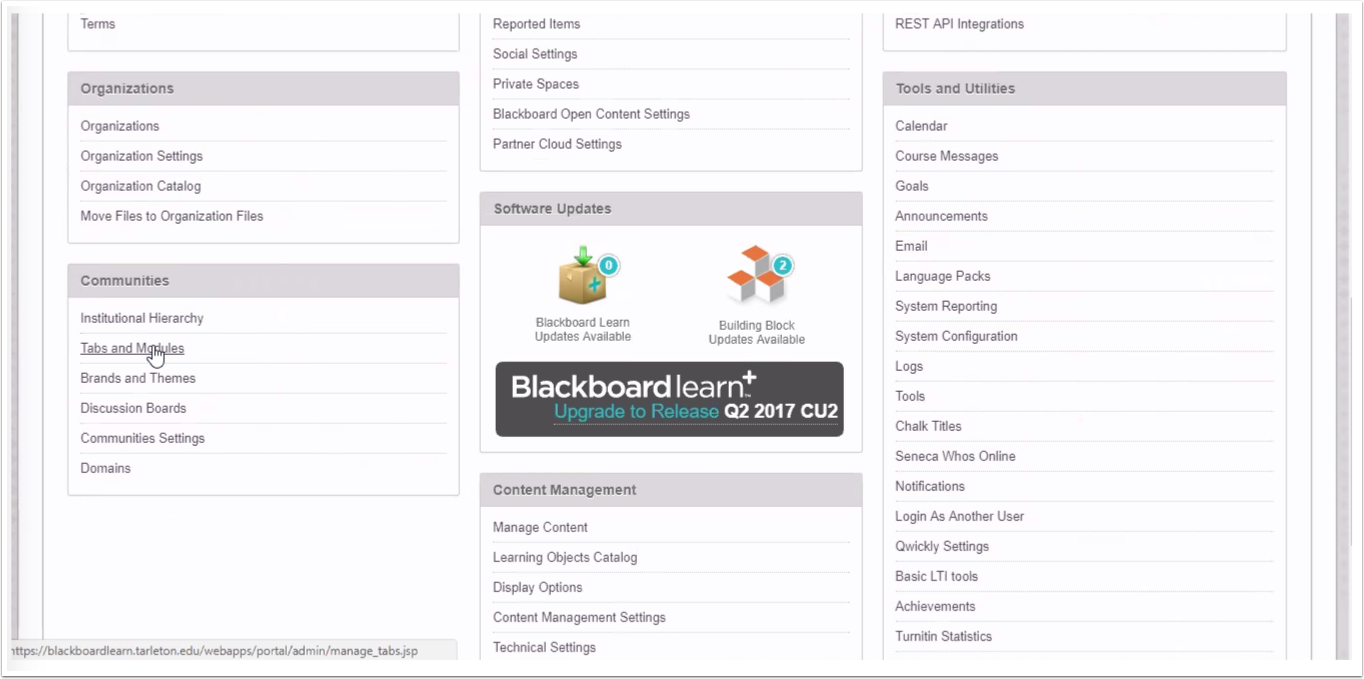
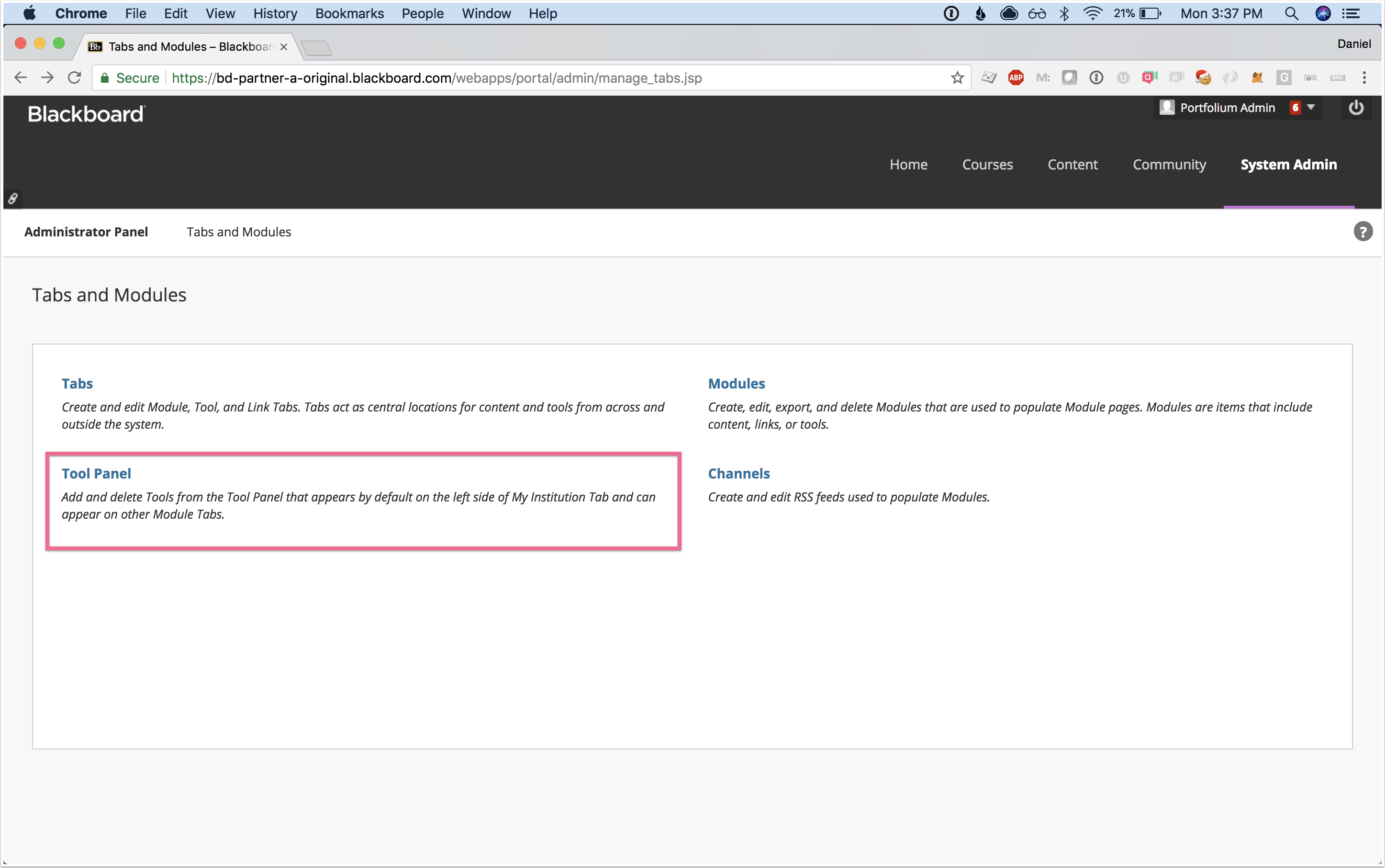
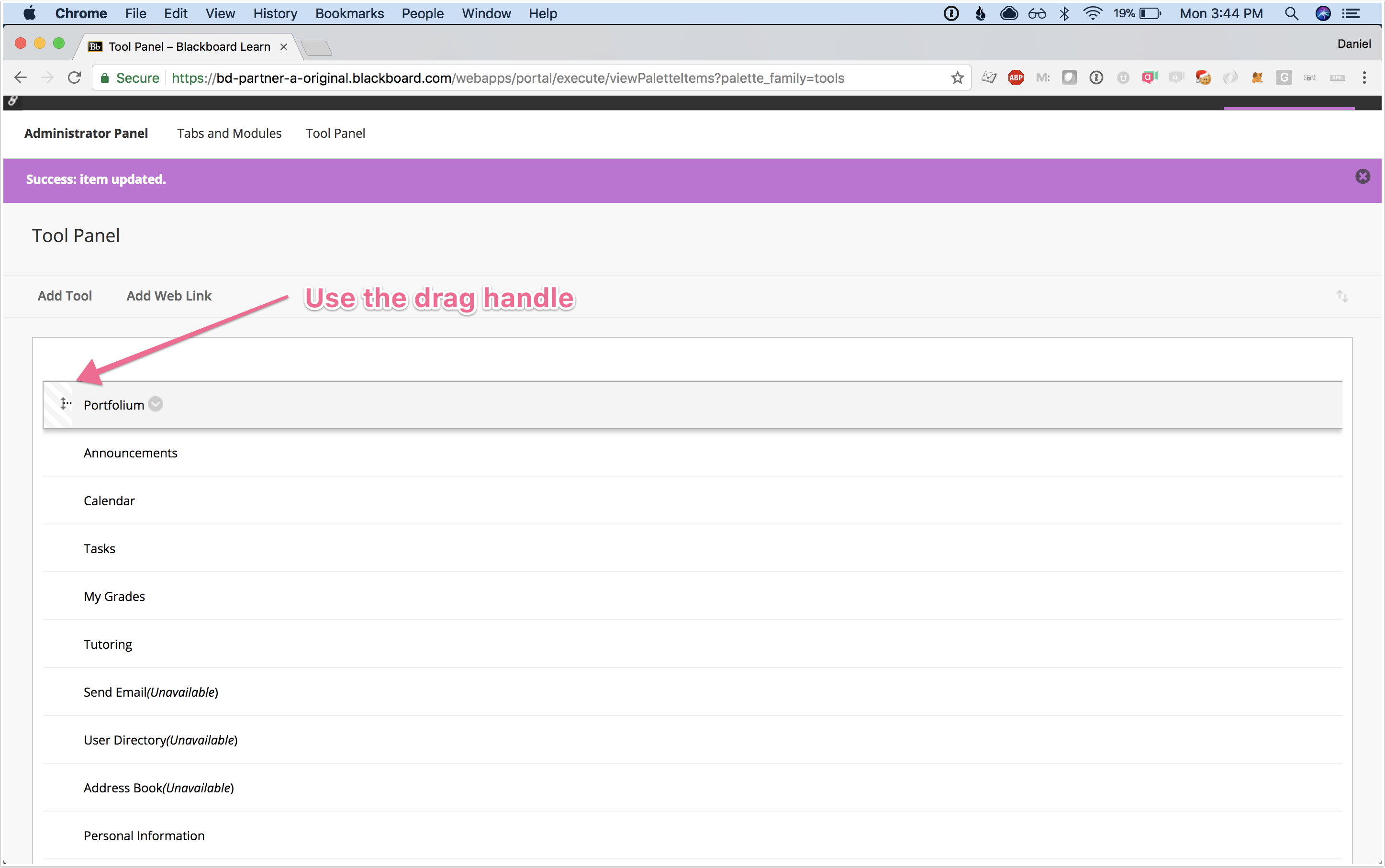
Step 1: Add the new tool.(System Admin → Communities (section) → Tabs and Modules → Tool Panel)
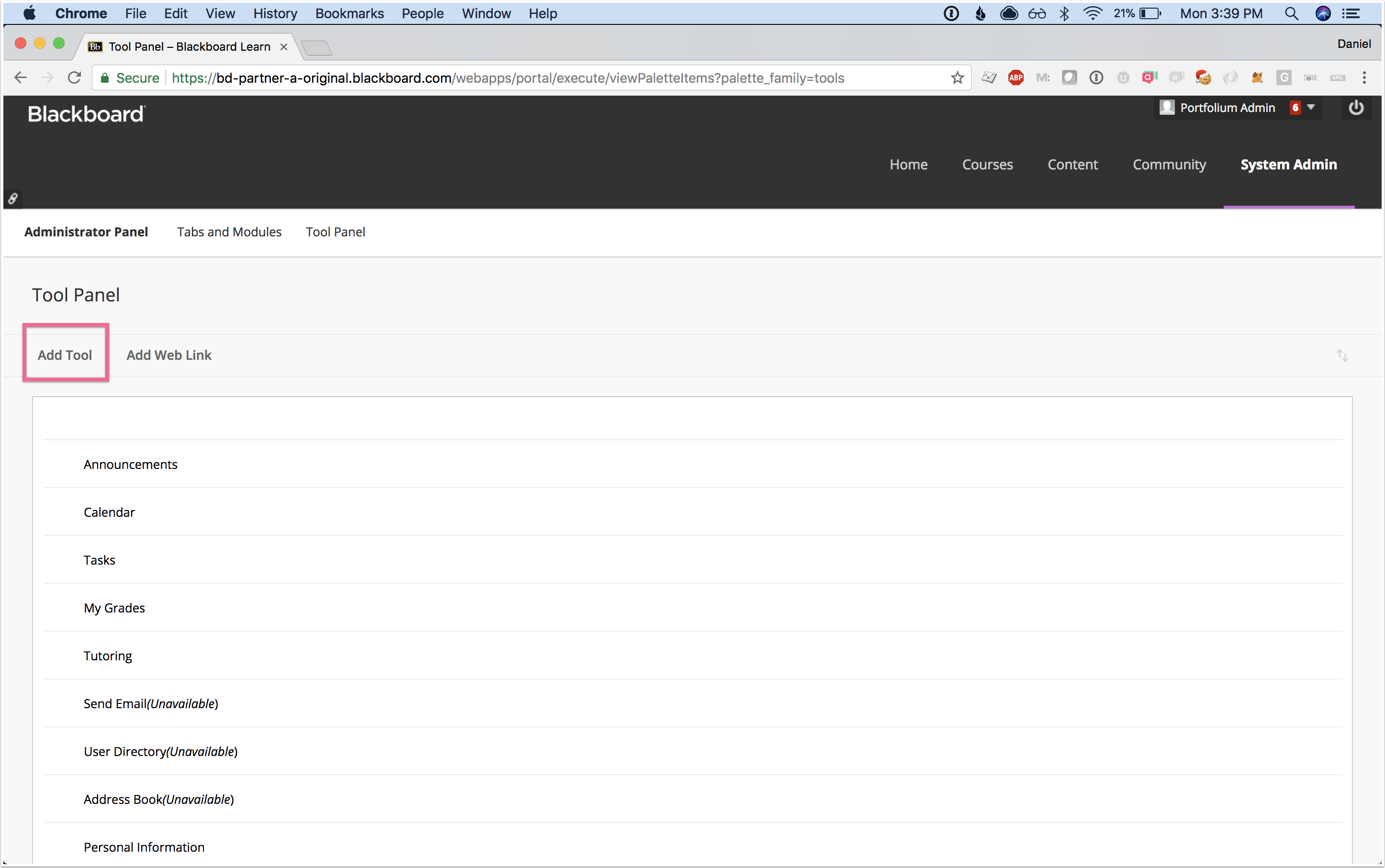
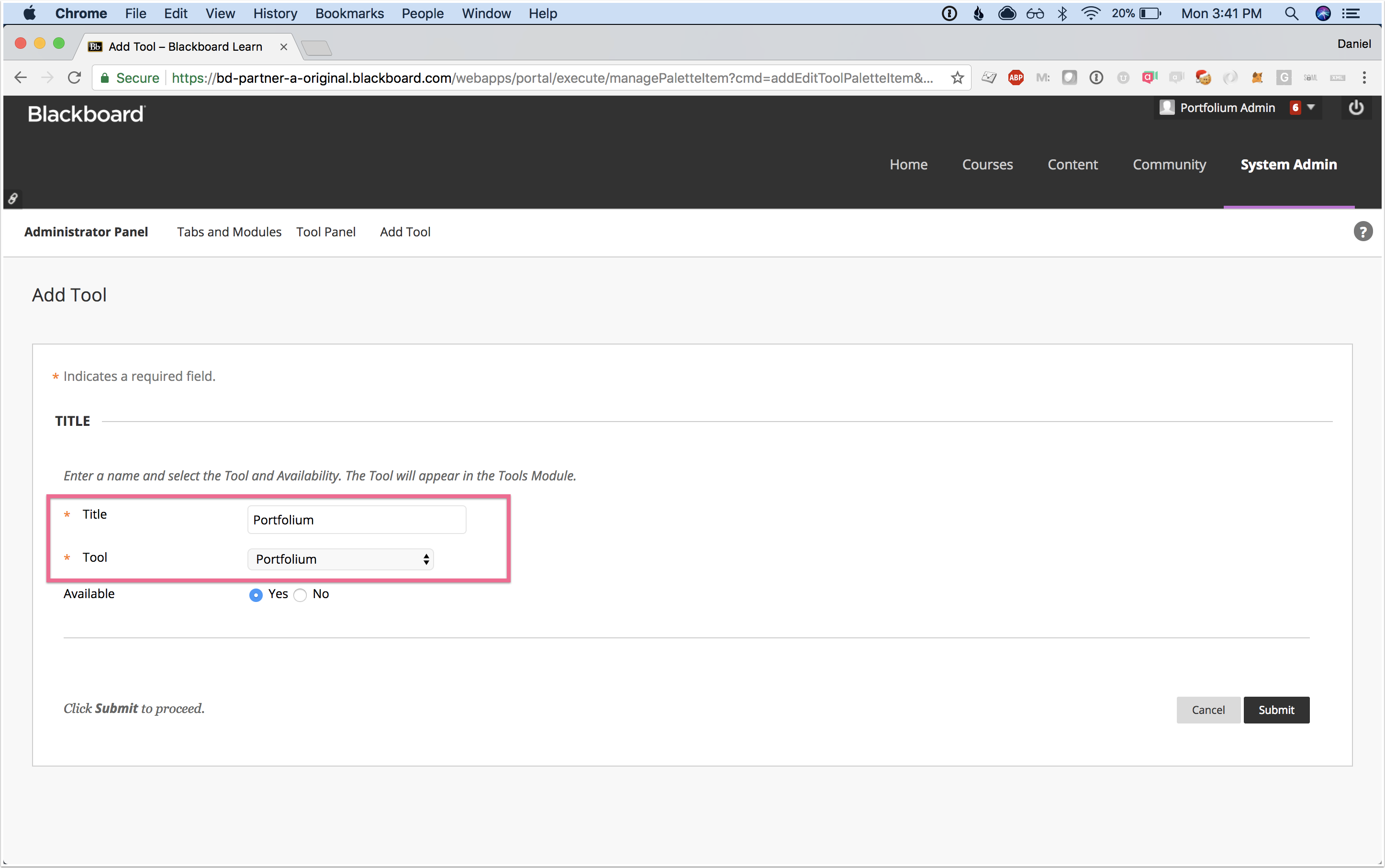
Step 2: Add a new tool to the panel, and select the new Portfolium tool that was created.(Hint: we recommend naming it "Portfolium")
Step 3: To submit the form, click the black Submit button in the bottom-right corner of the screen.
Step 4: Drag and drop the new Portfolium tool link to the position you want it displayed in the list.