When your students start a quiz, their attempt is tied to the version of the quiz at the time they started. If you update a quiz after a student begins taking it, those updates are not available during the current attempt.
To ensure students see the final version, do not publish a quiz until all changes are complete. However, if you need to make changes while a student is currently taking the quiz, the student must end their current attempt. You also need to moderate the quiz to give the student another attempt with the updated quiz.
Open Quizzes
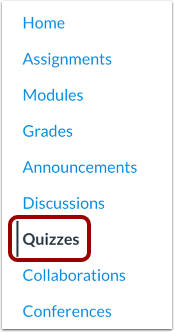
In Course Navigation, click the Quizzes link.
Open Quiz
Click the title of the quiz you need to moderate.
Moderate Quiz
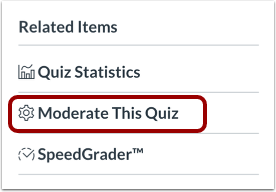
To moderate the quiz, click the Moderate This Quiz link. On the Moderate Quiz page, you can give the student an extra attempt.
Ask Student to Submit Quiz
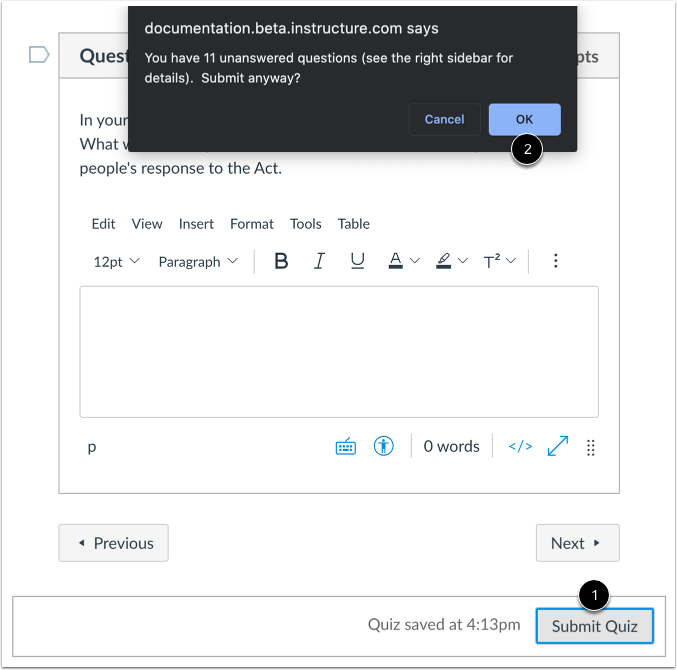
Contact the student who is currently taking the quiz and ask them to submit the quiz [1]. If they have not finished the quiz, they will need to confirm their incomplete submission [2].
Prevent Quiz Access
To prevent students from accessing quizzes before they are complete, you can:
- Leave the quiz unpublished in the course until complete, or place the quiz in an unpublished module.
- Use availability dates in quiz settings to prevent students from accessing the quiz until a specific date.