Open Course
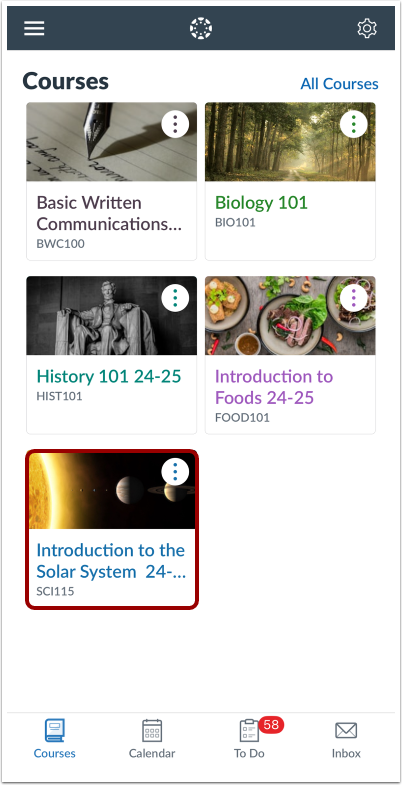
In the Courses tab, tap the name of the course you'd like to view.
Open Assignments
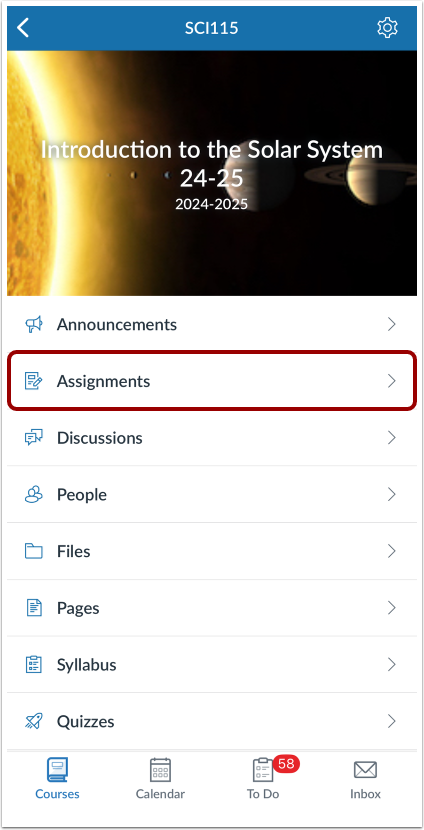
Tap the Assignments link.
Open Assignment
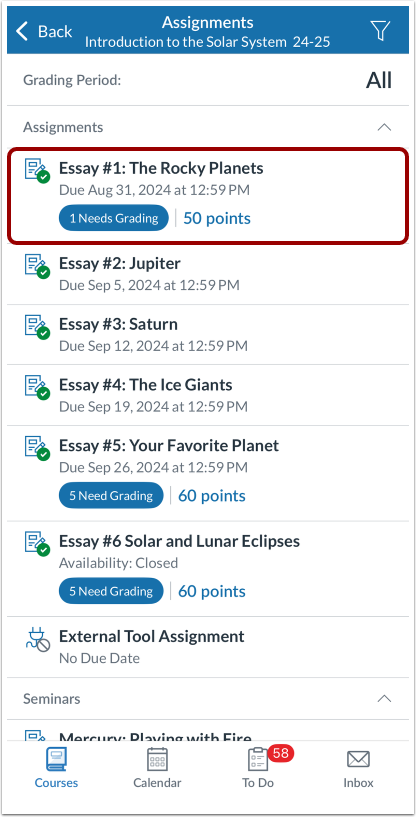
To view an assignment, tap the name of the assignment.
Open Submissions
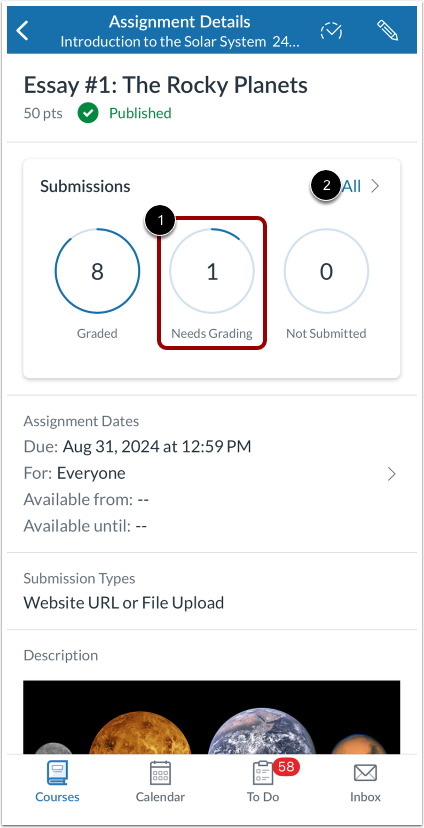
Tap the Need Grading status link [1].
If you want to filter submissions by a different status, tap the All link [2] and apply the filter in the Submissions page.
Open Submission
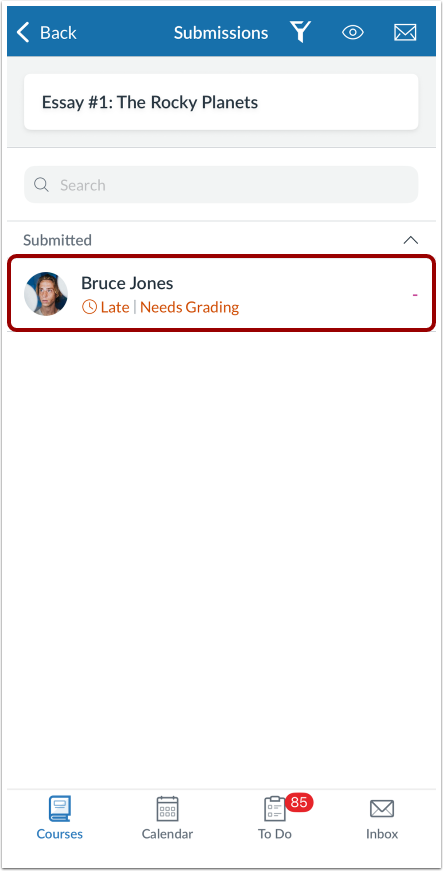
Locate the student's submission and tap the name of the student.
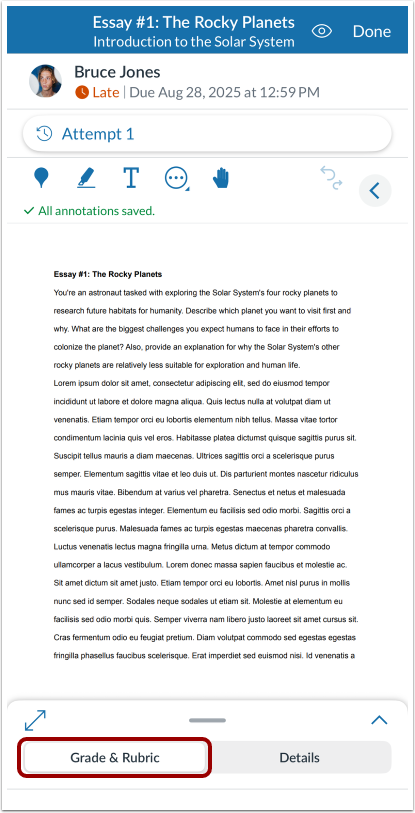
Tap the Grade & Rubric tab.
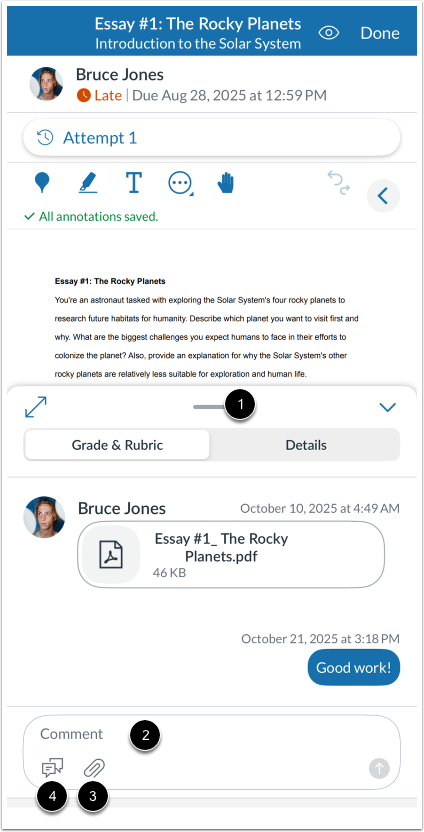
The student's submission is shown in the Comments tab and may contain comments from the student. If the submission was submitted multiple times, each file displays as a comment.
To view multiple comments, you can adjust the height of the comment window by tapping and holding the menu bar [1].
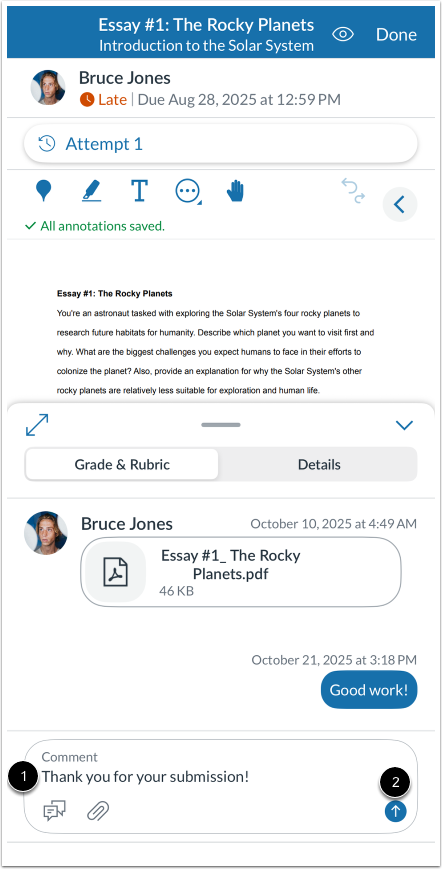
To add a comment, tap the Comment field [2].
To add an attachment to your comment, tap the Attachment icon [3].
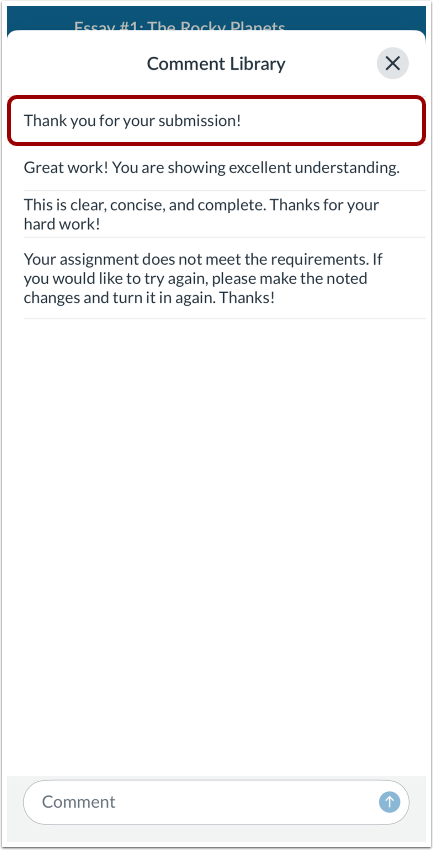
To open the Comment Library, tap the Comment Library icon [4].
Tap the comment you want to use.
Note: The Comment field displays text only and does not include the Rich Content Editor for formatting.
View your comment to the student [1]. Then tap the Send icon [2].
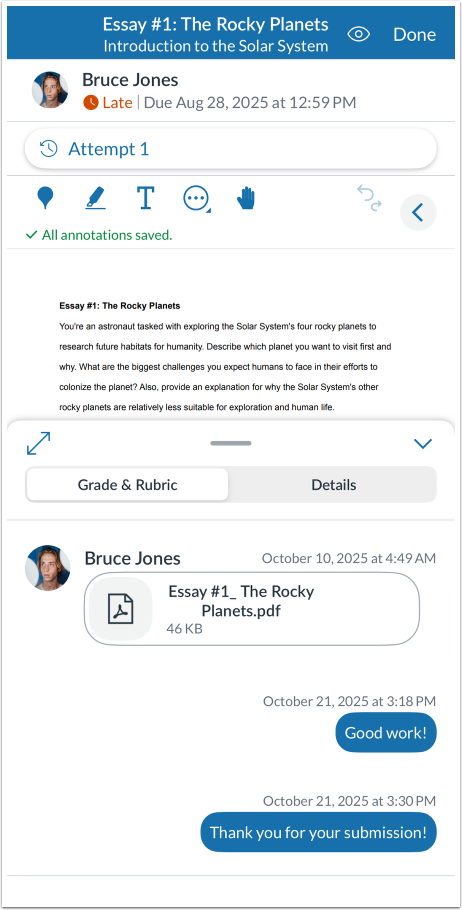
View your comment to the student.