Canvas Teacher helps you view and manage Announcements in your Canvas courses.
This lesson shows images for a phone display; however, unless otherwise noted, the steps are the same for tablets.
Open Course
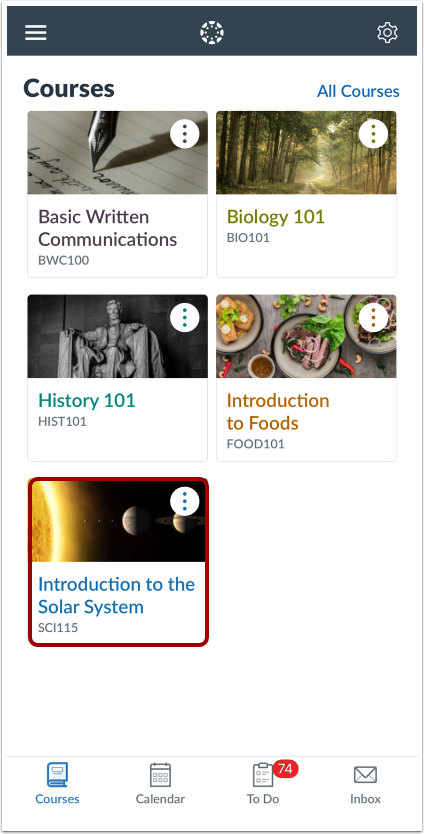
In the Courses tab, tap the name of a course.
Open Announcements
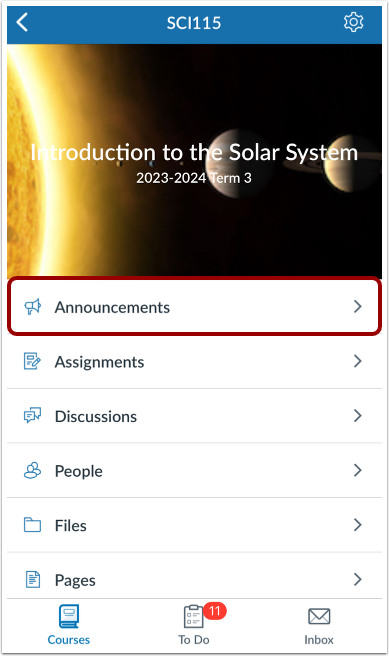
Tap the Announcements link.
View Announcements
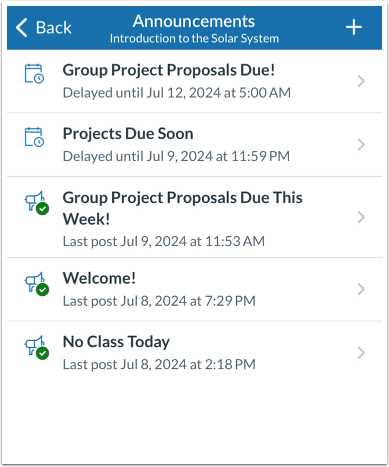
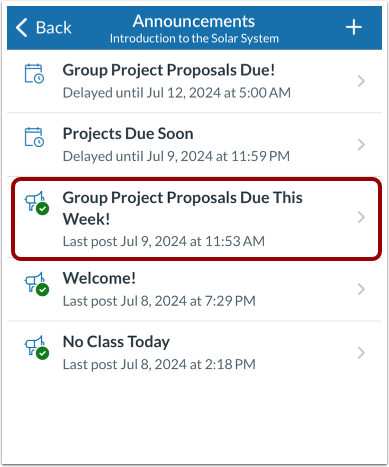
Announcements displays all the announcements in your course. Announcements are ordered by creation date with the most recent at the top.
Add Announcement
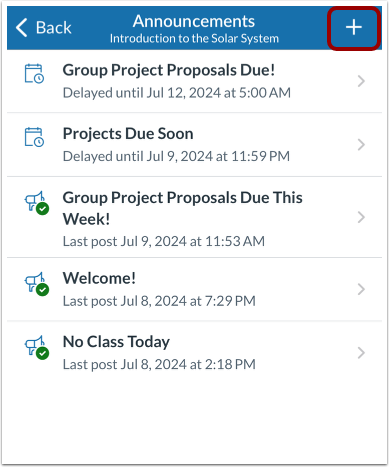
To add an announcement, tap the Add icon.
Open Announcement
To open an announcement, tap the announcement name.
View Announcement
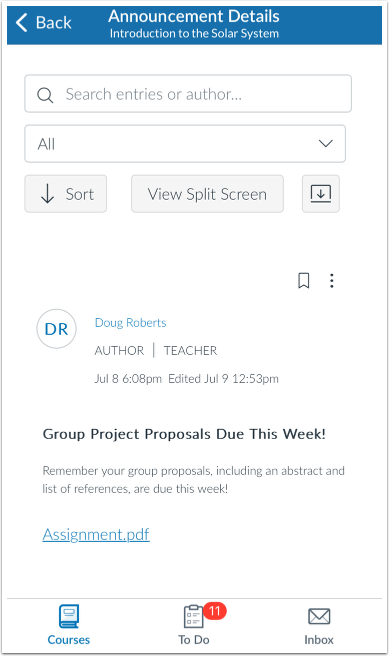
View the announcement.
The Announcement Toolbar remains at the top of the announcement when you are viewing announcement replies.
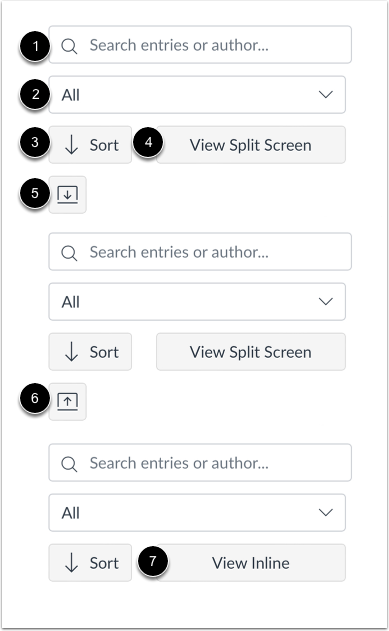
To search for replies or specific authors, enter your terms in the Search field [1].
To filter replies, click the All drop-down menu [2]. You can filter by all replies or unread replies.
To sort replies by newest or oldest, click the Sort button [3].
To view threaded replies in a split screen sidebar, click the View Split Screen button [4].
To view threaded replies all at once, click the Expand Threads button [5]. You can collapse the threaded replies by clicking the Collapse Threads button [6].
To view threaded replies inline, click the View Inline button [7].
View Inline Announcement Thread Replies
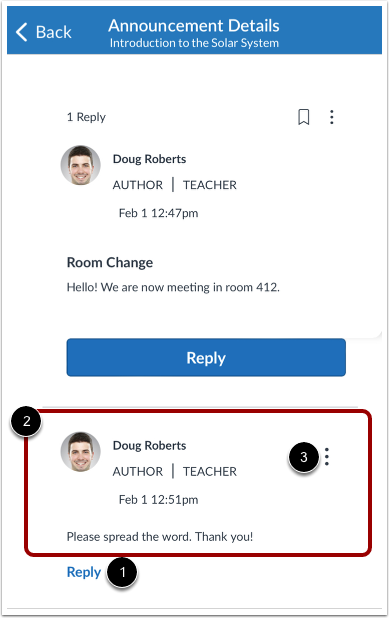
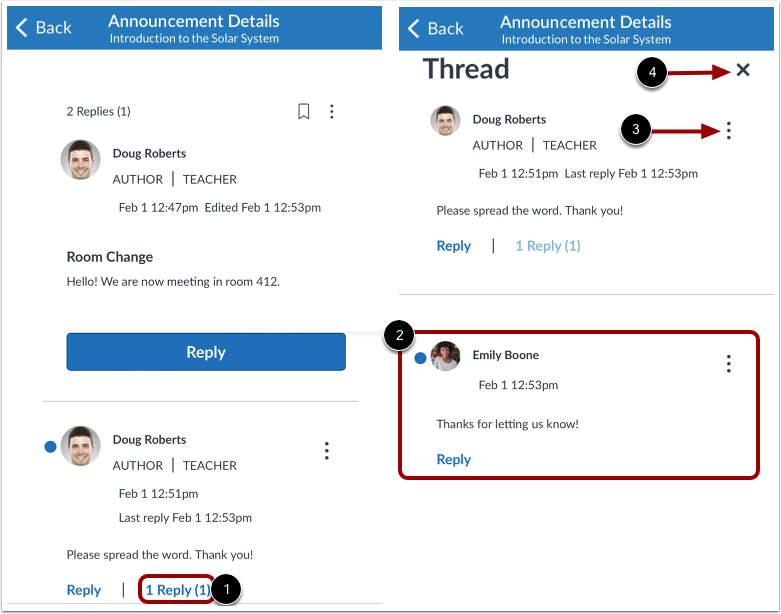
To expand the announcement thread replies inline, click the # of replies link [1].
View the read and unread replies [2].
To view threaded replies options, click the Options icon [3]. You can mark replies as read/unread, mark threaded replies as read/unread, return to the topic, quote the reply, or report the reply.
View Split Screen Announcement Thread Replies
When viewing split screen announcement thread replies, you can collapse and expand the announcement thread replies sidebar. When an announcement thread reply is collapsed, you can view the reply indicators showing the number of unread and total replies.
To expand the announcement thread replies sidebar, click the # of replies link [1].
View the read and unread replies [2].
To view threaded replies options, click the Options icon [3].
To collapse the announcement thread replies sidebar, click the Close icon [4].
Manage Announcement
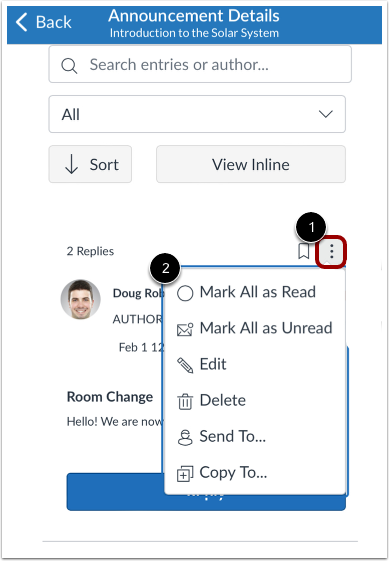
To manage the announcement, tap the Options icon [1]. You can mark the replies as read or unread, edit the announcement, delete the announcement, send or copy the announcement [2].