When you open a course, you can see the list of assignments in your course. For each assignment, you can view the status and whether or not submissions need grading. You can also view each student's submission, comments, and files.
This lesson shows how to view assignments from the Assignments page. However, submissions can also be viewed in the page for their respective assignment type.
Open Course
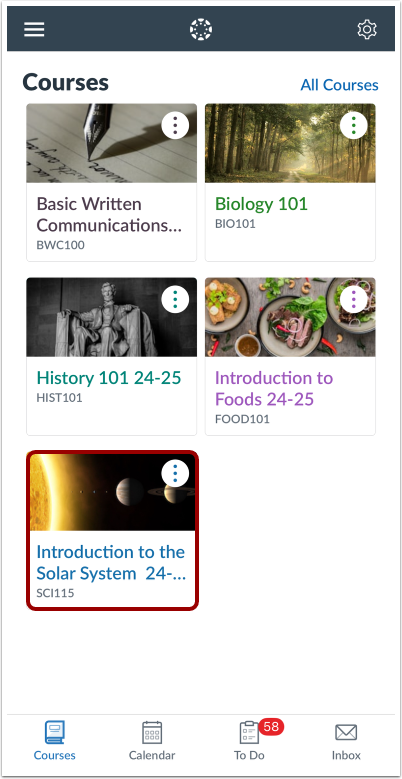
In the Courses tab, tap the name of the course you'd like to view.
Open Assignments
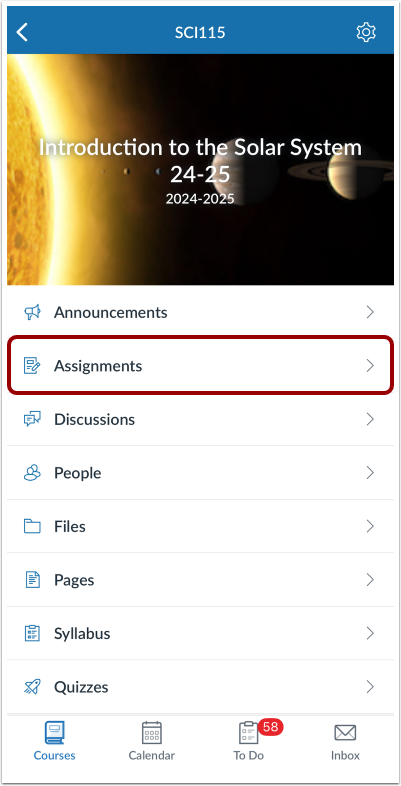
Tap the Assignments link.
Open Assignment
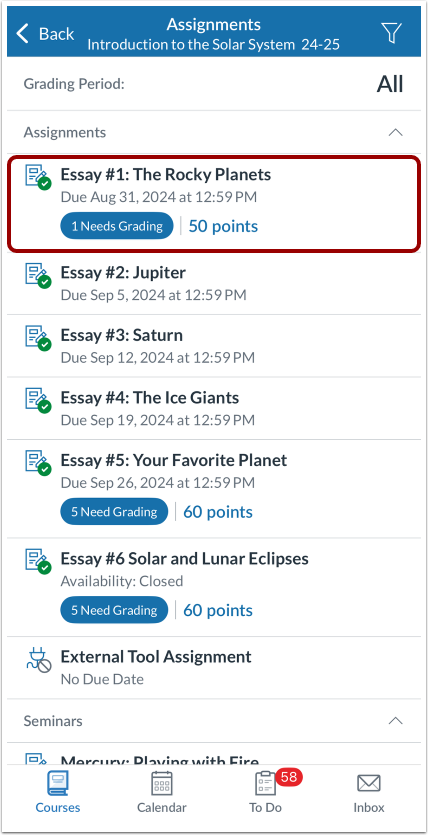
Locate the assignment and tap the name of the assignment.
View Submissions
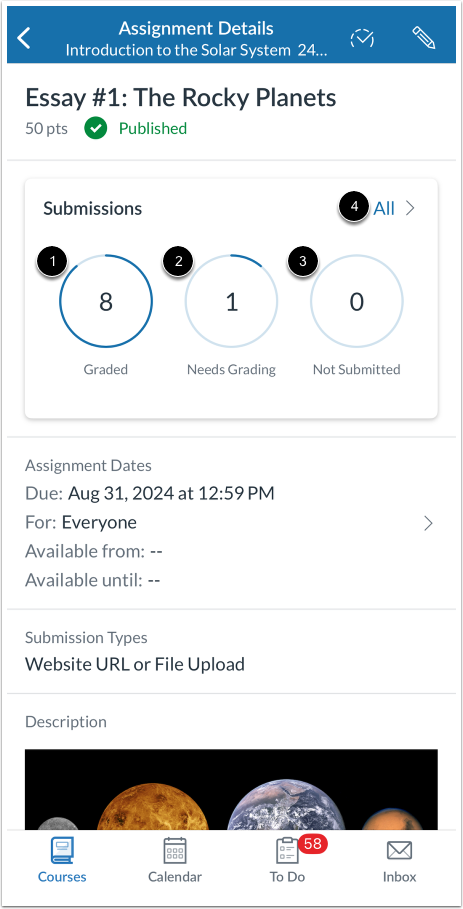
In the Submissions section, you can view the status of the assignment and how many assignments have been graded [1], how many need grading [2], and how many have not been submitted [3].
To view the submissions page for all submissions, tap the All link [4].
Open Submissions by Status
To filter immediately by one of the three submission statuses in this page, tap the status type [1].
The submissions page displays all submissions filtered by the selected status [2].
View Submissions Page
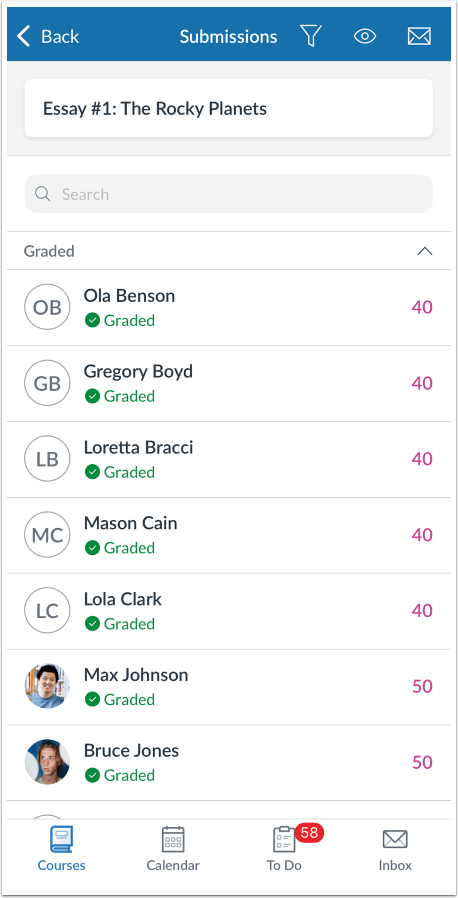
Unless a specific filter was already selected from the assignment page, the Submissions page defaults to the All Submissions page. You can view all students assigned to the assignment and their submission status.
Filter Submissions
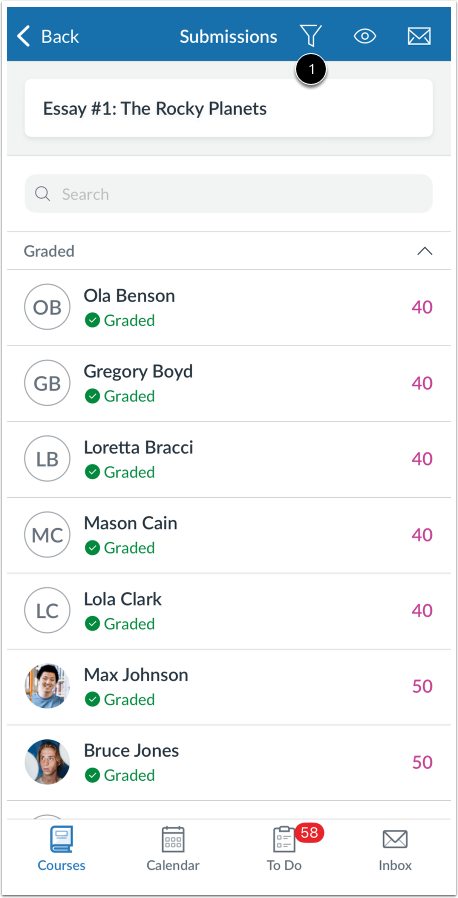
To apply additional filters, tap the Filter link [1].
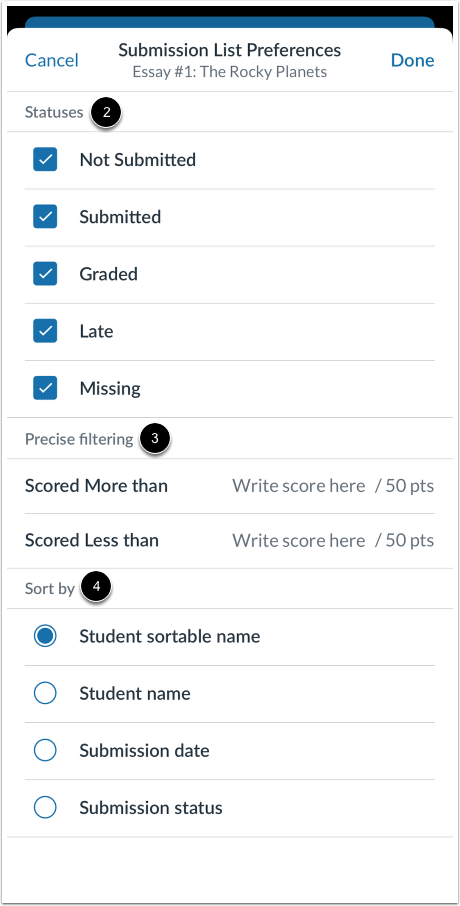
Tap the type of filter you want to apply.
You can filter submissions by Statuses [2], Precise Filtering based on grades [3], or sort them according to Student sortable name, Student name, Submission date, or Submission status [4].
Message Students
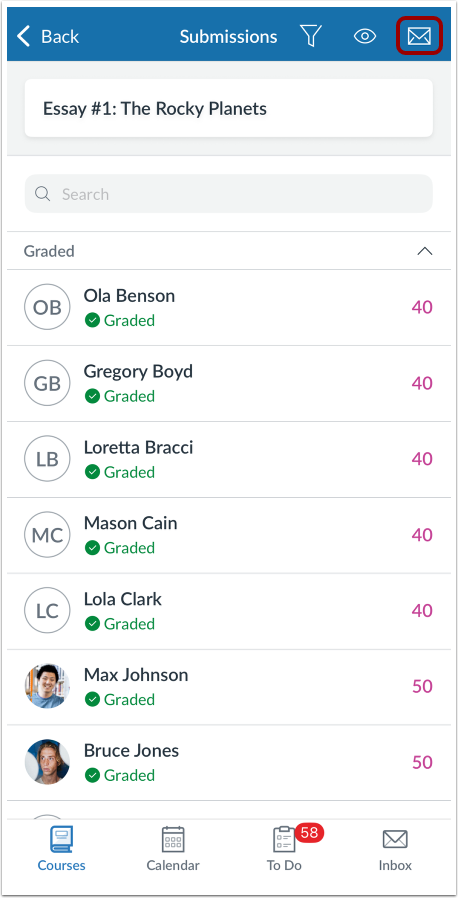
To message students, tap the Message icon.
Post or Hide Grades
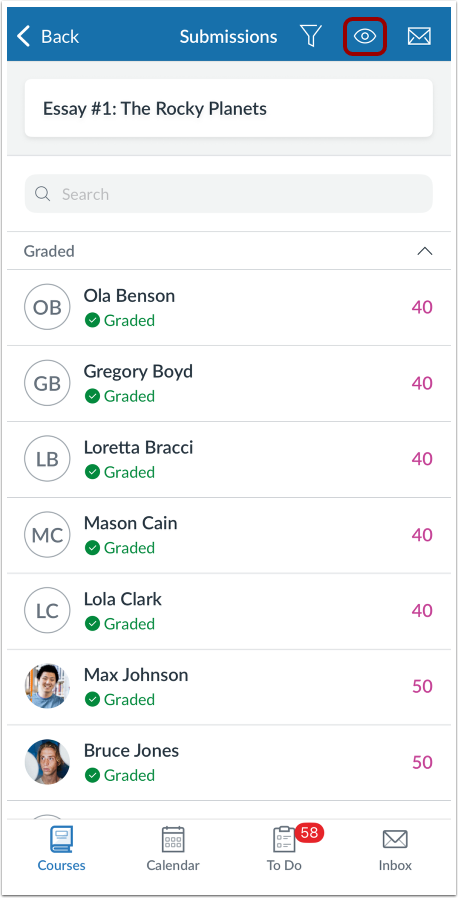
To post grades or hide grades for an assignment, tap the Visibility icon.
Open Submission
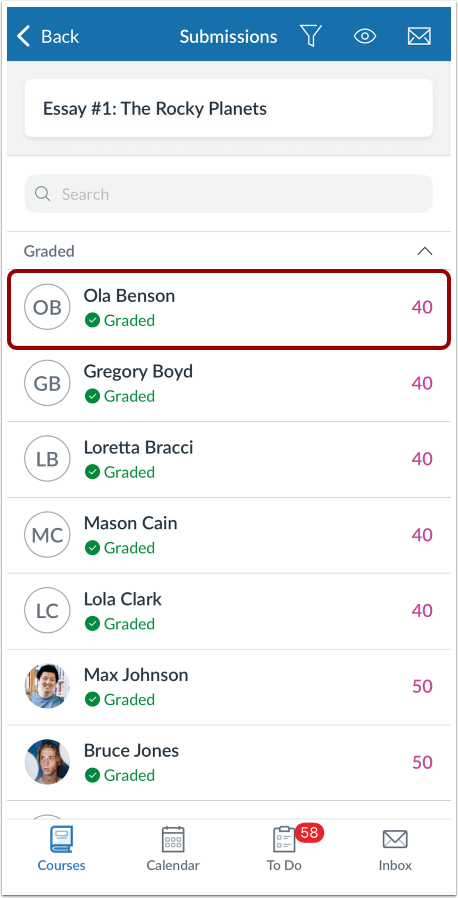
To view and grade a student's submission, tap the name of the student.
View Submission
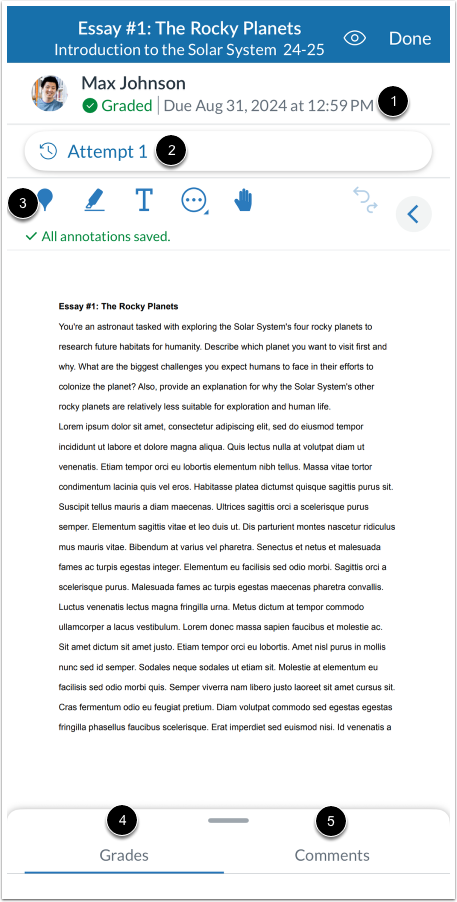
View the student's submission. You can view the date and time of the submission [1].
If the student resubmitted the assignment, tap the attempt number to view dates and times from previous submissions [2].
If the assignment type supports annotations, you can use Canvas DocViewer to add annotated comments to the submission [3].
You can also grade the submission [4] and view and add comments [5].