Release notes outline upcoming customer-impacting changes that are expected to be displayed in production environments. Please note that features considered for future development are not included in the notes.
Canvas Catalog is an all-in-one learning solution that integrates with the Canvas LMS as a course registration system, payment gateway, and learning platform. Learn more about Canvas Catalog.
Upcoming Catalog Changes
2026-04-13
End of Life: User Registration Endpoint (/user-registration)
For more information, please see Instructure Enforcements, Deprecations, and Breaking Changes.
Unless otherwise stated, all features in this release are available in the Beta environment on 2026-02-16 and the Production environment on 2026-03-23.
New Features
Unified Cart Checkout Experience
Summary
This update replaces the legacy Bulk Purchase system with a unified cart that supports configurable seat quantities and flexible purchasing options.
Change Benefit
The unified cart streamlines the enrollment process and reduces administrative overhead by eliminating fragmented checkout steps. Institutions gain granular control over enrollment policies, while buyers experience a modern, intuitive e-commerce interface that reduces confusion and increases successful registrations.
Workflow

In the Catalog Settings menu, admins can configure institutional enrollment policies. To allow purchasing seats for others, select the Yes option in the Allow purchasing seats for others in this Catalog and its subcatalogs drop-down menu.

On the Listings page, select a course or program [1]. Click the Cart icon and enter the desired seat quantity in the listing [2]. You can also remove the listing [3] or click the Go to Cart button [4].

Add the items to the cart and complete the checkout process by clicking the Checkout for Myself button [1] or Purchase Seat for Others button [2].

If reserving seats for others, a time limit banner displays [1]. To purchase the seat(s), click the Claim Seat(s) button [2].

Admins can invite users by clicking the Invite button [1] or View Invitations button [2].

Admins can view the Enrollments and Invitations page.
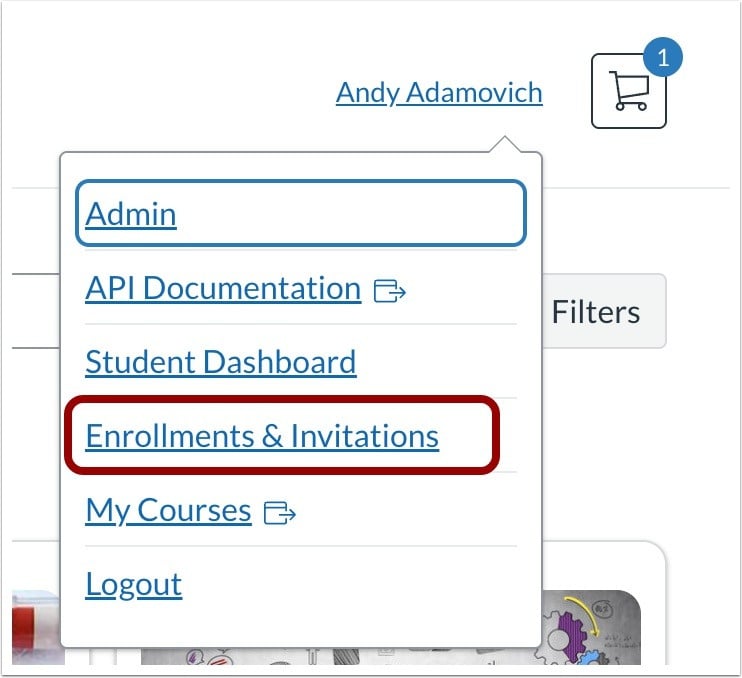
In the User menu, the Purchases & Enrollments link is changed to Enrollments & Invitations.

The checkout in progress banner is also updated.