In this Canvas release (August 4), students can manage to-do items for all their courses using a List View Dashboard option. In DocViewer, comment replies are stacked together and can be expanded to view the entire comment thread. The Rich Content Editor supports the longdesc attribute for images. Welsh has been added as a supported language.
Gradebook Export/Import CSV files display custom columns created via the API. For moderated assignments, only final graders can excuse students from assignments in SpeedGrader. Institutions using Scheduler view an updated Scheduler interface with improved functionality.
Feature Options
- For institutions using the New Gradebook, assignment columns support a minimum width of 10 px, and Gradebook Export/Import CSV files display custom columns created via the API.
- For institutions using the SIS Integration Settings feature option, Grade passback requests can be managed in bulk for a course, and syncs can be scheduled to run daily. Additionally, admins can optimize the speed of grade passback by selecting the sync duration that best supports their institution.
- For institutions using the new Developer Keys feature option, Developer Keys can be created to only be allowed in test environments.
External Tools (LTI)
- For institutions using the Quizzes.Next LTI, the beta label has been removed from the Quiz/Test button in the Assignments page.
- For institutions using Google Apps and Microsoft Office 365 LTI tools, Canvas displays a message notifying students that their submission uploads are processing.
Release notes describe upcoming Canvas functionality and are subject to change.
Release Notes Change Log
BACK TO TABLE OF CONTENTS
Dashboard
Student To Do List View
Location to Enable Feature | N/A |
Configuration Details | N/A |
Affected Canvas Areas | Dashboard, Account Settings |
Related APIs | Planner, Planner Note, Planner Override |
Affects User Interface | Yes |
Affected User Roles | Instructors, Students |
Summary
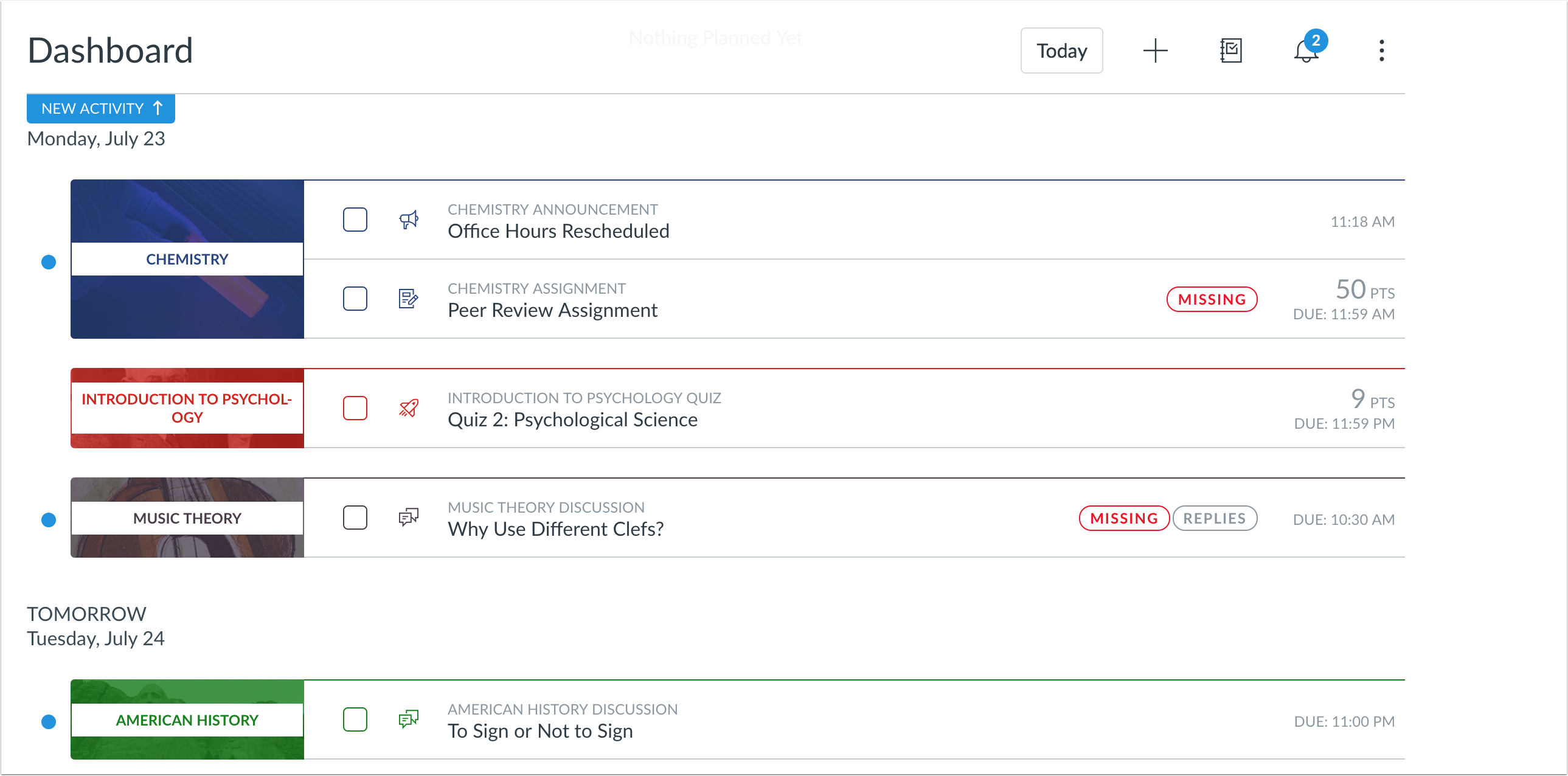
The Dashboard includes an option to view all course tasks in a list format. This view is currently only available to students. In addition to displaying automatically populated graded To Do items, the List view allows instructors to add non-graded items to the To Do list and students to add their own items to the To Do items.
Change Benefit
This change helps students manage all tasks across all their courses in a user-friendly format that also allows for user customization.
Additional Details
For full details, questions, or comments about the Dashboard List View, please see the Canvas Release: Student Dashboard List View document.
Feature Idea Contributions
https://community.canvaslms.com/ideas/11126-add-to-do-list-for-students-on-calender" modifiedtitle="true" title="Add "To Do" List For Students On Calendar https://community.canvaslms.com/ideas/9368-to-do-list
Canvas features are always welcome to feedback. Product teams may make adjustments at any time via the Canvas Feature Idea process.
BACK TO TABLE OF CONTENTS
Assignments
Google and Microsoft Office Assignment Submission Processing Notification
Location to Enable Feature | Account/Course Settings - External Apps Tab |
Configuration Details | Google Apps LTI or Microsoft Office 365 LTI |
Affected Canvas Areas | Assignments |
Affects User Interface | Yes |
Affected User Roles | Students |
Summary
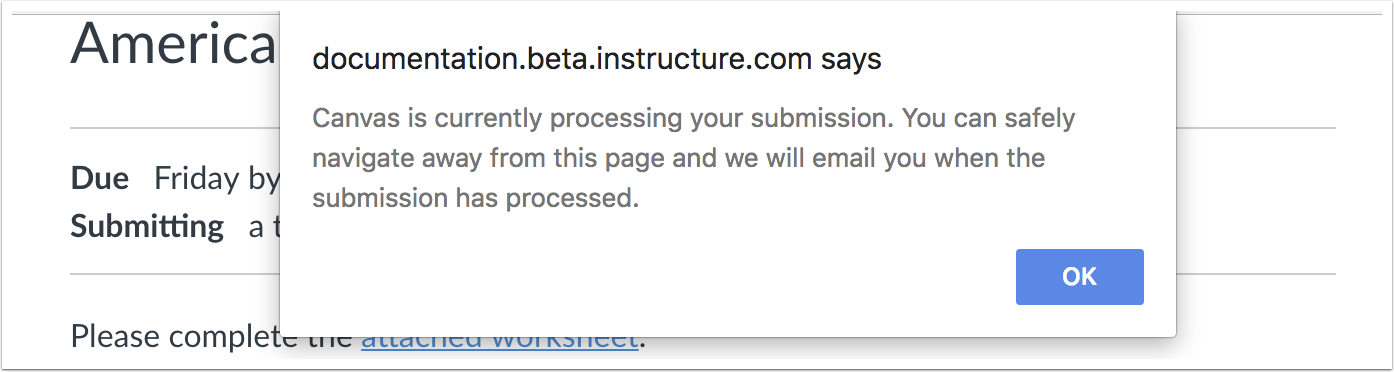
Students can navigate away from the assignment submission page without disrupting a file upload for Microsoft Office 365 or Google Drive file submissions. Canvas displays a message notifying students that their submission upload is processing.
Change Benefit
This update improves assignment submission reliability for Microsoft Office 365 and Google Drive files.
Affected User Roles & Behaviors
Students
When students upload and submit a Google or Microsoft Office 365 file to an assignment, Canvas displays a message notifying students their submission processing. Students also receive an email notification once the submission processes.
Feature Idea Contributions
Canvas features are always welcome to feedback. Product teams may make adjustments at any time via the Canvas Feature Idea process.
Calendar
New Scheduler Workflow Enforcement
Configuration Details | Contact Customer Success Manager |
Affected Canvas Areas | Scheduler (Calendar) |
Permissions & Default Roles | Course Calendar - add / edit / delete events |
Related APIs | Calendar Events API |
Affects User Interface | Yes |
Affected User Roles | Instructors, Students |
Original Feature Introduction | Canvas Production Release Notes (2017-04-01) |
Summary
The New Scheduler feature option has been enabled for all institutions currently using the Scheduler feature in the Calendar. Institutions using Scheduler view an updated Scheduler interface with improved functionality. Institutions not using the Scheduler will not be affected.
Change Benefit
This update allows instructors and students to more intuitively view and manage appointment groups created for a course.
Affected User Roles & Behaviors
Instructors
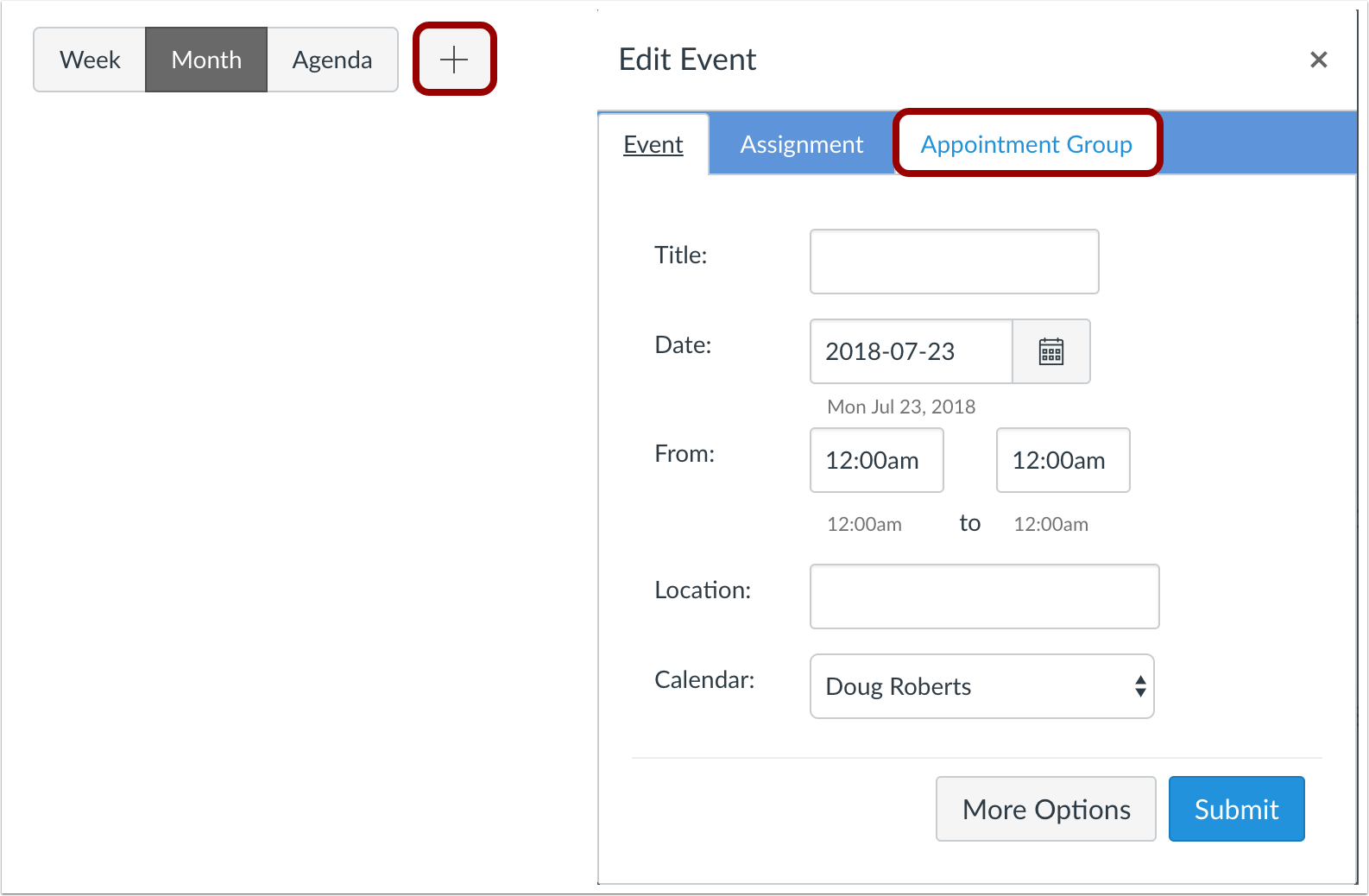
Instructors can create a Scheduler appointment group as a new tab in the Add Event window. However, instructors can only create appointment groups for courses that are displayed in the Calendar sidebar. Appropriate course calendar(s) should be selected in the sidebar before creating a calendar appointment group.
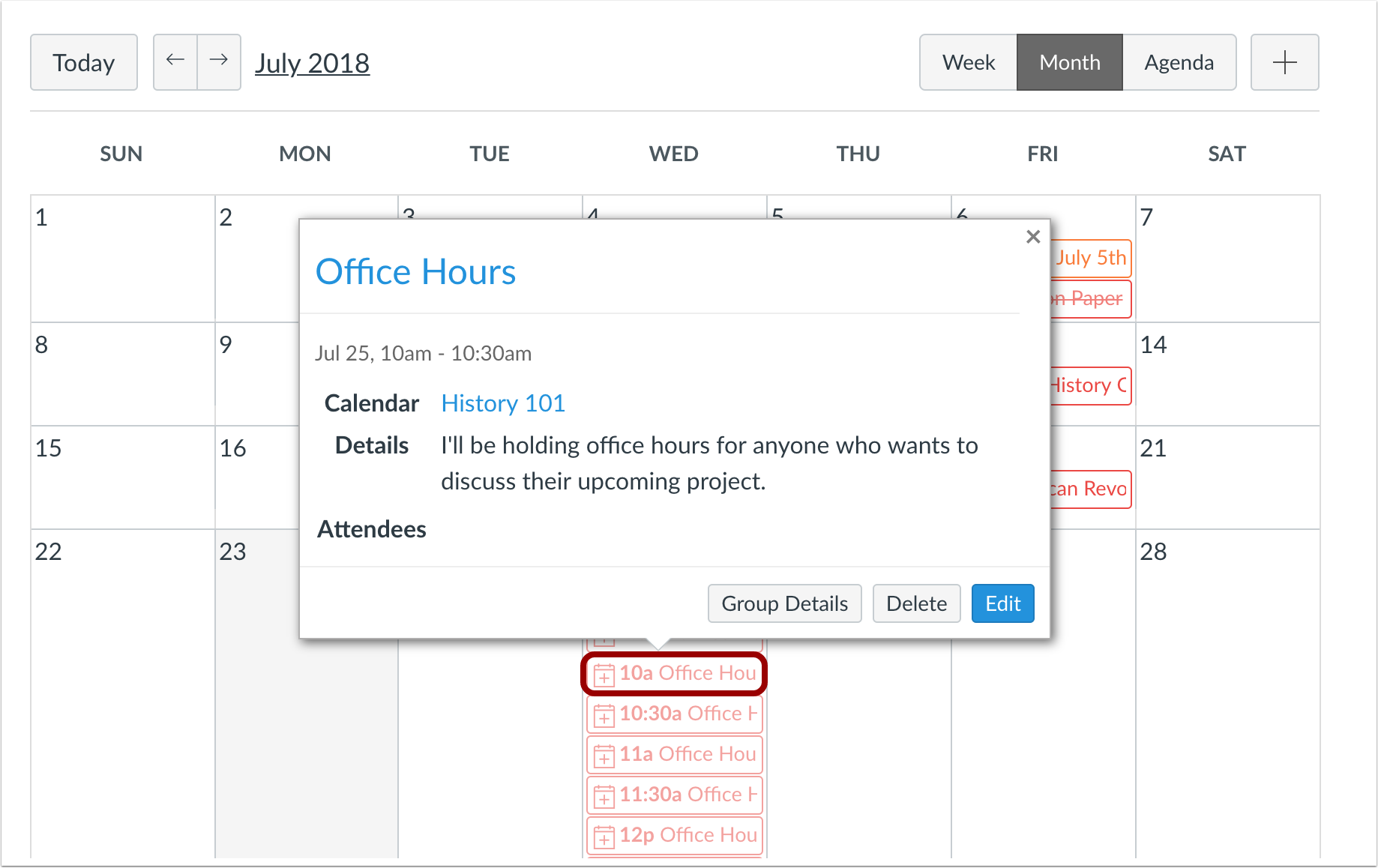
Once an appointment group is created, the appointment dates and times display directly in the instructor’s calendar. Time slots that have been claimed are shown as a solid color; unclaimed time slots are slightly faded. However, please note that if an appointment group is added to more than one course, appointment slots only display in the calendar for the first course shown in the appointment group.
Instructors can click each appointment to view individual signups, student comments, or remaining slots available. Instructors can also edit the number of users who can sign up for an individual appointment slot.
Within each date and time, instructors can also click the Group Details button to view the entire appointment group, which opens in a new window. In the Group Details page, instructors can view all details for the appointment group as per existing Scheduler functionality, add new appointment slots, and message students. Additionally, instructors can view the status of each appointment slot along with the name of each user in the reservation.
Students
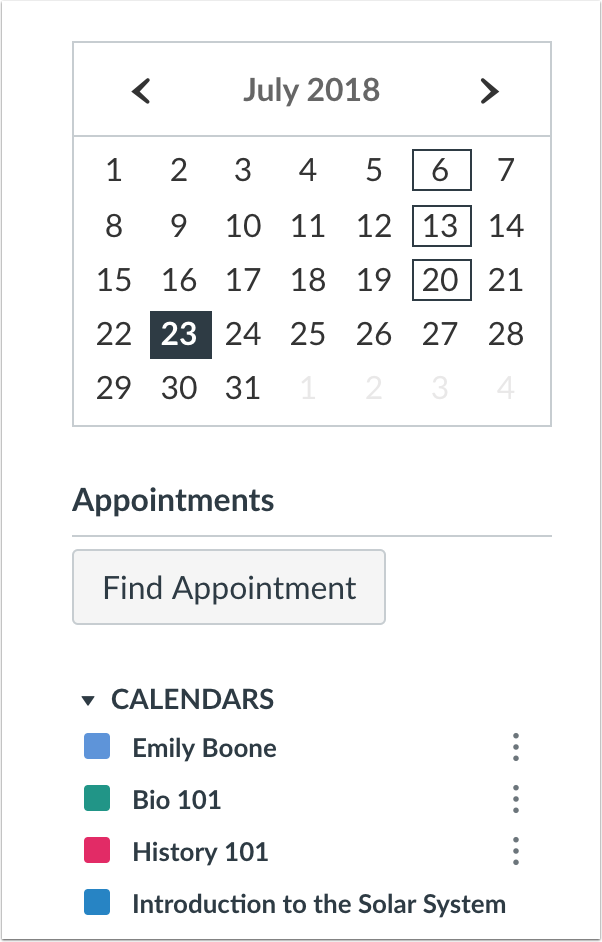
Students can find appointments with the Find Appointments button in the Calendar sidebar and display an appointments window. Any available appointment group in any calendar will be displayed for the students to select. Previously students could only view appointment groups for courses being displayed in their Calendar sidebar.
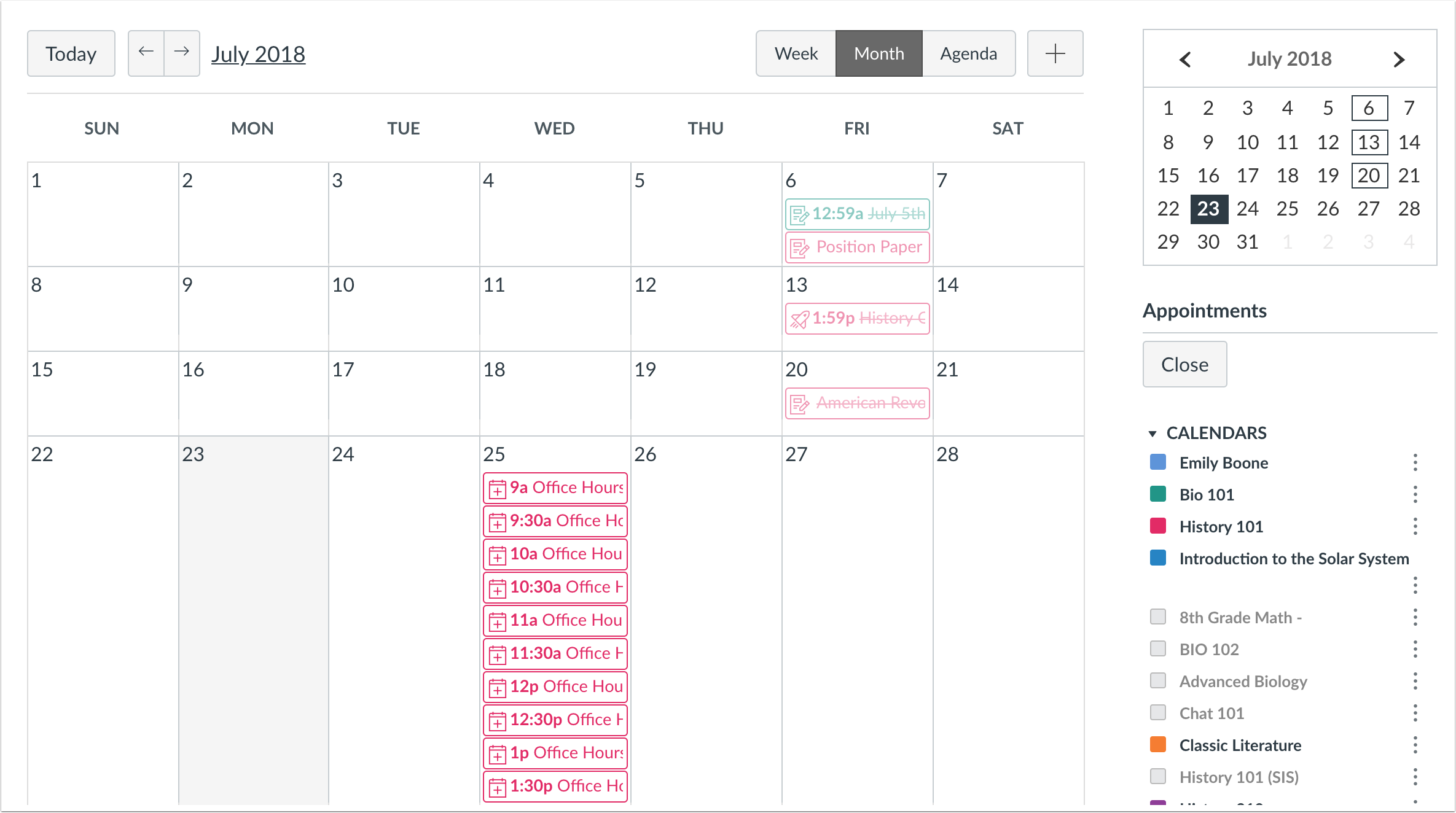
Once a student selects a course from the appointment window, all available appointments display in the student’s calendar. Faded time slots indicate the time slot has been reserved.
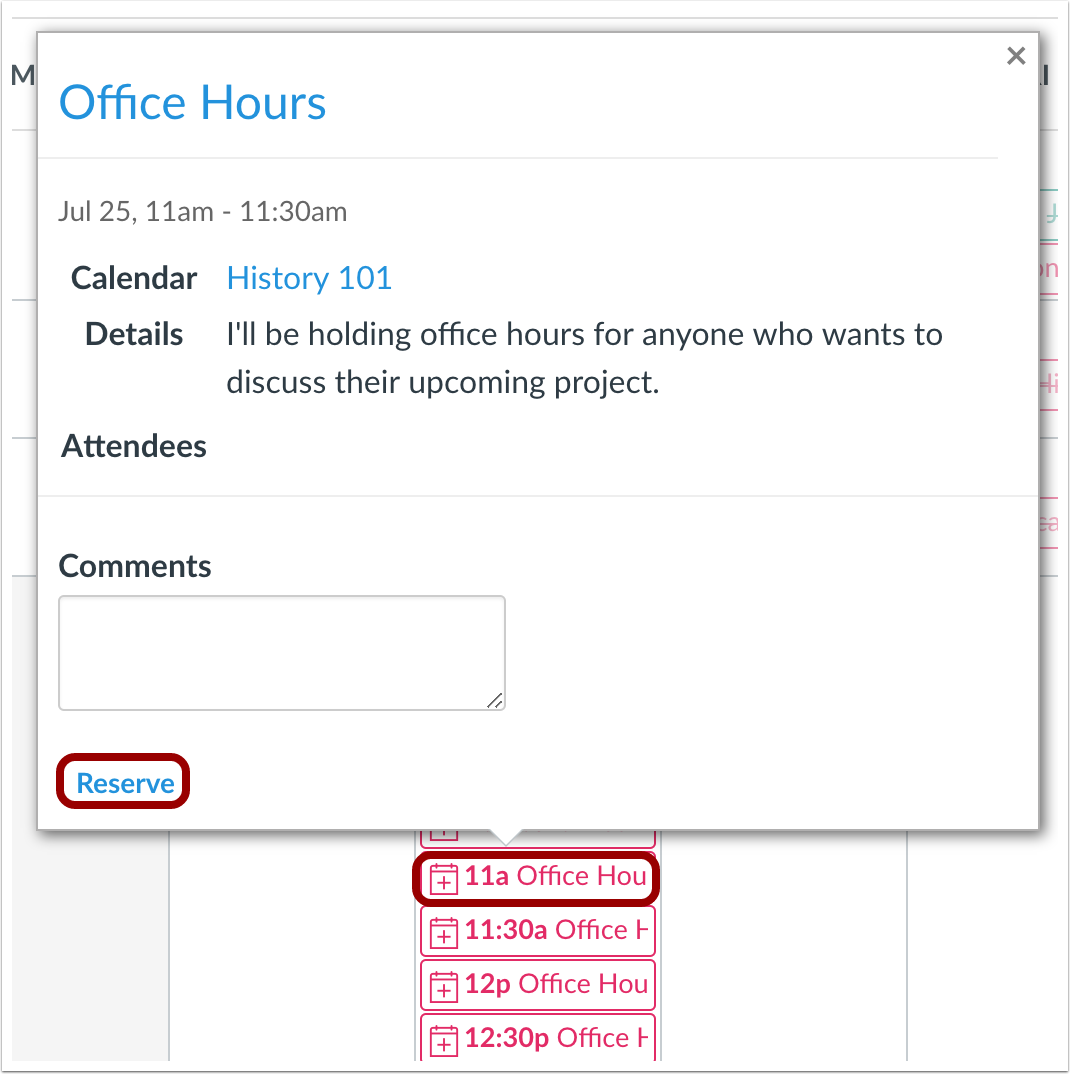
The student can reserve any appointment slot by clicking a date and time.
Once a time slot has been reserved, the student can close the appointment group view by clicking the Close button in the sidebar. Only the reserved time slot will display in the student’s calendar.
If students want to change their time slots, they must click the Find Appointment button again and repeat the appointment process.
Feature Idea Contributions
Canvas features are always welcome to feedback. Product teams may make adjustments at any time via the Canvas Feature Idea process.
Developer Keys
Test Environment Access Option
This feature is used in conjunction with an existing feature option in Canvas. Please view the content below for additional details. For more information about feature options, please see the Canvas Release Notes FAQ.
Summary
Developer Keys can be created to only be allowed in test environments.
Change Benefit
This change allows developer keys to be created without overriding production data. This functionality allows keys to be created in the production environment for environment refresh persistence, but only allow the key to function in the test environment.
Affected User Roles & Behaviors
Admins
As part of creating a new developer key or editing an existing key, the Key Settings page displays a checkbox option to enable the key for a test cluster. This checkbox represents enabling the key for the test environment associated with the account.
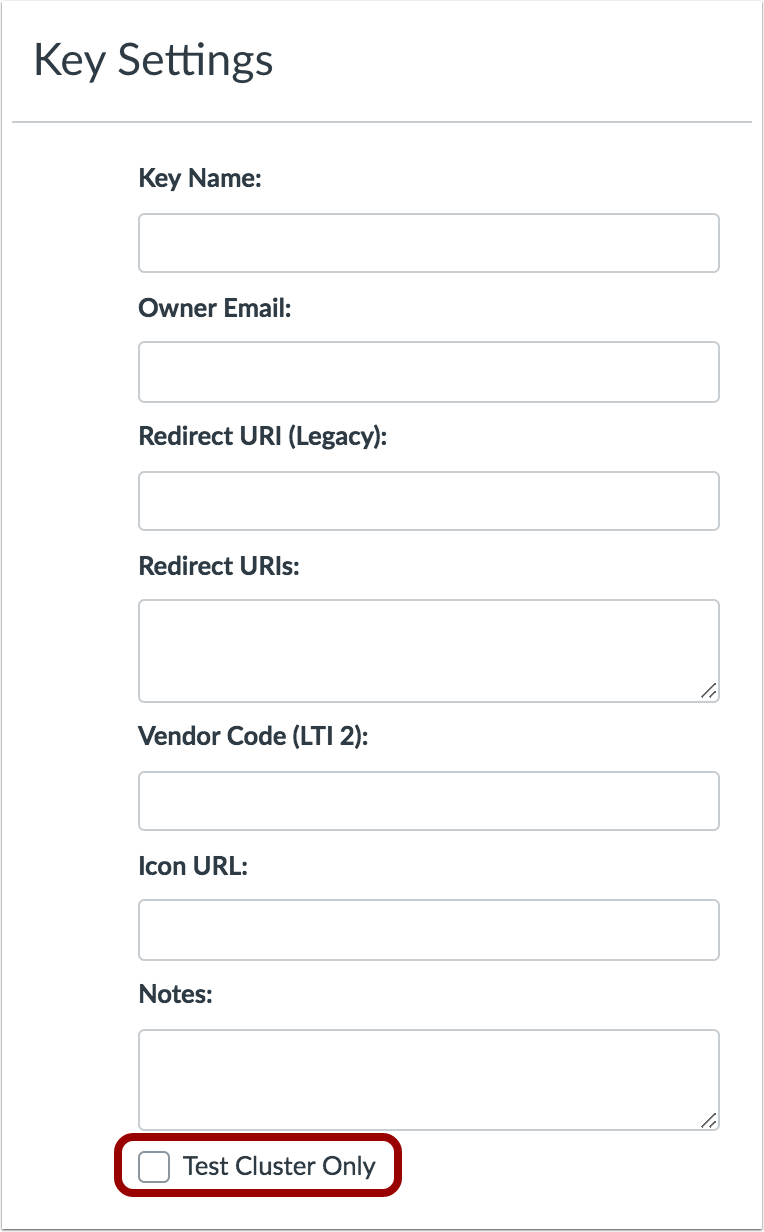
Previously, developer keys for non-production environments had to be created in the test environment and replaced after each test environment refresh, or the key was created in the production environment meaning the key worked in both environments.
Feature Idea Contributions
Canvas features are always welcome to feedback. Product teams may make adjustments at any time via the Canvas Feature Idea process.
DocViewer
Stacking Replies
Location to Enable Feature | N/A |
Configuration Details | N/A |
Supported in Beta Environment | No |
Affected Canvas Areas | DocViewer |
Affects User Interface | Yes |
Affected User Roles | Instructor, Student |
Summary
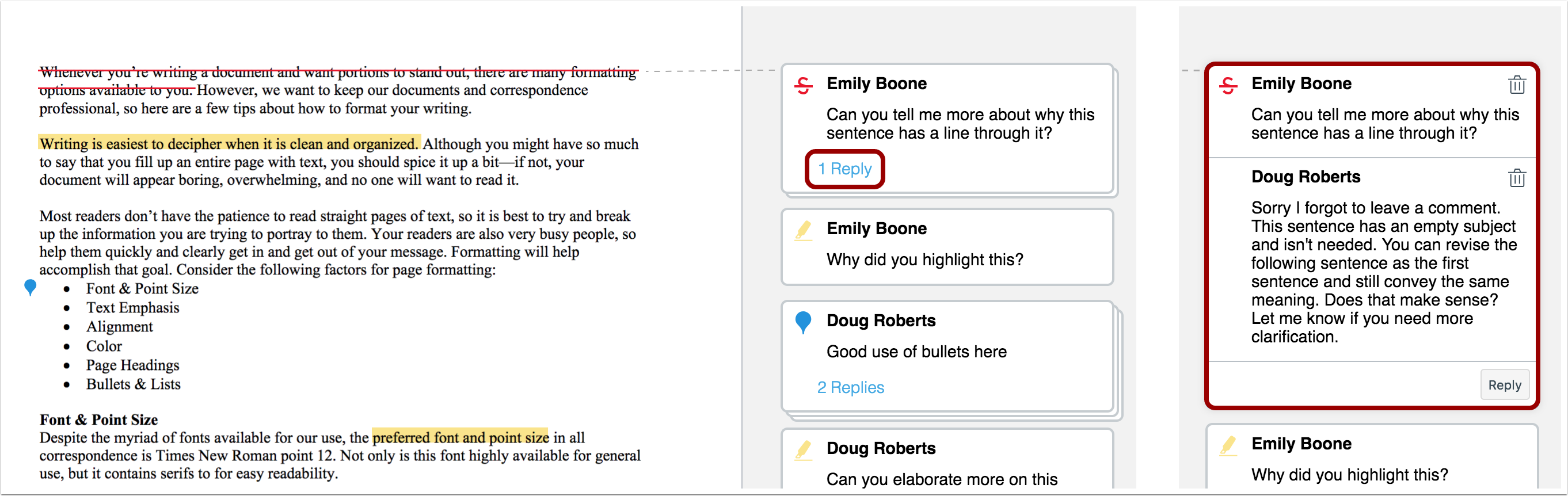
Comment replies are stacked together and can be expanded to view the entire comment thread.
Change Benefit
This change helps manage multiple comments in a document.
Affected User Roles & Behaviors
Instructors, Students
When users view comments for a DocViewer-supported document, comments with replies are stacked together. The number of replies is indicated for the comment thread. Users can click the first comment to expand and view all additional comments.
Feature Idea Contributions
Canvas features are always welcome to feedback. Product teams may make adjustments at any time via the Canvas Feature Idea process.
Gradebook
Export/Import CSV Custom Column Visibility
Location to Enable Feature | N/A |
Configuration Details | N/A |
Affected Canvas Areas | Gradebook |
Related APIs | Custom Gradebook Columns API |
Affects User Interface | No |
Affected User Roles | Instructor |
Summary
Gradebook Export/Import CSV files display custom columns created via the API.
Change Benefit
This change allows instructors to view all custom columns in the Gradebook as part of a Gradebook export or import CSV file.
Affected User Roles & Behaviors
Instructors
As part of exporting a Gradebook CSV file, instructors can view custom columns in the file. Custom columns can be created by an admin or an instructor via the API for the course. Custom columns are included at the end of the CSV file along with the final columns in the Gradebook. Custom columns can be created as editable or read only. Read-only column content cannot be changed.
If a custom column is editable, changes can be made in the CSV and uploaded to the Gradebook.
Feature Idea Contributions
Canvas features are always welcome to feedback. Product teams may make adjustments at any time via the Canvas Feature Idea process.
New Gradebook
CSV Export/Import Custom Column Visibility
This feature is used in conjunction with an existing feature option in Canvas. Please view the content below for additional details. For more information about feature options, please see the Canvas Release Notes FAQ.
Location to Enable Feature | N/A |
Configuration Details | New Gradebook Feature Option |
Affected Canvas Areas | New Gradebook |
Related APIs | Custom Gradebook Columns API |
Affects User Interface | No |
Affected User Roles | Instructors |
Summary
Gradebook Export/Import CSV files display custom columns created via the API.
Change Benefit
This change allows instructors to view all custom columns in the Gradebook as part of a Gradebook export or import CSV file.
Affected User Roles & Behaviors
Instructors
As part of exporting a Gradebook CSV file, instructors can view custom columns in the file. Custom columns can be created by an admin or an instructor via the API for the course. Custom columns are included at the end of the CSV file along with the final columns in the Gradebook. Custom columns can be created as editable or read only. Read-only column content cannot be changed.
If a custom column is editable, changes can be made in the CSV and upl